The best vertical monitor for most streaming and coding desks is the Samsung Odyssey G50A: its stand rotates fully into portrait mode, and the 27-inch 1440p IPS panel gives chat windows, timelines and code editors far more vertical room than a landscape side screen. Buyers who want a sharper 4K panel for dense code should step up to the Dell UltraSharp U2723QE, while streamers who may promote the side screen to main-display duty should look at the LG UltraGear 27GP850-B.
A vertical side screen only works if the monitor can physically get there. The non-negotiable feature is a pivot stand that rotates the panel 90 degrees into portrait orientation, ideally with height adjustment so the tall screen lines up with your main display. Every monitor below ships with a pivot-capable stand and a 27-inch panel at 1440p or higher.
As an Amazon Associate, we earn from qualifying purchases.
Our Top Picks
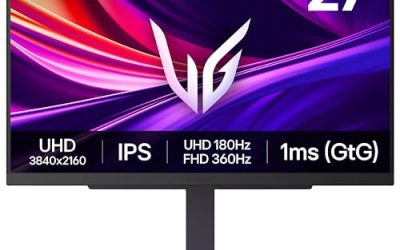
 LG 27GP850-B Ultragear Gaming Monitor 27-Inch QHD14.4"x24.2"x2"11.5 x 24.2 x 22.7 inches13.9 poundsCheck on Amazon
Top 3 picks at a glance


Quick Answer
Choose the Samsung Odyssey G50A for a mid-range vertical side screen with full portrait rotation and 165Hz. Pick the Dell UltraSharp U2723QE for 4K coding sharpness and a USB-C hub, the LG UltraGear 27GP850-B if the side screen may double as a gaming display, and the ASUS ProArt PA279CRV for color-accurate 4K work.
Table of Contents
- Samsung Odyssey G50A
- LG UltraGear 27GP850-B
- MSI Optix MAG274QRF-QD
- Dell UltraSharp U2723QE
- ASUS ProArt Display PA279CRV
- How to Choose a Vertical Monitor
- Who Should Skip a Vertical Monitor
- FAQ
- Final Verdict
- Product and ASIN Reference
The Best Vertical Monitors for Streaming Side Screens
Samsung Odyssey G50A
The Odyssey G50A (model LS27AG500PNXZA) is the natural starting point because Samsung built the stand for exactly this job. It adjusts for height, tilt and swivel and includes a full pivot rotation, so the flat 27-inch IPS panel turns into portrait mode without an aftermarket arm. In portrait, the 2560 x 1440 resolution becomes a tall canvas that stacks chat, Discord and a music queue without constant scrolling.
The panel itself is gaming-grade, running at 165Hz with a 1ms gray-to-gray response time, HDR10 support and adaptive sync for both G-Sync and FreeSync Premium. That headroom is wasted on chat, but it means the G50A can swing back to landscape and serve as a main display. The trade-off is connectivity: one HDMI 2.0 port, one DisplayPort 1.2 input and no USB hub, so laptop users will need a dock. As the mid-range pick, it spends on the panel and stand rather than ports.
Specs
- Panel: 27-inch IPS, 2560 x 1440
- Refresh rate: 165Hz
- Response time: 1ms GtG
- Color: HDR10 support
- Adaptive sync: NVIDIA G-Sync Compatible, AMD FreeSync Premium
- Ports: 1x HDMI 2.0, 1x DisplayPort 1.2, headphone out
- Stand: height, tilt, swivel and pivot, VESA mount
LG UltraGear 27GP850-B
The 27GP850-B is the pick for streamers who want a genuine second gaming monitor rather than a passive chat display. Its Nano IPS panel runs at a native 165Hz and overclocks to 180Hz over DisplayPort, with a 1ms response time and adaptive sync for both G-Sync and FreeSync Premium. In portrait that speed is irrelevant for chat, but the color is not: 98 percent DCI-P3 coverage and a VESA DisplayHDR 400 rating keep overlays, alerts and previews looking accurate next to a main gaming screen.
The stand adjusts for height, tilt and pivot, so rotating between portrait duty and landscape play takes seconds. Connectivity is generous, with two HDMI 2.0 ports, a DisplayPort 1.4 input and a two-port USB 3.0 hub. This is the premium all-rounder: it costs more than a side screen strictly needs to, but nothing feels like a compromise if your layout changes often.
Specs
- Panel: 27-inch Nano IPS, 2560 x 1440
- Refresh rate: 165Hz native, 180Hz overclocked
- Response time: 1ms GtG
- Color: DCI-P3 98 percent, VESA DisplayHDR 400
- Adaptive sync: NVIDIA G-Sync Compatible, AMD FreeSync Premium
- Ports: 2x HDMI 2.0, 1x DisplayPort 1.4, USB 3.0 hub, headphone out
- Stand: height, tilt and pivot, VESA mount
MSI Optix MAG274QRF-QD
The MAG274QRF-QD suits a desk where the vertical screen is shared between a gaming PC and a laptop. Its stand adjusts for height, tilt, swivel and pivot, and the connections are built for two-machine setups: USB-C with DisplayPort Alt Mode and 15W power delivery drives the screen from a laptop over one cable, and a built-in KVM switch lets both computers share the same keyboard and mouse. In portrait it becomes a home for documentation, a terminal or a code editor that follows whichever machine is active.
The Rapid IPS panel uses a quantum-dot layer to reach 97 percent DCI-P3 coverage with 10-bit color depth (8-bit plus frame rate control). It runs at 165Hz over DisplayPort or USB-C with a 1ms GTG response time and G-Sync Compatible adaptive sync, though HDMI tops out at 144Hz, so PC players should use DisplayPort or USB-C for the full rate. For a hybrid work-and-stream desk, this is the most flexible mid-range option here.
Specs
- Panel: 27-inch Rapid IPS with quantum dot, 2560 x 1440
- Refresh rate: 165Hz via DisplayPort and USB-C, 144Hz via HDMI
- Response time: 1ms GTG
- Color: DCI-P3 97 percent, HDR ready
- Adaptive sync: NVIDIA G-Sync Compatible
- Ports: 1x DisplayPort 1.2a, 2x HDMI 2.0b, 1x USB-C (DP Alt Mode, 15W PD), 2x USB 2.0, KVM
- Stand: height, tilt, swivel and pivot adjustable, VESA 100 x 100 mount
Dell UltraSharp U2723QE

The U2723QE is the coding-first pick, and in portrait mode its 4K resolution is the headline: 2160 pixels across and 3840 down the tall axis keep small fonts crisp through long files, diffs and log output. The IPS Black panel doubles the usual IPS contrast to 2000:1, so dark editor themes show deeper blacks, and color coverage runs to 98 percent of DCI-P3 and 100 percent of sRGB. The full ergonomic stand adjusts for height, tilt, swivel and pivot.
Its hub is the other reason to buy it. One USB-C cable delivers the 4K picture plus up to 90W of charging, and the monitor adds USB ports, an RJ45 Ethernet jack and a DisplayPort output that can daisy-chain a second screen. An auto KVM switches peripherals between two computers. The limits are refresh and response: 60Hz and 5ms make it a workstation side screen, not a primary gaming panel. This is the premium choice for programmers.
Specs
- Panel: 27-inch IPS Black, 3840 x 2160
- Refresh rate: 60Hz
- Response time: 5ms gray-to-gray in fast mode
- Contrast and color: 2000:1 contrast, 98 percent DCI-P3, 100 percent sRGB
- Ports: USB-C with 90W PD, DisplayPort 1.4 in and out, HDMI 2.0, RJ45 Ethernet, USB hub, KVM
- Stand: height, tilt, swivel and pivot adjustment
ASUS ProArt Display PA279CRV

The PA279CRV is the pick for streamers and coders who also edit video or photos on the side screen. Its 27-inch 4K IPS panel covers 99 percent of DCI-P3 and 99 percent of Adobe RGB with 10-bit color, and it arrives factory calibrated to a Delta E below 2 and Calman Verified, so overlay, thumbnail and grade colors are trustworthy without a calibrator. DisplayHDR 400 adds modest headroom for HDR previews.
The stand adjusts for height, tilt, swivel and pivot, and the port selection keeps the desk tidy: USB-C carries the picture alongside 96W of power delivery, a DisplayPort output daisy-chains a second screen, and a USB hub keeps drives off the PC. Flicker-free backlighting and low-blue-light filtering help during long sessions. The trade-off is speed, since 60Hz and a 5ms response suit chat, code and editing rather than competitive play. Buy it when color accuracy outranks frame rate.
Specs
- Panel: 27-inch IPS, 3840 x 2160
- Refresh rate: 60Hz
- Response time: 5ms gray-to-gray
- Color and HDR: 99 percent DCI-P3, 99 percent Adobe RGB, DisplayHDR 400
- Color accuracy: factory calibrated, Delta E below 2, Calman Verified
- Ports: 2x HDMI 2.0, DisplayPort 1.4 in and out, USB-C with 96W PD, USB hub
- Stand: height, tilt, swivel and pivot, daisy-chain support
How to Choose a Vertical Monitor
Start with the stand, because it decides whether the monitor works vertically at all. Look for a pivot adjustment in the stand specifications, plus height adjustment to align the tall panel with your main screen. A VESA mount is the fallback, since a monitor without pivot can go vertical on an arm, but every pick above rotates on its own stand.
Next, match resolution to the job. For coding, 4K in portrait mode keeps small text sharp and fits more lines on screen, which is why the two 4K picks lead for programmers. For chat, Discord and streaming tools, 1440p is plenty and costs less. Panel size matters too: 27 inches is the sweet spot, tall enough to stack several windows without forcing you to look up.
Then check connections. Laptop users should prefer USB-C with power delivery, and anyone sharing the screen between two machines should look for a KVM switch like the ones on the MSI and Dell picks. Refresh rate only matters if the side screen doubles as a gaming display; chat and code look identical at 60Hz and 165Hz. Finally, set the rotation in your display settings after turning the panel, and match scaling so text feels consistent across both screens.
Who Should Skip a Vertical Monitor
Skip a vertical side screen if your second display mostly shows video, games or a full-width stream preview, since portrait mode wastes most of the panel on that content. Very narrow desks are another poor fit, because a rotated 27-inch monitor stands well above a landscape one and crowds speakers and shelves.
Also skip these picks if you already own a spare monitor and a VESA arm, since the arm alone can rotate a screen you have. And if the side screen must double as a high-refresh main display for competitive play, the two 4K 60Hz picks are the wrong tools; choose a 165Hz model instead.
FAQ
Does every monitor rotate into portrait mode?
No. Portrait mode requires a stand with a pivot adjustment, or a VESA mount paired with a rotating monitor arm. Many budget monitors ship with tilt-only stands that can never turn vertical. All five monitors in this roundup include pivot stands, so each rotates into portrait without extra hardware.
What size and resolution are best for a vertical side screen?
A 27-inch panel at 1440p or 4K is the practical sweet spot. In portrait mode the long axis stacks chat, code and tool windows with room to spare, and 4K keeps small code fonts sharper than 1440p. Smaller panels feel cramped for code, while larger ones stand very tall.
Does a vertical monitor keep its full refresh rate in portrait mode?
Yes. Rotating the panel changes only the orientation, not the signal, so a 165Hz monitor still runs at 165Hz in portrait mode over the same cable. Your operating system handles the rotated resolution once you select portrait in display settings.
Can I use a vertical monitor for console streaming chat?
Yes, as long as the monitor connects to the PC running your streaming software rather than to the console itself. The console feeds your capture card and main display, while the PC drives the vertical screen with chat, alerts and your dashboard in portrait mode.
Final Verdict
For most streaming and coding desks, the Samsung Odyssey G50A is the right vertical monitor: a proper pivot stand, a sharp 1440p panel and 165Hz at a mid-range tier. Programmers should step up to the Dell UltraSharp U2723QE for 4K sharpness and its USB-C hub, color-focused creators should take the ASUS ProArt PA279CRV, and streamers who want the side screen to double as a gaming display should choose the LG UltraGear 27GP850-B or the KVM-equipped MSI Optix MAG274QRF-QD.
Product and ASIN Reference
| Product | ASIN |
|---|---|
| Samsung Odyssey G50A (LS27AG500PNXZA) | B096YMQ3C8 |
| LG UltraGear 27GP850-B | B093MTSTKD |
| MSI Optix MAG274QRF-QD | B08PKHV1R9 |
| Dell UltraSharp U2723QE | B09TQZP9CL |
| ASUS ProArt Display PA279CRV | B0BQPSX5CR |
Related guides
More from Amazon
Programs that pair well with the guide above. Offers and eligibility are set by Amazon and may change.
A free business account with business pricing and bulk-buying tools for work, shop or home office.
Create a business accountFree shipping on eligible items, Prime Video and more. Eligible new members can start with a free trial.
Start a Prime free trialAudiobooks and podcasts to listen to on the go. Eligible new members can start with a free trial.
Try Audible freeAd-free music streaming. Eligible new subscribers can start with a free trial.
Try Music Unlimited freeAs an Amazon Associate we earn from qualifying purchases.