
Buying an external drive looks simple until you compare connection standards, storage types, physical durability, software support, and real-world prices. A common mistake is choosing the largest capacity at the lowest price, then discovering that the drive is slow, incompatible with a laptop, too fragile for travel, or poorly suited to the job.
Another mistake is treating every “USB 3.0” label as equivalent. A portable solid-state drive can transfer files several times faster than a mechanical hard disk, while an external CD/DVD drive serves an entirely different purpose. And although advertised speeds are useful, they depend on the computer, cable, file sizes, and port being used.
As an Amazon Associate we earn from qualifying purchases at no extra cost to you.




The best external drive is the one that matches how you will use it. Start with the decisions below, then compare the specifications that matter most.
Our Top Picks

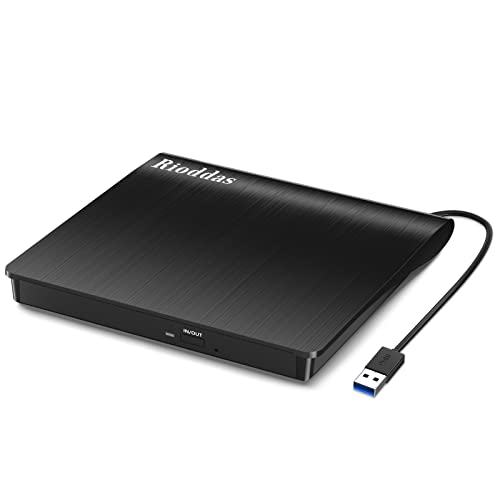
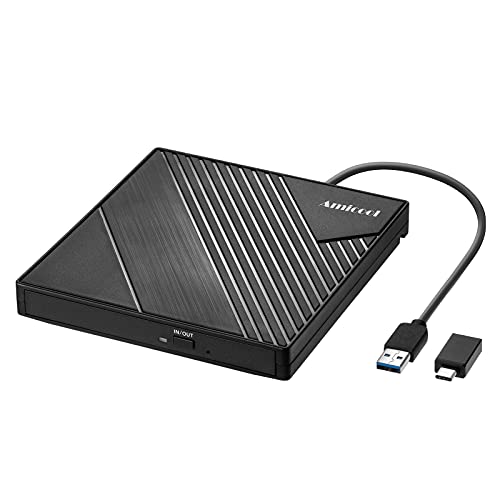

Top 3 picks at a glance
Decide These 3 Things First
- What will you store? Photos, documents, games, video projects, system backups, and optical discs have very different requirements. A 1TB SSD may be ideal for daily work, while a 4TB hard disk is better for a large home archive.
- How often will you use it? Drives used every day benefit from SSD speed, compact construction, and a durable cable. A drive used once a month for backup can prioritize capacity and price.
- Will you travel with it? A desktop hard drive may need a power adapter and a permanent space beside a computer. A portable SSD or slim optical drive can run from USB power and fit in a small bag.
Also decide whether you need data storage or disc access. An external CD/DVD drive reads and writes optical discs but does not replace a hard drive or SSD. Basic USB optical drives commonly cost about $20 to $35, while portable SSDs generally begin around $70 for 500GB and can exceed $300 for 2TB models.
Size and Capacity
Capacity should reflect both your current files and the next few years of growth. For general documents, tax records, and photos, 500GB to 1TB is a practical starting point. A 1TB drive holds roughly 1,000GB in manufacturer labeling, although the usable space shown by your computer will be lower after formatting.
- 500GB to 1TB: Suitable for office files, schoolwork, photos, and a laptop backup.
- 2TB: A strong all-purpose choice for large photo libraries, video collections, and creative projects.
- 4TB to 8TB: Better for long-term archives, multiple computers, and high-resolution video.
- Optical storage: A DVD holds about 4.7GB on a single-layer disc or 8.5GB on a dual-layer disc. A standard CD holds about 700MB.
Physical size matters, too. Portable SSDs often measure approximately 4.0 by 2.5 inches and weigh around 1.5 to 3 ounces. Portable hard disks are commonly about 4.5 by 3 inches and weigh 4 to 8 ounces. Slim external DVD drives are usually about 5.5 by 5.5 inches, less than 0.75 inch thick, and weigh roughly 8 to 12 ounces.
Material and Durability
Materials affect how well a drive handles travel, heat, and everyday handling. Aluminum housings can help disperse heat and usually feel more substantial than basic plastic, but rubberized edges and textured surfaces may provide better grip.
For a drive that stays on a desk, a ventilated plastic or metal enclosure may be sufficient. For a portable SSD, look for reinforced corners, a protected USB-C port, and a stated resistance rating. Some compact SSDs advertise IP65 protection, which indicates resistance to dust and low-pressure water jets; it does not mean the drive can be submerged.
Water resistance is only useful when the port cover, cable, and enclosure are used as intended. Do not assume an unprotected USB connector is waterproof. A padded case is still worthwhile, especially because impact damage can occur even when an enclosure has a durability rating.
Construction and Connection
Connection type determines compatibility and often limits speed. USB-C describes the shape of the connector, not the performance standard. A USB-C drive can still use slower USB 2.0 technology, so check the stated transfer standard as well.
- USB 2.0: Theoretical maximum of 480Mb/s. Fine for many optical drives, but slow for large backups.
- USB 3.0 or USB 3.2 Gen 1: Theoretical maximum of 5Gb/s.
- USB 3.2 Gen 2: Theoretical maximum of 10Gb/s. A common match for portable SSDs rated near 1,000MB/s.
- USB 3.2 Gen 2×2: Theoretical maximum of 20Gb/s, but support is less common on laptops and desktops.
A drive may include USB-C on one end and USB-A on the other, or provide an adapter. Check the cable length, too. A 12- to 20-inch cable is convenient for a laptop, while a desktop setup may need 24 inches or more. Avoid relying on very thin, unbranded replacement cables when performance or reliable power is important.
Comfort and Performance
For storage, “comfort” means ease of use: a drive should connect without awkward adapters, stay stable on a desk, and avoid excessive heat or noise. SSDs have no moving platters, so they are silent and generally better for travel. Hard disk drives contain moving parts and can be more vulnerable to drops while operating.
Advertised SSD speeds around 1,050MB/s are useful for moving large video files or project folders, but they are not guaranteed in every situation. Small documents often transfer more slowly because they involve many separate operations. A computer with a slower port will also cap performance.
Mechanical hard drives commonly offer lower transfer speeds but much higher capacity for the money. They may also require more patience for large backups. External optical drives are slower still, but they are the right tool for playing old discs, installing software from physical media, or burning CDs and DVDs.
Consider power requirements. Bus-powered portable SSDs and many slim optical drives draw power through USB. Larger desktop hard drives often use a separate adapter and may consume approximately 5 to 15 watts during operation, depending on the model. If you plan to use a drive with a tablet, phone, or game console, confirm that the host device can provide enough power.
Price Tiers
Prices vary with capacity, speed, durability, and brand reputation. As a general guide for 2026:
- Budget, $20 to $60: Basic external CD/DVD drives, small hard drives, and entry-level storage. Expect simpler housings, shorter warranties, and lower performance.
- Midrange, $70 to $180: 500GB to 2TB portable SSDs, or larger mechanical drives. This is often the best value for everyday backups and file transfers.
- Premium, $190 to $350 or more: Rugged 2TB SSDs, higher-speed models, and large-capacity desktop solutions. You are paying for speed, construction, and convenience rather than storage alone.
For context, a listed 1TB portable SSD priced at around $170 and a 2TB rugged portable SSD priced at around $290 sit in the midrange-to-premium portion of the market. Basic external DVD drives priced around $20 to around $22 are budget products, but their low cost reflects their narrower purpose rather than poor value.
Warranty and Support
Look for at least a one-year limited warranty on a budget drive and two to five years on a more expensive SSD or hard drive. The warranty may cover hardware failure but not accidental damage, lost files, water exposure, or recovery costs.
Check whether the manufacturer provides firmware updates, diagnostic software, backup utilities, and a clear support process. Firmware support is particularly useful for SSDs because it can address compatibility or reliability issues. Keep your important files in at least two locations; a warranty replacement will not restore data that was stored only on the failed drive.
Delivery, Setup, and Accessories
Before ordering, confirm that the package includes the correct cable. A drive with a USB-C port may include a USB-C-to-USB-C cable but no USB-A adapter. Optical drives may include recording software, but some provide only the hardware, leaving you to supply compatible playback or burning software.
Allow time for formatting. Windows and macOS can read common formats, but a drive formatted for one operating system may not provide full write access on another. exFAT is often convenient for sharing files between modern Windows and Mac computers, while NTFS and APFS may be preferable for single-platform use.
For desktop hard drives, plan for the power adapter and a stable location. For portable SSDs, a protective pouch costing about $10 to $25 can prevent scratches and cable damage. Never disconnect a drive while files are being written; eject it through the operating system first.
Spec Checklist
| Spec | Budget | Mid | Premium |
|---|---|---|---|
| Typical price | $20–$60 | $70–$180 | $190–$350+ |
| Best capacity range | 500GB–1TB or optical discs | 1TB–2TB | 2TB–8TB |
| Drive type | Basic HDD or CD/DVD drive | Portable SSD or large HDD | Rugged, high-speed SSD or desktop archive |
| Connection | USB 3.0, USB-A, or USB-C | USB 3.2 Gen 1 or Gen 2 | USB 3.2 Gen 2 or faster |
| Advertised transfer rate | Up to about 100–500MB/s, depending on type | Up to about 1,000MB/s | Up to about 1,050MB/s or higher |
| Portability | 8–12 ounces for optical drives; heavier for desktop HDDs | 1.5–8 ounces | 1.5–4 ounces, often with impact protection |
| Warranty target | One year | One to three years | Three to five years |
Red Flags
- A listing gives a speed but does not identify the USB generation or required port.
- The advertised capacity is unusually high for the price, with no clear manufacturer or warranty.
- The product has many reviews mentioning disconnected drives, corrupted files, or missing cables.
- An SSD claims water resistance without identifying an IP rating.
- A portable hard drive requires more power than your laptop, tablet, or console can supply.
- An optical drive listing does not clearly state whether it reads, writes, or supports both CDs and DVDs.
- The warranty excludes the region where you intend to use the drive.
FAQ
Is an external SSD better than an external hard drive?
An SSD is usually better for frequent use, travel, quiet operation, and fast transfers. A hard drive is often cheaper per terabyte and makes sense for large archives that do not need to move constantly. Many households use an SSD for active files and a hard drive for secondary backups.
How much external storage do I need?
Choose 1TB for everyday documents and photos, 2TB for a growing media library or creative work, and 4TB or more for extensive video collections or multiple computer backups. Leave at least 10% to 15% free so the drive does not become difficult to manage.
Can I use an external drive with both Windows and Mac?
Yes, but the format matters. exFAT is commonly used when the drive must be read and written by both systems. Always back up the contents before reformatting, because formatting erases existing data.
Do I still need an external CD/DVD drive?
If you use music CDs, movie DVDs, archived discs, older software, or physical installation media, an external optical drive can be worthwhile. It is not a substitute for an SSD or hard drive because its capacity and transfer speed are much lower.









