
Buying an SSD enclosure seems simple: put a spare drive in a small case, connect a cable, and use it as portable storage. The mistakes usually happen before checkout. Shoppers buy an NVMe enclosure for a SATA drive, assume a 20Gbps enclosure will make any SSD faster, overlook heat management, or discover that the included cable is too short for their desktop setup. Others choose the cheapest plastic case, then use it for long video transfers that cause the drive to run hot and slow down.
The right enclosure is not necessarily the fastest or most expensive one. It is the one that matches your SSD’s physical format and interface, your computer’s port, and the way you actually plan to use it—whether that means occasional backups, daily document storage, photo libraries, or editing large media files. Here is what actually matters.
As an Amazon Associate we earn from qualifying purchases at no extra cost to you.




Our Top Picks
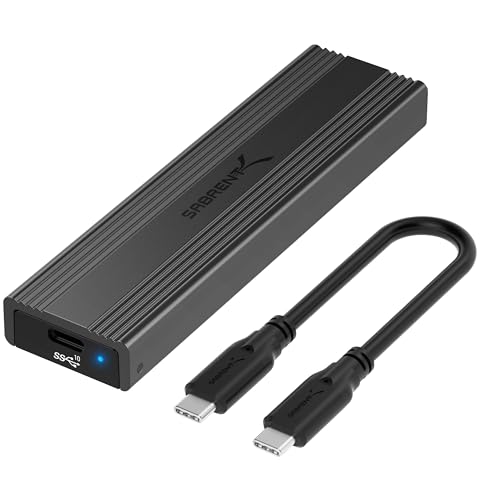
 SABRENT USB-C NVMe Enclosure & Reader10Gbps NVMe Only4.59 x 1.24 x 0.6 inches0.2 poundsCheck on Amazon
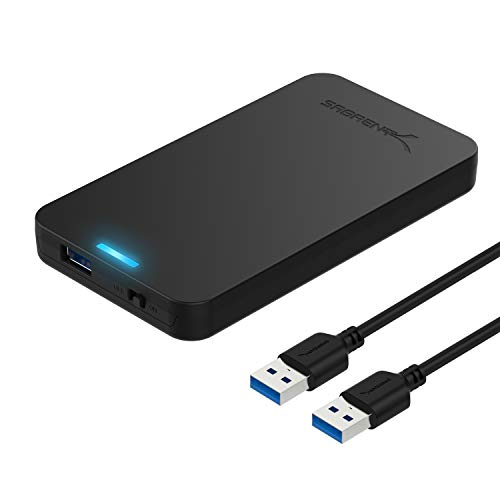 SABRENT 2.5in SATA to USB 3.0 Tool-Free SSD/HDDSATA Black4.9 x 3.1 x 0.5 inches0.1 PoundsCheck on Amazon
 SABRENT Tool-Free NVMe & SATA M.2 SSD Enclosure10Gbps NVMe + SATA4.59 x 1.24 x 0.5 inches0.2 poundsCheck on Amazon
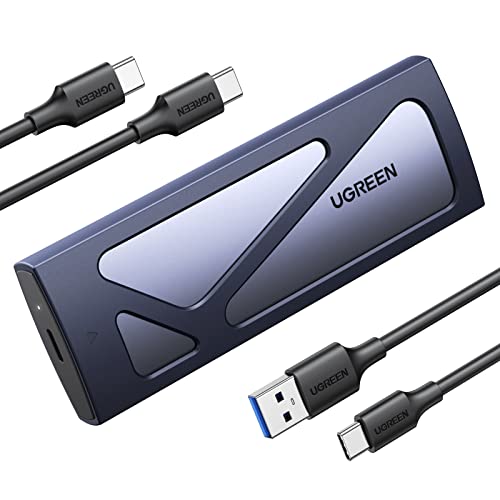
Top 3 picks at a glance
Decide These 3 Things First
- Identify the drive you already own or plan to buy. An M.2 NVMe SSD and an M.2 SATA SSD may look similar, but they use different protocols. A 2.5-inch SATA SSD requires a larger SATA-to-USB enclosure. Check the drive label or manufacturer specifications before ordering.
- Check your computer’s fastest port. A 10Gbps enclosure is a sensible default for most USB-C laptops and desktops. A 20Gbps model needs a USB 3.2 Gen 2×2 port to reach its potential, and those ports are not universal. Thunderbolt or USB4 enclosures cost more and make the most sense for sustained, demanding workloads.
- Define the job. For weekly backups and files, a basic enclosure is enough. For frequent transfers of 50GB to 500GB video projects, game libraries, or high-resolution photo catalogs, prioritize a metal housing, thermal pad, reliable controller, and a short high-quality cable.
1. Drive Size and Interface Compatibility
Compatibility is the first non-negotiable. SSD enclosure listings often use technical language that can obscure an important distinction: physical size is not the same thing as interface type.
For M.2 drives, look for the supported length. The most common consumer length is 2280, meaning 22mm wide and 80mm long. Many enclosures also support 2230, 2242, and 2260 drives. A model described as supporting 2230/2242/2260/2280 covers most standard M.2 SSDs. Short 2230 drives are especially common in compact devices and handheld gaming systems.
Then verify the protocol:
- NVMe/PCIe M.2: Usually uses an M-key connector. These drives are common in newer laptops and desktops and can support high transfer speeds.
- M.2 SATA: Often uses a B-key or B+M-key connector. It is physically compact but operates at SATA speeds.
- 2.5-inch SATA: A rectangular drive, typically about 2.75 inches wide, 3.94 inches long, and 0.28 inches thick for a 7mm drive. It needs a 2.5-inch SATA-to-USB enclosure, not an M.2 case.
Some universal M.2 enclosures accept both NVMe and SATA M.2 drives. They are convenient if you work with different spare drives, but a single-protocol NVMe enclosure can be simpler and sometimes cooler-running. The SABRENT EC-SNVE is an example of a tool-free enclosure designed to accommodate both M.2 NVMe and SATA formats. By contrast, the SABRENT EC-UASP is intended for 2.5-inch SATA SSDs and hard drives.
2. Port Standard and Realistic Speed
Enclosure speed is limited by the slowest part of the chain: the SSD, the enclosure’s controller, the cable, and the computer port. Marketing labels can be confusing, so focus on the stated maximum bandwidth.
- USB 5Gbps: Fine for basic 2.5-inch SATA drives and occasional backups. Expect a practical ceiling below the advertised 5Gbps because of overhead.
- USB 10Gbps: The best value for most NVMe enclosures. It is widely compatible and well suited to large file transfers. The UGREEN 10Gbps M.2 NVMe enclosure and SABRENT EC-PNVO are examples in this category, commonly priced around $17 to $20.
- USB 20Gbps: Can offer more headroom, but only when paired with a compatible 20Gbps USB 3.2 Gen 2×2 port. Do not pay a large premium if your computer only has 10Gbps USB.
- USB4 or Thunderbolt: Better suited to high-end workflows and fast NVMe drives. These enclosures often cost $70 to $150 or more, and can be worthwhile for frequent editing from external storage.
A useful reality check: a SATA SSD is generally limited by its own SATA interface, so placing it in a 10Gbps enclosure does not turn it into an NVMe-class drive. Likewise, a 10Gbps NVMe enclosure is still a substantial upgrade over many older USB 3.0 storage setups, even if the SSD itself is rated for much higher internal speeds.
3. Material, Heat Control, and Durability
For light use, a plastic enclosure is acceptable. For regular transfers or an NVMe SSD, aluminum is the better choice. Metal housings commonly measure about 4 to 5 inches long and 1.5 to 2 inches wide for a 2280 M.2 drive, yet their real advantage is heat dissipation rather than size.
NVMe drives can get warm during long transfers. Heat is not automatically a problem, but excessive temperature can cause performance throttling or make the enclosure uncomfortable to handle. Look for an aluminum shell, an included silicone thermal pad, and a design that presses the drive gently against the case. Thermal pads are often 0.5mm to 1.5mm thick; the correct thickness depends on the enclosure’s internal clearance, so use the pad supplied by the manufacturer rather than stacking random extras.
A metal enclosure should feel solid without being excessively heavy. Most portable M.2 aluminum models weigh roughly 1.5 to 3.5 ounces before the drive is installed. A 2.5-inch SATA enclosure is larger and may weigh 2.5 to 5 ounces. Avoid cases with sharp edges, loose end caps, or a connector that shifts when you insert a cable.
4. Construction and Everyday Performance Features
Tool-free construction is convenient, particularly if you rotate drives or use an enclosure for data recovery. A sliding cover or hinged latch should close firmly and keep the SSD from moving. Screw-closed designs take an extra minute to assemble but can feel more secure for a drive that will live in a travel bag.
Pay attention to the small details that affect daily use:
- Included cable: A 10Gbps-rated USB-C cable is commonly 8 to 12 inches long. That is practical for laptop use, but may be too short for a desktop tower. A longer cable must also support the desired data speed.
- Connector type: USB-C is the current default. Some kits include a USB-A adapter, which is useful for older computers, but adapters can be easy to misplace.
- Status LED: A subtle activity light is helpful; an extremely bright blue LED can be annoying on a bedside desk or in a dim office.
- UASP support: For SATA enclosures, UASP support is worth seeking because it improves efficiency with compatible operating systems compared with older USB mass-storage modes.
- TRIM support: This can help maintain SSD performance over time when supported by the enclosure, operating system, and connection method.
In 2026, a 10Gbps USB-C enclosure with a proper thermal pad and tool-free access remains the practical sweet spot for most households.
5. Price Tiers: Where to Spend and Where to Save
Budget matters, but the cheapest enclosure is not always the best value if it lacks the compatibility or thermal features your drive needs.
- Budget: $10 to $18. This range covers basic 2.5-inch SATA cases and entry-level M.2 NVMe models. The approximately $11 SABRENT EC-UASP 2.5-inch SATA enclosure is the kind of purchase that makes sense for a spare SATA SSD, backups, or a drive that stays near a computer.
- Mid-range: $18 to $35. Expect 10Gbps USB-C support, aluminum construction, a thermal pad, and easier installation. The UGREEN 10Gbps NVMe enclosure at about $16 and SABRENT EC-PNVO at about $19 sit near the lower edge of this value-focused tier.
- Premium: $40 to $150+. This range includes 20Gbps, USB4, and Thunderbolt models, along with more robust thermal engineering. Buy here only if your host computer and workload can use the extra bandwidth.
For a $30 to $60 older SSD, spending $100 on a premium enclosure is rarely logical. For a 2TB or 4TB high-performance NVMe drive used for creative work, a better enclosure can be a reasonable investment.
6. Warranty and Support
Look for at least a 12-month warranty; 18-month and 24-month coverage is better for a device used daily. The warranty should apply to the enclosure hardware, not your data. No enclosure warranty replaces a backup plan, so keep important files in at least two locations.
Check whether the manufacturer provides clear setup instructions, firmware information when applicable, and a support contact. Enclosures are relatively simple devices, but controller compatibility issues can happen. A recognizable brand with straightforward support is often worth paying $5 to $10 more than an unbranded alternative.
7. Delivery, Assembly, and Setup
Before your enclosure arrives, confirm whether it includes a cable, thermal pad, screws, screwdriver, and any USB-A adapter you need. Tool-free cases usually take under 2 minutes to open and close. Screw-mounted M.2 designs generally take 5 to 10 minutes, including placing the thermal pad and securing the drive.
After installation, connect the enclosure directly to your computer rather than through an inexpensive hub. New or reused drives may need to be initialized, formatted, or assigned a drive letter before they appear in your file manager. For a drive shared between Windows and Mac computers, exFAT is often the most convenient format. If the drive will be used exclusively for system backups, follow the operating system’s recommended format instead.
For travel, choose an enclosure with a snug closure and store it in a padded pouch. The enclosure protects the drive somewhat, but it is not automatically waterproof, crushproof, or drop-proof.
Spec Checklist
| Spec | Budget | Mid | Premium |
|---|---|---|---|
| Typical price | $10–$18 | $18–$35 | $40–$150+ |
| Best drive type | 2.5-inch SATA or basic M.2 | M.2 NVMe 2230–2280 | High-performance NVMe |
| Connection | USB 5Gbps or 10Gbps | USB-C 10Gbps | 20Gbps, USB4, or Thunderbolt |
| Housing | Plastic or basic aluminum | Aluminum with thermal pad | Enhanced aluminum cooling design |
| Installation | Screws or simple tool-free | Tool-free preferred | Tool-free or secure screw mount |
| Warranty target | 12 months | 12–24 months | 24 months or longer |
Red Flags
- A listing says “M.2” but does not clearly state whether it supports NVMe, SATA, or both.
- A 20Gbps or 40Gbps claim appears without specifying the USB or Thunderbolt standard.
- No thermal pad is included with an aluminum NVMe enclosure intended for sustained use.
- The product includes only a charging cable or does not state data-transfer capability.
- The enclosure supports only 2280 drives when you own a 2230, 2242, or 2260 model.
- Vague claims such as “universal SSD enclosure” without connector, protocol, or drive-length details.
- A price that seems unusually low for a high-bandwidth enclosure, paired with no warranty information or unclear brand support.
FAQ
Can I put any SSD in any enclosure?
No. Match both the drive’s form factor and interface. A 2.5-inch SATA SSD needs a 2.5-inch SATA enclosure. An M.2 NVMe drive needs an NVMe-compatible M.2 enclosure. An M.2 SATA drive needs a SATA-compatible M.2 enclosure or a dual-protocol model.
Is a 10Gbps enclosure fast enough?
For most people, yes. It is a strong choice for backups, photo storage, documents, game files, and routine large transfers. Consider 20Gbps, USB4, or Thunderbolt only when your computer supports it and you regularly move or work from very large files.
Do I need an aluminum enclosure?
It is strongly recommended for NVMe SSDs, especially for repeated or lengthy transfers. Plastic is adequate for occasional light use and many SATA drives, but aluminum does a better job dispersing heat.
Why is my external SSD slower than its advertised speed?
The enclosure, cable, computer port, file type, drive temperature, and the SSD’s own cache behavior can all affect results. A 10Gbps enclosure cannot exceed the limits of a 5Gbps port, and a SATA SSD cannot perform like a high-end NVMe drive simply because it uses USB-C.









