
Portable SSDs are one of those purchases that seem simple until you compare listings. Shoppers often buy the lowest-priced drive with the biggest capacity, then discover that it is slow on their laptop, lacks the right cable, overheats during large transfers, or offers less usable storage than expected. Others pay extra for headline speed ratings their computer cannot actually reach.
The best portable SSD is not necessarily the fastest or most rugged model. It is the one that matches the files you move, the devices you own, and the places you work. For occasional document backups, a compact 500GB drive may be enough. For photo libraries, video projects, game installs, or frequent travel, capacity, sustained performance, enclosure quality, and warranty support become much more important.
As an Amazon Associate we earn from qualifying purchases at no extra cost to you.




As portable storage options continue to expand in 2026, focus on the details that affect everyday use rather than the biggest number printed on the box.
Our Top Picks


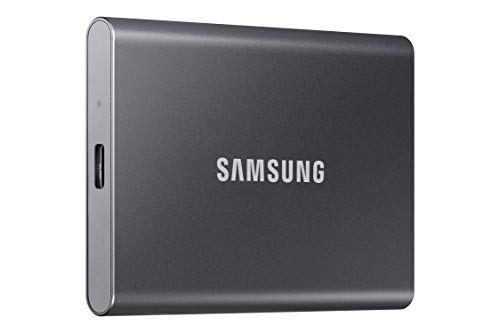

Top 3 picks at a glance
Decide These 3 Things First
1. What will live on the drive? Estimate your current files, then leave room for growth. A 1TB drive does not provide a full 1,000GB of available formatted space, and large media libraries grow quickly. If your photo archive is already 600GB, a 1TB model is a short-term solution; 2TB is more practical.
2. How fast is your computer or phone? A drive rated for 2,000MB/s will not deliver that speed through an older USB port. Many laptops, tablets, and game consoles top out around 1,000MB/s or less. Check your device’s USB specification before paying for a premium-speed SSD.
3. Is this a backup drive or a working drive? For a backup drive that mostly sits in a drawer, capacity, reliability, and price matter most. For editing video directly from the SSD, transferring camera footage, or running large game files, prioritize a faster connection, a quality enclosure, and thermal management.
Size and Capacity: Buy More Than Today’s File Total
Capacity is the first practical decision because it determines whether the drive remains useful after a few months. Portable SSDs commonly start at 250GB, with 500GB, 1TB, 2TB, and 4TB versions widely available. Larger capacities exist, but their prices rise sharply.
A 250GB drive is best for transferring documents, keeping a small emergency backup, or carrying a limited set of files between work and home. It can fill quickly: a single hour of high-bitrate 4K video can occupy tens of gigabytes, while a modern game can require 80GB to 150GB or more.
For most households, 1TB is the practical entry point. It is large enough for a computer backup, a substantial photo library, or several project folders without constant cleanup. A 2TB model is a better fit for photographers, designers, students with large media files, and anyone consolidating multiple devices.
Physical size varies less than capacity. Most pocketable SSDs measure roughly 3 to 4.5 inches long, 2 to 2.5 inches wide, and 0.3 to 0.6 inch thick. Weight is commonly 1.5 to 3.5 ounces. These dimensions make them easy to tuck into a laptop sleeve, camera bag, or desk drawer.
Do not choose based on a drive’s thinness alone. A slightly thicker model with a sturdier case, a better port, and improved heat control is often preferable to an ultra-slim drive that flexes or gets uncomfortably warm during long transfers.
Material: Look for Protection, Not Just a Nice Finish
Portable SSD enclosures are typically made from aluminum, plastic, rubberized polymer, or a mix of materials. Each has trade-offs.
Aluminum housings generally feel more substantial and can help dissipate heat. They are a good choice for regular large file transfers, but bare metal can pick up scratches and may feel warm after sustained use. Plastic housings are often lighter and less expensive, though they can feel less rigid. A quality plastic enclosure is not automatically a problem; check for firm seams, a protected port area, and a cable that fits securely.
Rubberized bumpers or silicone shells improve grip and can help protect against minor drops. They are especially useful if the drive will travel in a backpack with chargers, keys, and camera accessories. Look for models with an ingress-protection rating if you work outdoors or want added reassurance around dust and splashes. For example, an IP65 rating indicates protection against dust and low-pressure water jets, but it does not mean the drive should be submerged.
Color is mostly cosmetic, though a bright case can be easier to find in a crowded bag. More importantly, avoid glossy finishes if the drive will be handled often; they show fingerprints and scratches quickly.
Construction and Connections: The Port Matters as Much as the Drive
A portable SSD’s connection determines its real-world convenience. USB-C is now the most versatile choice because it works with many newer laptops, tablets, phones, cameras, and docks. However, the connector shape alone does not tell you the speed. USB-C can support several different standards.
For general use, look for USB 3.2 Gen 2, which supports up to 10Gbps and commonly pairs with advertised read speeds around 1,000 to 1,050MB/s. This class includes many dependable everyday drives, such as 1TB versions of the Samsung T7 and SanDisk Extreme Portable SSD. It is fast enough for backups, photo libraries, and ordinary video transfers.
Higher-performance models may advertise up to 2,000MB/s and usually require a 20Gbps USB connection to approach that figure. They can be worthwhile for frequent transfers of hundreds of gigabytes, but only when your computer has a compatible port. Connecting a 20Gbps drive to a 10Gbps port will limit it to the lower speed.
Inspect the cable arrangement. Ideally, the drive includes a short USB-C-to-USB-C cable and a USB-C-to-USB-A adapter or second cable. Cables are not interchangeable in performance: some charging cables transfer data slowly or not at all. A cable around 8 to 12 inches is convenient for laptop use, while a 1.5- to 3-foot cable may be more comfortable at a desktop.
The USB-C port should feel secure, not loose. Because this is the component that receives the most wear, a recessed port, reinforced opening, or snug protective cover can add useful longevity.
Performance and Everyday Comfort: Prioritize Sustained Speed
Advertised transfer speeds are usually maximum sequential read figures measured under ideal conditions. They are useful for comparing drive classes, but they do not guarantee the speed you will see with every file type. Small files, a nearly full drive, heat, cable quality, and the speed of the source computer can all reduce results.
For most buyers, a drive rated around 1,000MB/s is the sweet spot. It is dramatically faster than a traditional portable hard drive, which often transfers at roughly 100 to 150MB/s under favorable conditions. A 1,000MB/s-class SSD can make a major difference when copying large folders or restoring a backup.
If you edit video, work with RAW photos, or regularly move files larger than 100GB, consider a faster 2,000MB/s-class drive—but only after confirming that your computer supports 20Gbps USB. Also consider heat. A drive that is comfortable during a 10GB transfer may become warm during a 500GB copy. Aluminum construction and sensible ventilation can help, but avoid covering the drive with fabric or stacking it beneath other electronics while working.
Comfort also means simple software behavior. A good portable SSD should mount quickly, remain stable during transfers, and work with common file systems. ExFAT is convenient when moving files between Windows and macOS. If you plan to use the drive only with one operating system, formatting it specifically for that system may offer features you prefer.
Price Tiers: Spend for Capacity and Compatibility First
Portable SSD pricing changes often, but the tiers below provide a useful shopping framework.
Budget: $35 to $80. This range typically covers 250GB to 500GB models, entry-level 1TB drives during sales, and lesser-known brands. A 250GB USB-C SSD such as the referenced SSK model at around $58 can suit light file transfers, but verify the warranty, return policy, and stated USB standard before purchasing.
Mid-range: $80 to $170. This is where many buyers will find the best balance. Expect reputable 1TB drives, 1,000MB/s-class performance, USB-C connectivity, and useful durability features. For ordinary backups and photo storage, this tier is usually all you need.
Premium: $170 to $320 and up. This range includes 2TB drives, ruggedized designs, 2,000MB/s-class options, and models with stronger security features. The referenced 1TB and 2TB SanDisk examples, priced at around $270 and around $290, illustrate how branded high-speed or higher-capacity models can command a premium. Make sure that premium buys a feature you will use—not just a faster rating your computer cannot access.
Avoid judging value by cost per terabyte alone. A cheaper drive is not a bargain if it has a short warranty, an unreliable connector, or no clear support information.
Warranty and Data Protection: Treat Storage as Replaceable
A portable SSD should typically carry a 3- to 5-year limited warranty. Three years is acceptable for a lower-priced drive; five years is reassuring for a model intended for frequent work or travel. Read the warranty language for exclusions related to physical damage, data recovery, or use with certain devices.
Most important: a warranty replaces hardware, not irreplaceable files. No portable SSD should be the only location for family photos, tax records, client work, or video footage. Keep at least three copies of important data: the working copy, a local backup, and an additional backup stored separately, such as another drive kept elsewhere or a secure cloud service.
Security features can be useful for travel. Some drives offer password tools and hardware-based encryption, while others rely on software. If you need encryption, confirm whether it works with your operating system and whether it requires installing an app. A security feature that is inconvenient or incompatible will not protect anything.
Delivery, Setup, and Daily Use: No Assembly, but Do Test It Immediately
A portable SSD requires no assembly, but setup deserves more care than simply plugging it in. When it arrives, inspect the package seal, enclosure, cable, and connector. Connect it to your primary computer, confirm the reported capacity, and copy a test folder containing a mix of photos, documents, and a large video file.
Many drives arrive preformatted in exFAT for broad compatibility. That is convenient for mixed Windows and Mac households, but you may want to reformat the drive before committing files if you have a single-device workflow. Formatting erases existing data, so do this before loading anything important.
Store the SSD in a small padded pouch if it travels often. While solid-state drives have no spinning disks, they are not invulnerable. Do not leave one dangling from a laptop port, crush it under heavy books, or disconnect it while a transfer is active. Always eject it through your device’s operating system when possible.
Spec Checklist
| Spec | Budget | Mid | Premium |
|---|---|---|---|
| Typical capacity | 250GB–500GB | 1TB–2TB | 2TB–4TB+ |
| Connection | USB-C or USB-A, verify standard | USB-C, USB 3.2 Gen 2 (10Gbps) | USB-C, 20Gbps USB or higher-performance option |
| Advertised maximum speed | 400–1,050MB/s | Up to 1,050MB/s | Up to 2,000MB/s or more |
| Enclosure | Plastic or basic metal | Aluminum or reinforced composite | Metal with protective bumper or rugged shell |
| Durability features | Basic drop resistance | Protected port and light drop protection | IP-rated dust/water resistance and stronger drop protection |
| Warranty target | 3 years | 3–5 years | 5 years |
| Typical price | $35–$80 | $80–$170 | $170–$320+ |
Red Flags
- Vague speed claims: Skip listings that say “high speed” without stating a USB standard, capacity, or maximum transfer rate.
- Unusually low prices for large capacities: A 2TB SSD priced far below comparable drives deserves extra scrutiny. Buy from a retailer with straightforward returns.
- USB-C without a speed specification: USB-C describes the connector, not the performance level.
- No warranty information: A missing or unclear warranty is a poor sign for a device meant to store important files.
- Single-source storage: Never mistake a portable SSD for a complete backup plan.
- Missing cable details: If the listing does not identify the included cable or adapter, budget for a certified replacement cable if necessary.
FAQ
Is 1TB enough for a portable SSD?
For most people, yes. A 1TB drive is a strong choice for document backups, photos, school files, and moderate video storage. Choose 2TB if you already have more than 600GB of files, work with 4K video, keep large game libraries, or want room to grow for several years.
Do I need a 2,000MB/s portable SSD?
Only if your computer supports a 20Gbps USB connection and you regularly transfer large files. For routine backups, photo storage, and everyday file sharing, a 1,000 to 1,050MB/s drive is usually plenty fast and often offers better value.
Will a portable SSD work with both Mac and Windows?
Usually, yes. Drives formatted as exFAT can generally be read and written by both macOS and Windows. Check the package for compatibility details, and remember that reformatting a drive erases its contents.
Are rugged portable SSDs worth the extra money?
They are worthwhile if the drive travels frequently, goes outdoors, or is used around cameras, job sites, and backpacks. For a drive that stays on a desk, a well-built standard model with a good warranty may be the smarter purchase.









