
When shopping for a laptop or replacement drive, “SSD clearance” usually refers to the physical space available for the solid-state drive, not the amount of storage. A laptop may support a 2.5-inch SATA SSD, a compact M.2 SSD, or no user-accessible upgrade at all. The correct size depends on the drive format, mounting hardware, connector location, and the room inside the chassis.
Our Top Picks
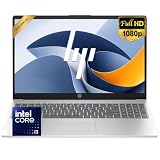
 SAGAWHALE 2026 Window 11 Pro Traditional Laptop Computer16GB RAM 丨256GB SSD17 x 13 x 3.5 Inches3.5 poundsCheck on Amazon


Top 3 picks at a glance
The Short Answer
For most laptops, plan on one of two physical SSD formats:
As an Amazon Associate we earn from qualifying purchases at no extra cost to you.



- 2.5-inch SATA SSD: Allow approximately 4.00 inches long by 2.80 inches wide, with at least 0.30 inch of vertical clearance for a standard 7 mm drive. Some laptop bays were designed for thicker 9.5 mm hard drives, so the mounting bracket or spacer may need to be adjusted.
- M.2 SSD: The most common size is 2280, measuring 0.87 inch wide by 3.15 inches long. Allow roughly 0.10 to 0.20 inch above the drive for the label, thermal pad, or heat spreader, unless the laptop manufacturer specifies otherwise.
Physical clearance is only one part of compatibility. The laptop must also support the drive’s interface. A 2.5-inch SATA SSD will not fit an M.2 slot, and an M.2 SATA drive may not work in a slot designed only for PCIe NVMe storage. Before ordering, check the laptop service manual or manufacturer specifications for the supported format, interface, length, and thickness.
For context, an inexpensive laptop in the roughly $350 to $450 range may include a 256GB SSD, while business models priced around $550 to $700 often include 512GB. Higher-end configurations with 1TB of storage can cost approximately $900 to $1,000 or more. Those capacity figures describe storage space, not the physical dimensions of the drive.
Standard Sizes
The table below lists common SSD dimensions and the minimum physical space to consider. Actual laptop bays can include rails, rubber grommets, cable connectors, and brackets, so a tight measurement does not guarantee compatibility.
| SSD format | Drive dimensions | Dimensions in centimeters | Practical clearance to allow | Typical laptop use |
|---|---|---|---|---|
| 2.5-inch SATA, 7 mm | 3.94 × 2.75 × 0.28 in | 10.0 × 7.0 × 0.7 cm | About 4.00 × 2.80 × 0.30 in | Older and upgradeable laptops |
| 2.5-inch SATA, 9.5 mm | 3.94 × 2.75 × 0.37 in | 10.0 × 7.0 × 0.95 cm | About 4.00 × 2.80 × 0.40 in | Thicker legacy drive bays |
| M.2 2230 | 0.87 × 1.18 in | 2.2 × 3.0 cm | At least 0.90 × 1.25 in | Compact laptops and tablets |
| M.2 2242 | 0.87 × 1.65 in | 2.2 × 4.2 cm | At least 0.90 × 1.75 in | Some thin laptops and small PCs |
| M.2 2260 | 0.87 × 2.36 in | 2.2 × 6.0 cm | At least 0.90 × 2.45 in | Less common laptop format |
| M.2 2280 | 0.87 × 3.15 in | 2.2 × 8.0 cm | At least 0.90 × 3.25 in | Most common modern M.2 size |
M.2 numbers describe width and length in millimeters. For example, 2280 means 22 mm wide and 80 mm long. The listed dimensions do not describe the connector key, screw position, or heat sink. A thick aftermarket heat sink can exceed the laptop’s available vertical clearance, especially in a thin chassis.
How to Measure Your Space
- Turn off and unplug the laptop. Disconnect the charger and, if possible, disable or disconnect the internal battery before opening the bottom cover. Follow the manufacturer’s service instructions.
- Identify the existing storage location. Look for a flat 2.5-inch drive held in a caddy, or a narrow circuit board secured by one screw at the end. Do not assume every M.2-looking slot is a storage slot; some are intended for Wi-Fi cards.
- Measure length and width. Use a ruler or digital calipers to measure the usable mounting area, not just the empty gap. For a 2.5-inch drive, check whether the caddy accepts a 3.94-inch-long drive and whether the SATA connector lines up.
- Measure vertical clearance. Measure from the motherboard or mounting surface to the inside of the bottom cover. Leave room for the drive label, cable, bracket, and any thermal pad. A 7 mm drive should not be forced into a bay that compresses it.
- Locate the mounting screw. For an M.2 drive, confirm that the laptop has a standoff at the correct length, such as 2230, 2242, or 2280. Never bend an M.2 drive to reach a screw hole.
- Check the connector and key. Compare the notch or keying on the SSD with the laptop slot. Then verify whether the system supports SATA, PCIe NVMe, or both.
- Account for nearby parts. Look for speakers, battery cells, cables, heat pipes, and retaining clips. Keep the SSD flat and avoid routing a cable across the drive or connector.
By Room or Use Case
For a Home Office Laptop
A standard 2280 M.2 SSD is the most likely fit in a current home-office laptop, but verify the specification before buying. For documents, web browsing, video calls, and light photo work, 512GB is a practical capacity. A 256GB drive can work for basic use, but the operating system and applications leave less free space. Allow approximately 0.90 × 3.25 inches of board clearance, plus space above the drive for the laptop’s original shield or thermal pad.
For a Student or Portable Laptop
Thin student laptops may use M.2 2230 or 2242 drives rather than the longer 2280 format. A 15.6-inch model does not automatically have a 2.5-inch drive bay; screen size says little about internal storage layout. Lightweight systems may also use soldered storage that cannot be replaced. Check the exact model number before opening the case. A 256GB or 512GB configuration is common, with complete laptops in this category often priced from about $350 to $600.
For Business and Workstation Use
Business laptops frequently use M.2 2280 storage, although some models include a removable caddy or a second slot. If the laptop has a 2.5-inch SATA bay, a 7 mm SSD such as a typical 500GB replacement needs about 4.00 × 2.80 × 0.30 inches of usable space. A 512GB drive suits office files and applications; 1TB is more comfortable for large local projects, virtual machines, or extensive media libraries. Configured business laptops may range from approximately $550 to $1,000.
For Gaming and Creative Work
Gaming laptops and creative systems often provide one or two M.2 2280 slots. Measure for the drive itself and inspect whether a factory heat spreader must be reused. Avoid assuming that a large desktop-style heat sink will fit under the laptop cover. A 1TB SSD is a sensible starting point for large applications and games, but capacity does not improve compatibility if the interface or length is wrong.
Common Sizing Mistakes
- Confusing capacity with physical size: A 256GB, 512GB, and 1TB SSD may use the same 2280 board dimensions.
- Buying a 2.5-inch drive for an M.2-only laptop: The diagonal measurement is not interchangeable with the M.2 format.
- Ignoring thickness: A 9.5 mm bay may accept a 7 mm drive, but a 9.5 mm drive may not fit a slimmer enclosure.
- Skipping the interface check: M.2 SATA and M.2 NVMe drives can look similar while using different protocols.
- Adding an oversized heat sink: Laptop covers often allow only a few millimeters above the drive.
- Forgetting the mounting hardware: An M.2 slot needs the correct standoff and screw location to secure the drive safely.
FAQ
How much clearance does a 2.5-inch laptop SSD need?
Allow approximately 4.00 inches long, 2.80 inches wide, and 0.30 inch high for a 7 mm SSD. Also verify the caddy, connector position, and screw holes.
Will any M.2 SSD fit in a laptop?
No. Confirm the M.2 length, keying, interface, and supported protocol. The common 2280 size is 0.87 × 3.15 inches, but some laptops accept only 2230 or 2242 drives.
Does a larger-capacity SSD need more space?
Usually not. Drives with different capacities often share the same physical format. Check the manufacturer’s listed thickness, particularly when choosing a drive with a built-in heat spreader.
Can I install an SSD if there is no visible bay?
Possibly, but some laptops have soldered storage or a concealed M.2 slot. Consult the exact model’s service manual rather than forcing a drive into an unmarked connector.









