
Our Top Picks



Top 3 picks at a glance

The Short Answer
For most people, a 2TB external SSD is the best size for backup. It provides room for a computer’s operating system, documents, photos, and several years of personal files without filling immediately. Choose a 1TB drive if you mainly back up documents and a modest photo library. Choose 4TB or more if you work with video, RAW photography, large game libraries, or several computers.
Capacity should be based on the data you need to protect, not the advertised size of your computer’s internal drive. A laptop with a 1TB drive may contain only 350GB of actual files. In that case, a 1TB backup drive works today, but 2TB gives more comfortable headroom for growth and for keeping older file versions.
As an Amazon Associate we earn from qualifying purchases at no extra cost to you.



As a practical rule, buy an external drive at least 1.5 times larger than the data you currently need to back up. For a full-disk backup or image, aim for double the used space. Remember that a drive labeled 1TB will show slightly less usable space after formatting, so avoid planning to use every last gigabyte.
Standard Sizes
External storage is sold in two main types. SSDs have no moving parts, are compact, and generally transfer files faster. Portable hard disk drives cost less per terabyte but are larger, heavier, and more sensitive to drops while operating. The right capacity matters more than peak speed for routine backups, because backup software may run automatically in the background.
| Capacity | Best for | Typical physical size | Typical weight | Approximate price range |
|---|---|---|---|---|
| 500GB | Documents, schoolwork, and light photo storage | About 3.3–4.3 x 2.3 x 0.3–0.4 in (8.5–11.0 x 5.7–5.8 x 0.8–1.0 cm) | 2–3 oz (57–85 g) | $50–$100 for an SSD |
| 1TB | One computer, photos, documents, and moderate media | Samsung T7: 3.3 x 2.3 x 0.3 in (8.5 x 5.7 x 0.8 cm) | About 2 oz (58 g) | $80–$230 for an SSD |
| 2TB | Most home users, large photo libraries, and multiple backups | SanDisk Extreme: 4.34 x 2.26 x 0.38 in (11.03 x 5.73 x 0.97 cm) | About 1.8–2.7 oz (52–77 g) | $120–$290 for an SSD; $70–$130 for an HDD |
| 4TB | Video projects, RAW photos, and several computers | About 4.3–4.6 x 2.3–3.2 x 0.4–0.6 in (11.0–11.7 x 5.7–8.1 x 1.0–1.5 cm) | 2–7 oz (57–200 g) | $250–$500 for an SSD; $100–$180 for an HDD |
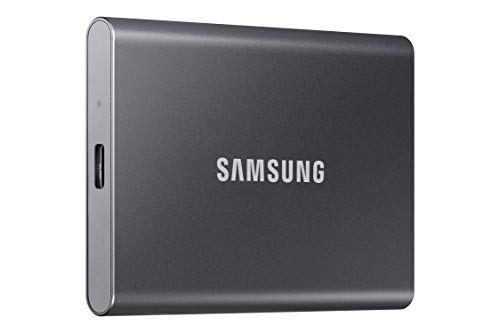
For a size reference, the Samsung T7 1TB is roughly the size of a credit card and weighs about 2 ounces. A SanDisk 2TB Extreme portable SSD measures approximately 4.34 x 2.26 x 0.38 inches and is also easy to place in a desk drawer or travel pouch. A Seagate 2TB portable hard drive is substantially thicker at about 4.61 x 3.15 x 0.58 inches and weighs approximately 6.7 ounces.
Product pricing varies with speed, ruggedization, and sales. A basic 2TB portable HDD can cost around $70 to $130, while a 1TB or 2TB portable SSD commonly ranges from $80 to $290. A premium 1TB SSD advertised with transfer speeds up to 2,000MB/s can cost more than a slower 2TB model, so compare capacity as well as speed.
How to Measure Your Space
- Measure the storage surface. Use a tape measure to record the usable length, width, and height of the shelf, drawer, cubby, or desktop area. Measure between obstructions, not just the overall furniture dimensions.
- Allow room for the cable. Add at least 1 inch behind or beside the drive for a USB cable. A tight compartment can bend the connector or put strain on the port.
- Check the drive’s maximum dimensions. Compare your measurements with the manufacturer’s listed length, width, and thickness. Include a protective case if you plan to leave the drive inside one.
- Plan for ventilation. Do not sandwich an SSD between warm electronics or cover its vents, if it has them. Leave roughly 1 inch of open space around a drive used for long transfers.
- Measure the route, not only the destination. If the drive will be stored in a cabinet, confirm that it can pass through the door opening. This is especially important for desktop-style external drives.
- Check the computer’s ports. USB-C and USB-A describe connector shapes, while USB 3.2 describes a connection standard. Make sure the included cable fits your computer or budget for an adapter.
By Room or Use Case
Home Office or Desk
A 1TB SSD is usually adequate for office documents, tax records, downloads, and a moderate number of scanned files. A 2TB model is a better long-term choice if the drive will hold a complete computer backup plus work archives. Its small footprint makes it easy to keep beside a monitor or in a shallow desk drawer. If the drive stays in one place and you need several terabytes on a budget, a portable HDD may provide more capacity for less money.
Family Photo and Video Storage
Choose 2TB for a typical family photo library, especially if phones and cameras are backed up regularly. Select 4TB if you shoot high-resolution images, 4K video, or maintain duplicate copies. Video fills space quickly: a single project can consume hundreds of gigabytes when it includes original clips, edits, and exported versions. Keep the backup drive separate from the computer when it is not in use to reduce the risk of loss from theft, power damage, or accidental deletion.
Living Room Media Setup
For movies, music, and television recordings, capacity depends on whether files are compressed and how many you keep locally. A 2TB drive suits a moderate collection; 4TB or more is sensible for a large media library. Check the television, game console, or media player’s supported file systems and maximum drive capacity before buying. A fast SSD is convenient, but a lower-cost HDD may be the better value for a drive that remains stationary.
Travel and Small Apartments
A 1TB or 2TB portable SSD is the easiest choice when the drive will move between rooms, offices, or luggage. Look for a compact enclosure, a strong cable connection, and some resistance to dust or water if you work away from home. A rugged 1TB SSD can cost roughly $150 to $270, while a standard 2TB model may cost more or less depending on speed and promotions. Store it in a padded case rather than loose in a bag.
Creative Workstation
Photographers, designers, and video editors should begin at 2TB and often need 4TB or more. A fast SSD can shorten transfers and improve work with large active projects, but it should not be the only copy. Consider one fast working drive and a larger, less expensive archive drive. For a desktop workstation, verify whether the computer supports the drive’s advertised interface speed; otherwise, the drive may operate below its maximum rating.
Common Sizing Mistakes
- Buying exactly the amount currently used. A drive with only a few gigabytes left cannot accept future backups or file-version history.
- Confusing computer storage with backup capacity. A 512GB laptop does not necessarily need a 512GB backup drive. Check actual used space first, then add room for growth.
- Choosing speed over capacity. A premium 1TB SSD may cost more than a 2TB SSD or 4TB HDD. For occasional backups, additional capacity may be more useful than a higher transfer rating.
- Keeping the only backup plugged in permanently. Automatic backups are convenient, but ransomware, surges, and accidental deletion can affect connected storage. Maintain another copy when the files matter.
- Ignoring connector and cable clearance. The drive may fit physically but still be unusable if the cable cannot bend without pressure.
- Assuming one backup is enough. For irreplaceable files, use the 3-2-1 approach: three copies, on two types of storage, with one copy stored elsewhere.
FAQ
Is 1TB enough for a backup drive?
Yes, if the data you need to protect is comfortably below about 600GB and you mainly store documents and photos. A 1TB drive is less suitable for several computers, large video libraries, or long-term file versions. In those cases, choose 2TB.
Is 2TB enough for a full computer backup?
It is enough for most single-computer backups when the computer contains less than about 1TB of used data. Check the backup program’s requirements, because image backups and retained file versions can require additional space. Leave a meaningful margin rather than filling the drive.
Should I buy an SSD or an external hard drive?
Buy an SSD for portability, quiet operation, compact dimensions, and faster everyday transfers. Choose an HDD when maximum capacity per dollar matters and the drive will remain on a desk. Either can serve as a backup, provided it is compatible with the computer and stored safely.
What size external SSD do I need for backup in 2026?
For most households, 2TB remains the sensible starting point. Select 1TB for light personal files, 4TB for creative work or multiple devices, and 8TB or more for extensive video archives. Review your used storage every few months so the backup remains larger than the data it protects.









