
Most SSD buying mistakes come from shopping by headline speed alone. A drive advertised at 7,000 MB/s may be excellent for a gaming desktop yet wasteful in a laptop limited to PCIe 3.0. A cheap 2TB model may look like a bargain until its sustained write speed drops sharply during large file transfers. And a long warranty can sound reassuring without telling you whether the drive’s endurance rating fits years of video editing, game installs, or daily office use.
The useful way to compare SSDs is to match the interface, capacity, endurance, and warranty terms to the work you actually do. For many households, a reliable 1TB or 2TB TLC-based drive is the sweet spot. Power users need to pay closer attention to terabytes written (TBW), cooling, sustained performance, and whether the warranty requires registration or proof of purchase. As of 2026, the market has plenty of fast drives; choosing the right kind of fast drive matters more than chasing the largest benchmark number.
As an Amazon Associate we earn from qualifying purchases at no extra cost to you.


Our Top Picks


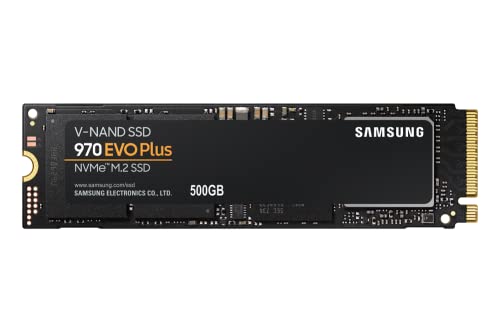

Top 3 picks at a glance
Decide These 3 Things First
- Where will the SSD go? Confirm whether you need a 2.5-inch SATA drive, an M.2 NVMe drive, or an external USB SSD. An M.2 slot can support either SATA or NVMe, so check the device manual before ordering. Most current desktops and laptops use an M.2 2280 NVMe drive: 22 mm wide and 80 mm long.
- How much capacity do you need? Buy more space than your current files require. Keep roughly 15% to 20% of the drive free for smoother performance, updates, and wear management. A 1TB drive typically provides about 931GB of usable formatted capacity.
- How write-heavy is your workload? Web browsing, documents, streaming, and gaming are relatively light. Editing 4K video, working with raw photo libraries, running virtual machines, or regularly moving hundreds of gigabytes requires stronger sustained-write performance and a higher TBW rating.
Capacity and Physical Size
Capacity is the first specification to settle because it affects both convenience and endurance. Larger SSDs usually have more NAND flash chips, allowing more data to be written across the drive at once. That can improve sustained performance and increase the TBW endurance rating.
For a basic boot drive, 500GB is workable, but it fills quickly after a few large applications and modern games. A 1TB drive is the practical minimum for a primary Windows or macOS-compatible storage upgrade. Choose 2TB if you install several 80GB to 150GB games, store family photos and videos locally, or want room for creative projects. A 4TB SSD makes sense for large media libraries, workstation projects, and compact systems with only one storage slot.
- 500GB: Best for light office use, a small boot drive, or reviving an older computer. Expect roughly 465GB usable after formatting.
- 1TB: Best all-around capacity for most laptops and desktops. Expect roughly 931GB usable.
- 2TB: Best for gamers, families sharing one computer, and photo or video enthusiasts. Expect roughly 1.86TB usable.
- 4TB and up: Best for large local libraries, 4K video work, and systems with limited expansion options.
For internal M.2 drives, verify length before purchase. The common 2280 size is 80 mm long, but compact laptops may use 2230 drives that are only 30 mm long, or 2242 drives that are 42 mm long. A 2280 drive will not physically fit a slot designed only for 2230 storage. A 2.5-inch SATA SSD is generally 100 mm long, 70 mm wide, and 7 mm thick, making it the normal replacement for a laptop hard drive bay.
NAND Type and Storage Material
SSDs store data in NAND flash cells. The key distinction is how many bits each cell holds. This affects price, write endurance, and how well the drive maintains speed during long writes.
TLC NAND stores three bits per cell and is the best mainstream choice for a primary drive. It generally offers a balanced combination of cost, endurance, and sustained performance. QLC NAND stores four bits per cell. It can offer excellent capacity per dollar, especially at 2TB and 4TB, but it is usually less durable and can slow down more noticeably after its fast cache fills.
For a light-use laptop, game library, or secondary media drive, QLC can be a sensible value choice. For a work computer, editing system, NAS cache application, or drive that will be rewritten frequently, favor TLC. SLC drives exist mainly in specialized enterprise use; they are not a realistic value target for most home buyers.
Endurance is normally expressed as TBW: the total number of terabytes the manufacturer warrants you can write before the endurance portion of the warranty is exhausted. A 1TB consumer TLC SSD often carries a rating around 400TBW to 1,200TBW. A similarly sized QLC model may be rated closer to 200TBW to 400TBW. Ratings vary by model, so compare the actual specification sheet rather than assuming all TLC or QLC drives are equal.
To put that in perspective, writing 50GB every day adds up to about 18TB per year. Even a 600TBW rating would be far beyond ordinary household use. Heavy creative and professional workloads can reach that total much faster, which is why TBW matters most for frequent large-file writers.
Controller, Cache, and Construction
An SSD is more than its flash memory. Its controller manages data placement, error correction, temperature, and wear leveling. The drive may also include dedicated DRAM cache, use Host Memory Buffer (HMB) from the computer’s system memory, or have no meaningful cache beyond its temporary SLC write area.
For a primary operating-system drive, look for a reputable controller design and clear documentation of the interface, NAND type, and warranty. A DRAM-equipped NVMe drive can be a strong choice for demanding multitasking and long file operations, but a well-designed DRAM-less drive using HMB can still feel quick in normal use. The problem is not simply “DRAM-less”; it is buying an obscure model with inconsistent components or vague specifications.
Pay attention to sustained writes, not just burst writes. Many consumer SSDs reserve a portion of their flash as a high-speed SLC cache. This makes the first 20GB, 50GB, or more of a transfer look very fast. Once that cache fills during a long backup or video export, speed may fall substantially. Manufacturers do not always state the cache size clearly, so buyers who routinely write 100GB or more at a time should select drives known for robust sustained behavior and adequate cooling.
PCIe 4.0 and PCIe 5.0 drives can run warm under sustained load. A thin laptop may not have clearance for a tall heatsink, while a desktop motherboard may include an M.2 heat spreader. For a high-performance drive, use one heatsink rather than stacking the motherboard cover over a preinstalled thick heatsink. Typical M.2 SSDs weigh only 6 to 10 grams, but the clearance around them matters far more than their weight.
Performance: Match the Interface to the Computer
SATA SSDs top out at roughly 550 MB/s because of the SATA interface. They remain a major upgrade over hard drives and are ideal for older desktops, older laptops, and systems with a 2.5-inch bay. NVMe SSDs use PCIe lanes and can be much faster, but your computer sets the ceiling.
- PCIe 3.0 NVMe: Often up to about 3,000 to 3,500 MB/s sequential reads.
- PCIe 4.0 NVMe: Often up to about 5,000 to 7,500 MB/s sequential reads.
- PCIe 5.0 NVMe: Can exceed 10,000 MB/s, but costs more and typically benefits most from strong cooling.
Sequential read speed matters for large files, while random performance and latency affect everyday responsiveness. Still, the difference between a decent PCIe 3.0 drive and an expensive PCIe 5.0 drive may be hard to notice when opening a browser, launching office software, or starting many games. Spend extra for top-tier performance only when your system supports it and your work involves frequent large transfers, high-resolution media, development builds, or professional production tasks.
Price Tiers and Value
SSD prices move often, so focus on capacity-adjusted value rather than a single sale price. For internal consumer drives, these broad ranges are useful buying benchmarks.
- Budget: About $45 to $70 for 1TB, $80 to $120 for 2TB. Usually SATA, entry-level PCIe 3.0/4.0 NVMe, or QLC-focused models.
- Midrange: About $65 to $100 for 1TB, $110 to $170 for 2TB. Often the best TLC NVMe value, with stronger endurance and more consistent performance.
- Premium: About $100 to $160 for 1TB, $170 to $280 for 2TB. Typically high-end PCIe 4.0 or PCIe 5.0 models with better controllers, cooling options, and stronger sustained performance.
Do not overpay for speed your computer cannot use. A $130 premium 1TB PCIe 5.0 drive offers no practical advantage in a laptop restricted to PCIe 3.0, where a $65 to $90 compatible 1TB NVMe drive may perform near the system’s limit.
Warranty and Endurance: Read Both Numbers
Most reputable consumer SSDs include a three-year or five-year limited warranty. The important word is limited: coverage usually ends when either the time period expires or the drive reaches its TBW rating, whichever comes first.
For example, a five-year warranty paired with 600TBW does not guarantee five years of unlimited writing. If you write 600TB in two years, the endurance warranty is typically finished. Conversely, if you write only 80TB in five years, the time limit usually ends coverage even though the drive is far below its TBW maximum.
Look for a clear warranty page that states the duration, TBW rating by capacity, and claim process. Keep your receipt, serial number, and original order confirmation. Some brands provide monitoring software that reports health, firmware status, temperature, and total host writes. This is useful for maintenance, but do not rely on any single health percentage as a precise prediction of failure. All storage can fail unexpectedly, including a drive well within its warranty period.
Warranty replacement also does not protect your files. A good backup system matters more than an extra year of coverage. Keep at least three copies of important data, on two types of storage, with one copy away from the computer or in a secure cloud service.
Installation, Delivery, and Setup
Internal SSDs are small and light, but installation can still require planning. An M.2 drive normally needs a small Phillips screwdriver, the correct motherboard standoff position, and a mounting screw. Never force the connector; the drive slides into the slot at an angle of roughly 20 to 30 degrees, then presses down flat to secure.
For a desktop, allow 20 to 45 minutes if you are cloning an old drive or installing an operating system. For a laptop, allow 30 to 60 minutes, especially if removing the bottom cover requires carefully releasing clips. Before opening any device, shut it down fully, disconnect power, and consult the manufacturer’s service instructions. Some laptops have storage that is soldered in place and cannot be upgraded.
If you are replacing a boot drive, confirm that the new SSD has enough capacity for the used space on the old drive. A system with 650GB of occupied data cannot be cloned directly to a 500GB SSD. For external storage, look for a USB-C enclosure rated for the drive and port speed. A fast NVMe drive placed in a 5Gbps USB enclosure will be limited to roughly 500 MB/s in real-world transfers.
Spec Checklist
| Spec | Budget | Mid | Premium |
|---|---|---|---|
| Best capacity target | 500GB–1TB | 1TB–2TB | 2TB–4TB |
| Typical interface | SATA or PCIe 3.0/4.0 NVMe | PCIe 4.0 NVMe | High-end PCIe 4.0 or PCIe 5.0 NVMe |
| NAND preference | QLC acceptable for light use | TLC preferred | TLC strongly preferred |
| 1TB endurance target | 200TBW–400TBW+ | 600TBW+ | 1,000TBW+ when available |
| Warranty target | 3 years | 5 years | 5 years with clear TBW terms |
| Best use | Everyday computing, game storage | Main PC or laptop drive | Heavy creative and workstation use |
Red Flags
- No stated TBW rating, warranty length, NAND type, or controller information.
- A marketplace listing that changes brand names, model numbers, or technical specifications between capacities.
- Claims of PCIe 4.0 or PCIe 5.0 speed without stating the actual interface width or compatible form factor.
- A 2.5-inch SATA SSD advertised as NVMe. SATA and NVMe are different protocols.
- Very low prices from unknown sellers, especially for 4TB or 8TB drives that are far below normal market ranges.
- No serial number, tamper-sealed packaging, or clear return policy.
- Buying a high-heat drive with a large heatsink for a slim laptop without checking clearance.
- Treating warranty coverage as a backup plan for irreplaceable photos or work files.
FAQ
How much SSD endurance do I really need?
Most home users do not need an extreme TBW rating. A 1TB drive rated for 600TBW is ample for ordinary web use, schoolwork, gaming, and family photo storage. Prioritize higher endurance if you regularly edit video, run virtual machines, compile software, or transfer large datasets every day.
Is a five-year warranty always better than a three-year warranty?
Usually, but compare the TBW limit too. A five-year drive with a low endurance allowance may not be the better fit for write-heavy work than a three-year drive with substantially higher TBW. Also verify that the seller is authorized and that you can retain a valid proof of purchase.
Should I choose TLC or QLC?
Choose TLC for a primary drive, frequent large transfers, or long-term heavy use. Choose QLC when capacity per dollar is the priority and the drive will handle lighter tasks such as games, documents, media storage, or an external archive. Either can be dependable when purchased from a reputable maker and backed up properly.
Will a faster SSD make my computer feel faster?
Moving from a hard drive to any decent SATA or NVMe SSD is a dramatic upgrade. Moving from SATA to NVMe can improve booting, loading, and file transfers. Moving from a capable PCIe 3.0 or 4.0 NVMe drive to a premium PCIe 5.0 model is most noticeable in specialized heavy workloads, not routine browsing or email.









