
When assembling a high-performance workspace or upgrading a home office setup, we tend to obsess over the visible elements: the depth of the desktop, the ergonomic lumbar support of the chair, or the physical size of the monitor. But the internal architecture of your computer requires the same eye for balance and proportion. A common mistake when configuring a system is assuming that faster memory is always better, or simply grabbing the highest number on the box without looking at the underlying blueprint.
Many buyers fall into the trap of overspending on ultra-high-speed memory kits, only to discover their Intel processor or motherboard cannot actually run those speeds. They end up with a system that either defaults to a sluggish baseline speed or, worse, suffers from constant system crashes. Just as you wouldn’t place a massive executive desk in a tiny hallway, you shouldn’t pair mismatched memory components with your processor. Understanding how to choose ram speed for intel processors requires looking past the marketing jargon to find the exact configuration that matches your hardware’s capabilities and your daily workflow.
As an Amazon Associate we earn from qualifying purchases at no extra cost to you.


Our Top Picks



Top 3 picks at a glance
Decide These 3 Things First
Before comparing frequencies and latency numbers, you must establish the foundation of your system. Answering these three questions will instantly narrow down your choices and prevent you from buying incompatible hardware.
- What is your motherboard’s chipset? Intel limits memory overclocking (including running XMP profiles above standard speeds) based on the motherboard chipset. If you have a Z-series motherboard (e.g., Z690, Z790), you can run high-speed RAM. If you have a budget B-series or H-series motherboard, your memory speed may be locked to the processor’s official maximum rated speed (typically 3200 MT/s for DDR4 or 4800 to 5600 MT/s for DDR5).
- Which generation of DDR memory does your system use? DDR4 and DDR5 are physically and electrically different. A DDR5 stick will not fit into a DDR4 slot, and vice versa. Check your motherboard specs first; you cannot upgrade from DDR4 to DDR5 without changing the motherboard.
- What is your primary use case? Office work, web browsing, and basic productivity do not require high-speed memory. However, creative tasks like 4K video editing, 3D rendering, and high-refresh-rate gaming scale noticeably with faster RAM.
Memory Capacity and Module Size
Before focusing on speed, you must secure the correct physical capacity and form factor. For desktop systems, memory comes in Dual In-line Memory Modules (DIMMs), which measure roughly 5.25 inches (133 mm) in length. For laptops and mini-PCs, you will need Small Outline DIMMs (SO-DIMMs), which are much smaller at approximately 2.66 inches (67.6 mm) in length.
Capacity is the foundation of system responsiveness. If you run out of RAM, your system writes temporary data to your storage drive, dragging performance to a crawl regardless of how fast your RAM is.
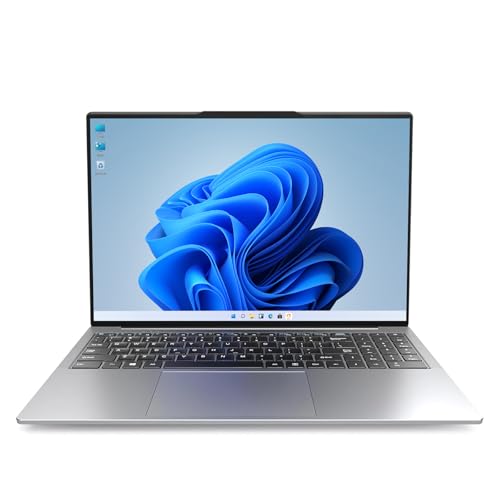
For basic office work, light student tasks, and web browsing, 8GB of RAM is the absolute baseline. An entry-level machine like an HP 15.6 HD Premium Chromebook with an Intel Celeron N processor and 8GB of RAM operates smoothly within its cloud-based ecosystem because Chrome OS is highly optimized. However, for a standard Windows 11 environment, 16GB is the modern sweet spot. For instance, a modern 2026 laptop with 16GB of RAM and a 512GB SSD priced around $340 provides a highly capable setup for multitasking, heavy spreadsheets, and creative work without bottlenecking.
If you are configuring a workstation for professional design, local coding environments, or intensive gaming, 32GB is highly recommended, while 64GB or more is reserved for specialized workflows like virtual machine hosting or heavy 3D rendering. When choosing modules, always run them in a dual-channel configuration (two matching sticks, such as two 8GB sticks instead of one 16GB stick) to double the bandwidth available to your Intel CPU.
Material Quality and Heat Spreader Design
The physical construction of a memory module dictates its longevity, thermal performance, and stability under load. High-speed RAM operates at higher voltages, which naturally generates more heat.
Standard JEDEC-spec memory (the basic green or black circuit boards found in budget pre-built systems) lacks heat spreaders. While perfectly fine for standard speeds like DDR4-2666 or DDR5-4800, high-performance kits require proper thermal management. Quality memory modules feature anodized aluminum heat spreaders that wrap around the printed circuit board (PCB). These spreaders range in thickness from 1.0 mm to over 2.0 mm. A thicker aluminum spreader dissipates heat more efficiently, keeping the memory chips below their maximum operating temperature (typically 85°C to 95°C).
Furthermore, the PCB itself is a critical component. Premium memory modules utilize 8-layer or 10-layer PCBs. More layers allow for better isolation of the electrical traces, reducing electromagnetic interference and signal degradation. This structural integrity is what allows the memory to maintain stable high-speed transfers without data corruption.
Construction: Clock Speeds and Latency Architectures
When learning how to choose ram speed for intel processors, you will constantly see two primary metrics: frequency (measured in Megatransfers per second, or MT/s, often colloquially referred to as MHz) and CAS Latency (CL). Understanding how these two interact is crucial.
Frequency represents the raw bandwidth—how much data can be transferred per second. Latency represents the delay—how long it takes for the memory to respond to a request from the Intel processor.
To find the true latency of a memory kit in nanoseconds, use this formula:
True Latency (ns) = (CAS Latency * 2000) / Speed (MT/s)
For example, a DDR4 kit running at 3200 MT/s with CL16 has a true latency of 10 nanoseconds. A DDR5 kit running at 6000 MT/s with CL30 also has a true latency of 10 nanoseconds, but it offers nearly double the raw bandwidth.
Intel’s architecture handles memory scaling beautifully, but it features a memory controller divider known as “Gear Mode.” On modern Intel Core processors (12th through 14th generations), the memory controller can run in Gear 1 (a 1:1 ratio with the memory clock) or Gear 2 (a 1:2 ratio). Gear 1 provides the lowest latency and is ideal for DDR4 up to 3600 MT/s. For DDR5, the system must run in Gear 2 to achieve speeds of 6000 MT/s or higher. While Gear 2 introduces a slight latency penalty, the massive jump in raw bandwidth more than compensates for it in professional applications.
Performance, Voltages, and Thermal Dynamics
Memory speed is closely tied to the voltage supplied to the modules. Standard JEDEC specifications run at very low, efficient voltages:
- DDR4 Standard: 1.2 Volts
- DDR5 Standard: 1.1 Volts
When you enable Intel XMP (Extreme Memory Profile) to reach higher speeds, the module increases its operating voltage to maintain signal stability. High-performance DDR4 kits often scale up to 1.35V or 1.4V. High-speed DDR5 kits can run anywhere from 1.3V to 1.45V.
This voltage increase directly impacts the thermal dynamics of your PC chassis. A pair of DDR5 modules running at 1.4V can pull between 6 to 10 watts of power under heavy load. Without adequate airflow or quality aluminum heat spreaders, these modules can easily exceed 70°C, leading to memory errors, blue screens, or spontaneous reboots. If you are building in a compact, quiet home office chassis with limited airflow, opting for mid-range speeds at lower voltages (such as DDR5-5600 at 1.2V or 1.25V) is a smarter design choice than pushing for extreme speeds that require aggressive cooling.
Price Tiers and Value Mapping
Memory pricing is highly volatile, but it generally correlates with speed, capacity, and generation. When balancing your budget, it is critical not to overspend on high-speed RAM at the expense of your processor or graphics card.
- Budget Tier ($25 to $50): This tier consists of DDR4 kits (typically 16GB at 3200 MT/s) or entry-level DDR5 modules (8GB or 16GB at 4800 MT/s). These are ideal for everyday office tasks, student work, and budget-friendly setups. For example, a laptop like the HP 14″ with an Intel N150 processor and 4GB of RAM (priced around $280) fits into this low-power, budget-focused philosophy where raw speed is secondary to basic utility.
- Mid-Range Tier ($50 to $110): The sweet spot for price and performance. Here you will find 32GB DDR4 kits running at 3600 MT/s CL18, or 32GB DDR5 kits running at 5600 MT/s to 6000 MT/s CL30. This tier provides the best balance for modern Intel Core i5 and i7 systems, giving you maximum real-world performance without diminishing returns.
- Premium Tier ($110 to $250+): High-end DDR5 kits running at 7200 MT/s to 8000+ MT/s, or high-capacity 64GB to 96GB kits. These kits require top-tier Z-series motherboards and unlocked Intel K-series processors (like the i7-14700K or i9-14900K) to run stably. They are built for enthusiasts, professional video editors, and competitive overclockers.
Warranty and Brand Reliability
Unlike storage drives or graphics cards, which have moving parts or complex cooling systems that can wear out over time, system memory is highly durable. Because of this, reputable memory manufacturers offer a Limited Lifetime Warranty on their RAM modules.
When purchasing, look for brands that have established robust quality control pipelines. Brands that use top-tier memory silicon (known as “dies”) from major manufacturers like SK Hynix, Samsung, or Micron offer the highest reliability. If you ever need to return or exchange a kit, a lifetime warranty ensures you can get a replacement package quickly. Make sure to keep your original packaging, as some manufacturers require the serial numbers printed on the box for RMA processing.
Delivery, Installation, and Clearance
Before ordering your memory, you must measure your physical workspace inside the computer chassis. Large CPU air coolers often overhang the RAM slots on a motherboard, limiting the maximum height of the memory modules you can install.
Standard low-profile RAM modules measure around 31 mm to 34 mm in height. Premium memory kits with elaborate heat spreaders or integrated RGB lighting strips can measure 44 mm to over 50 mm tall. Always check your CPU cooler’s RAM clearance specifications before purchasing tall memory modules to avoid a physical conflict during assembly.
When installing your new RAM, consult your motherboard manual to identify the correct slots for dual-channel operation. On standard 4-slot motherboards, these are almost always slots 2 and 4 (counting away from the CPU socket). Insert the modules firmly until the plastic retention clips click into place on both ends. Once installed, don’t forget to boot into your motherboard’s BIOS and enable the Intel XMP profile; otherwise, your high-speed RAM will default to basic JEDEC speeds.
Spec Checklist
Use this quick reference table to match memory specifications with your specific system tier and budget blueprint:
| Specification | Budget Tier | Mid-Range Tier (Sweet Spot) | Premium Tier |
|---|---|---|---|
| Memory Generation | DDR4 | DDR4 or DDR5 | DDR5 |
| Target Speed (Intel) | 3200 MT/s (DDR4) / 4800 MT/s (DDR5) | 3600 MT/s (DDR4) / 6000 MT/s (DDR5) | 7200 to 8000+ MT/s (DDR5) |
| Optimal Latency | CL16 (DDR4) / CL40 (DDR5) | CL18 (DDR4) / CL30 (DDR5) | CL34 or lower (DDR5) |
| Module Voltage | 1.2V (DDR4) / 1.1V (DDR5) | 1.35V (DDR4) / 1.25V – 1.35V (DDR5) | 1.4V – 1.45V+ (DDR5) |
| Recommended Capacity | 8GB – 16GB | 16GB – 32GB | 32GB – 64GB+ |
| Ideal Motherboard Match | Intel H610 / B760 | Intel B760 / H770 | Intel Z690 / Z790 / Z890 |
Red Flags
When shopping for Intel-compatible memory, keep an eye out for these warning signs that could indicate compatibility or performance issues:
- Unusually high latency specs: Avoid DDR5 kits with speeds like 6000 MT/s paired with high latencies like CL40 or CL46. These use inferior memory chips that will result in poor real-world performance despite the high speed number. Look for CL30 or CL32 at that speed instead.
- Lack of XMP support: Make sure the product listing specifically mentions Intel XMP (Extreme Memory Profile) compatibility. Kits optimized solely for AMD EXPO may not have their profiles read correctly by some Intel motherboards, forcing you to manually configure voltages and sub-timings in the BIOS.
- Single-channel kits (single sticks): Avoid buying a single 16GB stick of RAM if your motherboard supports dual-channel memory. Running a single module cuts your system’s memory bandwidth in half, severely bottlenecking your Intel processor’s performance in modern workloads.
- Incredibly tall modules with no dimensions listed: If a manufacturer showcases massive, aggressive-looking RGB heat spreaders but refuses to list the exact module height in millimeters, pass on it. You run a very high risk of the RAM physically blocking your CPU cooler.
FAQ
Does Intel benefit from high RAM speed as much as AMD?
While Intel processors are generally less sensitive to memory speeds than AMD Ryzen processors (which tie their internal fabric clock directly to memory speed), Intel chips still see a measurable performance boost from faster RAM. This is especially true in memory-bound scenarios like high-frame-rate gaming, video editing, and file compression. However, after reaching the “sweet spot” of DDR5-6000, the performance gains curve off sharply for Intel systems, making ultra-expensive kits less cost-effective for daily use.
What is the difference between DDR4 and DDR5 on Intel motherboards?
DDR4 is an older, highly mature technology that operates at lower speeds (typically 2400 to 3600 MT/s) but features exceptionally low latency. DDR5 is the modern standard, offering massive bandwidth improvements (starting at 4800 MT/s and reaching past 8000 MT/s) along with on-die Error-Correcting Code (ECC) and built-in power management on the module itself. Intel’s 12th, 13th, and 14th Gen processors support both standards, but you must choose a motherboard dedicated to one or the other.
Will running XMP void my Intel processor warranty?
Technically, enabling an Intel XMP profile is classified as overclocking because it runs the memory controller beyond the official JEDEC specifications of the processor. However, XMP is an industry-standard practice supported by Intel and all major motherboard manufacturers. In real-world scenarios, running a standard XMP profile (such as DDR5-6000 at 1.35V) is completely safe and will not damage your processor, nor will it be tracked or flagged by Intel for standard warranty claims unless extreme manual overvolting was applied.
Can I mix different RAM speeds on an Intel system?
You can physically install modules of different speeds and brands, but it is highly discouraged. If you mix kits, your Intel motherboard will automatically default all memory modules to the speed of the slowest stick installed to ensure system stability. Furthermore, mixing modules from different manufacturers—even if they have the same rated speed—can cause sub-timing conflicts, leading to random system crashes and boot failures. For optimal stability, always purchase memory in pre-matched kits.









