
Most people buying a NAS drive fixate on capacity and price, then treat the “workload rate” number buried in the spec sheet as marketing filler. That’s backwards. Workload rate — measured in terabytes written per year (TB/year) — is the single best indicator of whether a drive will survive in a NAS enclosure, where multiple disks run 24/7, vibrate against each other, and handle constant read/write requests from several users and services at once. A desktop drive rated for 55 TB/year dropped into a four-bay NAS can fail within a year or two under family photo backups, Plex transcoding, and surveillance footage. The same capacity drive rated for 180 or 300 TB/year shrugs it off.
The second common mistake is assuming RPM tells the whole story. A 7,200 RPM drive is not automatically better than a 5,400 RPM one for NAS use. What matters more is whether the drive uses CMR (Conventional Magnetic Recording) instead of SMR (Shingled Magnetic Recording). SMR drives slow to a crawl during sustained writes and can cause RAID rebuilds to time out or fail entirely — a genuinely dangerous failure mode when your array is already degraded. Every drive recommended for NAS duty should be explicitly CMR.
As an Amazon Associate we earn from qualifying purchases at no extra cost to you.




Third mistake: overspending. The jump from a 180 TB/year drive to a 300 TB/year drive can double the price per terabyte. If your NAS serves a household of four and some media streaming, you’re paying for endurance you’ll never use. This guide breaks down what workload rate actually means, which numbers matter for your situation, and where the money is well spent.
Our Top Picks
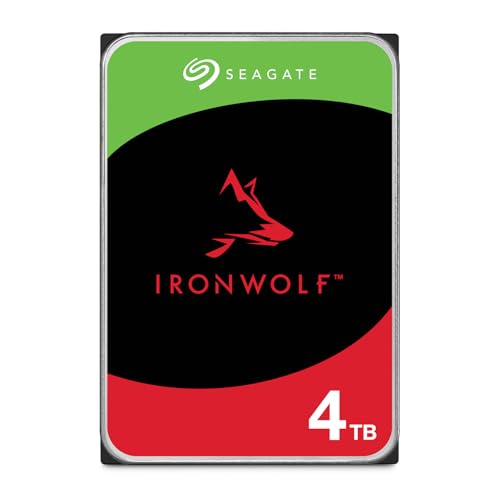 Seagate IronWolf 4TB NAS Internal Hard Drive CMR4TB5.79 x 4.01 x 1.03 Inches1.1 poundsCheck on Amazon


Top 3 picks at a glance
Decide These 3 Things First
1. How many bays does your NAS have, and how many drives will it hold? Multi-bay enclosures generate more vibration, and drives rated for NAS use carry rotational vibration (RV) sensors to compensate. Drives with RV sensors are typically found in the 4TB-and-up NAS lines and are effectively mandatory in 4-bay-plus systems. A two-bay unit can run lighter-duty NAS drives without issue.
2. What’s your actual write volume? Estimate honestly. A home NAS backing up laptops nightly and streaming media writes perhaps 5–20 TB/year. A small office with shared file storage, versioned backups, and camera footage can hit 50–150 TB/year. Surveillance systems writing multiple 4K camera streams 24/7 can exceed 200 TB/year. Your answer determines which workload tier you need — and it’s usually lower than drive marketing implies.
3. RAID or no RAID? RAID rebuilds are the most stressful event a drive experiences: days of continuous sequential reading across every surviving disk. Drives with error recovery limits tuned for RAID (rather than desktop drives that may hang for 30+ seconds retrying a bad sector) prevent the controller from dropping a healthy drive mid-rebuild. If you run any RAID level, buy NAS-rated drives, full stop.
Workload Rate: Match the Number to Your Use
Workload rate is the manufacturer’s rated annual data throughput in terabytes. The tiers break down like this:
- 55 TB/year (desktop class): Not suitable for NAS, even in a two-bay unit running light duties. The warranty often excludes 24/7 operation entirely.
- 180 TB/year (mainstream NAS class): Covers WD Red Plus and standard Seagate IronWolf drives. This is the right tier for the overwhelming majority of home and home-office users. Drives here run 5,400–7,200 RPM depending on capacity, use CMR, and carry 3-year warranties.
- 300 TB/year (pro NAS class): WD Red Pro and Seagate IronWolf Pro. For small businesses, heavy surveillance (6+ cameras), virtualization, or 8-bay arrays. Expect 7,200 RPM, RV sensors across the range, and 5-year warranties.
As a concrete example, a 4TB mainstream NAS drive like the Seagate IronWolf ST4000VNZ06 — 5,400 RPM, 64MB cache, CMR, 180 TB/year workload rating — lists around $190, or roughly $47 per terabyte. That’s the correct choice for a two-bay home NAS. Bumping to a 300 TB/year pro drive at the same capacity adds $40–60 and buys endurance a household will never touch.
Capacity and Price per Terabyte
Price per terabyte is not linear. Small drives cost more per TB; the sweet spot for mainstream NAS drives currently sits in the 8–12TB range.
- 4TB: ~$190, about $47/TB. Fine for a starter two-bay NAS or mirrored pair.
- 8TB: ~$330, about $41/TB. The entry point for the sweet spot; the Seagate IronWolf ST8000VNZ04 (SATA 6 Gb/s) sits here.
- 12TB: ~$460, about $38/TB. The WD Red Plus WD120EFGX — 7,200 RPM, 512MB cache, CMR — is a strong mid-capacity pick for 4-bay arrays.
- 20TB: ~$880, about $44/TB. Pro-class drives like the WD Red Pro WD202KFGX (7,200 RPM, 512MB cache, 300 TB/year) cost more per TB but include 5-year coverage and top-tier vibration tolerance. Only justified in multi-bay business arrays or when bays are scarce and capacity per drive matters.
Rule of thumb: if a drive’s price per TB exceeds the 12TB tier by more than 20% and you don’t need its workload rating, you’re paying for the wrong thing.
Spindle Speed, Cache, and Recording Technology
RPM: 5,400 RPM drives (common at 4–8TB in NAS lines) run cooler and quieter — typically 3–5W under load versus 6–9W for 7,200 RPM models — and their sequential performance (around 180–210 MB/s) is still far faster than gigabit Ethernet (~115 MB/s). Unless you have 2.5GbE or 10GbE networking, 7,200 RPM buys little for home use. Above 16TB, nearly all NAS drives are 7,200 RPM because areal density demands it.
Cache: 64MB to 256MB on mainstream drives; 512MB on high-capacity pro models. Cache smooths burst writes but has minimal real-world effect over a network. Don’t pay a premium for it.
CMR vs. SMR: Non-negotiable — insist on CMR. All four example drives above are CMR. SMR appears mostly in cheap 2–6TB desktop drives and should never enter a RAID array.
Vibration: Look for rotational vibration sensors at 4TB and above, especially if your enclosure holds four or more drives. Without RV sensors, neighboring drive vibration raises unreadable-sector rates noticeably over time.
Noise, Heat, and Power Draw
These drives run 24/7, often in a home office or living room. Expect 20–30 dBA idle (roughly a whisper) on mainstream NAS drives; 7,200 RPM pro models trend toward the upper end, around 29–32 dBA under seek. Power draw matters for an always-on device: mainstream NAS drives idle at 3–5W and load at 5–9W, while 20TB pro drives can pull 9–11W under load. Across four bays, that difference is roughly $15–25 per year in electricity at typical U.S. rates — real but not decisive. Heat is the bigger concern: keep enclosure ambient temperature below 40°C, because every sustained 5°C increase meaningfully shortens drive life. If your NAS runs hot, the lower-wattage 5,400 RPM drives are the smarter buy.
Price Tiers: What Each Dollar Buys
- Budget ($150–250, up to ~5TB): Mainstream NAS drives at 180 TB/year, 5,400 RPM, 3-year warranty. Right call for two-bay home units. Example tier: the ~$190 4TB IronWolf.
- Mid-range ($300–500, 8–14TB): The value sweet spot. 180 TB/year, mix of 5,400 and 7,200 RPM, 3-year warranty. The $330 8TB and $460 12TB options live here.
- Premium ($600–900+, 16–24TB): 300 TB/year, 7,200 RPM, 512MB cache, RV sensors, 5-year warranty, and often included data recovery service. The ~$880 20TB Red Pro is representative. Buy this tier for business arrays, dense surveillance, or when you need maximum TB per bay.
Warranty and Data Recovery Support
Warranty length is a proxy for manufacturer confidence and tracks workload tier: 3 years on mainstream NAS drives (Red Plus, standard IronWolf), 5 years on pro drives (Red Pro, IronWolf Pro). Some pro drives bundle rescue data recovery services — worth real money, since professional recovery on a failed drive typically runs $300–$1,500 out of pocket. Also check the warranty’s workload clause: exceeding the rated TB/year can technically void coverage, another reason to buy a tier up if your usage estimates are uncertain. Register the drive promptly; warranty clocks start at purchase date, and a drive bought now in 2026 purchased from stock may have burned months of its term sitting on a shelf.
Delivery, Handling, and Installation
Hard drives ship in padded anti-static packaging — reject any delivery where the drive arrived in a soft envelope or loose box. Let a drive brought in from cold weather acclimate to room temperature for 2–3 hours before powering on; condensation on a cold platter is a genuine failure risk. Installation is tool-free in most modern NAS enclosures: drives slide into tool-less trays with side-mounted SATA connectors, and the whole swap takes under two minutes. Note the drive’s listed dimensions (all standard 3.5-inch drives measure roughly 147 × 101.6 × 26.1 mm and weigh 400–750g) to confirm clearance in compact enclosures — 20TB-class drives can be slightly thicker (up to 26.1mm is standard, but verify against your tray spec).
Spec Checklist
| Spec | Budget | Mid-Range | Premium |
|---|---|---|---|
| Capacity | 2–5TB | 8–14TB | 16–24TB |
| Workload rate | 180 TB/year | 180 TB/year | 300 TB/year |
| Recording tech | CMR | CMR | CMR |
| Spindle speed | 5,400 RPM | 5,400–7,200 RPM | 7,200 RPM |
| Cache | 64–128MB | 256–512MB | 512MB |
| RV sensor | Optional | At 4TB+ | Standard |
| Load power | 4–6W | 5–9W | 9–11W |
| Noise (idle) | ~20–25 dBA | ~20–30 dBA | ~25–32 dBA |
| Warranty | 3 years | 3 years | 5 years |
| Price range | $150–250 | $300–500 | $600–900 |
Red Flags
- No workload rating listed: If the spec sheet omits TB/year, it’s a desktop drive being marketed loosely. Skip it for NAS use.
- SMR recording: Check explicitly. SMR in RAID risks stalled rebuilds and array failure.
- “NAS-compatible” branding on a desktop drive: Compare the workload rating; anything at 55 TB/year is not NAS-grade regardless of the product name.
- Refurbished or “recertified” drives in RAID: Tempting at 40–60% off, but mismatched wear levels across an array raise rebuild failure risk. Acceptable only for single-drive, non-RAID backup use.
- Drives shipped without proper anti-static packaging: Physical shock in transit kills more new drives than manufacturing defects.
- Too-good price per TB: A 16TB drive priced like an 8TB usually signals SMR, gray-market stock with voided warranty, or a scam listing.
FAQ
Does workload rate matter if I mostly read from my NAS?
Somewhat, but less than you’d think. Workload ratings count both reads and writes, and drives rated for NAS duty are engineered for 24/7 spinning and vibration regardless. If you’re streaming media and rarely writing more than a few TB per month, a 180 TB/year drive has enormous headroom. The workload rating matters most as a floor — never buy below it for a NAS.
Can I mix different drive capacities or brands in one NAS?
Most systems allow mixed capacities, but the array uses the smallest drive’s capacity per mirror/stripe, wasting space. Mixing brands is fine mechanically; mixing CMR and SMR is not. For rebuild predictability, keeping identical models is ideal, but identical capacity and CMR status are the real requirements.
Is a 7,200 RPM drive worth it over 5,400 RPM for home use?
Usually not. Sequential throughput on 5,400 RPM NAS drives (180–210 MB/s) already exceeds gigabit Ethernet’s ~115 MB/s ceiling. You’d notice 7,200 RPM only with 2.5GbE/10GbE networking, many simultaneous users, or heavy random-access workloads like VM storage.
How long should a NAS drive last?
Manufacturer ratings (like a 1 million-hour MTBF) are statistical averages across huge fleets, not lifespans for your drive. Real-world NAS drives commonly run 4–7 years, but failure at any point is possible — which is why RAID plus a separate off-site or cloud backup (the 3-2-1 rule) matters more than any spec on this page.









