
Choosing between a TLC and QLC SSD looks simple until you compare capacity, speed ratings, endurance, and real-world prices. The most common mistake is treating the NAND label as the whole buying decision. TLC is not automatically the best choice, and QLC is not automatically a bad one. A well-designed QLC drive can be excellent for a game library or media archive, while a TLC model is usually the safer pick for heavy writing, sustained transfers, and demanding workstations.
Another mistake is comparing advertised sequential speed as though it tells you how every drive will feel. A PCIe 4.0 NVMe SSD rated at 7,400 MB/s can still slow down during a large file copy once its temporary cache is full. Conversely, a good SATA QLC drive may feel nearly as responsive as a faster NVMe model during ordinary web browsing and office work. The right purchase depends on what you store, how often you write to it, and how much capacity you need.
As an Amazon Associate we earn from qualifying purchases at no extra cost to you.


Our Top Picks


Top 3 picks at a glance
Decide These 3 Things First
- How much data will you write? Occasional game installs and photo storage favor QLC. Daily video editing, virtual machines, software development, and frequent backups favor TLC.
- Do you need speed beyond everyday responsiveness? For a boot drive, a 3,500- to 5,000-MB/s NVMe SSD is already fast. Specialized work may justify 7,000 MB/s or more.
- Is capacity or endurance the priority? QLC often makes high capacities more affordable, but TLC generally offers greater write endurance and more consistent sustained performance.
Size: Choose Capacity Before NAND Type
Buy more capacity than your current folder size suggests. An SSD performs best with some free space, and modern games can exceed 100GB each. A 500GB drive typically provides about 465GB of usable space after formatting; a 1TB drive provides roughly 931GB, and a 2TB drive roughly 1.81TB.
For a basic laptop or office desktop, 500GB to 1TB is usually sufficient. Choose 1TB as the practical starting point for a new gaming PC. A 2TB model makes more sense if you keep several large games, high-resolution video, or a large photo catalog locally. Choose 4TB when the drive is primarily a library or archive and you want to avoid managing multiple disks.
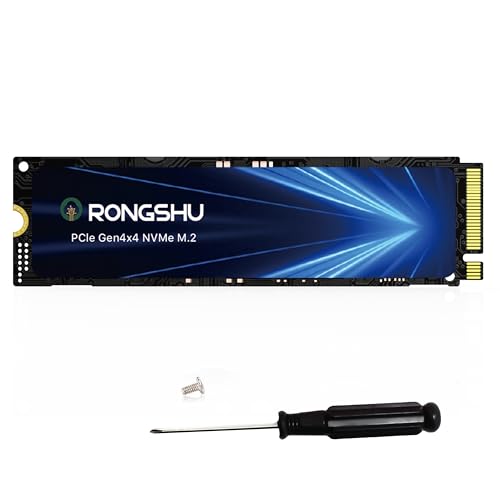
Capacity can change the TLC-versus-QLC calculation. A 1TB TLC drive may be a better value than a premium-priced 4TB QLC model if you do not need the extra space. The example 1TB RONGSHU TLC drive is listed at around $150, while the 4TB Dogfish QLC SATA drive is listed at $565. Those prices show why you should compare capacity, interface, and warranty together rather than assuming QLC is always cheaper.
Material: Understand What TLC and QLC Mean
TLC stores three bits of data per NAND cell, while QLC stores four. QLC packs more information into the same physical area, which can reduce the cost per gigabyte. The tradeoff is that QLC cells generally tolerate fewer write cycles and require more careful voltage management.
Neither term describes the entire SSD. The controller, NAND quality, firmware, DRAM or host-memory-buffer design, and spare area all affect performance. Many SSDs also use an SLC cache, which temporarily operates part of the NAND as faster single-level-cell storage. This can make short transfers feel very quick, but the drive may slow after the cache fills.
For a drive that will receive frequent large writes, TLC is the conservative choice. For a secondary game drive, document library, media collection, or general home computer, QLC can be perfectly reasonable—provided the price and warranty are competitive.
Construction: Match the Drive to the Slot and Heat
Most desktop and laptop NVMe drives use the M.2 2280 format, measuring approximately 22mm wide and 80mm long. Confirm that your computer has an M-key or compatible M.2 slot before buying. A 2.5-inch SATA SSD uses a different physical format and cable connection, even though both products may be described as internal SSDs.
Interface matters just as much. PCIe 4.0 x4 NVMe drives can advertise sequential speeds from about 5,000 to 7,400 MB/s. PCIe 3.0 models commonly top out around 3,000 to 3,500 MB/s, while SATA III is limited to about 550 MB/s in practical sequential use. A PCIe 4.0 drive will not reach its rated speed in a SATA slot.
Check whether the SSD includes a heatsink and whether your motherboard already has an M.2 cover. A bare M.2 drive may weigh only about 6 to 9 grams; a heatsink-equipped model can be around 30 to 60 grams. Do not install two heatsinks on top of each other. Laptops often need a thin, bare drive because clearance can be less than 4mm.
Comfort and Performance: Focus on Your Workload
For everyday use, random access and latency matter more than headline sequential speed. Booting Windows, opening a browser, and launching an application usually will not feel twice as fast when moving from a 5,100-MB/s drive to a 7,400-MB/s drive. Both are already far ahead of a hard disk.
Large, continuous transfers are different. Moving hundreds of gigabytes, exporting video, building software, or working with virtual machines can expose the difference between TLC and QLC. Once an SLC cache is exhausted, sustained write speeds may fall substantially, especially on a high-capacity QLC model. Manufacturers do not always publish cache size or post-cache performance, so avoid treating the peak number as a guarantee.
The RONGSHU examples illustrate the range: one 2TB TLC model is advertised at up to 5,100 MB/s, while the RP7000 2TB TLC model is advertised at up to 7,400 MB/s. The faster model may be useful for demanding workloads, but it is not automatically a better buy for a school laptop or game library. Also check power requirements. Most M.2 NVMe drives operate from a 3.3-volt supply and may use roughly 3 to 8 watts during active work, with higher short-term peaks depending on the controller and cooling.
Price Tiers: Compare Value, Not Just the Sticker
Street prices change, but these broad ranges are useful for budgeting in 2026:
- Budget, 500GB to 1TB: about $35 to $100 for SATA or entry-level NVMe; QLC is common.
- Midrange, 1TB to 2TB: about $70 to $220 for mainstream NVMe; TLC often offers the best balance.
- Premium, 2TB to 4TB: about $180 to $500 or more for high-end PCIe 4.0 or large-capacity models.
Actual listings can fall outside those ranges. The cited RONGSHU 2TB TLC products are listed at around $270 and around $270, while the 4TB Dogfish QLC SATA model is listed at $565. At those prices, verify whether you are paying for unusually high capacity, a seller-specific markup, or a warranty that justifies the difference. A slower 4TB drive is not a bargain if a pair of 2TB NVMe drives costs less and better suits your system.
Warranty: Use Endurance as a Tie-Breaker
Look for a written warranty of at least three years; five years is preferable for a primary drive. Also check the total bytes written, or TBW, rating. A 1TB consumer SSD may be rated around 300 to 600 TBW, while a 2TB model may be rated around 600 to 1,200 TBW. These are warranty limits, not a guaranteed failure point.
QLC drives may have lower TBW ratings than comparable TLC drives, though capacity and model design matter. If you write 20GB per day, 300 TBW represents more than 40 years of theoretical writes before accounting for other factors. If you write 500GB per day for video production, that same rating is reached in less than two years. Keep important files backed up regardless of NAND type.
Delivery and Assembly: Avoid Compatibility Surprises
Before ordering, identify your motherboard or laptop model and confirm the M.2 length, keying, PCIe generation, and available clearance. A desktop installation often takes 10 to 20 minutes: power down, insert the drive at an angle, secure it with the correct screw, and install the heatsink if required. A laptop may require a thinner drive, a cloned operating system, and careful battery disconnection.
PS5 compatibility requires more than an M.2 label. The drive must fit the console’s physical bay and meet its performance and heatsink requirements. An SSD advertised as “compatible with PS5” still deserves a clearance check, especially if it includes a tall heatsink. For delivery, inspect the sealed packaging and record the serial number before installation in case warranty service is needed.
Spec Checklist
| Spec | Budget | Mid | Premium |
|---|---|---|---|
| Typical capacity | 500GB–1TB | 1TB–2TB | 2TB–4TB |
| NAND | QLC or entry TLC | TLC preferred | High-end TLC; larger QLC for archives |
| Interface | SATA or PCIe 3.0 | PCIe 3.0 or 4.0 x4 | PCIe 4.0 x4 |
| Sequential read | Up to 550–3,500 MB/s | About 3,500–5,500 MB/s | About 5,000–7,400 MB/s |
| Warranty target | 3 years | 5 years preferred | 5 years |
| Approximate price | $35–$100 | $70–$220 | $180–$500+ |
Red Flags
- Only “up to” speed is listed, with no sustained-write or TBW information.
- The product does not clearly identify TLC, QLC, interface, or controller details.
- The drive has an unusually high price but only a one-year warranty.
- A heatsink is included, but its height is not provided for laptop or console use.
- The advertised capacity is large, but the seller provides no reputable support contact or serial-number process.
- A SATA drive is marketed beside PCIe 4.0 models without clearly explaining the speed difference.
FAQ
Is TLC always better than QLC?
No. TLC is generally better for sustained writing and endurance, but QLC can deliver excellent capacity for games, media, and everyday storage. Choose TLC when the price difference is reasonable and the drive is your primary or heavily used workspace.
Will QLC make my computer feel slow?
Usually not during ordinary tasks. Booting, browsing, and opening applications can feel very responsive. Slowdowns are more likely during long, uninterrupted writes after the drive’s SLC cache is full.
Should I buy PCIe 4.0 for a normal laptop?
Only if the laptop supports PCIe 4.0 and the price is competitive. A PCIe 3.0 NVMe SSD is already fast for most home and office workloads, while a PCIe 4.0 drive can use more power and generate more heat.
How much free space should an SSD have?
Try to keep at least 10% to 20% free. A 1TB drive should ideally retain about 100GB to 200GB available, while a 2TB drive should retain about 200GB to 400GB. That space helps updates, caching, and everyday performance.









