
SSDs are famous for being frugal compared to spinning drives, but “low power” hides a surprisingly wide range. A fast PCIe 4.0 or 5.0 NVMe drive can sip almost nothing at idle and then spike to several watts under a heavy copy, while a laptop drive’s sleep states decide how long your battery lasts. If you are building a small-form-factor rig, a low-power NAS, or a laptop, those watts matter. Here is what SSDs actually draw and why.
As an Amazon Associate we earn from qualifying purchases at no extra cost to you.


Our Top Picks
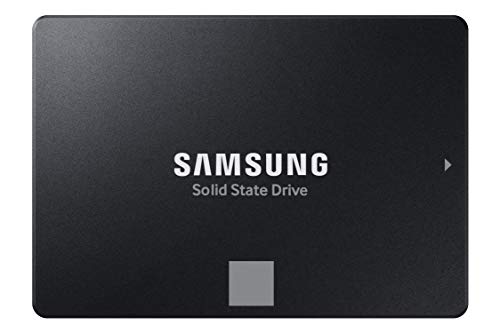
 Samsung 870 EVO SATA SSD 250GB 2.5” Internal0.25TB3.94 x 2.76 x 0.27 inches0.13 PoundsCheck on Amazon

Top 3 picks at a glance
Idle vs Active: The Two Numbers That Count
Every SSD has two power figures worth knowing. Active power is what it pulls during sustained reads and writes. Idle power is what it draws when the drive is doing nothing but staying ready. For desktops, active power drives heat and cooling needs. For laptops and always-on devices, idle and sleep power dominate the running total because the drive spends most of its life waiting.
Typical Power Ranges
The figures below are general ranges for consumer drives, not exact model numbers, but they show the shape of the picture. Notice how a fast NVMe drive’s active draw dwarfs its idle draw, and how deep sleep states cut idle power to a tiny fraction.
| Drive type | Active (read/write) | Idle | Deep sleep |
|---|---|---|---|
| SATA 2.5-inch SSD | 2-4W | 0.5-1W | ~0.05W |
| PCIe 3.0 NVMe | 4-6W | 0.5-1.2W | ~0.05W |
| PCIe 4.0 NVMe | 5-8W | 0.6-1.5W | ~0.05W |
| PCIe 5.0 NVMe | 8-12W peak | 0.8-2W | ~0.1W |
Why Fast NVMe Drives Run Hotter
The active power jump from SATA to PCIe 5.0 is not wasted energy; it is the cost of moving data many times faster. Pushing 10,000+ MB/s means the controller and NAND work hard for short bursts, and that energy becomes heat. This is exactly why high-end NVMe drives ship with or need heatsinks: not because they run hot constantly, but because they spike during sustained transfers and will thermally throttle without help. At idle those same drives are calm and cool.
Sleep States Are Where Laptops Win or Lose
NVMe drives support low-power states called APST (Autonomous Power State Transitions) and the SATA equivalent DevSleep. When configured correctly, the drive drops to tens of milliwatts within moments of going idle. Poorly implemented firmware, aggressive background tasks, or a driver that never lets the drive sleep can leave it burning a watt or more continuously, quietly draining a laptop battery for no benefit. On battery-powered systems, confirming these states engage matters more than peak speed.
Does SSD Power Draw Actually Affect You?
On a desktop with a 650W-plus supply, a few extra watts of SSD draw is trivial for your bill or PSU headroom. Where it counts is thermals in a cramped small-form-factor case, battery life in a laptop, and total draw in an always-on mini PC or NAS packed with drives. In those builds, choosing an efficient drive and verifying its sleep states can meaningfully cut heat and running cost. For everyone else, power is a tie-breaker, not a deciding factor.
Frequently Asked Questions
Does a larger-capacity SSD use more power?
Slightly, because it has more NAND packages to manage, but the difference is small at idle. Active power scales more with speed and controller class than with raw capacity, so a fast 1TB drive can easily out-draw a slow 4TB one under load.
Will a heatsink lower my SSD’s power consumption?
No, a heatsink does not change how much energy the drive uses; it moves heat away so the drive avoids throttling and sustains its rated speed. Power draw is set by the controller and workload, not by cooling.
How to Check and Improve Your Drive’s Draw
You can read a drive’s power states from its spec sheet and, on many systems, watch real draw with the laptop’s battery reporting or a wall meter for a desktop. If a laptop drains faster than expected while idle, confirm that modern standby and NVMe power management are enabled in both the BIOS and the Windows power plan, since a single misbehaving driver can hold the drive awake and quietly waste a watt around the clock. On desktops the practical lever is cooling rather than wattage: a small heatsink lets a fast drive sustain its speed without throttling, even though it does not lower the watts the drive consumes.
Bottom Line
SSDs are efficient, but the range runs from a fraction of a watt at deep sleep to double digits for a PCIe 5.0 drive mid-transfer. Active power matters for heat in tight desktops, while idle and sleep states decide laptop battery life. Match the drive to the build: prioritize efficient, well-behaved sleep states for portable and always-on systems, and do not sweat a few watts on a well-cooled desktop.









