For almost every stage of a modern editing workflow, the answer to HDD vs SSD for video editing is SSD — with one clear exception. Use an NVMe or SATA SSD for your OS, scratch disks, media cache, and active project files; reserve HDDs for archives, backups, and cold storage where speed doesn’t matter and cost per terabyte does. The rest of this article breaks down why that split works, with the math behind 4K playback and exports.
As an Amazon Associate we earn from qualifying purchases at no extra cost to you.



Our Top Picks
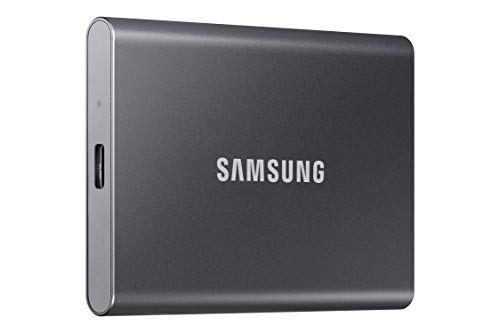


Top 3 picks at a glance
Match the Drive to the Editing Role
Editing software touches storage in three distinct ways, and each stresses a different drive characteristic:
| Role | What it stresses | Best drive | Budget fallback |
|---|---|---|---|
| Scratch disk / media cache | Random write latency, sustained small-file writes | NVMe SSD (PCIe 4.0) | SATA SSD |
| Active project media | Sustained reads + seek latency during scrubbing | NVMe SSD | SATA SSD or external USB 3.2 Gen 2 SSD |
| Exports / renders | Sustained writes for mezzanine masters | NVMe SSD | Any SSD (HDD only for H.264 delivery files) |
| Archive / backup | Capacity, cost per TB, idle retention | 7200 rpm HDD or NAS array | Single large HDD |
The pattern: whatever the timeline is touching right now belongs on flash; whatever you’re keeping “just in case” belongs on spinning disk.
Scratch Disks and Cache: Where an HDD Hurts Most
Premiere Pro and DaVinci Resolve constantly write cache data — conform files, peak files, frame previews, Resolve’s render cache and optimized media. This is heavy random I/O, and it’s where the HDD vs SSD gap is largest, because sequential throughput barely matters here.
- A 7200 rpm HDD needs roughly 4–10 ms per seek and manages only ~100–200 random IOPS.
- An NVMe SSD responds in under 0.1 ms and handles tens of thousands of random IOPS.
At 30 fps, each frame of playback has a 33 ms budget. A handful of HDD seeks — reading a cached frame, writing a peak file, fetching a thumbnail — can eat that entire budget and produce dropped frames even though the drive’s headline speed looks adequate.
Practical settings to apply:
- Premiere Pro: Edit → Preferences → Scratch Disks. Point Media Cache Files and Video/Audio Previews at your fastest NVMe drive, ideally a different physical drive than your OS.
- DaVinci Resolve: Project Settings → Master Settings → set the cache file location to the NVMe. Optimized media and render cache land there too.
- Keep 15–20% free space on any SSD used for scratch. A nearly-full SSD exhausts its SLC write cache; budget QLC drives can collapse to under 100 MB/s sustained — literally slower than a good HDD.
Active Projects: The 4K Playback Math
Whether an HDD can handle timeline playback depends entirely on codec bitrate. Here are the real numbers per stream:
| Codec (4K, ~30 fps) | Bitrate | Bandwidth needed | Streams a ~200 MB/s HDD can feed |
|---|---|---|---|
| H.264 / H.265 camera footage | 100–400 Mbps | 12–50 MB/s | 4–10 (in theory) |
| ProRes 422 | ~612 Mbps | ~76 MB/s | 2 |
| ProRes 422 HQ | ~917 Mbps | ~115 MB/s | 1 |
| ProRes 4444 | ~1,375 Mbps | ~172 MB/s | Borderline |
Worked example: a four-angle multicam edit in ProRes 422 HQ needs about 4 × 115 MB/s = 460 MB/s sustained, plus headroom for the seeks that scrubbing and cuts generate. A 7200 rpm HDD sustaining 180–250 MB/s saturates instantly. A PCIe 4.0 NVMe drive like a Samsung 990 Pro or Crucial T500 reads at ~7,000 MB/s — roughly 15× headroom, which is why scrubbing feels instant.
Two nuances worth knowing:
- Proxy workflows rescue HDDs. If you edit lightweight proxies (~10–20 Mbps each) and only relink to full-res media at export, even a single HDD can feed a multicam timeline. The drive only needs to be fast on export day.
- Compressed codecs shift the load. H.264/H.265 streams are small enough for an HDD’s throughput, but they hammer the CPU/GPU for decode. ProRes does the opposite — easy decode, huge bandwidth. An SSD fixes the ProRes side; nothing storage-side fixes HEVC decode load.
Exports: When Drive Speed Matters (and When It Doesn’t)
Most exports are encoder-bound, not disk-bound. Writing a 4K H.264 delivery file at 60 Mbps requires under 8 MB/s — an HDD barely notices. Drive speed becomes the bottleneck in two cases:
- Mezzanine masters. A 10-minute ProRes 422 HQ master is ~69 GB. Writing it to an HDD at ~200 MB/s takes ~6 minutes of pure write time; an NVMe SSD at ~3,000 MB/s writes finishes in ~25 seconds. Fast GPU encoders can render faster than an HDD can absorb the output, stalling the pipeline.
- Same-drive contention. Reading source media and writing the export to one HDD forces the head to ping-pong, roughly halving effective throughput. With an SSD, same-drive exports are fine; with an HDD, always export to a different drive.
Archives: Where HDDs Still Win
Cost is the whole story. In 2026, a 16–20 TB NAS drive (Seagate IronWolf Pro, WD Red Pro class) runs roughly $12–20 per TB, while NVMe sits around $50–80 per TB and SATA SSDs around $45–60. A 40 TB project archive costs a fraction on disk versus flash.
HDDs also have a genuine advantage for cold storage: NAND flash slowly leaks charge when unpowered, and a consumer SSD left on a shelf for years at high temperature can corrupt data. A powered-off HDD holds data far more reliably. Good archive practice:
- Follow 3-2-1: three copies, two media types, one off-site (cloud counts).
- Use a NAS with RAID 5/6 or SHR for redundancy — RAID protects uptime, not against deletion, so pair it with a backup.
- Refresh archive drives every 3–5 years and verify checksums on large project dumps.
- If you edit directly off a NAS, 10GbE (~1,250 MB/s ceiling) is the minimum for ProRes work; standard gigabit (~115 MB/s) limits you to compressed codecs, much like a single HDD.
Recommended Setups by Budget
- Minimal (1080p / light 4K H.264): One 1–2 TB NVMe for OS, apps, cache, and projects; one large HDD for archive. This covers most YouTube-scale workflows.
- Standard (4K ProRes, multicam): Separate NVMe drives for scratch/cache and active media, so cache writes never compete with playback reads; HDD or NAS archive.
- Heavy (6K/8K RAW, 4444, Resolve caching on): A dedicated high-endurance NVMe scratch drive (PCIe 4.0 is plenty — PCIe 5.0 drives like the Crucial T705 add heat, not editing performance), a second NVMe for media, and a RAIDed NAS for archive.
- Mobile: A USB 3.2 Gen 2 external SSD (~1,000 MB/s cap) handles proxies and H.264 fine; step up to Thunderbolt for ProRes multicam.
FAQ
Is an SSD or HDD better for video editing overall?
An SSD for everything the timeline touches — cache, previews, active media. HDDs remain the right answer only for archives, where their low cost per TB and reliable powered-off retention outweigh slow access.
Is a SATA SSD enough for 4K editing?
Yes for most single-stream work — ~550 MB/s covers several ProRes 422 streams and all compressed codecs. NVMe earns its premium with multicam, high-bitrate RAW, and heavy render-cache use.
Will an SSD make my exports faster?
Only when the export writes large mezzanine files (ProRes, DNxHR) or when source and destination share an HDD. Typical H.264/H.265 delivery exports are encoder-limited and won’t benefit.
Can I edit directly off an external HDD?
For proxies or a single compressed stream, it will work — expect stuttery scrubbing and dropped frames under multicam or ProRes loads. If you must, keep the cache on an internal SSD so the HDD only reads media.