
You’ve got decades of photos, tax records, home videos, and creative work sitting on a drive somewhere — and the quiet question keeping you up at night is whether that drive will still work in ten years. The real decision a buyer faces isn’t just speed or capacity; it’s whether you want a storage medium built on spinning magnetic platters that have proven themselves over 40 years, or flash memory that’s faster and tougher to drop but behaves differently when left powered off for long stretches. Hard drives and solid state drives age in genuinely different ways, and the right answer depends on how often you’ll touch the archive, where it lives in your home, and what happens if it gets bumped.
Our Top Picks



Top 3 picks at a glance

Quick Verdict
For most home archivists, hard drives remain the safer bet for long-term storage — especially when data sits untouched for years. SSDs win for archives you access regularly, transport, or store in spaces where bumps and drops are a real risk. A practical setup for many households: one primary HDD archive updated monthly, plus a smaller SSD copy of the irreplaceable files.
As an Amazon Associate we earn from qualifying purchases at no extra cost to you.



Side by Side
| Factor | HDD | SSD |
|---|---|---|
| Data retention when unpowered | Strong; magnetic platters hold data for years unpowered | Flash cells leak charge over time; recommended to power on and refresh every 1–2 years |
| Durability when handled | Fragile in motion; a drop while spinning can kill the drive | No moving parts; shrugs off drops and vibration |
| Access speed | Roughly 80–250 MB/s; takes seconds to spin up | 500–1,050+ MB/s on portable models; instant access |
| Price per terabyte | Roughly $15–35 per TB; large drives far cheaper | Roughly $80–230 per TB at consumer sizes |
| Noise | Audible hum and occasional clicks (around 20–30 dB) | Silent |
| Power use | Roughly 5–9 W idle for 3.5″ desktop drives | Roughly 0.5–3 W typical |
| Physical footprint | 3.5″ desktop drives are bulky; 2.5″ portables are pocketable | Often smaller than a deck of cards; pocketable |
| Maintenance | Keep level, avoid vibration, occasional health checks | Periodic power-on to refresh charge; keep cool and dry |
| Failure mode | Usually gradual — warning clicks, slow reads | Often sudden; can die without warning |
| Best for | High-capacity archives that sit mostly untouched | Frequently accessed files, off-site copies, transport |
Where Hdd Wins
Capacity per dollar. The gap is dramatic. An 8TB internal drive like the Seagate BarraCuda 8TB (ST8000DM004, around $250) works out to about $31 per terabyte, and similar drives regularly dip under $20 per TB on sale. Equivalent flash capacity would run you well over $1,000.
Long unpowered storage. Magnetic recording doesn’t depend on electrical charge trapped in floating-gate cells, so an HDD archived on a shelf and left alone is far more forgiving. SSD manufacturers generally recommend powering drives up every year or two; hard drives carry no such caveat.
Graceful warning signs. Hard drives usually telegraph trouble — slow reads, unusual noises, SMART warnings — giving you time to copy your files. SSDs frequently fail abruptly.
Proven track record. Magnetic storage has decades of real-world archival history. Institutions and archives have relied on spinning disks for a very long time, and the failure patterns are well understood.
Where Ssd for Long Term Archive Storage Wins
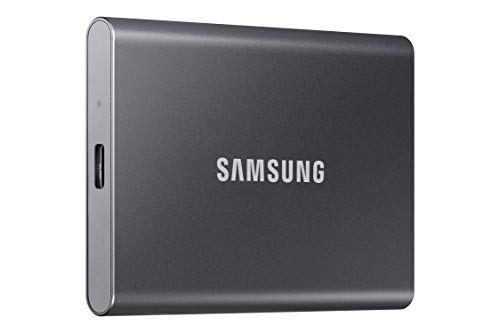
Physical toughness. A portable SSD like the Samsung T7 (1TB, around $230) has no moving parts, so a drop from a desk is usually survivable. An HDD dropped while running can suffer a head crash and lose everything. If your archive lives somewhere it might get bumped — a drawer kids open, a shelf near a doorway — this matters enormously.
Speed for regular access. The T7 moves files at up to 1,050 MB/s over USB 3.2 Gen 2. Copying a 50GB folder of raw photos takes under a minute instead of five or more. If you open your archive monthly, the time savings compound.
Silence and size. An SSD is silent and roughly 3 by 3 inches, weighing a few ounces. You can keep one in a fire safe, a go-bag, or a desk organizer without noticing it. Accessories like a five-bay SSD storage holder (around $23) let you line up multiple small drives in a single drawer — something genuinely impractical with spinning drives.
Cool, quiet operation. At roughly 0.5–3 W versus 5–9 W for a desktop HDD, flash storage generates minimal heat, which helps in enclosed spaces like closets and safes.
Cost Over 5 Years
Assume a 2TB archive. A portable HDD like the Seagate 2TB (STGX2000400) costs around $130 up front — call it $130. A comparable 2TB portable SSD runs roughly $180–230, often more during peak demand. On purchase price alone, the HDD saves you $50–100.
Now layer in the realistic five-year picture. The HDD path may involve buying a second drive around year three or four as a backup mirror — say another $130 — bringing the total to roughly $260, or about $52 per year. The SSD path might mean one $200 drive plus periodic power-on refreshes (free, just a calendar reminder) and a possible second small drive for redundancy: roughly $250–400 over five years, or $50–80 per year.
The surprise is how close they land once you account for redundancy — which any archive strategy needs, regardless of medium. The genuine cost difference is at the high end: scaling to 8TB costs around $250 with a desktop HDD versus potentially $1,200+ with consumer SSDs. If your archive is large, the economics tilt hard toward spinning disks.
Which One for Your Home
Small Apartment
Space and noise are at a premium, and you likely don’t have room for a desktop tower or a NAS humming in the corner. A 2TB portable HDD ($130) tucked in a drawer covers the capacity need quietly, and it’s only audible during transfers. If your budget stretches further and your archive is under 1TB, a Samsung T7 is small enough to live inside a fire safe — a genuine advantage in tight quarters. Pick the HDD if capacity matters; pick the SSD if everything you own fits in 1TB.
Family with Kids or Pets
This is the clearest SSD scenario. Spinning portable drives and toddler hands don’t mix — a yanked cable or a shelf-tumble can destroy an operating HDD. A flash drive survives the drop, and a simple tray organizer keeps multiple small SSDs tidy on a high shelf. Run a duplicate archive on an inexpensive desktop HDD kept out of reach as your deep backup, and let the SSD handle the day-to-day copy that actually gets plugged in.
Rental
You’re moving every year or two, and moving is when drives die. Flash storage earns its keep here: no moving parts means packing boxes and bumpy car rides are low-stakes. A portable SSD slips into a laptop sleeve. Keep a second copy on a shock-tolerant portable HDD, but power it down and pack it padded, ideally in its original box, on move day.
Long-Term Home
Stable, settled, and thinking in decades? This is classic HDD territory. A desktop internal drive like the BarraCuda 8TB in an enclosure or a small NAS gives you massive capacity at low cost, parked on a stable shelf where vibration isn’t an issue. Build in redundancy — two drives, ideally one kept at a relative’s house — and schedule a full verification read once a year. By 2026 standards, a mirrored two-drive HDD archive plus a small SSD copy of irreplaceable photos is about as robust as home storage gets.
FAQ
Do SSDs really lose data if left unpowered?
Flash memory cells gradually leak their electrical charge, and the rate depends on temperature, how worn the cells are, and how full the drive was. Consumer SSDs typically hold data reliably for a year or more unpowered under normal conditions, but manufacturers recommend powering drives on every 1–2 years for long-term storage. Hard drives have no equivalent concern.
How long will an HDD actually last on a shelf?
The magnetic data itself is stable for many years, but the mechanical and electronic components — spindle bearings, lubricants, capacitors — can degrade, especially in humid heat. Practically speaking, plan on verified copies every 3–5 years and migrating to newer drives every 7–10 years. No storage medium is truly “archive and forget.”
Is it better to have two HDDs or one HDD and one SSD?
One HDD and one SSD is the stronger pairing because the two media fail in different ways and for different reasons — a defect that kills one is unlikely to affect the other. Two identical drives bought the same day can share a manufacturing flaw. Keep the pair in separate locations if you can.
What’s the single most important thing beyond choosing a drive?
Redundancy and verification. The famous guidance applies regardless of medium: a file doesn’t exist unless it exists in at least two places, one of them off-site. Then verify — open and spot-check files from your archive at least once a year. Drives fail more often from neglect than from the brand or technology you chose.









