Formatting a new external SSD forces a decision that quietly shapes how useful the drive will be: which filesystem to use. Pick wrong and you may find your Mac can only read the drive, or your camera refuses it, or large files will not copy. This guide compares exFAT, NTFS, and APFS so you choose the right format for how and where you actually use the drive.
As an Amazon Associate we earn from qualifying purchases at no extra cost to you.

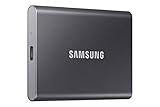
Our Top Picks
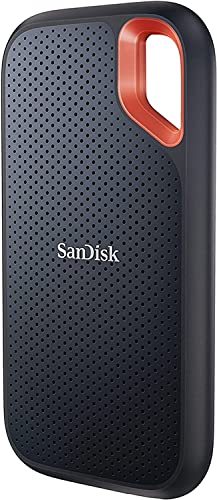
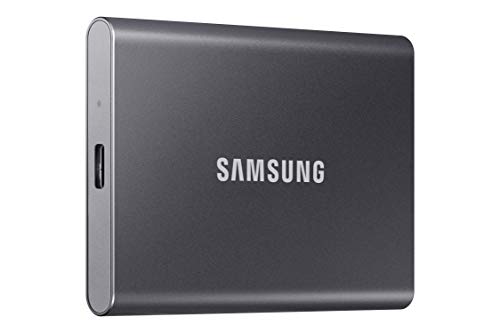
Top 3 picks at a glance
The three contenders
NTFS is the native Windows filesystem, robust and full-featured but read-only on macOS without extra software. APFS is Apple’s modern filesystem, excellent on Macs but not natively readable by Windows. exFAT is the neutral ground, readable and writable on Windows, macOS, most cameras, consoles, and Linux, at the cost of some reliability features.
| Filesystem | Windows | macOS | Large files | Best for |
|---|---|---|---|---|
| exFAT | Read/Write | Read/Write | Yes | Cross-platform sharing |
| NTFS | Read/Write | Read only (native) | Yes | Windows-only use |
| APFS | Not native | Read/Write | Yes | Mac-only use |
| FAT32 (for reference) | Read/Write | Read/Write | No (4GB limit) | Legacy, avoid for SSDs |
Choosing based on your devices
Use exFAT for cross-platform drives
If the SSD moves between Windows and Mac, plugs into a console or camera, or gets shared among mixed machines, exFAT is the clear choice. It handles files larger than 4GB (unlike old FAT32) and works nearly everywhere without extra drivers. The tradeoff is that exFAT lacks journaling, so it is slightly more vulnerable to corruption if you unplug during a write. Always eject properly.
Use NTFS for Windows-only drives
For a drive that stays with Windows PCs, NTFS is more robust than exFAT thanks to journaling, permissions, and better handling of interrupted writes. It is the right pick for a Windows backup drive or a game library drive you never connect to a Mac. Macs can read it but not write without third-party software.
Use APFS for Mac-only drives
If the SSD lives entirely in the Apple ecosystem, APFS is ideal. It is optimized for flash storage, supports snapshots and fast cloning, and is required for Time Machine on newer macOS versions. Windows cannot read it natively, so avoid APFS if the drive ever needs to work on a PC.
Practical tips
For a shared external SSD used with both platforms, format as exFAT and always use the safe eject or unmount function to reduce corruption risk. If you need the reliability of a journaled filesystem across both platforms, third-party drivers can add NTFS write support on Mac or APFS read support on Windows, but a neutral exFAT format is simpler for most people. Keep a backup regardless of filesystem, since none of them replace one.
Cluster size and other format choices
Beyond picking the filesystem, a couple of format-time choices affect how the drive behaves. The allocation unit (cluster) size sets the smallest chunk of space a file occupies; larger clusters can slightly improve performance for big files like video, while smaller clusters waste less space with many tiny files. For an external SSD holding mostly large media, the default or a somewhat larger cluster size is fine, so there is rarely a need to override it. Always choose a full format rather than a quick format when first setting up a drive you want to verify, since it checks the surface, though a quick format is fine for a routine wipe. Give the drive a clear, descriptive volume label so you recognize it across machines. If you plan to encrypt the drive, decide on that before loading data, since some encryption schemes are platform-specific and can undo your cross-platform goal, whereas a neutral exFAT drive with a compatible encryption container stays portable. Getting these details right at format time saves reformatting later, which always means moving your data off and back on.
FAQ
Is exFAT reliable enough for important data?
exFAT is fine for everyday file transfer and sharing, but it lacks journaling, so an interrupted write or bad unplug can corrupt the file table more easily than NTFS or APFS. Use it for convenience and portability, always eject safely, and keep a separate backup of anything you cannot afford to lose.
Can I use one drive with both Mac and Windows and keep full read-write?
Yes, format it as exFAT and both systems can read and write natively. If you specifically need NTFS or APFS features on the other platform, you will need third-party drivers, but exFAT avoids that hassle for straightforward cross-platform use.
Bottom line
Match the filesystem to the drive’s life: exFAT for anything shared across Windows, Mac, consoles, or cameras; NTFS for Windows-only drives that benefit from journaling; and APFS for drives that never leave the Apple ecosystem. Choose deliberately at format time, eject safely, and back up your data, and the drive will just work wherever you plug it in.









