Right-click a folder in Windows, open Properties, and you will find a checkbox to “Compress contents to save disk space.” It promises free storage with no extra software, which sounds ideal when an SSD is filling up. Whether it is actually worth enabling depends on what you store and how modern your hardware is, and there are a couple of surprising performance twists.
As an Amazon Associate we earn from qualifying purchases at no extra cost to you.


Our Top Picks
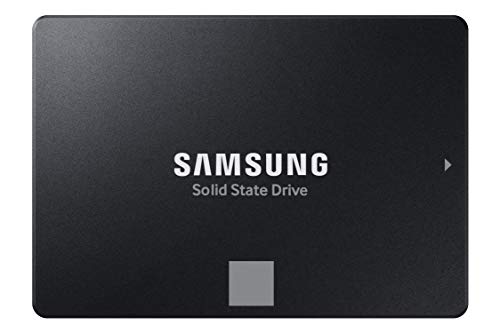 SAMSUNG 870 EVO SATA SSD 500GB 2.5” Internal0.5TB3.94 x 2.76 x 0.27 inches0.19 PoundsCheck on Amazon


Top 3 picks at a glance
How NTFS compression works
NTFS compression is a transparent, file-system-level feature. Files are compressed as they are written and decompressed on the fly as they are read, so applications never know the difference. It uses the lightweight LZNT1 algorithm, which is fast but not especially aggressive, and it operates on 16-cluster chunks rather than whole files.
How much space it saves
Savings depend entirely on data type. Highly compressible files shrink a lot; already-compressed files barely budge.
| File type | Typical compression |
|---|---|
| Text, logs, source code, CSV | 50-80% smaller |
| Office documents, XML, HTML | 30-60% smaller |
| Uncompressed images (BMP, some TIFF) | 20-50% smaller |
| Photos (JPEG), video (MP4), music (MP3) | ~0-3% (already compressed) |
| Most game files and installers | Minimal, often not worth it |
The performance twist
Conventional wisdom says compression trades CPU time for space, and that is true, but there is a nuance on slow storage. On a mechanical hard drive, reading a compressed file can sometimes be faster overall because there is less data to physically read, and modern CPUs decompress LZNT1 almost instantly. On a fast NVMe SSD the storage is already so quick that compression adds CPU overhead without a read-speed benefit, and it can slightly slow large sequential operations.
When it helps and when it hurts
Compression is worth enabling on folders full of compressible, infrequently written data: document archives, logs, code repositories, and old projects. It is not worth it for media libraries and game folders, where files are already compressed and you gain almost nothing while adding overhead. Avoid compressing files that are constantly rewritten, since every change triggers recompression.
Better alternatives for SSD space
If your goal is simply more room, deleting shader caches, clearing temporary files, moving large game libraries to a secondary drive, and using Windows Storage Sense usually reclaim more space with zero downside. Compression is a modest, targeted tool, not a substitute for adequate capacity. For heavy compression needs, dedicated archive formats or file systems like ZFS with built-in compression outperform NTFS’s simple approach.
Enabling and checking compression
Turning it on is a right-click away: open a folder’s Properties, click Advanced, and tick “Compress contents to save disk space,” then apply to the folder and its contents. Windows shows compressed files and folders in a different color if that option is enabled in Folder Options, so you can see at a glance what is compressed. To measure the payoff, compare the folder’s “Size” against “Size on disk” in Properties; the gap is your real saving.
Reversing it is easy
If compression causes any slowdown or you simply change your mind, untick the same box and Windows decompresses the files in the background. Nothing is lost and no data is at risk, which makes it a low-commitment experiment. Because it is so easily reversible, the sensible approach is to try it on one archive folder, measure the space saved and any performance change, and expand only if the trade works for you.
FAQ
Will NTFS compression wear out my SSD faster?
Not meaningfully. It writes less data overall for compressible files, which if anything slightly reduces writes. The real cost is CPU overhead and possible slowdown on very fast drives, not endurance.
Should I compress my whole C: drive?
No. Compressing the entire system drive, including Windows and games, adds overhead for little gain because system and game files compress poorly. Target specific folders of compressible data instead, and leave the OS and media alone.
Bottom line
NTFS compression genuinely saves space on text, documents, logs, and code, sometimes cutting them in half, but does almost nothing for photos, video, and games. On modern NVMe SSDs the benefit is niche, so apply it selectively to compressible archives rather than blanket-enabling it, and reach for it after the easier space-saving wins.