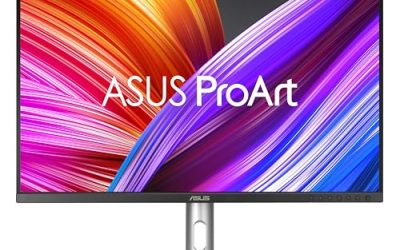
The best webcam for private, dim-room streaming is one with a large sensor, a physical privacy shutter and settings that work without a cloud account. The Elgato Facecam MK.2 and Logitech MX Brio are the safest all-round choices, the Razer Kiyo Pro Ultra is the low-light specialist, and the Insta360 Link 2 suits people who move around. This guide treats your search as a question about discreet, privacy-first webcams for dim lighting and private video, and ranks cameras on image quality in poor light, shutter and cable control, and data exposure.
As an Amazon Associate we earn from qualifying purchases at no extra cost to you.


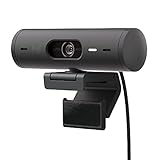
Our Top Picks


Top 3 picks at a glance
Quick comparison of the picks
| Pick | Best for | Key specs (per manufacturer) | Price range |
|---|---|---|---|
| Elgato Facecam MK.2 | Best overall for fixed desk setups | 1080p60, HDR, built-in privacy cover, USB-C | Mid-range |
| Logitech MX Brio | Best for work plus private calls | 4K30 / 1080p60, privacy shutter, USB-C | Mid-range to premium |
| Razer Kiyo Pro Ultra | Best in dim rooms | 4K30, large 1/1.2-inch sensor, USB 3.x | Premium |
| Insta360 Link 2 | Best for movement and framing | 4K30, 2-axis gimbal, AI tracking, privacy-down mode | Mid-range to premium |
| Elgato Facecam Pro | Best for 4K60 quality | 4K60, Sony Starvis-class sensor, fixed lens, USB 3.0 | Premium |
| Logitech Brio 500 | Best budget-friendly privacy pick | 1080p, privacy shutter, USB-C, auto light correction | Budget to mid-range |
Best overall: Elgato Facecam MK.2
This camera suits people who mount a webcam on a monitor and leave it there. It is a 1080p60 model with HDR and a built-in privacy cover, and it works as a plain USB video device without an account. Per Elgato’s materials, the lens is fixed-focus, so you never deal with autofocus hunting in dim light.
Trade-off: it tops out at 1080p, so you cannot crop in for a digital zoom the way you can with a 4K sensor.
Best for work and private calls: Logitech MX Brio
The MX Brio records 4K30 or 1080p60 and has a physical privacy shutter. It is a good fit if the same camera handles office meetings and personal calls, because the shutter gives a visible, mechanical “off” state. Logitech’s software is optional for basic use, but check its settings if you want to avoid extra background services.
Trade-off: its auto-exposure is tuned for office lighting, so in very dim, warm light you may need to lock exposure manually.
Best in dim rooms: Razer Kiyo Pro Ultra
Razer markets a 1/1.2-inch-class sensor, far larger than the sensors in most webcams. A bigger sensor collects more light per pixel, which means less noise at the same exposure. This is the pick if you prefer low, moody lighting over bright key lights.
Trade-off: it is premium-priced and needs a proper USB 3 port. The software is also more involved than plug-and-play rivals.
Best for movement: Insta360 Link 2
The Link 2 is a gimbal camera with 4K30 and AI tracking, so it keeps you framed if you shift position. Its privacy mode tilts the lens downward, but that is not a physical shutter, so treat it as a convenience feature rather than a guarantee. For true privacy, unplug the cable or cover the lens.
Trade-off: the tracking features depend on companion software, and moving parts add something that can fail.
Best for 4K60: Elgato Facecam Pro
The Facecam Pro is one of the few webcams offering 4K at 60 fps. It has a fixed lens and relies on good lighting for its best results. It is built for creators who want a clean, uncompressed feed.
Trade-off: 4K60 needs a USB 3.0 port with spare bandwidth, and the lens is not optimized for weak light.
Best budget-friendly privacy pick: Logitech Brio 500
The Brio 500 gives you 1080p, a privacy shutter and automatic light correction at a lower price than the 4K models. It is enough for most private video chats where you control the lighting.
Trade-off: the sensor is smaller, so noise rises quickly once the room gets dark.
How to choose: decision criteria with numbers
1. Sensor size matters more than resolution in dim light
A 4K webcam with a small sensor often looks worse in low light than a 1080p camera with a large one, because each pixel is tiny. If your room is dim, prioritize sensor size and lens aperture over the 4K label. Many 4K webcams also downscale to 1080p in meeting apps anyway.
2. The frame-rate trap: 60 fps halves your light
At 30 fps the longest practical exposure per frame is about 1/30 s. At 60 fps it is about 1/60 s, so each frame gets roughly half the light. That is about one stop, and the camera compensates with higher gain, which means more noise. In a dim room, 1080p30 will usually look cleaner than 1080p60.
3. Worked example: USB bandwidth
Uncompressed video bandwidth is width × height × bytes per pixel × fps. Using YUY2 (2 bytes per pixel):
- 1080p30: 1920 × 1080 × 2 × 30 ≈ 124 MB/s, about 1 Gbps
- 1080p60: ≈ 249 MB/s, about 2 Gbps
- 4K30: 3840 × 2160 × 2 × 30 ≈ 498 MB/s, about 4 Gbps
USB 2.0 tops out at 480 Mbps, so it cannot carry any of these uncompressed. Cameras on USB 2.0 rely on MJPEG or H.264 compression, which adds artifacts in dark scenes. A 4K30 uncompressed feed also exceeds the 5 Gbps USB 3.0 link’s comfortable real-world limit once other devices share the same controller. Plug high-resolution cameras directly into a rear motherboard port, not a hub.
4. Privacy hardware and software
- Physical shutter: the only reliable guarantee that the lens cannot capture anything. Software “off” states and indicator LEDs can be bypassed or misread.
- Removable USB-C cable: unplugging is the strongest off switch for a desktop camera.
- No mandatory account: choose cameras that work as standard UVC devices without sign-in. Configure once, then close the companion app.
- Microphone: many webcams include one. Disable it in your OS sound settings if you use a separate mic.
- App permissions: in Windows and macOS, review which apps are allowed camera access and remove any you do not recognize.
5. Lighting beats any camera upgrade
One soft, warm lamp placed in front of you and slightly above eye level can improve a cheap webcam more than a premium camera in a dark room. Aim for even light on the face without pointing the lamp directly into the lens. Lock white balance and exposure manually so the image does not pump when you move.
Decision matrix: match your situation to a pick
| Your situation | Choose | Reason | Key setting |
|---|---|---|---|
| Very dim room, mostly still | Razer Kiyo Pro Ultra | Largest sensor in this list | 1080p30, manual exposure |
| Shared work and personal PC | Logitech MX Brio | Physical shutter, dual use | 4K30 or 1080p60, lock white balance |
| Fixed desk, simple setup | Elgato Facecam MK.2 | No-fuss, privacy cover | 1080p30 in low light |
| You move around in frame | Insta360 Link 2 | Gimbal tracking | Tracking on, cover lens when idle |
| Tight budget, controlled lighting | Logitech Brio 500 | Shutter, 1080p | Auto light correction on |
| Recording at maximum quality | Elgato Facecam Pro | 4K60, uncompressed | USB 3.0 port, strong lighting |
Recommended settings in low light
- Resolution and frame rate: 1080p at 30 fps. This gives each frame the longest exposure.
- Exposure: manual, with gain as low as your lighting allows. High gain is the main source of grain.
- White balance: fixed at roughly 3200–4500 K for warm lamps, so skin tones do not shift.
- Autofocus: lock it once you are in position to stop focus hunting.
- Noise reduction: use light software denoising, such as in OBS, rather than heavy smoothing.
Frequently Asked Questions
Does a 4K webcam always look better in a dim room?
No. In low light, sensor size and lens aperture matter more than resolution. A 1080p camera with a large sensor can look cleaner than a 4K camera with a small one. Many video apps also cap output at 1080p.
Is a software privacy mode as safe as a physical shutter?
No. A software mode or an indicator LED depends on firmware and drivers working correctly. A physical shutter blocks the lens regardless of software. For stronger assurance, unplug the camera when it is not in use.
Do I need the manufacturer’s app to use these webcams?
Usually not for basic use, since they work as standard USB video devices. The apps are mainly for adjusting exposure, field of view or tracking. You can set options once and close the app, which also reduces background software.
Should I use a USB hub for a 4K webcam?
Avoid it where possible. A 4K30 feed needs several Gbps of bandwidth if uncompressed, and a shared hub can cause dropped frames or force compression. Use a direct rear port on your motherboard.
Is 60 fps worth it for video chat?
Rarely. It looks smoother with motion, but it halves the exposure time per frame, which makes dim scenes noisier. If you control your lighting, 60 fps is fine; otherwise 30 fps is the better choice.
How can I improve image quality without buying a new webcam?
Add a soft, warm lamp in front of you, lock exposure and white balance, and clean the lens. These changes often help more than upgrading the camera. Also check that you are using a USB 3 port if your camera supports it.
Related guides
More from Amazon
Programs that pair well with the guide above. Offers and eligibility are set by Amazon and may change.
A free business account with business pricing and bulk-buying tools for work, shop or home office.
Create a business accountFree shipping on eligible items, Prime Video and more. Eligible new members can start with a free trial.
Start a Prime free trialAudiobooks and podcasts to listen to on the go. Eligible new members can start with a free trial.
Try Audible freeAd-free music streaming. Eligible new subscribers can start with a free trial.
Try Music Unlimited freeAs an Amazon Associate we earn from qualifying purchases.