
A DDR3 motherboard does not need a special kind of graphics card. Most discrete GPUs connect through a PCIe x16 slot, and PCIe generations are designed to work across versions. The harder questions are whether your processor can keep up, whether your power supply has the right connectors, and whether the card fits your case.
For many older systems, a modest, low-power card is the sensible upgrade. A faster GPU can help with graphics-heavy games, but it may spend much of its time waiting on an older CPU. Check your motherboard, processor, power supply and case before buying—not just the memory type printed on the board.
Our Top Picks

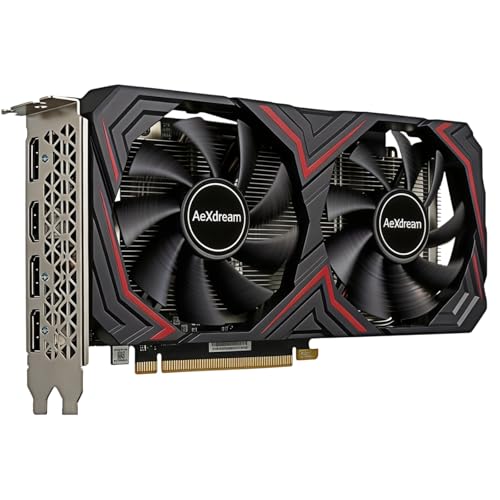
Quick picks by system
- Older PC, weak or unknown power supply: Look at entry-level cards that draw power from the PCIe slot alone. They are easier to install, though not suited to demanding new games.
- Older gaming PC with a suitable PSU: Consider a mainstream, modest-power card. It can improve gaming at 1080p, but an older processor may limit performance.
- Basic display, video or multi-monitor use: A simple card with the ports you need is often enough. If your CPU already has integrated graphics, you may not need a card at all.
What to check before you buy
PCIe slot: Look for a full-length PCIe x16 slot. A newer card can usually work in an older PCIe slot, but the older connection may reduce performance in some situations. Very old boards can also have firmware compatibility problems, so check the motherboard maker’s support page and search for reports from owners using the same board and card.
CPU and memory: DDR3 is a clue that the system may be old; it is not a direct limit on GPU compatibility. The processor is often the real gaming bottleneck. If a game already runs poorly because the CPU is at full load, buying a much faster GPU may bring little improvement. Check your CPU model and look up recent benchmarks for the games and resolution you use.
Power supply: Find the PSU’s make, model and available PCIe power connectors. Do not rely on the wattage printed on a questionable or aging unit. Some cards need a six- or eight-pin connector; others draw power from the slot. Avoid SATA-to-PCIe power adapters, which can overheat when asked to supply more power than they were designed for.
Physical fit and outputs: Measure the space from the rear expansion slots to any drive cage, and check card thickness against nearby slots. Confirm the card has the right HDMI, DisplayPort or other outputs for your monitor. A card can be electrically compatible and still fail to fit or connect to your display.
Which type of card makes sense?
| Option | Best for | Main trade-off | Check first |
|---|---|---|---|
| Slot-powered entry-level GPU | Display output, light gaming, low-power PCs | Limited performance in demanding games | PSU condition, case clearance, video ports |
| Modest mainstream GPU | 1080p gaming on a reasonably capable older PC | May be held back by the CPU; often needs extra power | PSU connectors and CPU benchmarks |
| High-end GPU | Usually not a good match for a typical DDR3 system | Cost and performance can be wasted on an old CPU or platform | PSU, case, CPU bottlenecks and total upgrade cost |
Buying recommendations
For low-power or office PCs
If you mainly need a working display, several monitor outputs or smoother playback, prioritize low power use and the ports you need over gaming benchmarks. A low-power PCIe graphics card is a reasonable category to browse. Check the exact card’s power requirements and dimensions; “low power” does not guarantee that every model fits every small case.
This is also where the cheaper option is often fine. If your current integrated graphics already handles your desktop and video, a new card may not make the PC meaningfully better. For games, check whether the specific titles you play run acceptably on the card before spending money.
For budget 1080p gaming
Choose a modest mainstream card only after confirming your processor and PSU can support it. A budget 1080p graphics card can be a good fit for older games and less demanding settings, but do not assume that any card sold as a gaming GPU will deliver smooth performance in every current release. Look at benchmarks for your CPU, target resolution and games, and favor a card with enough memory for the titles you actually play.
The common failure mode is pairing a fast card with a slow processor and expecting a large frame-rate jump. Another is buying a card that needs a power connector your PSU lacks. If replacing the PSU and GPU costs close to what a newer used or entry-level system would cost, compare the total platform upgrade before committing.
Should you buy a high-end card?
Usually, not for a typical DDR3 system. A high-end GPU may work in the slot, but an older CPU can cap performance, while the card’s power draw and price may require other upgrades. Consider one only if you have a specific workload that benefits from the GPU and have verified the processor, PSU, case and motherboard firmware. Otherwise, put the money toward a newer platform or a balanced used system.
Buying a used graphics card
Used cards can make sense when the budget is tight, but age and condition matter. Ask for the exact model, photos of the connectors and a test under load. Listen for fan grinding, watch for crashes or visual artifacts, and check that the card is recognized by the system. A low price is not a bargain if the card needs a new PSU, has no return option, or cannot run the games you care about.
Before installing any card, uninstall old graphics drivers if you are switching between vendors, then install the current driver for the new GPU. If the PC fails to boot, test the display cable on the card’s outputs, reseat the card and power connectors, and consult the motherboard manual for firmware or slot settings.
FAQ
Can a newer GPU work with a DDR3 motherboard?
Often, yes. DDR3 itself does not determine graphics-card compatibility. Check for a PCIe x16 slot, motherboard firmware support, physical clearance and adequate power.
Will a PCIe 4.0 or 5.0 card work in an older PCIe slot?
PCIe is generally backward compatible, so it may work, but the older slot can limit bandwidth. Very old boards may also have firmware issues, so verify compatibility for your exact motherboard.
Do I need to match the graphics card brand to my motherboard?
No. AMD, Intel and NVIDIA cards can work with motherboards from different manufacturers. You do need the correct driver and a compatible slot, power supply and case.
Is it worth upgrading a DDR3 gaming PC?
It can be, especially for older games or a low-cost display upgrade. If the CPU, PSU and storage also need replacement, compare the full upgrade cost with a newer system before buying a GPU.



