
The Intel Core i5-12400F is still a capable gaming CPU, especially at 1440p, where the graphics card does most of the work. The right GPU depends on your resolution, games, power supply and local prices—not a fixed “best match.” For most buyers, a sensible target is a midrange card rather than an expensive flagship that leaves performance unused in many games.
As an Amazon Associate we earn from qualifying purchases at no extra cost to you.


Our Top Picks
 GIGABYTE GeForce RTX 3050 WINDFORCE OC V2 6GStandard7.5 x 4.4 x 0.1 Inches0.88 PoundsCheck on Amazon
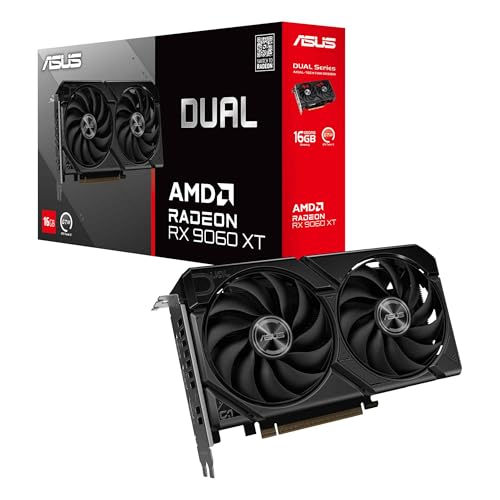 ASUS Dual Radeon RX 9060 XT 16GB GDDR6RX9060XT|16GB|Black8 x 4.7 x 1.9 inches1.3 poundsCheck on Amazon


Top 3 picks at a glance
Quick picks by use
For 1080p gaming, look at the affordable midrange: it can deliver strong frame rates without overspending. At 1440p, step up if you want higher settings or a high-refresh monitor. For 4K, the 12400F can still work, but the GPU needs to be substantially faster, and you should expect to tune settings in demanding games.
As a starting point, compare GeForce RTX 5060-class cards with similarly priced AMD options. Choose based on current street price, game performance and the features you actually use, not the brand alone.
Which GPU tier fits a 12400F?
| GPU tier | Best fit | Main trade-off | Check before buying |
|---|---|---|---|
| Budget 1080p | Esports, older games, moderate settings | Less headroom for new demanding games | Price versus a used or discounted next tier |
| Midrange | High-quality 1080p or practical 1440p | May need settings adjustments at 1440p | VRAM, power draw and exact model pricing |
| Upper-midrange | High-refresh 1440p, heavier games | Diminishing returns at 1080p; costs more | Whether your monitor and games justify it |
| High-end | 4K or demanding ray tracing | CPU limits can show up at lower resolutions | Power supply, case clearance and total system cost |
Best value for 1080p: buy the card your monitor can use
If you play competitive games at 1080p, a budget or lower-midrange card is often enough. The 12400F can produce high frame rates in many esports titles, but a fast GPU won’t guarantee those rates in every game: CPU-heavy scenes, background tasks and game engines can become the limit. Paying much more for a flagship may add little at this resolution.
For a new build, compare an AMD Radeon RX 9060-class card with NVIDIA alternatives at the same price. AMD often makes a strong case when conventional gaming performance and price matter most. NVIDIA can be the better fit if you rely on particular creator software, CUDA, or its upscaling and ray-tracing features. Those advantages vary by app and game, so check the titles you actually use.
Don’t buy the cheapest card solely because it has a familiar GPU name. A very low price can mean limited memory, a noisy cooler, or a weak performance-per-dollar deal. Check independent benchmarks for your games and resolution before ordering.
Best balance for 1440p: midrange first
A midrange GPU is the safer all-round choice if you’re moving to 1440p or want more settings headroom. The 12400F is generally a reasonable pairing here: higher resolution shifts more of the workload to the GPU, reducing the chance that the processor holds back performance. In CPU-heavy games, though, you may still see a limit—especially if you lower settings to chase very high frame rates.
Consider a GeForce RTX 5070-class card if its price fits and you value NVIDIA features; compare it against AMD cards in the same budget. Don’t assume one brand wins every game. Raster performance, ray tracing, upscaling quality, memory capacity and power consumption can all change the result. If you mainly play without ray tracing, a cheaper AMD option with comparable conventional performance may be the smarter buy.
When a high-end card makes sense
Choose a high-end GPU if you have a 4K display, play demanding games, or specifically want strong ray tracing. The 12400F won’t prevent it from working, but at 1080p or in CPU-intensive games, the card may sit below its full potential. That isn’t a hardware mismatch that breaks the system; it’s a reason to check benchmarks at your intended resolution before paying for extra performance.
High-end cards can also expose practical problems: large coolers may not fit, power connectors can require careful installation, and an older or undersized PSU may need replacing. Check the card’s exact length, recommended power supply, connector requirements and case airflow. Include those costs when comparing it with a less expensive GPU.
Compatibility checks that prevent a bad buy
The 12400F uses a PCIe graphics slot, so current desktop GPUs are generally compatible with a suitable motherboard. The more common failure points are physical fit, power and display connections. Measure available card length and thickness, confirm the PSU has the required connectors and adequate capacity, and make sure your monitor cable can connect to the card. The “F” in 12400F means there’s no integrated graphics, so you need a working GPU for display output.
Also check memory capacity against your games and resolution. More VRAM can help with high-resolution textures and demanding settings, but it doesn’t compensate for a slower GPU. Compare benchmarks and prices for the whole card, not one specification in isolation.
Should you buy used?
A used GPU can be good value if the savings are substantial and you can test it or return it. Ask for the exact model, proof that it runs under load, and confirmation that the fans and display outputs work. Avoid deals with no testing, no returns and a price only slightly below a new card. A warranty and easy return policy are worth paying for, particularly if you can’t inspect the card before purchase.
FAQ
Is the i5-12400F too weak for a modern GPU?
No. It can pair well with midrange and faster cards, especially at 1440p. At 1080p, some CPU-heavy games may limit frame rates before the GPU reaches its full potential.
What is the best GPU for a 12400F at 1080p?
Usually a budget or midrange card offers the best value. Choose by current price and benchmarks in your games; a high-end card is worthwhile mainly if you want very high refresh rates or plan to move to a higher resolution.
Can I use an AMD GPU with the 12400F?
Yes. AMD, Intel and NVIDIA desktop graphics cards can work with a compatible motherboard, PSU and case. Check the card’s power and physical requirements before buying.
Do I need to upgrade my power supply?
Not necessarily. Compare your PSU’s capacity, age and connectors with the exact GPU’s requirements. If it lacks the right connectors or has little power headroom, include a replacement in your budget.



