
An external GPU for a laptop sounds simple: plug in a desktop graphics card and get desktop gaming. In practice, you are buying an enclosure, a connection standard, a power supply, and a lot of compatibility checking. Get the connection wrong and you will lose 15-30% of the card’s performance before you launch a game.
For most people in 2026, an eGPU only makes sense if you already own a good thin-and-light laptop with Thunderbolt 3, Thunderbolt 4, Thunderbolt 5, or USB4, and you want it to double as a docked gaming or 3D workstation. If you are buying a laptop from scratch for gaming, a laptop with a built-in RTX 4060 or better is almost always cheaper, faster, and less hassle than a cheap laptop plus eGPU plus desktop card.
Our Top Picks
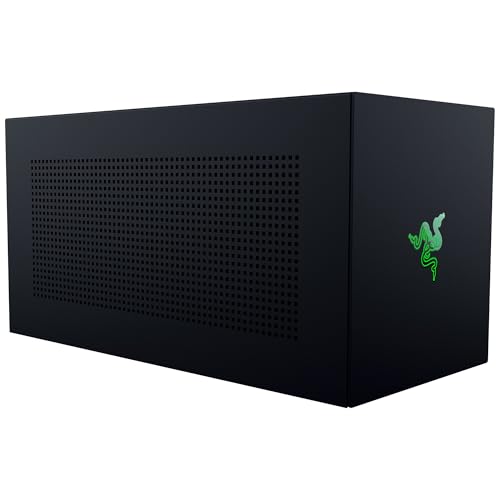
 Khadas Mind Graphics Card RTX 4060 Ti DesktopRTX 4060 Ti丨16GB GDDR67.83 x 5.24 x 0.1 inches6 poundsCheck on Amazon

What actually limits eGPU performance
Laptop eGPUs are bottlenecked by the cable, not the card. Thunderbolt 3 and 4 run PCI Express x4 at about 32 Gbps after overhead. A desktop slot runs x16. That is fine for 1080p and 1440p gaming with a midrange card, but high-end cards like an RTX 4080-class GPU will sit idle waiting for data, especially at low resolutions or high frame rates.
There are two other failure modes shoppers miss. First, CPU bottleneck: most ultrabook CPUs with 28W power limits cannot feed a fast GPU in simulation-heavy games like Starfield or Cities: Skylines II. Second, return-trip loss: if you play on the laptop’s internal screen, frames have to travel back over the same Thunderbolt cable. Expect another 10-20% loss versus playing on an external monitor plugged directly into the eGPU. If you buy an eGPU, plan to use an external monitor.
Thunderbolt vs OCuLink vs USB4: pick this first
Do not start with NVIDIA vs AMD. Start with what port your laptop has. That decision locks you in.
| Connection | Real bandwidth | Pros | Cons | Best for |
|---|---|---|---|---|
| Thunderbolt 3 / 4 | PCIe 3.0 x4 (~32 Gbps) | Widest enclosure support, hot-plug, single-cable dock with USB and Ethernet | Highest performance loss, expensive enclosures, finicky sleep/wake | Office ultrabooks, MacBook Pro Intel users, plug-and-play use |
| USB4 / Thunderbolt 5 | PCIe 4.0 x4 (~64 Gbps) | Noticeably less bottleneck, works with newer RTX 40 and RX 7000 cards | Needs new laptop and new dock, still limited choice | Anyone buying in 2025-2026 who wants to keep the setup 3+ years |
| OCuLink | PCIe 4.0 x4 (~64 Gbps, direct) | Lowest overhead, cheapest docks, closest to desktop performance | No hot-plug, no power delivery, often requires manual setup, few laptops have the port | Tinkerers, handhelds and mini-PCs, maximum fps per dollar |
If your laptop spec sheet only says USB-C 3.2, you do not have eGPU support. You need Thunderbolt or USB4 with PCIe tunneling. Check Intel Evo, Apple System Report, or your AMD laptop manual for explicit Thunderbolt or USB4 eGPU support. An Thunderbolt 4 eGPU enclosure remains the safe, boring choice for office laptops, while OCuLink is faster but feels like a DIY project.
Which enclosure type to buy
There are three practical categories. Full-size enclosures take a standard dual- or triple-fan desktop card up to 320-330mm and include a 650-750W power supply. They are big, quiet, and let you upgrade cards later. They suit someone with a desk who wants one dock for work and play.
Compact docks with integrated or SFX power supplies top out around 175-200W GPUs. They are much smaller and often include laptop charging over the same cable. They make sense for RTX 4060, RTX 4060 Ti, or RX 7600-class cards. Do not put an RTX 4070 Ti or RX 7800 XT in one of these to save space; you will hit thermal and power limits.
Board-only OCuLink docks are just a PCIe slot, power supply, and cable. No case, no USB hub, no laptop charging. They are cheap and fast, but you have to handle the GPU yourself, keep it dust-free, and shut down before unplugging. They suit handheld PC owners and budget builders who already have a spare desktop card and do not mind tinkering.
Shoppers often ask if the cheaper option is fine. Yes, if your GPU is midrange. A used RTX 3060 Ti or RX 6700 XT over Thunderbolt 3 will still beat any integrated Iris Xe or Radeon 780M graphics by 3-4x, even after Thunderbolt losses. You do not need a $300+ enclosure with 700W for that. Save the money for the card itself or for an external 1440p monitor.
NVIDIA vs AMD in an eGPU
NVIDIA is the easier pick for most laptop users. Drivers handle hot-plug and external monitors better, NVENC is better for streaming and Premiere, and DLSS upscaling helps offset the Thunderbolt penalty at 1440p. The downside is that NVIDIA cards in enclosures can be picky about sleep and hibernation. Disable Link State Power Management and fast startup if you get black screens on wake.
AMD cards often give you more raw VRAM per dollar, which helps at 1440p ultra settings, and they pair well with OCuLink docks for a pure gaming setup. The trade-off is worse software for creative apps and no CUDA. If you do Blender, DaVinci Resolve with noise reduction, or Stable Diffusion locally, NVIDIA pays for itself.
Intel Arc as an eGPU is not recommended for most buyers. Resizable BAR requirements, driver quirks over Thunderbolt, and idle power issues cause more support threads than any fps gain is worth.
For the GPU itself, the sweet spot is RTX 4060 Ti 16GB, RTX 4070, or RX 7800 XT for Thunderbolt 4/5 users gaming at 1440p on an external display. Above that, you are paying for performance the cable cannot deliver. If you browse OCuLink eGPU dock for laptop options, you can justify one tier higher because overhead is lower.
Setup mistakes that kill performance
Most disappointing eGPU results come from setup, not hardware. Use the short 0.5m passive Thunderbolt cable that comes with the enclosure. A 2m active cable can add latency and disconnects. Plug the enclosure directly into the laptop, not through a second dock.
Install the desktop driver clean, not the laptop DCH driver on top. For NVIDIA, choose Standard or Game Ready desktop drivers and do a clean install when you first dock. Set Windows Graphics Settings to High Performance for your game and force it to use the eGPU. If Device Manager shows Error 12 – not enough resources, that is usually a Thunderbolt firmware or BIOS issue, common on Dell XPS and Lenovo Yoga models from 2020-2021. Update BIOS and Thunderbolt firmware before returning anything.
Heat and noise are different too. The enclosure PSU fan runs even when idle, and many enclosures recycle hot GPU air. Leave 10cm clearance behind the enclosure and do not stack it under a laptop stand. If your desk is in a bedroom, a compact dock with a loud 40mm fan will annoy you more than a larger enclosure with a 120mm fan.
Who should skip an eGPU entirely
Skip eGPU if you play mostly on the internal laptop screen, travel often, or own a laptop with only USB-C 3.2. You will pay $250-$400 for the enclosure plus $350-$600 for a decent card to get performance a $1,100 gaming laptop already includes, with more cables and more driver updates.
An eGPU is worth it for two people: the remote worker with a great work ultrabook who wants one-cable docking to monitor, Ethernet, and evening gaming, and the mini-PC or handheld owner who wants desktop-class fps at home. For everyone else, sell the old card idea and put the enclosure budget toward a laptop with discrete graphics or a separate budget desktop. A search for a USB4 external GPU dock RTX 4060 bundle is useful to price-check that combo against a standalone gaming laptop before you commit.
FAQ
Will a Thunderbolt eGPU work with any laptop that has USB-C?
No. You need Thunderbolt 3, 4, 5 or USB4 with PCIe support. Regular USB-C 3.2 ports cannot carry PCIe, so no enclosure will be detected. Check your specs for Thunderbolt or USB4 explicitly.
How much performance do you lose with an external GPU?
Expect 15-25% loss on Thunderbolt 3/4 versus the same card in a desktop at 1440p on an external monitor, and 25-35% if you use the laptop internal screen. Thunderbolt 5 and OCuLink cut that to roughly 5-15% in most games.
Is NVIDIA or AMD better for laptop eGPU gaming?
NVIDIA is better for most users because of DLSS, better Thunderbolt hot-plug behavior, and stronger creative app support. AMD makes sense if you want more VRAM for the money and only care about rasterized gaming on an external monitor.
Can I unplug the eGPU without shutting down?
Thunderbolt and USB4 enclosures support hot-unplug if you eject first like a USB drive, but always quit games and GPU apps first. OCuLink does not safely support hot-plug – shut the laptop down completely before connecting or disconnecting.



