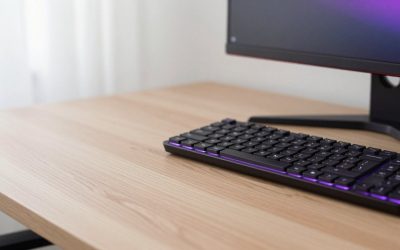
The fastest fix for keyboard RGB that is not working is to try the keyboard’s own lighting shortcut, then plug the keyboard directly into a rear USB port and restart the maker’s lighting software. If the lights stay off, reinstall the software or update the keyboard firmware, and test the keyboard on another PC to rule out a hardware fault.
Symptoms
- The keyboard works for typing, but no backlight turns on.
- Lighting is stuck on one color or one static effect and will not change.
- Only some keys or zones light up.
- Lighting works until the PC sleeps or restarts, then goes dark.
- Lighting software does not detect the keyboard, or effects revert to defaults.
- Lighting conflicts when two programs, such as a motherboard utility and a keyboard utility, both try to control it.
Likely Causes, Ranked
- Lighting turned off or set to a dim level. Most keyboards have an Fn-key shortcut to cycle effects and brightness, and it is easy to hit by accident.
- Software conflict. Running more than one RGB tool, such as the keyboard maker’s app plus a motherboard or case-fan app, can cause flicker or reset lighting.
- USB port or hub power. Backlit keyboards may draw more power than an unpowered hub or a front-panel port provides.
- Outdated or corrupt software or firmware. A failed update can leave lighting profiles broken.
- Profile stored on the wrong place. Some keyboards use onboard memory, while others rely on software running in Windows.
- Windows setting. Dynamic Lighting in Windows 11 can take over control of compatible devices.
- Hardware fault. A failed LED, controller or damaged cable.
Quick Reference
| Symptom | Likely cause | Fix |
|---|---|---|
| No lights at all | Lighting off or low brightness | Use the Fn lighting shortcut; raise brightness in software |
| Lights off after sleep or restart | Software not running or USB power state | Enable software at startup; disable USB selective suspend |
| Stuck on one color | Static profile or onboard mode | Select a new effect in software; reset the profile |
| Flickering or random color changes | Two lighting apps conflicting | Close or uninstall one; disable Windows Dynamic Lighting for the device |
| Software cannot find keyboard | Port, cable or driver issue | Use a rear port; reinstall the software |
| Only some keys light | Failed LEDs or damaged board | Contact maker for warranty support |
Step-by-Step Fixes, Easiest First
- Try the keyboard’s lighting shortcut. Many keyboards use an Fn combination or a dedicated key to turn lighting on, change effects or adjust brightness. The exact keys vary by model, so consult the manual from the maker.
- Unplug and reconnect. Remove the USB cable, wait about ten seconds and plug it back in. Use a rear motherboard port if you have a desktop.
- Avoid hubs. Plug directly into the PC instead of an unpowered hub or a keyboard-mounted passthrough. Some boards with bright RGB draw more current than weak ports provide.
- Restart the PC. A reboot clears stuck software and resets the USB controller.
- Open the maker’s lighting software. Examples include Razer Synapse, Corsair iCUE, Logitech G HUB, SteelSeries GG and HyperX NGENUITY. Confirm the keyboard shows up, and select a lighting effect and brightness.
- Close competing RGB software. If you also run a motherboard utility, a fan or case lighting tool, or a third-party RGB controller, exit them one at a time and see whether the flicker or reset stops. Running several programs that each write to the same device is a common cause of erratic lighting.
- Check Windows Dynamic Lighting. In Windows 11, open Settings, then Personalization, then Dynamic Lighting. If the feature is on, it may override your keyboard maker’s software. Turn it off for the keyboard or set it to match your preference. The location of this menu may differ across Windows versions.
- Update the software and firmware. Install the latest version from the maker’s support page. Follow the maker’s instructions during firmware updates, never unplug the keyboard mid-update, and keep the PC on stable power.
- Reinstall the software. Uninstall the lighting app, restart, then install a fresh copy. Reinstall drivers from the maker’s page if one is listed.
- Disable USB power saving. In Device Manager, open the USB root hub properties, then the Power Management tab, and clear the option that lets Windows turn off the device to save power. This helps lighting that fails after sleep. In Windows power options, USB selective suspend can also be disabled.
- Reset the keyboard. Many keyboards have a factory reset combination or a button on the underside. Consult the manual because the method varies, and note that a reset erases custom profiles.
- Test on another PC. If the keyboard lights up on a second computer, the fault is in your Windows install, drivers or software. If it does not, the keyboard may be faulty.
Notes for Wireless and Gaming Boards
- Battery saving. Wireless keyboards often dim or turn off lighting to save battery, or after a period of inactivity. Check the software’s power settings.
- Connection mode. Some keyboards disable lighting effects in Bluetooth mode. A 2.4 GHz dongle or wired mode may support full effects.
- Onboard profiles. If the keyboard supports onboard memory, save your profile to the keyboard so lighting works even when the software is closed.
- Per-key lighting and layers. Some boards use Fn layers that reassign keys. A lighting key may sit on a secondary layer.
- Game integrations. Some games and apps change keyboard lighting through the maker’s software. If the lights behave strangely only during a game, disable that integration.
Safety Notes
- Unplug the keyboard before cleaning around the keys or the cable plug.
- Do not open a power supply, and do not open the keyboard if the warranty is still active unless the maker’s guide says so.
- Updating firmware can fail if power is interrupted. Follow the maker’s steps exactly.
- If a USB port or cable smells burnt, feels hot or shows discoloration, stop using it and contact the maker or a technician.
When to Contact the Maker or a Technician
Seek support if the keyboard shows no lighting on any PC, if some keys stay dark across all effects, if the lighting works but the keyboard disconnects randomly, or if there is visible damage to the cable or board. Keep your model number and proof of purchase ready, and mention the steps you already tried. Opening the keyboard may void the warranty.
Prevention Tips
- Use only one lighting tool at a time per device, or use the maker’s suite that integrates others.
- Keep software and firmware reasonably current, but avoid updating right before a competition or a deadline.
- Save a profile to onboard memory if your keyboard supports it.
- Plug the keyboard directly into the PC.
- Keep liquids and crumbs away from the board, and use a soft brush or compressed air on the keys.
- Back up your lighting profiles to a file where the software allows it.
Frequently Asked Questions
Why did my keyboard lights go off after a Windows update?
Updates can reset drivers, startup items and Dynamic Lighting settings. Open the maker’s software, confirm it launches with Windows, and review the Dynamic Lighting page in Settings. Reinstalling the software often restores lighting.
Can I control keyboard RGB without the maker’s software?
Often yes, in part. Many keyboards have onboard shortcuts for basic effects and brightness, and some support Windows Dynamic Lighting. Advanced per-key control generally needs the maker’s software or a compatible third-party tool, which carry their own risks and may not be supported by the maker.
Why are only some keys lit?
This can be a profile with certain zones disabled, but if it persists across effects, an LED or part of the circuit may have failed. Test with the maker’s default profile and contact support if it continues.
Does a motherboard RGB header affect my keyboard?
Not directly, because keyboards connect by USB. However, motherboard lighting utilities can include USB device control and conflict with the keyboard software. Close the motherboard tool to test.
Is it safe to update keyboard firmware?
It is generally safe when you follow the maker’s instructions, but an interrupted update can leave a keyboard unresponsive. Use a direct USB port, avoid doing it during storms or unstable power, and do not unplug the keyboard until the tool says it has finished.
Related guides
More from Amazon
Programs that pair well with the guide above. Offers and eligibility are set by Amazon and may change.
A free business account with business pricing and bulk-buying tools for work, shop or home office.
Create a business accountFree shipping on eligible items, Prime Video and more. Eligible new members can start with a free trial.
Start a Prime free trialAudiobooks and podcasts to listen to on the go. Eligible new members can start with a free trial.
Try Audible freeAd-free music streaming. Eligible new subscribers can start with a free trial.
Try Music Unlimited freeAs an Amazon Associate we earn from qualifying purchases.