Excel punishes a laptop in a different way than games or video do. The three specs that matter most are single-core processor speed, RAM capacity, and a keyboard with a full number pad, because large workbooks recalculate on one or a few cores, hold everything in memory, and reward fast data entry. A modest laptop with a quick processor, 16 GB of RAM, and a comfortable keyboard will beat a flashy machine with the wrong priorities.
This guide is for analysts, finance staff, small business owners, and students who live in spreadsheets and want a laptop that stays responsive in 2026. It explains how to read the spec sheet, which thresholds separate a comfortable machine from a frustrating one, and which features to skip. The advice applies to any model, so you can use it to compare listings quickly.
As an Amazon Associate we earn from qualifying purchases at no extra cost to you.



Our Top Picks
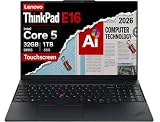
 Lenovo ThinkPad E16 Gen 332GB DDR5 RAM, 2TB PCIe SSD14.02 x 9.75 x 0.78 inches1 PoundsCheck on Amazon
 Lenovo ThinkPad E16 Gen 3 Laptop 16" FHD+16GB RAM|512GB SSD14.02 x 9.75 x 0.78 inches4 PoundsCheck on Amazon
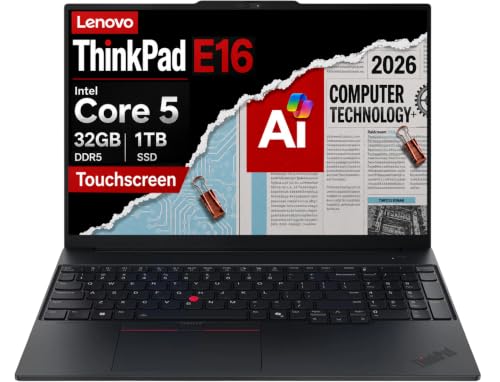 Lenovo ThinkPad E16 Gen 3 Business Laptop32GB|1TB14.01 x 0.67 x 9.8 inches3.59 poundsCheck on Amazon

Top 3 picks at a glance
How Excel Uses Your Hardware
Excel mostly runs formulas on a single thread, though newer versions spread some calculations across cores. That means clock speed and per-core performance matter more than a huge core count. A processor that boosts quickly will make big pivot tables, volatile formulas, and lookup-heavy models feel snappier than one built for long, sustained multi-core jobs.
Memory is the next limit. Workbooks with hundreds of thousands of rows, multiple linked files, and add-ins such as Power Query or Power Pivot can consume several gigabytes. When Excel runs out of memory, it slows to a crawl or crashes, so overbuying RAM is cheap insurance. The 64-bit version of Excel can use much more than the older 32-bit build, so confirm that is what you will install.
Finally, consider the human side. Hours of data entry reward a keyboard with a full-size number pad, good key travel, and a display with enough vertical space. These ergonomic details influence productivity every day, which is more than you can say for a graphics card.
The Specs That Matter
Processor speed and cores
Look for a recent processor with a boost clock around 4.5 GHz or higher, and at least six cores to keep the system responsive while Excel recalculates in the background. Efficient chips with strong single-core scores are enough for most workbooks. If you run heavy simulations or macros, an eight-core or faster chip shortens the wait. Avoid very old or very low-power processors, which can make large files drag.
RAM capacity and type
16 GB is the practical target for serious spreadsheet work, while 8 GB suits light use only. If you work with big data models, Power Pivot, or many open files, 32 GB removes the worry. Check whether the memory is soldered, because soldered RAM cannot be expanded later. Dual-channel configurations deliver better throughput than a single stick.
Storage speed
An NVMe SSD of at least 512 GB opens large files quickly and keeps autosave from stalling. Spreadsheets themselves are small compared with games, but cached data, exports, and other business software add up. Skip mechanical drives completely, since they slow loading and make Excel feel old.
Keyboard and display
A full-size keyboard with a number pad is the most useful feature for data entry, and it is common on 15 and 16-inch laptops. Look for decent key travel, backlighting, and a layout without squeezed arrow keys. A screen of 15 inches or larger with a 16:10 aspect ratio shows more rows, and a resolution of at least 1920 x 1200 keeps text sharp. Matte panels reduce glare in offices.
Ports and battery
Dual-monitor setups are common among analysts, so look for HDMI or USB-C with DisplayPort. A battery of 50 watt-hours or more gets you through meetings and travel, since Excel by itself is not demanding on power.
Spec Targets by Budget Tier
| Feature | Budget | Mid-range | Premium |
|---|---|---|---|
| Processor | Recent six-core with strong single-core speed | Recent eight-core class | High-end performance chip with high boost clocks |
| RAM | 8 to 16 GB | 16 GB | 32 GB or more |
| Storage | 256 to 512 GB SSD | 512 GB to 1 TB SSD | 1 TB or more SSD |
| Display | 15-inch 1080p | 15 to 16-inch, 1200p, matte | 16-inch high-resolution, anti-glare |
| Keyboard | Full-size with number pad | Backlit with good travel | Premium keys, spacious layout |
| Ports | HDMI, USB-A, USB-C | HDMI, Thunderbolt or USB4 | Multiple Thunderbolt ports, dock support |
| Battery | 40 Wh or more | 50 to 60 Wh | 70 Wh or more |
Who Should Buy What
The student or light user
If your workbooks stay small, a budget profile is fine. Focus on a recent six-core processor, at least 8 GB of RAM (16 GB if possible), and a reliable keyboard. Do not pay for graphics or gaming features.
The financial analyst
Analysts build large models with many formulas, so choose a mid-range profile with strong single-core speed, 16 to 32 GB of RAM, and a 15 or 16-inch display with a number pad. Support for two external monitors is a major productivity boost at the desk.
The data-heavy power user
If you work with Power Pivot, large imports, or macros that run for minutes, aim for a premium profile with 32 GB of RAM, a fast processor with good cooling, and a spacious NVMe drive. Sustained performance matters here, so avoid thin designs that throttle quickly.
The mobile professional
If you travel between client sites, lighter weight and battery life matter more. Look for a 14-inch laptop that weighs under 3.5 pounds with a battery of 60 watt-hours or more, and accept that you may lose the number pad. A compact external keypad is a low-cost fix.
Excel for Mac, Windows, and the Web
Excel features differ across platforms, and this affects your hardware decision. Some advanced tools, such as certain Power Query and Power Pivot capabilities and some add-ins, work best or only on Windows. If your job depends on those tools or on legacy macros, a Windows laptop is the safer choice. Mac versions are capable for standard work and pair well with efficient chips, but verify that your add-ins are supported.
The browser version of Excel is convenient for collaboration but lacks many advanced features and can feel slow with big files. Treat it as a complement to the desktop app, not a substitute, and pick hardware based on the desktop experience.
Habits That Make Any Laptop Feel Faster
Hardware is only half of the story. Switching calculation to manual while you edit a heavy model, replacing volatile functions with stable alternatives, and converting old lookups to modern ones can cut recalculation time dramatically. Saving big workbooks in the binary format also shrinks file size and speeds opening.
Keep an eye on add-ins and background sync. Cloud storage clients that constantly rescan a folder of large files can compete with Excel for disk and memory. A laptop with a fast SSD and a few spare gigabytes of RAM absorbs this overhead without complaint, while a tight configuration makes every background task visible as a stutter.
Finally, think about screen real estate. Many analysts keep a data sheet on one monitor and a dashboard on another, so a laptop that drives two external displays through USB-C or HDMI can replace a desktop. Check the spec sheet for the number of supported external displays and their maximum resolution and refresh rate.
One last hardware note: sustained cooling matters more than peak speed. A laptop that holds its boost clock during a ten-minute recalculation will finish sooner than one that sprints and then throttles. Fan noise and surface temperature descriptions on the spec sheet or in written impressions give a useful clue.
Common Mistakes
- Chasing core count: Many workbooks depend on single-core speed, so a 16-core chip is not automatically faster for spreadsheets.
- Buying 8 GB of soldered RAM: Large files will hit the limit, and you cannot upgrade it later.
- Skipping the number pad: Compact keyboards slow down data entry for people who type figures all day.
- Choosing a glossy, low-resolution screen: Squinting at tiny cells and reflections causes fatigue.
- Paying for a gaming GPU: Excel gains almost nothing from it, and the cost is better spent on RAM or a better screen.
Before You Buy
- Confirm 16 GB of RAM or an upgradeable memory slot.
- Check for a full-size keyboard with a number pad.
- Look at processor boost clock and recent generation, not only core count.
- Verify the display size, resolution, and finish.
- Make sure the operating system supports the Excel features and add-ins you rely on.
- Count the ports if you use external monitors or a dock.
Related guides
- Replacement Cables For Gaming Mice And Headsets
- Indoor Security Cameras Without Subscription
- Nvidia Control Panel Best Settings For Gaming
Frequently Asked Questions
How much RAM do I need for Excel?
16 GB handles most professional workbooks comfortably, while 8 GB suits only light use. If you work with large data models or many open files, 32 GB gives you extra room.
Is a faster CPU or more RAM more important for Excel?
Both matter, but RAM prevents slowdowns and crashes with big files, while a fast single-core processor speeds up calculations. Start with enough memory, then choose the quickest processor your budget allows.
Do I need a laptop with a number pad?
If you enter lots of figures, yes, it is a major time saver. Compact laptops without one work fine with an external USB keypad.
Can a Chromebook run Excel well?
It can run the web version for light tasks, but advanced features and large files work better in the desktop app. Heavy users should choose a Windows or Mac laptop.