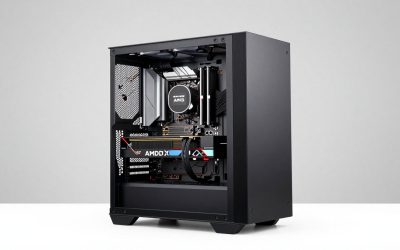
When building a PC, buy the CPU, motherboard and RAM first as a locked-in compatibility set, then choose the case and cooler around them, then the power supply, and leave the graphics card, extra storage and peripherals for last. That order works because the first three parts decide the socket, memory type and platform features that every later purchase must match, while the graphics card is the part with the most flexibility, the fastest price movement and the fewest hard compatibility links to the rest of the build.
Plenty of first-time builders do the opposite. They fall for a graphics card, buy it, and then discover that the case they like cannot hold it, the power supply they already own cannot feed it, or the processor they can afford will hold it back. This guide gives a purchase order with the reasoning behind each step, a table of what depends on what, a worked power budget, a rough budget split, and a list of purchases you can safely postpone.
As an Amazon Associate we earn from qualifying purchases at no extra cost to you.



Our Top Picks
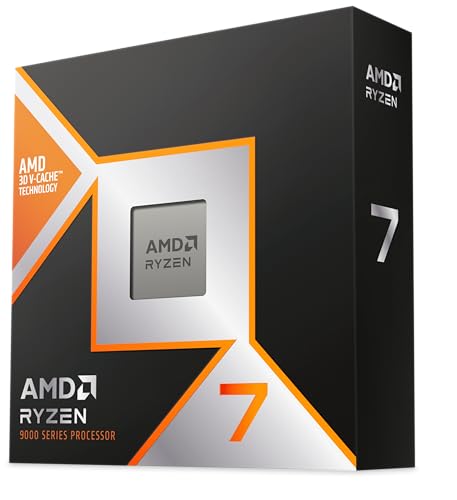


Top 3 picks at a glance
Quick answer
| Order | Buy | Why it comes here | Can it wait? |
|---|---|---|---|
| 1 | CPU + motherboard (together) | Socket and chipset must match; sets RAM type, PCIe generation, M.2 slots | No |
| 2 | RAM | Must match the board’s memory type (DDR5 on current AMD AM5 and Intel LGA1851 boards) | No |
| 3 | Case | Board size, GPU length and cooler height are all limited by the case | No |
| 4 | CPU cooler | Needs socket support and case clearance; some CPUs ship without one | Only if a boxed cooler is included |
| 5 | Power supply | Sized from the CPU and the graphics card you intend to buy | No, but buy before the GPU |
| 6 | Main SSD | Must fit the board’s M.2 slot and PCIe generation | Choose early, capacity can change |
| 7 | Graphics card | Last big decision; needs a PSU with the right connectors and a case with room | Yes, if the CPU has integrated graphics |
| 8 | Extra fans, second drive, peripherals, Windows licence | Quality-of-life items | Yes |
The sections below explain each step, including the cases where you should break the order.
Why the order matters: the dependency chain
A PC build is a chain of constraints, and each part narrows the choices for the next one. The processor fixes the socket. The socket fixes which motherboards exist for it. The motherboard fixes memory type, the number of M.2 slots and the board size. The board size and your wishes for cooling fix which cases and coolers make sense. The processor and the graphics card together fix the power supply. If you buy in the wrong direction, you end up trying to fit a large card into a small case, or a processor onto the wrong board, and the fix is a return or a second purchase.
| If you pick this first | It restricts | Typical regret |
|---|---|---|
| CPU | Socket, board, memory type, cooler mounting | Cooler or board does not fit the socket |
| Motherboard | RAM type, CPU generation, case size, M.2 and PCIe slots | Board needs a BIOS update before it recognises the new CPU |
| Case | Board size, GPU length, cooler height, radiator size | Graphics card or cooler is too big |
| Graphics card | Case length, PSU wattage and connector type, sometimes CPU choice | Power supply too weak or missing the connector |
| Power supply | Maximum GPU and CPU power, cable types, case supply size | Not enough headroom for a later upgrade |
Notice that the motherboard and processor restrict the most things. That is why they come first. The graphics card restricts the case and the power supply, but only through numbers (length, wattage, connector), and those numbers are easy to check once you know them.
Step 1: Buy the CPU and motherboard as one decision
Every other component links back to these two, so they are the first real purchase. A processor only fits boards with the matching socket, and the board’s chipset then controls how many USB ports, M.2 drives and PCIe lanes you get. For current builds the sockets you will meet are AM5 (AMD Ryzen 7000, 8000 and 9000 desktop processors) and LGA1851 (Intel Core Ultra 200S series), with LGA1700 still common on older Intel boards and in the used market. AMD’s and Intel’s product pages are the authoritative places to confirm which processor goes on which socket.
| Platform | Socket | Memory type | Typical chipsets | Notes |
|---|---|---|---|---|
| AMD Ryzen 7000 / 8000 / 9000 | AM5 | DDR5 only | A620, B650, B850, X670, X870 | Many boards need a BIOS update for the newest chips |
| Intel Core Ultra 200S | LGA1851 | DDR5 only | Z890, B860, H810 | Not compatible with LGA1700 boards |
| Intel 12th to 14th Gen Core | LGA1700 | DDR4 or DDR5, depending on the board | Z690, Z790, B660, B760, H610 | Check whether the board is a DDR4 or DDR5 model |
Do not buy the processor and promise yourself you will pick the board later. Boards are matched to processors by a BIOS version, and a board whose firmware predates your processor may not start until it is updated. Many boards offer a BIOS flashback button that updates the firmware from a USB stick without any processor installed; check the board’s specification page for that feature before you buy, especially when pairing a newer processor with an older chipset.
How to match the pair
- Pick the processor class first. Gaming at 1440p or 4K leans on the graphics card, so a mid-range processor is often enough; a very high refresh rate at 1080p in processor-bound games benefits from a stronger processor.
- Look up the socket. The manufacturer page lists it. AMD’s current desktop platform is AM5; Intel’s current one is LGA1851.
- Choose a chipset by the features you need, not the badge. Count the M.2 slots, USB ports and PCIe lanes you actually use. A mid-range chipset is enough for most gaming PCs; the top chipset mostly adds extra connectivity.
- Choose the board size. ATX, micro-ATX and mini-ITX are the common sizes. Smaller boards usually have fewer slots and are harder to build in, so choose the size that your case will take and your slot count allows.
- Check the board’s CPU support list. The motherboard maker’s support page lists each processor and the BIOS version required. If the minimum BIOS is newer than what the board ships with, look for flashback support.
Step 2: Buy RAM that matches the board
RAM comes third because it has the fewest choices once the board is fixed. Current AM5 and LGA1851 desktop boards use DDR5 only, and DDR5 and DDR4 modules are physically keyed differently so they cannot be swapped. The decisions that remain are capacity, speed and whether to buy one kit or two.
| Use case | Capacity guide | Layout | Notes |
|---|---|---|---|
| Mainstream gaming | 32 GB | 2 x 16 GB | Comfortable for modern titles plus background apps |
| Entry budget build | 16 GB | 2 x 8 GB | Workable but tight in newer games; leaves room to add a matching kit later only if slots allow |
| Gaming plus streaming or editing | 32-64 GB | 2 x 16 GB or 2 x 32 GB | Two modules are generally easier on the memory controller than four |
Buy a single two-module kit rather than two separate kits. Modules from one kit are validated to run together at the rated speed. On AMD boards, look for kits that list EXPO profiles; on Intel boards, XMP profiles. Both are stored settings that you switch on in the BIOS after the first start, otherwise memory runs at a slower default speed.
One point worth knowing: faster is not always better. For gaming, the difference between a sensible mainstream DDR5 speed and an expensive extreme kit is usually small compared with the cost, so spend the difference on the graphics card instead.
Step 3: Choose the case before you buy the cooler or graphics card
Cases limit three measurements: the largest motherboard size, the longest graphics card, and the tallest air cooler or the largest radiator. Manufacturers publish all three in the specification table. Writing the numbers down before you buy anything that has to fit inside turns a guess into a check.
| Case limit | Where to find it | What to compare it against |
|---|---|---|
| Motherboard form factor | Case spec page (“supports ATX, micro-ATX, mini-ITX”) | Board size listed by the board maker |
| Maximum GPU length (mm) | Case spec page | Card length on the graphics card’s spec page |
| Maximum CPU cooler height (mm) | Case spec page | Cooler height on the cooler’s spec page |
| Radiator support (120/240/280/360 mm) | Case spec page, by mount position | Radiator size plus thickness of fans |
| Power supply type and length | Case spec page (ATX, SFX) | PSU dimensions |
Leave at least a few millimetres of margin on GPU length and cooler height; published figures assume nothing is in the way, and front-mounted radiators and fans reduce GPU room. Also check the front panel. If you want a USB-C port on the front of the case, the motherboard needs a matching internal header.
Airflow is the other thing a case decides. A case with a mesh front and room for fans at the front and back lets a modest cooler do a good job, while a glass-fronted case with little intake can run hot even with strong parts. Read the manufacturer’s fan and filter descriptions, and choose a case that comes with at least a rear fan and one or two front fans so you do not have to add them straight away.
Step 4: The CPU cooler
Whether you need to buy a cooler first depends on the processor. Many mainstream processors include a basic cooler in the box, while many higher-end models, including most unlocked Intel chips and the top AMD parts, are sold without one. Check the retailer listing or the manufacturer page for “cooler included” before you assume.
- Socket support: AM5 coolers use the same mounting holes as AM4 in most cases, so many older coolers work, but confirm with the cooler maker’s compatibility list. LGA1851 uses the same hole spacing as LGA1700 in most cases; again, confirm.
- Heat output: compare the cooler’s rated capacity with the processor’s rated power. A large air cooler is quiet, reliable and has no pump to fail; a liquid cooler is mostly a choice for case layout or looks.
- Clearance: tall heatsink memory can collide with the fan of a large air cooler. Compare heights if you choose tall memory modules.
Step 5: Size the power supply from a real budget
A power supply is bought after the processor and before the graphics card, because its wattage and connectors depend on both. Do not buy by wattage alone; look at the quality tier and the connectors it offers.
Worked example: a mid-range gaming build
| Component | Typical peak draw (W) | Source of the figure |
|---|---|---|
| CPU (mid-range, boosting) | 120 | Manufacturer’s maximum power rating |
| Graphics card (mid-range) | 220 | Board power on the manufacturer’s spec page |
| Motherboard, RAM, SSD | 50 | Typical allowance |
| Fans and USB devices | 20 | Typical allowance |
| Total | 410 | |
| Recommended supply with headroom (about 1.5x) | about 650 W | Leaves room for load spikes and efficient operation |
Graphics card makers also publish a recommended supply wattage on each product page; use whichever number is higher. If you intend to upgrade to a high-end graphics card later, buy a larger supply now so you do not buy twice. Check that the supply has the right graphics card connector: modern high-power cards may use the 12V-2×6 connector (the revised successor to 12VHPWR), while mid-range cards typically use one to three 8-pin PCIe connectors. Many modern supplies carry the ATX 3.x label and include a native 12V-2×6 cable, which avoids adapters.
| Build tier | CPU class | GPU class | Supply wattage to look at |
|---|---|---|---|
| Entry (1080p) | Six-core, low power | Entry card, one 8-pin or none | 500-550 W |
| Mid (1440p) | Six to eight cores | Mid-range card, one or two 8-pin | 650-750 W |
| High (4K or high refresh) | Eight cores and up | High-end card, 12V-2×6 connector | 850-1000 W or more, per the card maker’s guidance |
Step 6: Storage can be chosen early and expanded later
Pick the main SSD once the board is fixed, since it must fit the M.2 slot. Look at three things: the M.2 size (2280 is the standard), the PCIe generation the slot supports, and whether the board shares lanes between M.2 and SATA ports. A fast PCIe 4.0 drive is plenty for games; PCIe 5.0 drives cost more and run hotter, and loading-time gains in games are small. Capacity matters more than peak speed: modern games are large, so 1 TB is a practical minimum for a gaming PC.
A second drive is a good thing to postpone. Boards usually offer a spare M.2 slot or SATA port, so adding storage later takes minutes.
Step 7: The graphics card goes last
The graphics card is the largest single cost and the part that changes most between product launches and sales, so it makes sense to buy it at the end when you know the budget that is left and the clearance and power you have. By then you can answer four questions that decide the purchase:
- How long can the card be (case limit minus margin)?
- How much power can the supply deliver and with which connector?
- Which resolution and refresh rate is the monitor?
- Is the processor strong enough to feed it?
Match the card to the monitor. A 1080p monitor does not need a flagship card, and a 4K monitor wants more video memory. Published reviews from independent outlets show typical frame rates by resolution; treat their numbers as approximate because they vary with settings, patches and the test system.
If the card is out of reach at the moment you build, you can still assemble and boot with the processor’s integrated graphics where the processor has them (most mainstream AMD Ryzen 7000 and later desktop chips and most Intel Core Ultra desktop chips include basic graphics output). Keep the monitor cable in the motherboard video port until the graphics card arrives, then move it to the card. Some Intel “F” models have no integrated graphics, so check the model name first.
A rough budget split to guide the order
Hardware reviewers and build guides commonly suggest that a gaming build spends the largest share on the graphics card, with the processor, board and memory together taking a smaller share than the card, and the case, cooler, power supply and storage splitting the rest. The exact split moves with the market, so use it as a sanity check, not a rule.
| Part group | Typical share of the total budget | Comment |
|---|---|---|
| Graphics card | 30-40% | Biggest effect on frame rate at 1440p and 4K |
| CPU + motherboard + RAM | 30-35% | Platform choice, upgrade path |
| Storage | 8-12% | 1-2 TB SSD |
| Power supply | 8-10% | Do not cut here |
| Case + cooler + fans | 10-15% | Airflow and noise |
Because the graphics card share is the largest and the most flexible, deciding the rest first shows you exactly how much is left for it. That is the strongest practical reason to leave it for last.
What can wait
| Item | Wait? | Reason |
|---|---|---|
| Graphics card | Possible, if the CPU has integrated graphics | Boot and install Windows first |
| Second SSD or hard drive | Yes | Plug in later |
| Extra case fans | Yes | Included fans are enough to start |
| Wi-Fi adapter | Depends | Many boards have it built in; check the spec page |
| Monitor, keyboard, mouse | Need something to start | Buy upgrades later |
| Windows licence | Can install and activate later | Windows 11 can be installed from a USB drive made with Microsoft’s tool |
| RGB lighting and sleeved cables | Yes | Cosmetic |
When to break the order
- The graphics card is the priority. If a particular game at a particular resolution is the goal, choose the card first on paper, then pick the power supply and case for it, and fit the processor to the remaining budget. You still buy the board, processor and memory as a set.
- A sale on one part. Buying a part early is fine if you have already verified its compatibility with the rest of your list. Check the return window before you buy early, and keep boxes sealed until the whole list is confirmed.
- Small form factor builds. Mini-ITX builds invert the order: choose the case and power supply type first because the case dictates the supply size, board size and cooler.
- Upgrading an existing PC. You keep the case and the supply, so check what they allow before choosing a new board.
Common mistakes and fixes
| Mistake | Consequence | Fix |
|---|---|---|
| Buying a board without checking BIOS support for the processor | Machine does not start | Check the CPU support list; choose a board with BIOS flashback |
| Buying the graphics card first | Does not fit, or the supply is too small | Fix case and supply first, or write limits down before you buy |
| Assuming RAM types are interchangeable | RAM does not fit the slot | Check the board’s memory type |
| Forgetting the cooler | Cannot run the processor safely | Check “cooler included” for your model |
| Cheapest power supply | Instability or, in the worst case, damaged parts | Choose a reputable model with a good tier and the right connectors |
| No storage plan | No place to install Windows | Always include a main SSD |
Safety and troubleshooting
Once the parts arrive, a few habits prevent most damage. Touch a bare metal part of the case to discharge static before handling components, and keep parts in their anti-static bags until installed. Install the motherboard standoffs that match your board size and no extras; a stray standoff beneath a board can short a circuit. Press RAM in until both clips click.
If the PC does not start, run this checklist in order:
- Confirm the wall switch and the power supply switch are on.
- Reseat the RAM; try one module in the slot your manual recommends.
- Check the 24-pin motherboard connector and the 8-pin (or 4+4-pin) CPU power connector near the top of the board. A missing CPU power cable is among the most common causes.
- Plug the monitor into the graphics card, not the motherboard, when a card is installed.
- Look for debug LEDs on the board and read what they indicate in the manual.
- Check the BIOS version if you suspect a new processor on an older board.
How we compared
We compared manufacturer manuals, specifications and independent guides named below. We did not build or benchmark these systems ourselves.
Sources
- AMD, Socket AM5 product and platform documentation
- Intel, Core Ultra 200S series product specifications
- Motherboard maker support pages (CPU support lists and BIOS release notes)
- Case maker specification sheets (GPU length, cooler height, radiator support)
- Graphics card maker specification pages (board power, recommended supply)
- PCI-SIG and Intel ATX 3.x and PCIe power connector documentation
- Microsoft, Windows 11 installation media documentation
Frequently Asked Questions
What should I buy first when building a PC?
Buy the processor and motherboard first, as a matched pair, because the socket and chipset decide what memory, cooler and storage you can use. Buy RAM right after, then the case, cooler, power supply and graphics card. This order keeps every later purchase within known limits.
Should I buy the graphics card first?
Only if one specific card is the point of the build. Even then, plan the case and power supply on paper before you buy it, since many graphics cards need a large case and a supply with specific connectors. Most builders are better off buying it last, when the remaining budget and clearance are clear.
Can I start building without a graphics card?
Yes, if your processor has integrated graphics. You can install Windows, update the BIOS and drivers and run the system through the motherboard video output, then add the card later. Models without integrated graphics need a card to display anything at all.
Do I need to buy everything at the same time?
No, but you should have the full list verified before you start buying. Parts bought months apart can still be compatible if you check the socket, memory type, case clearances and power supply ahead of time. Keep receipts and the return window in mind for anything you buy early.
Is the power supply a good place to save money?
Usually not. The power supply feeds every other part, so a reliable model with enough connectors protects the rest of the build. Save on cosmetics, extra fans and the second drive instead.
Do I need to buy a CPU cooler separately?
It depends on the model. Some processors ship with a cooler and some do not, so check the product page. If there is no cooler in the box, buy one at the same time as the processor.
How do I know if my parts are compatible?
Compare the socket, memory type, board size, case limits and power supply connectors listed on the manufacturers’ pages. A parts-list tool can flag many mismatches, but it cannot check everything, such as exact cooler clearance over tall memory, so treat it as a first filter and read the spec sheets for the rest.