The best managed network switches for home labs and gaming in 2026 are the Ubiquiti UniFi Switch Lite 8 PoE and USW-24-PoE for UniFi-centric setups, the MikroTik CSS326-24G-2S+RM and CRS326 series for flexible VLAN and 10G uplink labs on a budget, the Netgear GS308E/GS308EP and GS116Ev2 for quiet fanless smart-managed gaming networks, and the Cisco CBS350 series for business-grade L3 features at home — choose based on PoE needs, noise tolerance, and whether you need full 802.1Q VLANs or just basic segmentation.
As an Amazon Associate we earn from qualifying purchases at no extra cost to you.



Our Top Picks
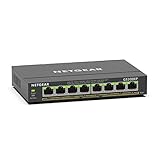
 NETGEAR 5-Port Gigabit Ethernet Easy Smart Managed Network5-Port3.7 x 3.9 x 1.1 inches0.55 poundsCheck on Amazon
 NETGEAR 8 Port PoE Gigabit Ethernet Easy Smart8 Port, PoE+ @ 62W6.2 x 4 x 1.1 inches2.4 PoundsCheck on Amazon

Top 3 picks at a glance
Decision Matrix: Match Your Situation to the Right Switch Class
Buying a managed switch for gaming and a home lab is not about getting the most ports. It is about PoE budget, VLAN depth, management style, and noise. Use this matrix before looking at specific models.
| Your Situation | Recommended Class | Why | Example Models |
|---|---|---|---|
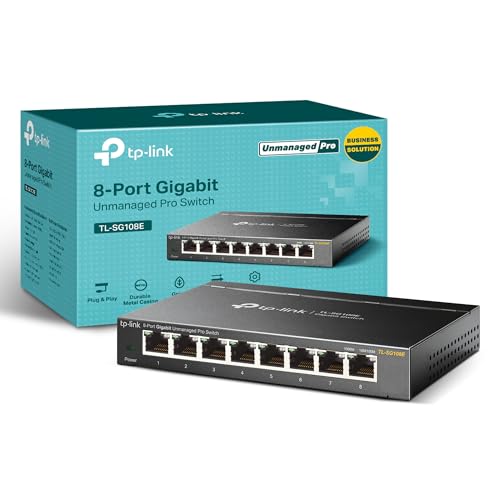
| Gaming PC + console + NAS, want to isolate IoT/guest traffic, no PoE needed | 8-port Smart Managed, fanless Gigabit | 802.1Q VLANs, QoS and port mirroring without fan noise or high power draw | Netgear GS308E, TP-Link TL-SG108E, Zyxel GS1200-8, Ubiquiti USW-Flex-Mini |
| Need to power 2-4 PoE devices (access points, cameras) | 8-port Smart Managed PoE, 60-130W budget | Enough PoE for Wi-Fi 6 APs and cameras, still silent or near-silent | Netgear GS308EP / GS305EP, TP-Link TL-SG108PE, Ubiquiti Switch Lite 8 PoE |
| Home lab with VLANs, LAG, inter-VLAN routing, 10G to NAS/server | 24-port Managed + 2x SFP+ + L2/L3 features, rackmount | SFP+ uplinks prevent bottleneck to server/NAS, full VLAN and ACL support | MikroTik CSS326-24G-2S+RM / CRS326-24G-2S+RM, TP-Link TL-SG3210, Cisco CBS350-24P |
| Silent office or bedroom gaming setup where switch is on desk | Fanless 5 to 16-port, no PoE or low PoE | 0 dB operation matters more than 24 ports | Netgear GS116Ev2 (fanless), TP-Link TL-SG108E, Zyxel GS1200-8HP v2 |
| UniFi or Omada ecosystem with central controller | Controller-managed PoE switch | Single pane for VLANs, Wi-Fi, and firmware updates | Ubiquiti USW-Lite-8-PoE / USW-24-PoE, TP-Link TL-SG2210MP (Omada SDN) |
Port Counts and Uplink Speed: Where Gaming and Lab Traffic Bottlenecks
Count usable ports after uplinks. A 24-port switch with 2 SFP+ ports typically gives you 24x 1GbE for clients plus 2x 10Gbps uplinks for a NAS, hypervisor, or main router. If all your gaming traffic goes through a 1GbE uplink to the router, that link becomes the bottleneck for inter-VLAN routing.
For most gaming homes, 8 ports is enough: 1 to router, 1 to NAS, 2 to gaming PCs/consoles, 1 to access point, with 3 spare for expansion. Go to 16 or 24 ports only if you run a patch panel, multiple access points, cameras, or a Proxmox/TrueNAS rack.
Do You Need Multi-Gig or 10G?
In 2026, 1GbE is still sufficient for gaming latency, which depends on switch forwarding rate and buffer, not raw bandwidth. Add 2.5GbE or SFP+ if you move large files, do 4K video editing off a NAS, or run lab VMs that replicate between hosts. A single 10G SFP+ uplink can carry about 9.4 Gbps of real TCP throughput after overhead, versus 940 Mbps on a 1GbE uplink — nearly 10x headroom for simultaneous game downloads and lab backups without queue delays.
PoE Budget Worked Calculation: Avoid the 30W Trap
Managed PoE switches list two numbers: total PoE budget and per-port maximum. A switch with 8 PoE ports and a 60W budget cannot run 8x 30W devices. It can run 2x 30W or 4x 15W. Always calculate peak, not average.
Worked example for a typical gaming + smart home setup:
- Ubiquiti U6-Pro access point: 13W max (802.3at)
- Second Wi-Fi 6 access point upstairs: 13W max
- PoE camera (x2): 7W each = 14W
- Raspberry Pi with PoE HAT for Pi-hole: 12W
Total peak = 13 + 13 + 14 + 12 = 52W. Add 20% headroom for PoE negotiation spikes and cable loss: 52 x 1.2 = 62.4W. A 62W budget switch like the TP-Link TL-SG108PE (64W) would be at its limit and may shut off the lowest-priority port if all devices peak simultaneously. A switch with 120-130W like the Netgear GS308EP (123W) or Ubiquiti Switch Lite 8 PoE (52W total but 4 PoE ports) needs careful mapping — the Lite 8 PoE only powers 4 ports, so the Pi and second camera would need an injector. For this load, an 8-port PoE switch with at least 120W budget and 802.3at on all ports is the safe choice, usually $130-$220. If you add a PoE++ pan-tilt camera at 25W, recalculate: new total 65W peak, requiring ~78W with headroom.
| PoE Standard | Per-Port Max | Typical Devices | What to Check |
|---|---|---|---|
| 802.3af | 15.4W | Basic cameras, VoIP phones, Pi | Cheapest, not enough for Wi-Fi 6 APs |
| 802.3at (PoE+) | 30W | Wi-Fi 6/6E APs, PTZ cameras | Most home lab sweet spot |
| 802.3bt (PoE++) Type 3/4 | 60-90W | High-end APs, LED lighting | Only on 24-port rack switches like Cisco CBS350-24P, usually $400-$600 |
VLAN Support: Smart Managed vs. Fully Managed
Not all “managed” switches manage the same way:
- Smart Managed / Easy Smart (GS308E, TL-SG108E, GS1200): Port-based and 802.1Q VLANs (usually 32-128 VLANs), static LAG, QoS, IGMP snooping, web GUI only. No CLI, no dynamic routing. Perfect for isolating gaming, IoT, and guest VLANs at home.
- Fully Managed L2/L3 (CSS326, CRS326, CBS350, TL-SG3210): Full 802.1Q with trunk/tagging per port, 4K VLANs, MSTP, LACP, ACLs, static routing and sometimes OSPF, CLI + SNMP + web. Needed if you want inter-VLAN routing on the switch instead of hairpinning through the router.
For gaming, two features matter most: 802.1Q VLAN tagging and IGMP snooping. VLANs let you put untrusted IoT and guest Wi-Fi on VLAN 30 and 40 while your gaming PC and console stay on VLAN 10 with lower contention. IGMP snooping prevents multicast from Chromecasts or IPTV from flooding all ports and adding jitter.
Management Interfaces: Controller vs. Web vs. SwOS/RouterOS
Choose the interface you will actually maintain:
- Controller-based (Ubiquiti UniFi, TP-Link Omada): Best if you already run UniFi Network or Omada Controller. You define VLANs once and push to switch, access points, and gateway together. Tradeoff: some advanced per-port settings are hidden and require the controller to be online for changes.
- Standalone Web GUI (Netgear, Zyxel, Cisco CBS220): No extra software, login to IP and configure VLANs, LAG, and PoE scheduling. Ideal for a single switch gaming setup. Firmware updates are manual.
- MikroTik SwOS / RouterOS (CSS326 vs CRS326): SwOS is lightweight and fast for pure L2 VLANs; RouterOS unlocks L3 routing, DHCP, and firewall on the switch itself. More powerful but steeper learning curve. The CRS326 can run either OS.
If you want a set-and-forget gaming switch, pick web-managed. If you plan to grow to 2+ access points and VLANs across the house, controller-managed saves hours of duplicate tagging.
Noise, Power Draw and Placement
Noise is the hidden spec for home labs. An 8-port desktop switch is almost always fanless at 0 dB and draws 5-15W. A 24-port PoE rack switch with 195W+ PoE budget typically has 1-2 small 40mm fans that idle at 28-38 dB and ramp under PoE load — audible in a bedroom or office.
- Fanless and silent: Netgear GS308E, GS116Ev2 (16-port fanless), TP-Link TL-SG108E, Zyxel GS1200 series, Ubiquiti Flex Mini, MikroTik CSS326 (fanless).
- Low noise, fan but quiet under 100W PoE: Netgear GS308EP, Ubiquiti Lite 8 PoE.
- Audible rack switches: Cisco CBS350-24P, TP-Link TL-SG3428MP, MikroTik CRS328-24P — plan to place in closet, basement, or rack with doors.
Power draw without PoE is modest: 8-port switches pull 5-10W, 24-port non-PoE around 15-25W, 24-port PoE around 20-30W idle plus PoE load. For a 24/7 home lab, that idle difference is about $15-$35 per year at typical US power rates.
Best Picks for Home Labs and Gaming Networks in 2026
Best Overall for Most Gamers: Netgear GS308E / GS308EP
The 8-port GS308E (non-PoE) and GS308EP (PoE+ 123W) remain the default recommendation for a quiet desk or media center. Full 802.1Q VLANs, port and 802.1p QoS for prioritizing the gaming PC, LAG support for a 2GbE NAS link, and a simple web GUI. Fanless on the non-PoE and near-silent on the PoE version. Usually $35-$65 for the E and $110-$160 for the EP. Limitation: 32 VLANs and no CLI — enough for home but not for large lab ACLs.
Best for UniFi Homes: Ubiquiti UniFi Switch Lite 8 PoE and USW-24-PoE
If you run UniFi access points, the Lite 8 PoE (8x 1GbE, 4x PoE+ 52W budget) gives clean single-pane VLAN management and PoE scheduling from the UniFi Network controller. For labs, the USW-24-PoE (24x 1GbE, 2x SFP, 95W or 195W options) adds SFP uplinks and fan-cooled rack form. Both usually $110-$220 and $250-$400 respectively. Note they require the UniFi controller for full VLAN trunk configuration; standalone web management is limited.
Best Budget VLAN Lab Switch: MikroTik CSS326-24G-2S+RM
24x Gigabit plus 2x SFP+ 10G at a price usually $140-$190 makes this the cheapest way to get a true VLAN trunk and 10G uplink to a NAS or server without fans. SwOS handles 4K VLANs, LACP, and hardware ACLs. If you need L3 inter-VLAN routing on the switch, choose its cousin CRS326-24G-2S+RM which runs RouterOS. Both are fanless and ideal for a silent rack where you want to learn networking.
Best Business-Grade L3 for Advanced Labs: Cisco CBS350 Series
The CBS350-24T (no PoE) and CBS350-24P (PoE+ 195W) offer full L2/L3 with static routing, ACLs, QoS with 4 queues, and 802.1X. They are louder and pricier, usually $300-$600 depending on PoE, but they handle inter-VLAN routing at wire speed so your router does not have to route lab traffic. Recommended only if you need ACLs between VLANs or plan CCNA/CCNP study.
Best Silent 16-Port: Netgear GS116Ev2 and Zyxel GS1200-8HP v2
When 8 ports is too few but you still need silence, the GS116Ev2 (16x 1GbE, fanless, 32 VLANs) and Zyxel GS1200-8HP v2 (8x 1GbE PoE+ 60W, fanless) fill the gap between desktop and rack. Usually $80-$130 and $90-$140. Good for patch-panel terminations in a home office.
Concrete Setup: Low-Latency VLANs for Gaming, IoT, and Lab
This minimal configuration works on any 802.1Q switch above and reduces jitter without complex QoS:
- Create three VLANs: VLAN 10 GAMING (ports 1-2 untagged, PVID 10), VLAN 20 LAB (ports 3-4 untagged, PVID 20), VLAN 30 IOT (ports 5-6 untagged, PVID 30). Keep port 8 as trunk to router/access point tagged 10,20,30.
- Set the gaming port to High priority: 802.1p Priority 5 or DSCP 46 (EF) on ports 1-2, Trust: PCP/DSCP, Queue: Strict Priority. This ensures small game packets are dequeued first when the NAS saturates the uplink.
- Enable IGMP Snooping globally and set IGMP Snooping Querier on VLAN 30 only. This stops multicast TV/Chromecast floods from hitting VLAN 10 and adding latency spikes.
- Enable Flow Control off for gaming ports (prevents head-of-line blocking) and on for NAS ports if you see dropped frames during backups. On MikroTik/CSS326: disable Flow Control under Ports, on Netgear: System > Flow Control.
- For inter-VLAN routing, do not route VLAN 10 through the switch if your router is an OPNsense or UniFi Gateway with at least 1 Gbps routing. If you route on a CRS326/CBS350, add ACL: deny VLAN 30 to VLAN 10, allow VLAN 10 to any. This isolates insecure IoT from gaming PCs without extra firewall hardware.
Reasoning: Untagged PVID assigns the access device to the VLAN without needing client configuration, the trunk carries all VLANs to the router on one cable, and strict priority only for gaming prevents bulk traffic from starving ACKs, which is the common cause of ping spikes during downloads.
FAQ
Do managed switches add latency to gaming?
No measurable latency versus unmanaged. A modern Gigabit switch forwards at under 3 microseconds per hop. The benefit is isolation: VLANs and QoS prevent bufferbloat from backups or 4K streams sharing the same collision domain, which does add jitter.
Is 2.5GbE worth it for gaming?
Only if your NAS, PC NIC, and switch all support it and you regularly transfer large files. For gaming alone, 1GbE is far above the 1-5 Mbps games need. Spend the premium on a switch with better VLAN and QoS instead of 2.5GbE unless you have a 2.5GbE NAS.
Can I use any PoE switch with any access point?
Check standard, not just wattage. A Wi-Fi 6E AP requiring 802.3at will not power on an 802.3af switch, even if the total budget looks sufficient. In 2026 most new APs are at least 802.3at, so confirm PoE+ support.