
The best network attached storage for gaming is the QNAP TS-464 for most PC players: its four drive bays, 2.5GbE networking, NVMe cache support, upgradeable memory, and strong game-library streaming performance make it a better-balanced gaming NAS than a basic two-bay model.
A NAS will not make games render faster, and it cannot replace an SSD inside your gaming PC for every title. Its value is centralized storage: keeping a large library available to multiple computers, storing installers and recordings, backing up save files, and streaming games that tolerate network loading. The right choice depends on how many drives you need, whether your network is faster than 1Gbps, and how much administration you want to do.
As an Amazon Associate we earn from qualifying purchases at no extra cost to you.
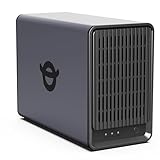

Quick comparison: the best NAS options for gaming
| Model | Drive bays | Network ports | RAID options | Best for | Typical market range |
|---|---|---|---|---|---|
| QNAP TS-464 | 4 SATA bays, 2 M.2 NVMe slots | 2 x 2.5GbE | RAID 0, 1, 5, 6, 10, JBOD | Most gaming PCs and shared libraries | Usually $450–$650 diskless |
| Synology DS923+ | 4 SATA bays, optional M.2 NVMe cache | 1 x 1GbE included; 10GbE upgrade available | SHR, RAID 0, 1, 5, 6, 10, JBOD | Easy backup and data management | Usually $500–$700 diskless |
| Synology DS1522+ | 5 SATA bays, optional M.2 NVMe cache | 4 x 1GbE; 10GbE upgrade available | SHR, RAID 0, 1, 5, 6, 10, JBOD | Larger libraries and future expansion | Usually $650–$850 diskless |
| QNAP TS-664 | 6 SATA bays, 2 M.2 NVMe slots | 2 x 2.5GbE | RAID 0, 1, 5, 6, 10, JBOD | High-capacity libraries and media servers | Usually $700–$950 diskless |
Prices vary by region, memory configuration, and promotions. The ranges above exclude hard drives and SSDs.
Why the QNAP TS-464 is the best overall gaming NAS
The TS-464 has the combination most gaming systems actually benefit from: four bays for sensible redundancy, dual 2.5GbE ports, two NVMe slots, and a processor capable of handling file serving, backups, and media services at the same time. Its HDMI output is useful for a directly attached display, although it does not turn the NAS into a high-end gaming PC.
Two 2.5GbE ports can provide more than 500 MB/s of aggregate theoretical network capacity when several clients are active. A single PC will normally use one 2.5GbE link, reaching roughly 250–280 MB/s in favorable file transfers. That is slower than a local PCIe NVMe SSD but substantially faster than 1GbE, which tops out around 110–115 MB/s in practical conditions.
The TS-464 is also a good upgrade path. Start with two large drives in a mirrored array, then add drives later after confirming the NAS operating system supports online expansion for the selected array. Add NVMe storage for metadata, applications, or cache, but do not assume cache automatically accelerates every game. Sequential game-file reads often benefit more from a fast network and adequately sized RAM than from a cache installed without a workload plan.
Synology versus QNAP for a gaming library
Choose Synology for simpler backups
The DS923+ and DS1522+ are especially attractive when the NAS is also your backup appliance. Synology Drive can synchronize folders between PCs, Hyper Backup can copy NAS data to another destination, and Active Backup tools can centralize supported computer backups. Synology Hybrid RAID, or SHR, is convenient when drives are added at different times or have different capacities.
The limitation is networking. The DS923+ ships with 1GbE, so one gaming PC cannot approach the transfer speeds of a 2.5GbE NAS without buying the optional 10GbE adapter and using compatible network hardware. The DS1522+ has four 1GbE ports, but link aggregation does not normally make one file transfer four times faster. It primarily helps multiple clients, and it requires a compatible managed switch or suitable configuration.
Choose QNAP for faster networking and more tuning
QNAP generally offers stronger specifications per dollar in this class. The TS-464 and TS-664 provide 2.5GbE without an add-in card, along with NVMe slots and a broad application catalog. QNAP Hybrid Backup Sync supports local, remote, and cloud backup jobs, while Qsync can synchronize folders across computers.
The trade-off is greater configuration complexity. Security settings, app permissions, snapshots, remote access, and backup schedules deserve deliberate setup. Disable unnecessary internet exposure and avoid forwarding NAS administration ports directly to the internet; use a VPN or a secure relay method instead.
How many bays and how much RAID do you need?
| Gaming situation | Recommended layout | Usable capacity from four 8TB drives | Reason |
|---|---|---|---|
| One PC, replaceable game installs | RAID 5 or SHR-1 | About 21–22TB before filesystem overhead | One-drive fault tolerance with good capacity |
| Important recordings and family backups | RAID 6 or SHR-2 | About 14–15TB before filesystem overhead | Two-drive fault tolerance |
| Maximum speed for temporary files | RAID 0 | About 29–30TB before overhead | Fast, but one failed drive loses the array |
| Two-drive starter system | RAID 1 or SHR | About 7–8TB before overhead | Simple mirror and easy replacement |
RAID is not a backup. If ransomware, accidental deletion, filesystem corruption, or a power event affects the NAS, the RAID array may preserve the mistake. Keep at least one separate backup, preferably with one copy disconnected or stored off-site.
For most players, four bays are the practical minimum. Two bays are adequate for a personal library, but capacity becomes expensive when half the raw space is sacrificed to mirroring. Five or six bays make sense if you archive many game recordings, maintain several PC backups, or want to expand without replacing every drive.
Network speed: the numbers that matter
A game library does not need the same bandwidth as a 4K video stream at all times. The demanding period is installation, patching, and loading large asset files. Here is a useful calculation: a 100GB game transferred over a practical 1GbE connection at 110 MB/s takes approximately 100,000 MB ÷ 110 MB/s, or 909 seconds—about 15 minutes. At a practical 2.5GbE rate of 280 MB/s, the same transfer takes about six minutes.
Those figures assume the NAS disks, switch, cabling, and client storage can keep up. Use Cat5e or better cabling for 2.5GbE, connect the NAS and gaming PC to a 2.5GbE-capable switch, and verify that the PC’s network adapter negotiated at 2.5Gbps rather than 1Gbps.
For game launching, latency and small-file performance can matter more than peak sequential speed. A wired connection is preferable. Wi-Fi 6 or Wi-Fi 7 can work, but interference and power-saving behavior may cause inconsistent loading, particularly when several devices share the access point.
Game-library streaming: what works and what does not
Steam can install games to a network share in some Windows configurations, but compatibility varies by title, launcher, anti-cheat system, and filesystem behavior. A more reliable arrangement is to use the NAS as a library repository and copy actively played games to the PC’s internal SSD. Steam’s local network transfer feature can then move installed files between computers, reducing repeated downloads.
Games that tolerate network storage usually include slower-paced single-player titles, older games, emulation files, and games with modest loading demands. Competitive shooters, open-world titles with frequent asset streaming, and games with strict anti-cheat software are better kept on a local NVMe SSD. Do not place a NAS-hosted game on a share that disconnects when the computer sleeps.
For consistent Windows access, create a dedicated SMB share, assign a fixed NAS address through the router, and map it using a stable drive letter. Avoid enabling aggressive disk hibernation if the library is accessed frequently; repeated spin-up delays can feel like application hangs.
Noise, drives, and power consumption
NAS noise comes from both the enclosure fan and the hard drives. A four-bay unit with 7200 RPM disks can be clearly audible in a quiet bedroom, especially during parity checks or large backups. A NAS with NAS-rated CMR hard drives is preferable to consumer SMR drives, which can suffer poor sustained write behavior during RAID operations.
SSD storage is quieter and offers lower access latency, but large-capacity SATA SSDs can make the total system cost much higher. A sensible compromise is HDD capacity for the main array, with an NVMe SSD used for applications, metadata, or a carefully configured cache.
Plan for a UPS if the NAS holds important data. A small line-interactive UPS with USB signaling can shut the NAS down cleanly during an outage. This protects against interrupted writes, although it does not replace backups.
Recommended settings after setup
- Create separate shares for game installers, active game files, recordings, and backups. This makes permissions and backup schedules easier to control.
- Use RAID 5 or SHR-1 for a four-drive general-purpose gaming NAS, or RAID 6/SHR-2 when the data is difficult to replace.
- Enable snapshots for backup shares, but retain a separate backup because snapshots consume the same physical storage pool.
- Schedule large backups and RAID scrubs overnight, while avoiding the NAS’s busiest game-installation periods.
- Keep at least 15–20% free space in the storage pool. Near-full arrays can experience slower writes and leave insufficient room for snapshots or expansion.
- Use 2.5GbE end-to-end if multiple computers share the NAS. Upgrading only the NAS while leaving the PC or switch at 1GbE will not improve that PC’s transfer speed.
Which NAS should you buy?
Buy the QNAP TS-464 if you want the best balance of speed, bays, expansion, and gaming-library value. Choose the Synology DS923+ if straightforward backup software and SHR matter more than out-of-the-box network speed. Choose the Synology DS1522+ for a larger, carefully managed library with a future 10GbE upgrade. Choose the QNAP TS-664 when six bays and greater long-term capacity justify the higher cost.
Whichever model you select, treat the NAS as shared storage rather than a replacement for a local gaming SSD. The best network attached storage improves organization, backups, and multi-PC access; the PC’s internal SSD remains the right home for games where loading consistency and anti-cheat compatibility matter most.
Frequently asked questions
Can a NAS replace the SSD in my gaming PC?
No, a NAS cannot replace an internal SSD for every game. It is best used to centralize a large library, store installers and recordings, back up save files, and provide games that tolerate network loading. Competitive shooters, open-world games with frequent asset streaming, and titles with strict anti-cheat software are better kept on a local NVMe SSD.
Is RAID enough to protect my game library and backups?
No, RAID is not a backup. It can preserve data after a drive failure, but ransomware, accidental deletion, filesystem corruption, or a power event may affect the array and preserve the mistake. Keep at least one separate backup, with one copy preferably disconnected or stored off-site. A UPS can also help the NAS shut down cleanly during an outage.
What type of hard drive should I use in a gaming NAS?
Use NAS-rated CMR hard drives for the main array rather than consumer SMR drives. CMR drives are preferable because SMR drives can have poor sustained write behavior during RAID operations. SSDs are quieter and offer lower access latency, but large-capacity SATA SSDs can make the system much more expensive. HDD capacity with NVMe storage for applications or metadata is a sensible compromise.
Can I access a NAS game library when my computer wakes from sleep?
You can, but the share should not disconnect when the computer sleeps. For consistent Windows access, create a dedicated SMB share, assign the NAS a fixed address through the router, and map it with a stable drive letter. Avoid aggressive disk hibernation if the library is accessed frequently, because repeated drive spin-ups can feel like application hangs.
Does the HDMI output make the NAS a gaming computer?
No, HDMI output does not turn the NAS into a high-end gaming PC. On the QNAP TS-464, it can be useful with a directly attached display, while the NAS remains primarily a storage and file-serving device. Its gaming value comes from centralized storage, backups, recordings, and network access rather than rendering games faster.


