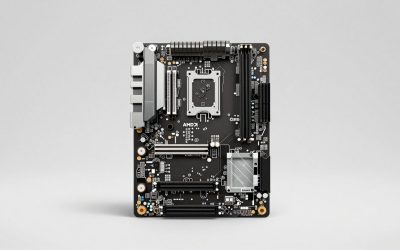
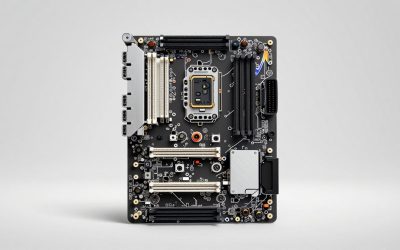
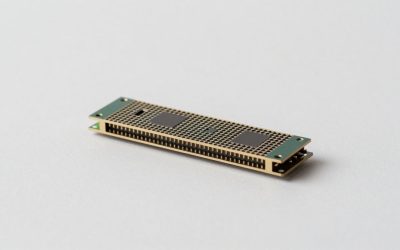
DDR4 and DDR5 memory look similar but are physically and electrically incompatible, you cannot mix them, and a board is built for one or the other. Buying the wrong kind is a frustrating, easily avoided mistake. Before you order RAM or plan an upgrade, here is how to confirm exactly which memory your motherboard takes.
Why You Can’t Mix DDR4 and DDR5
The two standards use different pin counts, a differently placed notch, different voltages, and DDR5 moves its power management onto the module itself. A DDR5 stick physically will not seat in a DDR4 slot, and no board supports both at once. Even the CPU’s memory controller is built for one generation. So the board dictates your only option.
The Fastest Way to Check
1. Look Up the Exact Model
Find your motherboard model (in Windows, run System Information or CPU-Z’s Mainboard tab; it is also printed on the board itself). Search that exact model plus “specifications” on the manufacturer’s site. The memory section states DDR4 or DDR5 plainly, along with supported speeds and max capacity.
2. Use CPU-Z
The free CPU-Z utility’s Memory tab shows the type of RAM currently installed (DDR4 or DDR5), which tells you what the board uses. Its SPD tab shows each slot. This is the quickest check on a running system.
| Clue | DDR4 | DDR5 |
|---|---|---|
| Pin count (DIMM) | 288-pin, notch off-center | 288-pin, notch in a different spot |
| Voltage | 1.2V standard | 1.1V standard, PMIC on stick |
| Common speeds | 2133-3600+ MT/s | 4800-8000+ MT/s |
| Platform era | Intel 10th-11th gen, AMD AM4 | Intel 12th gen+, AMD AM5 |
Platform Shortcuts
Your CPU platform is a strong hint. AMD’s AM5 socket and Intel’s 12th/13th/14th gen boards can use DDR5 (some early Intel boards offered DDR4 variants). AMD’s older AM4 and Intel’s 10th/11th gen are DDR4. If you know the socket, you can usually narrow it immediately, then confirm the exact board.
The Intel DDR4/DDR5 Split
Watch out: Intel 12th and 13th gen chips support both standards, but any given board has only one type of slot. So a 13th-gen system could be DDR4 or DDR5 depending on which board was chosen. Always verify the board, not just the CPU.
Check Max Speed and Capacity Too
While you are on the spec page, note the maximum supported capacity (e.g., 128GB or 192GB) and the QVL (qualified vendor list) of tested kits. Buying a kit on the QVL, or matching its speed and capacity, reduces the odds of a no-POST headache.
Frequently Asked Questions
Can I put DDR5 in a DDR4 board if I force it?
No, and do not try. The notch is in a different position so it physically will not seat, and forcing it damages the module or slot. There is no adapter that makes them cross-compatible.
My CPU supports DDR5, so my board does too, right?
Not necessarily. On platforms that support both (like Intel 12th/13th gen), the board decides. Check the motherboard’s specs directly rather than assuming from the CPU.
Planning a Platform Upgrade
If you currently own DDR4 and are eyeing DDR5, remember the two are tied to different CPU platforms, so moving from DDR4 to DDR5 almost always means a new motherboard and often a new CPU as well. Your existing DDR4 kit will not carry over. Factor that full-platform cost into the decision rather than treating memory as a standalone upgrade. For many gamers on a solid DDR4 system, the smarter money goes toward a GPU upgrade, which delivers more frames per dollar than jumping memory generations.
Check the QVL Before You Buy
Once you confirm the memory type, look up your board’s Qualified Vendor List, the memory kits the manufacturer tested and validated. Buying a kit on the QVL, or matching the exact speed and capacity of one, dramatically lowers the chance of boot problems, especially for high-speed DDR5 or four-stick configurations that push the memory controller hardest.
Bottom Line
Never assume, verify. Look up your exact motherboard model on the maker’s site or run CPU-Z to see whether it uses DDR4 or DDR5, and note the max speed and capacity while you are there. The two standards do not mix, so five minutes of checking prevents ordering RAM that will never fit.
Related guides
More from Amazon
Programs that pair well with the guide above. Offers and eligibility are set by Amazon and may change.
A free business account with business pricing and bulk-buying tools for work, shop or home office.
Create a business accountFree shipping on eligible items, Prime Video and more. Eligible new members can start with a free trial.
Start a Prime free trialAudiobooks and podcasts to listen to on the go. Eligible new members can start with a free trial.
Try Audible freeAd-free music streaming. Eligible new subscribers can start with a free trial.
Try Music Unlimited freeAs an Amazon Associate we earn from qualifying purchases.