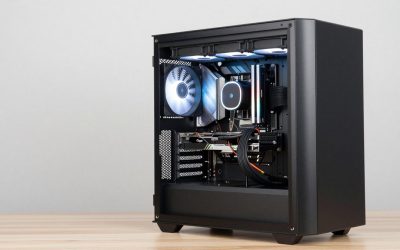
The best monitor for an RTX 4080 or RTX 3090 is a 4K screen at 144Hz or higher or a fast 1440p OLED at 240Hz. Both cards have HDMI 2.1 and DisplayPort, so they can drive these panels, and both are strong enough that a basic 1080p or 60Hz monitor would waste them. This list also covers esports and flight simulator needs.
The RTX 4080 and RTX 3090 sit in a similar performance class for gaming, according to the buying guides we read, so the same monitor advice applies to both. The question is what you want from that power: sharper pixels, faster motion, a huge ultrawide view for sims, or a mix. This guide is research-based. We did not use the monitors ourselves, and where a spec was not stated we wrote “check the maker”.
Our Top Picks

Top 3 picks at a glance
Picks at a Glance
| Pick | Best for | Size and resolution | Refresh | Panel |
|---|---|---|---|---|
| LG 27G810A-B | 4K plus esports in one | 27-inch 4K, FHD mode | 180Hz 4K or 360Hz FHD | IPS |
| ASUS ROG XG27AQDMGR | Best 1440p OLED | 27-inch 1440p | 240Hz | Glossy OLED |
| Samsung Odyssey OLED G6 (G61SH) | QD-OLED speed | 27-inch QHD | 240Hz | QD-OLED |
| msi MAG 321UPD E14 | Large 4K | 32-inch 4K, dual mode | 320Hz | Check the maker |
| ASUS TUF VG27UQ1A | Value 4K with G-SYNC | 27-inch 4K | 160Hz | Check the maker |
| Samsung 49-inch Odyssey OLED G9 | Flight sims and immersion | 49-inch dual QHD | 144Hz | QD-OLED, curved |
| Alienware AW3425DW | Ultrawide OLED | 34-inch 3440 x 1440 | 240Hz | QD-OLED, curved |
| Acer Nitro VG270K V4 | Budget 4K | 27-inch 4K | 160Hz, 320Hz DFR | IPS |
Why Your GPU Changes the Monitor Choice
A high-end GPU pushes frames faster than a typical monitor can show them at 1080p. Pairing an RTX 4080 or RTX 3090 with a 1080p 60Hz screen wastes the card. At the other end, 4K at 240Hz is out of reach for most modern games on these cards, so a 240Hz 4K panel is a headroom feature rather than a typical result. Guides we read suggest two sensible paths.
- 4K at 120-160Hz: the card has enough power for strong frame rates in many games, with upscaling or lowered settings in the heaviest titles.
- 1440p at 240Hz: very high frame rates for shooters, with the card running relaxed.
The best monitor for RTX 4080 and 3090 owners is the one that matches the games you play, not the highest number on the box.
1. LG 27G810A-B: Best Monitor for 4K and Esports in One
As an Amazon Associate we earn from qualifying purchases at no extra cost to you.

The listing describes a 27-inch LG UltraGear 4K UHD IPS monitor with a dual mode that runs at 4K up to 180Hz or at Full HD up to 360Hz, 1ms response, NVIDIA G-Sync, AMD FreeSync Premium, VESA DisplayHDR 400 and HDMI 2.1.
- 27 inches, 3840 x 2160 IPS
- 4K at 180Hz or FHD at 360Hz
- G-Sync, FreeSync Premium, DisplayHDR 400
- HDMI 2.1
Best for: players who want 4K for single-player games and a fast FHD mode for CS2 or Valorant. Skip if: you want deep HDR contrast; DisplayHDR 400 is modest.
Pros: two modes in one screen; HDMI 2.1; G-Sync label; 4K sharpness at 27 inches. Cons: HDR is basic; the FHD mode is a lower resolution on the same panel.
2. ASUS ROG XG27AQDMGR: Best 1440p OLED

This listing is a 27-inch 1440p 240Hz glossy OLED monitor with 0.03ms response, OLED Care Pro, TrueBlack Glossy coating, a Neo Proximity Sensor, ELMB Sync, DisplayHDR 400, 99% DCI-P3 and PS5 and Xbox support noted.
- 27 inches, 2560 x 1440 OLED, 240Hz
- 0.03ms response, DisplayHDR 400, 99% DCI-P3
- OLED Care Pro and a proximity sensor
- ELMB Sync motion feature
Best for: fast shooters and cinematic games in a dim room. Skip if: your desk gets strong direct light, since the glossy finish shows reflections.
Pros: true black; very fast response; wide color; burn-in care features. Cons: glossy reflections; OLED care needed; 1440p rather than 4K.
3. Samsung Odyssey OLED G6 (G61SH): QD-OLED Speed

The listing shows a 27-inch QD-OLED QHD 1440p gaming monitor at 240Hz with 0.03ms response, a glare-free finish, Pantone validation, HDR10, a height-adjustable stand, OLED Safeguard and a 3-year warranty.
- 27 inches, QHD QD-OLED, 240Hz
- 0.03ms, glare-free, Pantone validated
- Height-adjustable stand
- OLED Safeguard, 3-year warranty
Best for: brighter rooms where a glare-free OLED matters. Skip if: you need 4K sharpness.
Pros: glare-free finish; height adjustment; warranty; fast. Cons: OLED care; resolution is QHD.
4. msi MAG 321UPD E14: Large 4K With Dual Mode
This listing is a 32-inch 3840 x 2160 UHD gaming monitor at 320Hz in a dual mode, AMD FreeSync Premium, 0.05ms response, HDMI and DisplayPort, VESA mounting, tilt and height adjustment and a speaker.
- 32 inches, 3840 x 2160
- 320Hz in dual mode, 0.05ms
- Tilt and height adjustment
- AMD FreeSync Premium
Best for: a larger 4K screen with a fast lower-resolution mode. Skip if: you need a validated G-SYNC Compatible label; the listing names FreeSync only, so check NVIDIA’s list.
Pros: 32-inch size; high refresh; height adjustable. Cons: sync label; the 320Hz figure applies to the dual mode, check the maker for the resolution that mode uses.
5. ASUS TUF VG27UQ1A: Value 4K With G-SYNC

The listing describes a 27-inch 4K 160Hz G-SYNC gaming monitor with ELMB Sync, 1ms response, 95% DCI-P3, FreeSync Premium and DisplayWidget Center, for PS5 and Xbox.
- 27 inches, 4K, 160Hz
- G-SYNC, FreeSync Premium
- 95% DCI-P3, 1ms
- ELMB Sync
Best for: a no-fuss 4K 144Hz-class screen for NVIDIA cards. Skip if: you want OLED contrast.
Pros: 160Hz at 4K; G-SYNC wording; wide color listing; console friendly. Cons: HDR level not stated, check the maker; LCD blacks.
6. Samsung 49-Inch Odyssey OLED G9: Best for Flight Sims

This listing shows a 49-inch Dual QHD QD-OLED curved monitor at 144Hz with 0.03ms response, G-Sync Compatible, AMD FreeSync Premium Pro, an ergonomic stand and a 3-year warranty.
- 49 inches, dual QHD, curved
- 144Hz, 0.03ms
- G-Sync Compatible, FreeSync Premium Pro
- 3-year warranty
Best for: flight simulators such as MSFS 2020 and racing, where width matters. Skip if: you have a small desk; it is very wide.
Pros: huge field of view; OLED blacks; G-Sync Compatible. Cons: size and cost; sim frame rates depend heavily on the CPU as well as the GPU.
7. Alienware AW3425DW: Ultrawide OLED

The listing describes a 34.2-inch WQHD 3440 x 1440 curved QD-OLED at 240Hz with 0.03ms response, 1800R curve, AMD FreeSync Premium Pro, VESA AdaptiveSync and DisplayHDR TrueBlack 400.
- 34.2 inches, 3440 x 1440, QD-OLED
- 240Hz, 0.03ms
- 1800R curve
- DisplayHDR TrueBlack 400
Best for: an ultrawide that suits sims and shooters that support 21:9. Skip if: you want a flat 16:9 screen.
Pros: OLED contrast; high refresh; immersion. Cons: sync listed as FreeSync Premium Pro and AdaptiveSync, so confirm G-SYNC Compatible status on the maker page.
8. Acer Nitro VG270K V4: Budget 4K

This listing is a 27-inch 4K IPS monitor at 160Hz with dynamic frame rate technology up to 320Hz, 0.5ms response, AMD FreeSync Premium, two HDMI 2.1 ports, DisplayPort, a speaker and a bluelight filter.
- 27 inches, 3840 x 2160 IPS
- 160Hz, DFR 320Hz
- 2 x HDMI 2.1 and DisplayPort
- FreeSync Premium
Best for: the lowest-cost route to 4K on a strong GPU. Skip if: you want NVIDIA-validated sync wording.
Pros: two HDMI 2.1 ports; 4K at 160Hz; low cost. Cons: FreeSync wording; speaker only basic.
Also Consider
Alienware AW3425DWM

The listing describes a 34-inch WQHD curved gaming monitor at 180Hz with 1ms response, a 1500R curve, AMD FreeSync Premium and VESA AdaptiveSync. It is a lower-cost way into the ultrawide format.
CRUA 32-Inch 4K Curved Monitor

This listing shows a 32-inch 4K UHD 160Hz curved VA gaming monitor with 1500R curve, AMD FreeSync, 120% sRGB, built-in speakers and HDMI 2.1 plus DisplayPort 1.4. It suits large-screen 4K shoppers on a limit.
Sceptre 34-Inch Curved Ultrawide

The listing is a 34-inch curved ultrawide WQHD 3440 x 1440 monitor with a 1500R curve, up to 180Hz or 165Hz, two DisplayPort inputs, 99% sRGB and 1ms response. It suits a budget ultrawide setup.
Best Monitor for MSFS 2020 and Flight Simulators
Microsoft Flight Simulator 2020 is demanding on the CPU as well as the GPU, so a high refresh rate matters less than screen size and clarity. Many simmers favor wide or large screens for cockpit views and scenery.
- Immersion: the 49-inch Odyssey OLED G9 or a 34-inch ultrawide gives a broad view.
- Sharpness: a 4K monitor shows distant detail and cockpit text better.
- Frame rate: 60-90fps is often realistic in this sim, so variable refresh matters more than a 240Hz ceiling.
We do not list sim frame rates, because they depend on settings, scenery and CPU. Check community guides for your exact setup.
Best CSGO Monitor in 2022 and Beyond
Searchers still ask for the best CSGO monitor from 2022, and the principle has not changed. Competitive shooters favor high refresh and clear motion over resolution. On an RTX 4080 or 3090, a 1440p 240Hz screen or the LG 27G810A-B in its FHD 360Hz mode will let the card run far above the refresh rate. Players who still use CS:GO settings in CS2 can expect the same logic. Pick a 24- to 27-inch size, keep the sync feature on and cap the frame rate below the maximum.
4K or 1440p: How to Decide
| Question | If yes | If no |
|---|---|---|
| Do you mainly play cinematic single-player games? | 4K or OLED | 1440p high refresh |
| Do you play competitive shooters daily? | 1440p at 240Hz or a dual-mode screen | 4K at 120-160Hz |
| Do you want to use the screen for work too? | 4K gives more sharp desktop space | 1440p is fine |
| Do you play in a bright room? | IPS or glare-free QD-OLED | Glossy OLED is fine |
| Do you fly sims or race? | Ultrawide or 49-inch | Standard 16:9 |
If you split your time between all of these, the LG 27G810A-B and msi MAG 321UPD E14 are the most flexible picks, because their dual modes let one monitor act as both a 4K screen and a fast lower-resolution esports screen.
Using DLSS and Frame Generation With These Monitors
NVIDIA’s upscaling can raise frame rate at 4K, which helps a 4K 144Hz or 160Hz monitor earn its refresh rate. DLSS upscaling is available on RTX cards, including the RTX 3090 and RTX 4080. DLSS 3 frame generation is tied to RTX 40-series cards such as the RTX 4080, so RTX 3090 owners should not expect it. Whether a game supports these features varies by title, so check the game’s settings menu.
The practical takeaway is simple. A 4K monitor at 120Hz or more is a realistic match for either card when you use upscaling in demanding games. If you prefer native resolution with no upscaling, a 1440p monitor will give you higher frame rates and lower noise from the GPU.
HDR on a Gaming Monitor: What the Labels Mean
- HDR10: a signal format. It tells you the monitor accepts HDR content, not how bright or contrasty it will look.
- DisplayHDR 400: an entry-level certification. The lift is small on IPS panels.
- DisplayHDR TrueBlack 400: used on OLED panels. Blacks are perfect, so the contrast is far better than the number suggests.
- DisplayHDR 600 and above: usually with local dimming zones, giving a bigger step for bright highlights.
For an RTX 4080 or 3090, HDR is worth considering because the cards have the headroom for demanding HDR games. If you care about HDR, OLED listings in this guide give a more convincing result than the IPS picks.
OLED Care: Practical Habits
OLED monitors in this list have care features such as OLED Care Pro or OLED Safeguard. These help, but good habits matter too.
- Use a dark theme and hide the taskbar when you can.
- Let the monitor run its pixel refresh cycle when it asks.
- Avoid leaving bright static windows, such as a spreadsheet, on screen for many hours.
- Keep brightness at a sensible level for the room.
- Read the warranty terms. Some makers cover burn-in and some do not; the Samsung listing notes a 3-year warranty, but check the maker for what it includes.
Ultrawide Pros and Cons
Pros
- Wide field of view in sims, racing and open-world games.
- Room for two documents side by side when you work.
- A curved panel keeps the edges comfortable.
Cons
- Not every game supports 21:9 or 32:9 properly; some show black bars.
- Competitive shooters often lock the field of view or limit ultrawide.
- Less vertical space than a taller 16:9 panel of the same width.
- A 49-inch screen needs a deep, wide desk.
Setup Checklist for a New High-End Monitor
- Install the latest GeForce driver before you connect the new screen.
- Use the cable that came with the monitor, or a certified DisplayPort 1.4 or HDMI 2.1 cable.
- Set the highest refresh rate in Windows display settings.
- Enable HDR in Windows only if you plan to use it, and calibrate with the Windows HDR calibration tool.
- Turn on G-SYNC or G-SYNC Compatible in the NVIDIA Control Panel when the monitor supports it.
- Check for a monitor firmware update on the maker page.
- Inspect the screen for dead pixels and uneven backlight in the first days.
Which Pick Fits Which Use?
| Use | Best pick | Why |
|---|---|---|
| All-round 4K and esports | LG 27G810A-B | Dual mode with HDMI 2.1 and G-Sync. |
| Fastest 1440p motion | ASUS ROG XG27AQDMGR | OLED at 240Hz with 0.03ms response listed. |
| Bright room OLED | Samsung Odyssey OLED G6 | Glare-free finish listed. |
| Big 4K screen | msi MAG 321UPD E14 | 32 inches with height adjustment. |
| 4K on a budget with NVIDIA sync | ASUS TUF VG27UQ1A | G-SYNC wording and 160Hz. |
| Flight sims | Samsung 49-inch Odyssey OLED G9 | Huge field of view. |
| Ultrawide on a normal desk | Alienware AW3425DW | 34 inches with QD-OLED. |
| Cheapest 4K | Acer Nitro VG270K V4 | Two HDMI 2.1 ports and 160Hz. |
Should You Still Buy a 1080p Monitor?
Rarely, with one exception. Some esports players on an RTX 4080 or 3090 still use a 24-inch 1080p monitor at 360Hz or higher because the resolution is easy to drive and every frame counts. Dual-mode screens such as the LG 27G810A-B give you that option without giving up 4K.
Best Monitor for 4080 vs Best Monitor for 3090: Any Difference?
Buying guides we read treat the two cards as near equals for monitor purposes. Both handle 4K, both have HDMI 2.1 and DisplayPort, and neither reaches 240fps at 4K in modern games without lowered settings or upscaling. The real differences are features. The RTX 4080 supports DLSS 3 frame generation, which can lift frame rates in supported games, while the RTX 3090 has more video memory, which helps in heavy texture scenes. Neither difference changes which monitor to buy, but frame generation makes a 4K 144Hz or 160Hz screen easier to fill on the 4080.
Common Mistakes When Pairing a Monitor With a High-End GPU
- Buying 4K at 60Hz: a strong GPU is wasted. Look for at least 120Hz.
- Ignoring the CPU: in sims and some competitive games, the processor limits frame rate before the GPU does.
- Trusting “G-Sync” in a listing without checking: some listings use the word loosely. Confirm whether the monitor has a module, G-SYNC Compatible validation or only Adaptive-Sync.
- Using the wrong cable: an old HDMI cable can cap a 4K high-refresh monitor.
- Forgetting reflections: glossy OLED looks stunning in a dim room and distracting under a bright window.
- Skipping the return window: inspect the panel as soon as it arrives.
Cables and Connections for High-End Monitors
| Connection | Best use | Note |
|---|---|---|
| DisplayPort 1.4 | PC gaming with G-SYNC | Widest support for variable refresh on GeForce cards. |
| HDMI 2.1 | 4K at high refresh, consoles | Needs a certified HDMI 2.1 cable for the highest bandwidth. |
| HDMI 2.0 | Basic use | Limits 4K to lower refresh rates. |
| USB hub on the monitor | Peripherals | Check the maker for ports and the upstream cable. |
If a listing does not state its HDMI version, check the maker page before buying for a console or for 4K at high refresh over HDMI.
Budget Tiers Without Exact Prices
- Entry for this GPU class: Acer Nitro VG270K V4 and the CRUA 32-inch 4K curved screen.
- Mid tier: ASUS TUF VG27UQ1A, msi MAG 321UPD E14 and the Sceptre ultrawide.
- Premium: LG 27G810A-B, ASUS ROG XG27AQDMGR and Samsung Odyssey OLED G6.
- Top tier: Samsung 49-inch Odyssey OLED G9 and the Alienware AW3425DW.
Prices change often, so compare current listings and the warranty terms on each before you decide.
How We Chose
We did not use these monitors. We reviewed the store catalog for 4K, 1440p, ultrawide and OLED monitors from recognized brands, removed used and unavailable listings, limited each brand to two picks, and compared listing specs with buying guides from TechSpot, PC Guide, WePC and PC Gamer. Where a spec was not stated we wrote “check the maker”.
Buying Guide: Matching a Monitor to an RTX 4080 or 3090
Resolution
- 4K (3840 x 2160): the natural fit for these GPUs in single-player and visual games.
- 1440p: best for fast shooters where frame rate comes first.
- Ultrawide: best for sims, racing and immersion.
Ports
Both cards include HDMI 2.1 and DisplayPort. Use DisplayPort for G-SYNC, or HDMI 2.1 for 4K at high refresh on supported monitors.
Panel
- IPS: reliable and bright; lower contrast.
- OLED and QD-OLED: best contrast and speed; needs burn-in care and a controlled room.
- VA: higher contrast than IPS, with varied speed.
Thresholds
- 4K gaming: at least 120Hz.
- 1440p gaming: at least 165Hz, 240Hz for shooters.
- HDR: DisplayHDR 400 is basic; OLED TrueBlack 400 or better gives a real effect.
FAQ
What is the best monitor for RTX 4080?
A 4K 144Hz-class monitor or a 1440p 240Hz OLED. The LG 27G810A-B and ASUS ROG XG27AQDMGR cover both paths.
What is the best monitor for RTX 3090?
The same picks apply, since guides place the RTX 3090 in a similar gaming class to the RTX 4080. Check that the monitor has the ports you need.
Is 4K 240Hz worth it with an RTX 4080?
Rarely. Most modern games will not reach 240fps at 4K on these cards, so 120-160Hz at 4K is a more realistic target.
Does the RTX 3090 support HDMI 2.1?
Yes, it has HDMI 2.1 and DisplayPort 1.4a, so 4K at high refresh is possible on supported monitors.
Which monitor is best for MSFS 2020?
A large or ultrawide screen such as the 49-inch Odyssey OLED G9 suits immersion, while a 4K monitor suits clarity. Frame rate depends heavily on the CPU.
What monitor should I get for CS2 or CSGO?
A fast 1440p panel at 240Hz or the LG 27G810A-B in its FHD 360Hz mode. Esports play favors refresh rate over resolution.
Is OLED safe for desktop use?
It can be, with care. Vary static content, use the maker’s screen-saving features and avoid leaving bright static windows on screen for hours.
Which One Should You Buy?
Choose the LG 27G810A-B if you want one monitor for 4K and esports. Choose the ASUS ROG XG27AQDMGR or Samsung Odyssey OLED G6 for fast 1440p OLED. Pick the msi MAG 321UPD E14 if you want a large 4K panel, the ASUS TUF VG27UQ1A or Acer Nitro VG270K V4 if cost matters, and the Odyssey OLED G9 or Alienware AW3425DW if you fly sims or race.
Sources
- TechSpot, monitors for high-end GPUs
- PC Guide, best monitor for RTX 4080
- WePC, best gaming monitor for RTX 4080
- PC Gamer, best 4K gaming monitors
- Store listing text for each product named above
Last updated: November 2026
Related guides
More from Amazon
Programs that pair well with the guide above. Offers and eligibility are set by Amazon and may change.
A free business account with business pricing and bulk-buying tools for work, shop or home office.
Create a business accountFree shipping on eligible items, Prime Video and more. Eligible new members can start with a free trial.
Start a Prime free trialAudiobooks and podcasts to listen to on the go. Eligible new members can start with a free trial.
Try Audible freeAd-free music streaming. Eligible new subscribers can start with a free trial.
Try Music Unlimited freeAs an Amazon Associate we earn from qualifying purchases.