
Travel changes what matters in an external SSD. At home, a drive can live beside your computer, stay connected to a power source, and avoid much movement. On the road, it may be tossed into a backpack, exposed to heat and dust, connected to phones and tablets, or used in a cramped airport seat. The fastest drive on a product page is not automatically the best travel drive.
The most common mistakes are buying capacity you will not use, confusing a USB-C connector with high USB speed, and choosing a drive based only on its advertised read rate. Travelers also overlook cable length, drop protection, encryption, warranty coverage, and whether the drive works with their actual laptop or phone. Use the guide below to focus on the specifications that affect daily travel rather than impressive-looking numbers alone.
As an Amazon Associate we earn from qualifying purchases at no extra cost to you.




Our Top Picks



Top 3 picks at a glance
Decide These 3 Things First
- How much storage do you need? A 500GB drive is suitable for documents, a photo library, and a moderate video collection. A 1TB model is a more flexible choice for photographers, students, and frequent travelers. Choose 2TB or more if you carry video projects, game libraries, or a complete laptop backup.
- What devices will you connect? Check whether your laptop, tablet, or phone uses USB-C or USB-A, and identify its USB generation. A USB-C-shaped port may support anything from slow USB 2.0 to much faster USB 3.2 connections. You may need an adapter or a second cable.
- Will the drive travel occasionally or every week? Occasional travelers can prioritize capacity and price. Regular travelers should spend more on a compact solid-state drive with a sturdy enclosure, a short cable, and at least basic drop and heat protection.
Size: Capacity and Physical Footprint
Storage capacity is the first size decision. For routine documents, downloaded movies, phone backups, and several thousand photos, 500GB is a practical minimum. A 250GB model can work for lighter use, but its usable capacity is lower than the number on the box, and large video files consume space quickly. The 250GB SSK portable SSD, listed at around $58, is best viewed as a compact secondary drive rather than a full media archive.
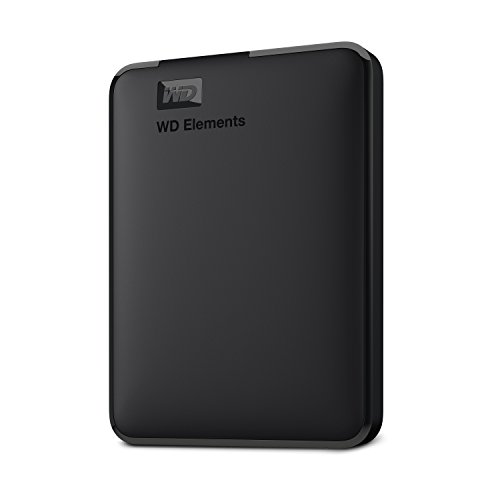
A 500GB drive, such as the SSK model priced at around $89, offers a better balance for most travelers. Move to 1TB, such as the Netac ZX20 II listed at around $160, if you routinely shoot RAW photos, 4K video, or maintain multiple device backups. For a large archive, a 4TB to 6TB portable hard drive may cost less per terabyte. The 6TB WD Elements listed at $258 illustrates that trade-off: much more capacity, but a mechanical hard drive is generally less suitable for constant movement than an SSD.
For physical dimensions, look for a drive roughly 3 to 5 inches long, 2 to 3 inches wide, and no more than about 0.5 inch thick. Weight under 6 ounces is comfortable in a small pouch. Capacity matters more than shaving an inch from the footprint, but a bulky enclosure can become annoying when packed with chargers and camera gear.
Material and Surface: What the Enclosure Can Handle
Aluminum enclosures help spread heat and often feel more durable than thin plastic, while rubberized edges can improve grip and protect corners from minor knocks. A fabric sleeve or included case is useful, but it does not turn a fragile drive into a rugged one. Look for a stated drop-resistance rating, ideally around 3 feet or more, and treat that rating as protection from accidental falls—not permission to leave the drive loose in checked luggage.
Water and dust resistance are valuable for beach trips, outdoor work, and unpredictable weather. If a manufacturer lists an IP rating, understand what it means: IP54 offers limited dust and splash protection, while IP67 generally indicates stronger dust sealing and temporary immersion resistance. Do not assume any rating exists unless it is clearly stated. Many inexpensive portable SSDs have no formal water-resistance certification.
A smooth metal shell can slide across a tray table. A lightly textured surface or rubber bumper is usually more practical. Also check whether the USB port is recessed or reinforced. A loose port can make an otherwise reliable drive unusable after repeated cable pulls.
Construction: SSD Versus Portable Hard Drive
Solid-state drives have no moving platters, making them quieter and generally better suited to being carried, bumped, and used in transit. They are also usually smaller and faster. Their drawbacks are higher prices per terabyte and heat buildup during long transfers.
Portable hard drives remain compelling when capacity is the priority. A 6TB WD Elements drive can hold a substantial photo or video archive at a lower cost per terabyte than a similarly sized SSD. However, a hard drive is more vulnerable to shock while operating, may be thicker or heavier, and commonly tops out around USB 3.0 or USB 3.2 Gen 1 performance. Keep it in a padded case, eject it before moving, and avoid using it on unstable surfaces.
For a travel working drive, choose an SSD. For a backup archive that stays in a hotel room or luggage compartment, a hard drive can make financial sense. Ideally, important files exist in at least two locations rather than on one portable drive alone.
Comfort and Performance: Speed, Heat, and Cables
Advertised speeds need context. A drive rated at 1,050MB/s requires a compatible USB 3.2 Gen 2 connection, an appropriate cable, and a host device capable of those speeds. A 2,000MB/s claim, like the Netac ZX20 II’s advertised read rate, typically requires an even faster interface and suitable hardware. Connected to a slower port, the same drive may perform far below its headline figure.
For moving documents, photos, and occasional video, sustained real-world performance in the several-hundred-megabytes-per-second range is already comfortable. High-end speed matters more when transferring hundreds of gigabytes, editing video directly from the drive, or working with large project files. Do not pay a premium for 2,000MB/s if your laptop only supports slower USB 3.0 or USB 3.2 Gen 1.
Heat is another comfort issue. Very fast SSDs can become warm during long transfers and may slow down temporarily to protect themselves. That behavior is normal, but a metal enclosure can become uncomfortable to hold. Leave ventilation around the drive, avoid placing it under clothing, and do not use it on soft bedding.
Check the cable before buying. A USB-C connector does not guarantee USB 3.2 Gen 2 speed. Look for a cable rated for the drive’s advertised interface. If you switch between newer laptops and older hotel or office computers, an included USB-C-to-USB-A cable or adapter can be more useful than a small speed increase.
Price Tiers: Pay for the Problem You Have
Budget, roughly $50 to $90: Expect 250GB to 500GB of SSD storage, basic plastic or aluminum construction, and advertised speeds around 500MB/s to 1,050MB/s. This tier works well for documents, photos, and short trips. The SSK examples at around $58 and around $89 fit this category.
Midrange, roughly $90 to $180: You can usually get 1TB, better enclosure materials, faster USB support, or improved accessory bundles. This is the value zone for frequent travelers who need working storage rather than a large archive. The around $160 Netac 1TB example sits in this range, though compatibility should be checked before paying for its higher speed.
High-capacity storage, roughly $150 to $300: At this level, you may find 2TB SSDs or 4TB to 6TB portable hard drives. Choose based on whether portability or capacity matters more. A 6TB hard drive priced around $258 can be economical for backups but is not a direct performance substitute for a compact SSD.
Warranty, Reliability, and Data Protection
Look for at least a two- or three-year limited warranty on an SSD, and verify whether the warranty covers the drive only or also data recovery. Most warranties replace failed hardware but do not restore lost files. A longer warranty is reassuring, but it cannot compensate for having no backup.
Check whether the drive supports hardware encryption, password protection, or software-based security compatible with your operating system. For business travel, encryption is more important than a modest increase in transfer speed. Before departure, test the drive, copy a sample folder, eject it properly, and confirm that the files open on the destination device.
Delivery and Setup: The Details That Prevent Travel Problems
Confirm what is in the box: drive, USB-C cable, USB-A cable, adapter, protective case, and setup software. A cable that is missing or too short can turn a working drive into a frustrating purchase on the day of departure. A cable around 12 to 24 inches is usually long enough for a laptop without creating excess tangles.
Format the drive for your devices before leaving. exFAT is commonly useful when sharing files between Windows and macOS, while a platform-specific format may be better for a drive used with only one operating system. Phones and tablets may require an adapter, enough power, and a file-management app. Do not assume that a drive designed for laptops will work directly with every smartphone.
Allow time for delivery, inspection, and testing. Copying your entire archive immediately before a flight leaves no time to discover a faulty cable or incompatible format. In 2026, cloud storage is still useful as a second copy, but travelers should not rely on hotel Wi-Fi for their only backup.
Spec Checklist
| Spec | Budget | Mid | Premium |
|---|---|---|---|
| Typical price | $50–$90 | $90–$180 | $180–$300+ |
| Capacity | 250GB–500GB | 1TB–2TB | 2TB SSD or 4TB–6TB HDD |
| Drive type | Portable SSD | Portable SSD | High-capacity SSD or HDD |
| Interface | USB 3.0/3.2 Gen 1 | USB 3.2 Gen 2 preferred | USB 3.2 Gen 2 or faster |
| Advertised speed | Up to about 500–1,050MB/s | About 1,000–2,000MB/s | 2,000MB/s or more, if compatible |
| Travel size goal | Under 5 × 3 × 0.5 inches | Under 5 × 3 × 0.5 inches | Compact SSD; padded case for HDD |
| Protection | Basic enclosure | Metal or rubberized shell | Stated drop and water resistance |
Red Flags
- A USB-C port with no stated USB generation or speed.
- Headline performance with no note about the required cable or host device.
- No clear warranty period, manufacturer identity, or support contact.
- Unusually low pricing for high capacity without details about NAND, interface, or testing.
- Claims of being “rugged” without a drop height or IP rating.
- A hard drive marketed as shockproof while operating, without handling guidance.
- No included cable, or a cable that supports less bandwidth than the drive.
- Using one drive as the only copy of irreplaceable photos and documents.
FAQ
Is an SSD better than a hard drive for travel?
Usually. An SSD is quieter, lighter, faster, and less sensitive to movement because it has no spinning platters. A portable hard drive is often the better value for very large archives, but it needs more careful handling.
Is 500GB enough for a trip?
For documents, photos, phone backups, and downloaded media, 500GB is enough for many travelers. Choose 1TB if you shoot RAW images, record 4K video, or want room for several full backups.
Do I need the fastest advertised SSD?
No. Match the drive to your computer’s port and your workload. A drive rated at 2,000MB/s cannot deliver that speed through a slower USB connection, and ordinary document transfers rarely justify the added cost.
Should I buy a protective case?
Yes, especially for frequent travel or a portable hard drive. Choose a padded case with room for the drive and cable, but avoid one that traps heat during extended use. A case protects against scratches and drops; it does not replace a backup.









