NTFS has been the Windows default for decades, but Microsoft’s newer ReFS (Resilient File System) promises better protection against silent data corruption. If you are building a bulk storage or media drive, it is worth knowing where ReFS helps, where it still falls short, and why NTFS remains the right choice for most people’s boot and game drives.
As an Amazon Associate we earn from qualifying purchases at no extra cost to you.

Our Top Picks

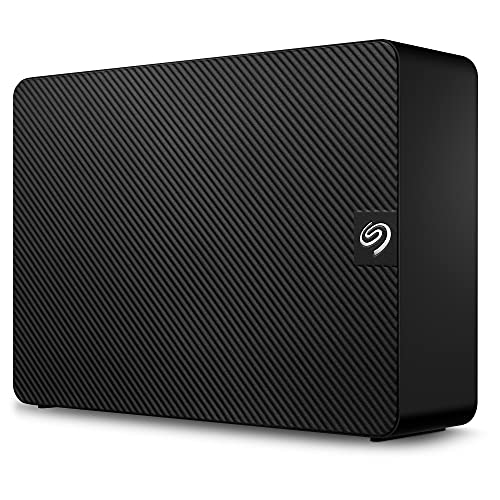
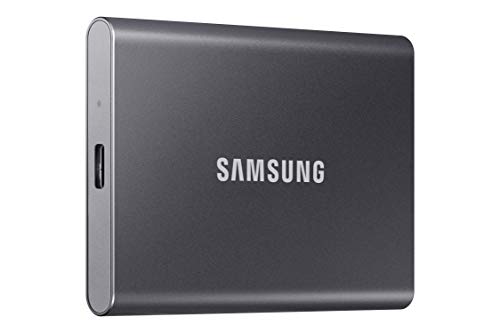
Top 3 picks at a glance
What each file system is for
NTFS is a mature, general-purpose file system with journaling, permissions, compression, and encryption. It runs everything from your Windows boot drive to external disks. ReFS was designed for large data volumes where integrity matters most, using checksums to detect and, in mirrored setups, automatically repair corrupted data.
The integrity difference
ReFS checksums metadata by default and can checksum file data too. Paired with Storage Spaces mirroring, it can detect bit rot, where a stored bit silently flips over time, and rebuild the good copy from the mirror. NTFS has no equivalent; it trusts the drive and only journals metadata to survive crashes.
Feature comparison
| Feature | NTFS | ReFS |
|---|---|---|
| Bootable | Yes | No |
| Data checksums / bit-rot repair | No | Yes (with mirror) |
| File compression | Yes | No |
| Encryption (EFS/BitLocker) | Yes | BitLocker only |
| Max volume size | 256 TB typical | Enormous (35 PB) |
| Broad edition support | All Windows | Pro/Workstation/Server |
The catch with ReFS
ReFS cannot host a Windows installation, so it is a data-only file system. It drops several NTFS features you may rely on, including file-level compression and legacy encryption, and its full self-healing only works when it sits on a resilient Storage Spaces pool with redundancy. On a single drive, ReFS can detect corruption but cannot fix it, which limits its value.
Availability limits
Creating ReFS volumes is restricted to certain Windows editions such as Pro for Workstations, Enterprise, and Server. Home and standard Pro editions can often read ReFS but not create it, so check your edition before planning around it.
Which should you pick?
For your operating system, games, and general use, NTFS is the only sensible choice; it is bootable, universal, and battle-tested. Reserve ReFS for a dedicated multi-drive archive or media pool built on Storage Spaces mirroring, where its checksums and auto-repair genuinely protect irreplaceable data. Anywhere else, the missing features outweigh the integrity gains.
ReFS in a real home setup
The scenario where ReFS shines is a multi-drive media server holding years of photos and videos that would be painful to lose. Build a Storage Spaces mirror or parity pool, format it ReFS, and the file system quietly checksums your data, flagging and repairing corruption before it spreads. Combined with regular backups, this gives long-term archives a level of integrity NTFS on a single disk cannot match.
Do not forget backups
No file system is a substitute for a backup. ReFS protects against bit rot and NTFS protects against crashes, but neither saves you from accidental deletion, ransomware, or a house fire. Whichever you choose, keep the classic rule in mind: three copies of important data, on two types of media, with one copy kept off-site. The file system is one layer, not the whole strategy.
Quick reference
Choosing between the two file systems:
- Use NTFS for boot, game, and everyday drives; it is bootable and universal.
- Use ReFS only for a mirrored Storage Spaces archive that needs bit-rot protection.
- ReFS cannot boot Windows and drops compression and legacy encryption.
- On a single drive, ReFS detects corruption but cannot repair it.
- Neither replaces backups; keep the three-copy rule regardless.
FAQ
Can I convert an NTFS drive to ReFS without losing data?
No. There is no in-place conversion. You must back up the data, reformat the volume as ReFS, and copy everything back, so plan the migration with a spare drive.
Does ReFS make a single external drive safer?
Only slightly. It can detect corruption via checksums, but without a redundant mirror it cannot repair the damaged file. For a lone drive, reliable backups matter far more than the file system choice.
Bottom line
Keep NTFS for boot, game, and everyday drives; it is bootable, full-featured, and works on every edition. Deploy ReFS only for a mirrored Storage Spaces archive where bit-rot protection is worth losing compression, encryption, and broad compatibility. On a single disk, ReFS offers detection without repair, so good backups remain your real safety net.









