
Choosing SSD capacity for a gaming PC is easy to overthink—and just as easy to get wrong. The most common mistake is buying the cheapest 500GB drive because it looks like enough space for “a few games.” Modern PC games routinely use 80GB to 150GB each, while some large open-world titles and high-resolution texture packs can exceed 200GB. Once Windows, updates, launchers, screenshots, mods, and temporary files are included, a small drive can fill faster than expected.
The opposite mistake is paying for the largest, fastest SSD available when the PC only needs room for a rotating library of games. Capacity matters most, but interface, physical fit, endurance, warranty, and whether the drive is internal or external all affect the right purchase. For most new gaming PCs in 2026, a 1TB NVMe SSD is the practical starting point; 2TB is the better long-term choice for players who install several large games at once.
As an Amazon Associate we earn from qualifying purchases at no extra cost to you.



Our Top Picks


Top 3 picks at a glance
Decide These 3 Things First
- How many games do you keep installed? Count the games you actively play, not your whole library. A player who keeps five games installed may be fine with 1TB. Someone with 15 to 25 large games should start at 2TB.
- Does your motherboard have an open M.2 slot? Most current gaming desktops use M.2 NVMe drives, typically the 2280 size: 22mm wide and 80mm long. If no M.2 slot is available, a 2.5-inch SATA SSD or external USB SSD can still add storage.
- Is this your main drive or extra game storage? Your primary drive needs room for Windows and everyday apps. A secondary drive can be selected mainly for capacity and value, especially if it will hold less frequently played games.
Capacity: Match the Drive to Your Actual Game Library
Capacity is the decisive specification. SSDs do not deliver their full advertised usable space after formatting, and Windows needs free room for updates, restore points, caches, and virtual memory. A healthy rule is to leave at least 15% to 20% of an SSD empty. On a 1TB drive, that means reserving roughly 150GB to 200GB rather than filling it to the last few gigabytes.
500GB is the bare minimum for a gaming PC. After Windows and core applications take approximately 80GB to 130GB, you may have room for three to six large games. It works for budget builds or players who are willing to uninstall games regularly.
1TB is the best baseline for most people. It usually leaves enough practical space for Windows, productivity apps, and roughly six to 12 current games, depending on their size. A 1TB drive is especially sensible in a prebuilt system such as the CyberPowerPC configuration with an Intel Core i5-14400F and GeForce RTX 5060 8GB, where the gaming hardware deserves storage that will not feel cramped immediately.
2TB is the sweet spot for frequent players. It can comfortably hold a primary operating system, a broad game rotation, recorded clips, and a mod folder without constant file management. Choose 2TB if you play large RPGs, simulation games, competitive shooters, or games with high-resolution content packs.
4TB and above are best for enthusiasts, creators, and households sharing one PC. A 4TB drive makes sense if you store game captures, edit video, use large mod collections, or want 20-plus major titles installed. It is convenient, but it is not essential for a typical single-player gaming setup.
Form Factor and Fit: Internal M.2, SATA, or External
An SSD must physically and electronically match the system. The preferred internal format for a modern gaming PC is an M.2 NVMe SSD. Most are 22mm by 80mm, listed as M.2 2280. They mount directly to the motherboard and use PCIe lanes rather than SATA cables.
Check how many M.2 slots your motherboard has, whether one is already occupied, and what PCIe generation each slot supports. A PCIe 4.0 drive works in a PCIe 3.0 slot, but it will operate at lower PCIe 3.0 speeds. A PCIe 5.0 drive can also be backward-compatible, but it costs more and may require a substantial heatsink.
A 2.5-inch SATA SSD measures about 2.75 inches wide, 3.94 inches long, and 0.28 inches thick. It needs one SATA data cable and one SATA power connector. It is slower than NVMe, but it remains a dependable option for older desktops or as inexpensive secondary storage. The 1TB KingSpec SATA III internal SSD, rated up to 550MB/s read and 520MB/s write, represents the kind of drive that can work well for a game library when M.2 space is limited.
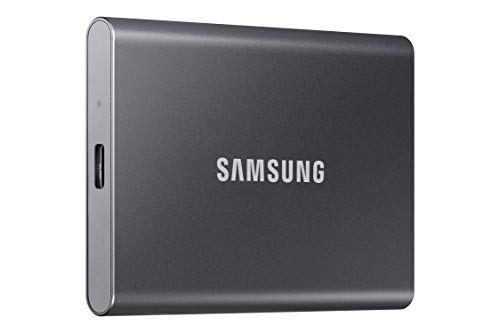
An external SSD is useful for moving games between computers, carrying a library, or expanding storage without opening a case. A portable model such as the 1TB Samsung T7 can reach up to 1,050MB/s over USB 3.2 Gen 2, while the WD P40 Game Drive is rated up to 2,000MB/s with a suitable USB connection. External drives are convenient, but an internal NVMe drive is generally the cleaner choice for a permanent primary game library.
Interface and Performance: Buy Enough Speed, Not Just the Biggest Number
For gaming, capacity and consistent performance usually matter more than chasing the highest sequential speed printed on a box. Game loading benefits from SSD storage, but a drive advertised at 7,000MB/s will not necessarily make every game load twice as fast as a 3,500MB/s model. CPU performance, game engine design, memory, decompression, and GPU features also influence load times.
For a primary gaming drive, look for these practical ranges:
- SATA SSD: about 450MB/s to 550MB/s. Fine for budget upgrades and secondary storage.
- PCIe 3.0 NVMe: roughly 2,000MB/s to 3,500MB/s. Still responsive for gaming.
- PCIe 4.0 NVMe: roughly 5,000MB/s to 7,500MB/s. The best all-around target for a new gaming PC.
- PCIe 5.0 NVMe: often 10,000MB/s or more. Best reserved for premium builds, demanding workstation use, or buyers who specifically want top-tier storage hardware.
Do not confuse peak sequential speed with every-day gaming performance. Also check whether the SSD has a DRAM cache or uses Host Memory Buffer (HMB), particularly on cheaper high-capacity models. Either can be suitable, but no-name drives with vague controller and memory details are riskier than established models with clear specifications.
Build Quality and Cooling: The Parts You Cannot See Matter
SSDs have no moving parts, but their internal design still affects stability and longevity. Look for 3D NAND flash from a recognizable manufacturer, clear endurance ratings, and a controller designed for the drive’s interface. TLC NAND is often preferred for a main gaming drive because it generally offers stronger sustained performance and endurance than QLC NAND. QLC is not automatically bad; it can be an excellent value for a large secondary library, especially if you mostly download games and play them rather than repeatedly transfer huge files.
Heat is more important with fast NVMe drives than with SATA models. A PCIe 4.0 drive can benefit from a motherboard M.2 heatsink, while many PCIe 5.0 drives need a larger heatsink included with the drive or supplied by the board. Before buying, check clearance around the M.2 slot. Some thick heatsinks can interfere with graphics cards, motherboard covers, or tightly packed mini-ITX cases.
For a standard 1TB or 2TB PCIe 4.0 gaming SSD, a low-profile motherboard heatsink is usually enough. Avoid stacking an included SSD heatsink under a motherboard’s built-in cover unless the manufacturer specifically permits it.
Usable Space and Everyday Comfort: Leave Room to Keep the PC Fast
A drive that is nearly full is inconvenient and can perform less consistently during large downloads, game patches, and file transfers. Treat the advertised capacity as the ceiling, not the amount you should plan to use.
For a 1TB SSD, try to keep at least 150GB free. For 2TB, keep around 300GB free if possible. This margin gives Windows room to update, allows game launchers to unpack patches, and prevents the constant “disk space low” warnings that turn routine game updates into cleanup sessions.
If you record gameplay, storage needs rise quickly. At 1080p60, recordings can consume several gigabytes per hour depending on bitrate and codec. High-bitrate 4K footage can consume tens of gigabytes per hour. In that situation, use a 2TB or 4TB secondary SSD for captures rather than crowding the operating system drive.
Price Tiers: Where Your Money Goes
SSD prices change often, but these ranges are useful for comparing similar products rather than focusing on a single sale price.
- Budget: $35 to $55 for 500GB NVMe, $55 to $85 for 1TB SATA or entry-level NVMe, and about $90 to $130 for 2TB value NVMe.
- Midrange: $70 to $120 for a solid 1TB PCIe 4.0 NVMe drive and $110 to $180 for 2TB. This is the strongest value tier for most gaming PCs.
- Premium: $130 to $220 for 1TB high-end NVMe or portable gaming storage, and $180 to $350 or more for 2TB to 4TB premium internal drives.
Portable SSDs often cost more per gigabyte than internal drives because they include an enclosure, USB controller, cable, and compact protective housing. For example, a 1TB portable drive priced around $210 to around $230 may be worthwhile for travel and console compatibility, but it is rarely the best value if the only goal is expanding a desktop’s internal game storage.
Warranty and Endurance: Read Beyond the Capacity Label
A good gaming SSD should have at least a three-year warranty; five years is preferable for a primary internal drive. Warranty length matters because SSD failure can mean reinstalling Windows, redownloading a large game library, and potentially losing local saves or recordings.
Also compare TBW, or terabytes written. This figure estimates how much data can be written to the drive within the warranty period. For a 1TB gaming SSD, around 400TBW to 600TBW is a reassuring range. For 2TB, 800TBW to 1,200TBW is common on stronger models. Most gamers will not reach these limits quickly, but higher endurance is helpful for drives used for game captures, modding, large downloads, and editing.
Back up important files regardless of the warranty. A warranty replaces hardware; it does not restore save files, photos, or video clips.
Installation, Delivery, and Setup Planning
An internal M.2 installation usually takes 10 to 25 minutes with a small Phillips screwdriver. Shut down the PC, switch off the power supply, unplug the power cable, and ground yourself before touching components. The SSD slides into the M.2 slot at an angle and is secured by a tiny screw or tool-free latch.
For a 2.5-inch SATA SSD, allow 20 to 40 minutes because you may need a mounting bracket, SATA data cable, and an available SATA power connector. Many desktop cases support 2.5-inch drives behind the motherboard tray, but older cases may require a 3.5-inch adapter bracket.
After installation, initialize and format the new drive in Windows Disk Management, then select it as a game-library location in your preferred launcher. External SSDs are simplest: connect the included USB cable, confirm that the port supports the drive’s intended USB speed, and format only if necessary.
Spec Checklist
| Spec | Budget | Mid | Premium |
|---|---|---|---|
| Recommended capacity | 500GB to 1TB | 1TB to 2TB | 2TB to 4TB+ |
| Best interface | SATA or PCIe 3.0 NVMe | PCIe 4.0 NVMe | High-end PCIe 4.0 or PCIe 5.0 NVMe |
| Typical peak read speed | 550MB/s to 3,500MB/s | 5,000MB/s to 7,500MB/s | 7,000MB/s to 14,000MB/s+ |
| Warranty target | 3 years | 5 years | 5 years |
| Cooling | Usually not required | Motherboard heatsink recommended | Heatsink strongly recommended |
| Typical use | Small library or secondary drive | Main gaming drive | Large library, captures, demanding workloads |
Red Flags
- Buying a 500GB drive for a new system when you regularly keep more than four large games installed.
- Choosing an M.2 drive without confirming that the motherboard supports NVMe rather than SATA-only M.2.
- Paying extra for PCIe 5.0 when the motherboard only supports PCIe 4.0 or PCIe 3.0.
- Filling the drive beyond 85% to 90% capacity and expecting painless updates.
- Buying an unbranded SSD with no stated warranty, TBW rating, controller information, or support contact.
- Using an external drive for a permanent desktop setup when an open internal M.2 slot is available at a lower cost per terabyte.
- Forgetting to budget for a SATA cable, M.2 screw, mounting bracket, or heatsink when the system does not include them.
FAQ
Is 1TB enough for a gaming PC?
Yes, 1TB is enough for many players and is the minimum capacity worth targeting for a new gaming PC. It is best for people who keep a focused library of roughly six to 12 games installed. Choose 2TB if you dislike uninstalling games or play several titles over 100GB.
Should I get a 1TB fast SSD or a 2TB slower SSD?
For most gamers, choose the 2TB SSD if the “slower” option is still a reputable SATA drive or PCIe 3.0/4.0 NVMe model. Extra capacity improves day-to-day convenience more than a small increase in benchmark speed. Avoid only extremely low-quality drives with unclear endurance and warranty details.
Do games run well from an external SSD?
Yes, many games run well from an external SSD, especially models using USB 3.2 Gen 2 or faster. Expect best results when the drive is connected directly to a high-speed rear motherboard port. Internal NVMe storage remains preferable for a primary desktop game library because it avoids cable clutter and usually costs less per terabyte.
How much free SSD space should I leave?
Leave at least 15% to 20% free. That means roughly 75GB to 100GB on a 500GB drive, 150GB to 200GB on a 1TB drive, and around 300GB to 400GB on a 2TB drive. The space helps with updates, downloads, temporary files, and consistent performance.









