
As an Amazon Associate we earn from qualifying purchases at no extra cost to you.




Buying hard drives for a NAS is not the same as buying a drive for a desktop PC, and that’s where most people go wrong. The three most common mistakes: grabbing whatever desktop drive is on sale (often a drive using SMR recording, which chokes under RAID rebuilds), overspending on enterprise drives their home NAS will never stress, and buying all their drives at once from different retailers, which increases the odds of mixing incompatible firmware batches. A NAS runs drives 24/7, usually in a vibration-heavy multi-bay enclosure, and it needs drives built for exactly that duty cycle.
This guide walks through what actually matters — recording technology, workload ratings, spindle speed, capacity planning, and noise — then gives you spec targets at three price tiers, based on widely available drives like the Seagate IronWolf and WD Red Plus families.
Our Top Picks
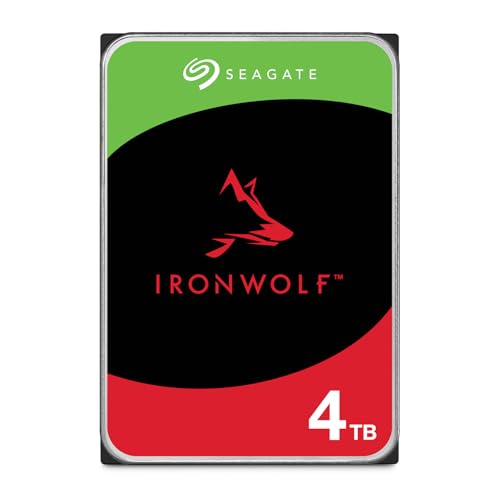 Seagate IronWolf 4TB NAS Internal Hard Drive CMR4TB5.79 x 4.01 x 1.03 Inches1.1 poundsCheck on Amazon


Top 3 picks at a glance
Decide These 3 Things First
Before comparing any models, answer these questions. They eliminate most of the catalog instantly.
1. How many bays does your NAS have, and how full will it get? A 2-bay enclosure in RAID 1 caps your usable capacity at the size of one drive. A 4-bay in RAID 5 gives you three drives’ worth of space. Buy for your usable capacity target, not raw drive size, and leave one bay’s headroom for future expansion if your enclosure supports it.
2. What RAID level are you running? This is the big one, because it determines whether SMR drives are acceptable. RAID 0 or a single-disk JBOD can technically tolerate SMR; anything with redundancy (RAID 1, 5, 6, 10) should use CMR drives only. A RAID rebuild writes sequentially for hours on end — exactly the workload where SMR’s shingled tracks collapse into painful rewrite cycles. Some vendors’ SMR drives have caused days-long rebuilds on 8TB-class arrays.
3. What’s your realistic budget per terabyte? NAS-class CMR drives typically run $15–$25 per terabyte at retail. Set your total budget as bays × cost per drive, and you’ll quickly see whether you’re shopping in the 4TB, 8TB, or 12TB tier.
Recording Technology: CMR vs. SMR
This is the single most decisive spec, and it’s buried in datasheets.
CMR (Conventional Magnetic Recording) lays data tracks side by side, so write speeds stay consistent whether you’re streaming a movie or rebuilding a degraded array. SMR (Shingled Magnetic Recording) overlaps tracks like roof shingles to squeeze in more density, which works fine until a write touches already-shingled zones — then the drive must rewrite neighbors, and sustained write performance can crater to under 20 MB/s or stall entirely.
What to buy: CMR, full stop, for any multi-bay NAS. The IronWolf line and WD Red Plus line are CMR across their current 3.5-inch NAS lineup. Be careful with WD Red (non-Plus) drives in smaller capacities — many of those are SMR. Check the manufacturer’s specification sheet for the exact model number, not marketing copy. If a listing doesn’t say CMR, assume it’s SMR.
How to verify: Look up the exact model number (e.g., ST8000VNZ04, WD120EFGX) on the manufacturer’s site and confirm “CMR” or “Conventional” in the recording technology field.
Capacity and Cost per Terabyte
Drive pricing doesn’t scale linearly — the sweet spot matters.
– 4TB drives (like the Seagate IronWolf ST4000VNZ06 at around $190) work out to roughly $45–48/TB. Fine for backups and media libraries under ~8TB usable.
– 8TB drives (IronWolf ST8000VNZ04 at around $330, or the BarraCuda ST8000DM004 at around $250) land near $31–41/TB. The BarraCuda is a desktop drive, though — fine in a single-bay setup, not recommended for RAID.
– 12TB drives (WD Red Plus WD120EFGX at around $460) drop to roughly $38/TB with NAS-grade durability included.
The practical rule: per-terabyte cost usually bottoms out in the middle of a drive family’s range. For a 4-bay NAS targeting 24–32TB usable in RAID 5, four 8TB or 12TB drives beat eight 4TB drives on both cost and power draw — fewer drives means fewer spinning motors, roughly 4–8W each under load.
Capacity planning math: budget 20% of raw capacity as overhead. RAID 5 on four 8TB drives yields about 21–22TB usable; RAID 6 on four 12TB drives yields about 21.8TB usable but survives two drive failures.
Spindle Speed, Cache, and Real-World Performance
Home NAS workloads are rarely throughput-limited, so don’t overpay for speed.
– 5400 RPM drives (like the 4TB IronWolf) run cooler and quieter — typically 20–25 dB idle — and a single 5400 RPM drive still saturates a 1GbE network at ~110–190 MB/s sequential. For home file sharing, Plex serving 2–3 streams, and backups, it’s plenty.
– 7200 RPM drives (like the 12TB WD Red Plus) push sequential reads to 250+ MB/s, which matters if you’ve upgraded to 2.5GbE or 10GbE networking. They also draw more power (roughly 6–10W under load vs. 4–6W for 5400 RPM) and run 2–4 dB louder.
Cache sizes of 64MB to 512MB make little difference for NAS file serving; don’t pay a premium for cache alone. If your NAS has SSD bays or NVMe slots for caching, that handles your random I/O far better than any HDD cache.
Bottom line: on gigabit Ethernet, a 5400 RPM CMR drive is not your bottleneck. Match 7200 RPM drives to fast networking or heavy multi-user workloads.
NAS-Specific Durability Features
This is what separates a $250 desktop drive from a $330 NAS drive at the same capacity:
– Workload rating: NAS drives are rated for 180–300TB of writes per year, roughly 3× a desktop drive’s 55TB rating. Home users rarely hit these numbers, but the rating reflects beefier components.
– Vibration compensation: multi-bay enclosures create rotational vibration that degrades desktop drive performance. NAS drives include rotary vibration sensors (RV sensors) rated for 8-bay environments. This matters from about 4 bays up.
– MTBF: NAS-class drives typically spec 1 million hours versus 600,000 for desktop drives. Treat this as a relative quality indicator, not a lifespan promise.
– Errored-workload hours: some NAS drives spec 8760 hours/year (24/7 operation) explicitly.
For a 2-bay NAS, honestly, a quality desktop CMR drive works. From 4 bays up, NAS-rated drives earn their premium through vibration tolerance alone.
Price Tiers: What Your Budget Buys
– Budget ($150–$250 per drive): 4TB NAS CMR drives like the IronWolf ST4000VNZ06 (~$190), or larger desktop CMR drives like the 8TB BarraCuda (~$250) for single-bay use. Acceptable for 1–2 bay arrays.
– Mid-tier ($280–$400 per drive): 8TB NAS drives like the IronWolf ST8000VNZ04 (~$330). This is the value sweet spot for 4-bay home NAS builds — roughly $31/TB with full NAS durability.
– Premium ($400–$550+ per drive): 12TB-plus NAS drives like the WD Red Plus WD120EFGX (~$460), or 16TB+ IronWolf Pro/WD Red Pro drives. Justified for 2.5GbE+ networks, 6+ bays, or minimizing drive count for power savings.
Watch for sales — NAS drive prices swing 15–25% during major retail events, and buying all drives in one order from one vendor keeps firmware batches consistent.
Warranty and Data Recovery Services
Warranty terms differ meaningfully across NAS drive lines, and for drives holding irreplaceable data, they’re worth real money.
– Standard NAS lines (IronWolf, WD Red Plus) carry 3-year warranties.
– Pro-tier lines (IronWolf Pro, WD Red Pro) extend to 5 years and add bundled data recovery services — Seagate’s Rescue plan covers recovery up to a specified capacity limit, a service that otherwise costs $300–$2,000+ from third parties.
Check the warranty term per exact model number; retailers sometimes list older stock with different coverage. Also confirm your NAS manufacturer’s compatibility list — Synology, QNAP, Asustor, and UGREEN all publish tested-drive lists, and unlisted drives occasionally cause firmware warnings or degraded support.
Shipping, Handling, and Installation
Hard drives are among the most shipping-damage-prone components you can buy. Insist on sellers who pack drives in suspended foam or dedicated drive boxes — not bubble mailers. On arrival, check for dented corners and run your NAS vendor’s quick drive test (or a SMART read via tools like CrystalDiskInfo) before committing drives to an array; a degraded SMART attribute in the first 48 hours is grounds for immediate return.
Installation is tool-less or screw-in depending on your enclosure; tray-loading drives into a 4-bay unit takes under 15 minutes. For RAID builds, budget 4–12 hours of initial parity synchronization on 8–12TB drives — run it, don’t interrupt it, and don’t trust the array until a full scrub passes.
Spec Checklist
| Spec | Budget | Mid | Premium |
|---|---|---|---|
| Capacity per drive | 4TB | 8TB | 12–16TB |
| Recording technology | CMR | CMR | CMR |
| Spindle speed | 5400 RPM | 5400–7200 RPM | 7200 RPM |
| Cache | 64–256MB | 256MB | 512MB |
| Workload rating | 180TB/yr | 180TB/yr | 300TB/yr |
| MTBF | 1M hours | 1M hours | 1M–2.5M hours |
| Vibration sensors | Optional | Yes | Yes (RV sensors) |
| Warranty | 3 years | 3 years | 5 years + recovery service |
| Price per drive | $150–$250 | $280–$400 | $400–$550+ |
| Best for | 1–2 bay NAS | 4-bay home NAS | 6+ bays, fast networks |
Red Flags
– Unspecified recording technology. If a listing won’t say CMR, walk away — it’s almost certainly SMR.
– Desktop drives marketed as “great for NAS.” A BarraCuda is a fine desktop drive; that doesn’t make it an IronWolf. Vibration sensors and workload ratings are the difference.
– “Recertified” or “renewed” drives for RAID. Refurbished drives fail in clusters, and RAID doesn’t protect against simultaneous failures.
– Prices far below market. A “new” 12TB NAS drive at $150 is either a scam, a grey-market drive with voided warranty, or a relabeled SMR drive.
– No model number in the listing. Marketing names change; model numbers (ST8000VNZ04, WD120EFGX) are how you verify every spec in this guide.
– Mixed batches in RAID arrays. Drives from different manufacturing eras with mismatched firmware can behave inconsistently under rebuild load.
FAQ
Can I use regular desktop hard drives in a NAS?
For a 1–2 bay NAS running RAID 0/1 with light use, a quality CMR desktop drive is workable. Beyond that, no — desktop drives lack vibration compensation for multi-bay enclosures, carry lower workload ratings (55TB/yr vs. 180TB/yr), and often use SMR, which can turn a RAID rebuild into a multi-day ordeal.
Are NAS hard drives really worth the extra cost?
The premium is typically 15–30% over a comparable desktop drive. You’re paying for CMR recording, 24/7 duty-cycle components, vibration sensors, and a 3-year warranty. For any array holding data you can’t afford to lose, that’s cheap insurance — a single RAID rebuild failure on an SMR drive can cost you the whole array.
What size NAS hard drive should I buy in 2026?
For a 4-bay home NAS, 8TB drives hit the best price-per-terabyte balance, giving 21–22TB usable in RAID 5. Step up to 12TB if you have 2.5GbE networking or store lots of video; stay at 4TB only for small backup arrays. Always buy drives sized for where you’ll be in 2–3 years, not where you are today.
Should all my NAS drives be the same model?
Same capacity is essential for most RAID levels — a smaller drive’s space goes unused. Same model is strongly preferred: identical firmware and performance characteristics mean the array rebuilds predictably. Buy all drives in one order to minimize batch variance, and note the model numbers in your documentation for future replacements.









