When people plan a PC with two drives, they often talk about a “boot drive” and a “storage drive” without explaining what makes them different. The distinction is not about the hardware itself — both are usually SSDs — but about the role each plays and how you should size and manage them. Getting the split right keeps your system fast and your data organized.
As an Amazon Associate we earn from qualifying purchases at no extra cost to you.


Our Top Picks
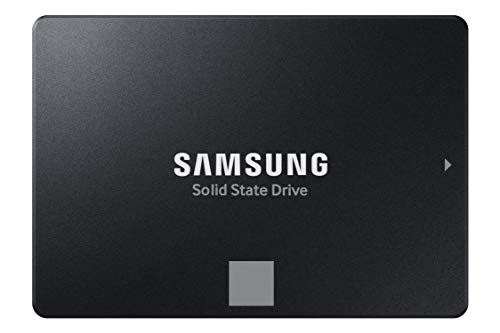 SAMSUNG 870 EVO SATA SSD 500GB 2.5” Internal0.5TB3.94 x 2.76 x 0.27 inches0.19 PoundsCheck on Amazon


Top 3 picks at a glance
What Each Drive Does
The boot drive is where your operating system, drivers, and core applications live — it is the disk the PC starts from and the one Windows runs on. A storage drive holds everything else: your game library, media, documents, project files, and archives. In a single-drive PC, one disk does both jobs; in a two-drive setup, you deliberately separate them.
| Aspect | Boot drive | Storage drive |
|---|---|---|
| Holds | OS, drivers, key apps | Games, media, files, backups |
| Ideal type | Fast NVMe SSD | Larger SSD or HDD |
| Typical size | 500GB–1TB | 1TB–several TB |
| Priority | Speed and responsiveness | Capacity and value |
Why Separate Them at All?
Splitting roles has real benefits. The boot drive stays lean and fast, so Windows and apps remain responsive without a giant game library filling it up. A separate storage drive lets you buy cheap capacity for bulk files without paying flagship-SSD prices for terabytes you only use for cold storage. It also simplifies life: if you ever reinstall Windows, you can wipe the boot drive while your games and files sit safely untouched on the storage drive.
Do You Actually Need Two Drives?
Not necessarily. A single large NVMe SSD — say 2TB — can serve as both boot and storage perfectly well and keeps things simple. The two-drive approach shines when you want a small fast boot disk plus lots of cheap capacity, or when you want physical separation between your OS and your data for reliability and easy reinstalls.
How to Size and Set Them Up
For a boot drive, 500GB is a workable minimum and 1TB is comfortable, using a quick NVMe SSD. For storage, match capacity to your library — 2TB or more for gaming, and a high-capacity hard drive is fine for backups and media that do not need SSD speed. Install games to whichever drive has room; modern launchers let you pick the target and even move installed games between drives later. Keep 10–20% free on any SSD for performance.
Frequently Asked Questions
Can I install games on my boot drive?
Yes, and it is fine if you have space — games load fastest from the same NVMe your OS uses. The reason people use a separate storage drive is to keep the boot disk from filling up, not because games harm it. On a large single SSD, mixing them is perfectly normal.
Should my storage drive be an SSD or a hard drive?
It depends on the contents. Actively played games belong on an SSD for fast loads, while backups, media libraries, and archives are fine on a cheaper high-capacity hard drive. Many builders use both: an SSD storage drive for games and an HDD for cold storage.
Bottom Line
A boot drive runs your operating system and apps and should be a fast NVMe SSD, while a storage drive holds games, media, and files and prioritizes capacity and value. Separating them keeps the system lean and makes reinstalls painless, but a single large SSD can happily do both. Size the boot drive at 500GB–1TB, scale storage to your library, and put your active games on solid state either way.









