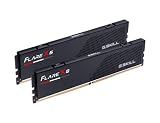
Thirty-two gigabytes of RAM used to be considered an excessive amount of memory, reserved almost exclusively for high-end workstations and heavy production environments. Today, 32GB is the acknowledged sweet spot for modern PC gaming. However, having a generous pool of physical memory does not mean you should disable or ignore your virtual memory settings. Windows utilizes a virtual memory architecture that relies on a paging file (pagefile.sys) to manage the system commit charge, handle crash dumps, and park idle background processes.
When games run, they do not just request physical space; they request virtual address space from the Windows Memory Manager. If your virtual memory limit is set too low—or disabled entirely—games can crash directly to the desktop with “Out of Memory” errors, even if your physical RAM monitoring software shows that you have 10GB of unused physical RAM left. This is because the system commit limit has been breached.
As we navigate the demanding gaming landscape of 2026, where complex asset streaming, real-time ray reconstruction, and massive open-world simulations are standard, configuring your virtual memory correctly is paramount for system stability. To optimize your rig, you must prioritize stability, avoid storage fragmentation, and protect your solid-state drive (SSD) from unnecessary write cycles. Below is the definitive guide to configuring virtual memory for a system equipped with 32GB of RAM.
As an Amazon Associate we earn from qualifying purchases at no extra cost to you.

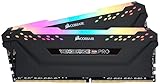


Our Top Picks
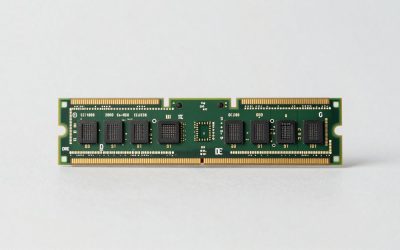
 CORSAIR Vengeance LPX DDR4 RAM 32GB2 count (pack of 1)5.32 x 0.28 x 1.32 Inches0 PoundsCheck on Amazon
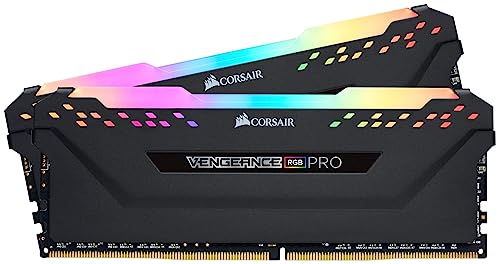
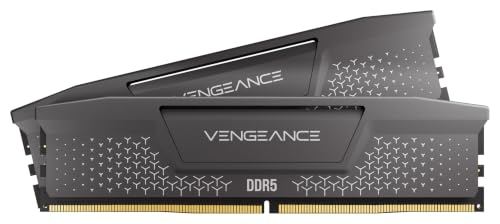

Top 3 picks at a glance
Quick Recommended Settings
For most users with 32GB of RAM, a manual custom allocation or leaving the setting as system-managed on a fast solid-state drive yields the best balance of performance and stability. Below is a quick-reference table of the recommended configurations:
| Setting Parameter | Recommended Value | Why This Value is Chosen |
|---|---|---|
| Drive Allocation | Primary NVMe SSD (usually C:) |
Maintains ultra-low latency access times if the system needs to read or write to the pagefile. |
| Pagefile Management | Custom Size (or System Managed) | Custom size prevents dynamic resizing stutter; System Managed is safest for general users. |
| Initial Size (MB) | 4096 MB (4 GB) | Ensures a baseline safety net is always allocated, preventing initial fragmentation of the file. |
| Maximum Size (MB) | 16384 MB (16 GB) | Provides up to 48GB of total commit charge (32GB physical + 16GB virtual), which easily covers modern gaming workloads. |
| Secondary Drives | No paging file | Prevents slow HDDs or secondary SATA drives from introducing performance bottlenecks. |
Setting-by-Setting
To modify these parameters, you must access the advanced system properties in Windows. Press the Win + R keys on your keyboard to open the Run dialog box. Type sysdm.cpl and press Enter. In the System Properties window, click on the Advanced tab. Under the Performance section, click the Settings… button. In the Performance Options window, navigate to the Advanced tab and click the Change… button under the Virtual Memory header. Uncheck the box labeled “Automatically manage paging file size for all drives” to unlock manual configuration.
Drive Selection
Exact Value: Select your fastest, primary NVMe solid-state drive (typically designated as the C: drive) and set all other secondary mechanical hard drives or slower SATA SSDs to “No paging file”.
The Trade-off: Allocating the pagefile to your primary NVMe SSD ensures that if Windows needs to swap idle memory pages out of physical RAM, it can do so at speeds exceeding 3500 MB/s (or up to 14000 MB/s on newer Gen 5 drives). The trade-off is that it uses up valuable high-speed storage space on your boot drive and subjects the drive to write wear. However, modern SSD endurance levels are so high that this wear is negligible, and putting the pagefile on a slower secondary HDD to save SSD space will cause severe micro-stuttering in modern games.
Initial Size (MB)
Exact Value: 4096 MB
The Trade-off: Setting an initial size of 4096 MB reserves exactly 4GB of your SSD space specifically for virtual memory from the moment your PC boots. The trade-off is a minor loss of usable storage space. The benefit is that Windows does not have to constantly expand the pagefile on the fly when you launch a memory-intensive game. Dynamic expansion causes temporary disk write spikes, which can translate to frame drops and stuttering during gameplay.
Maximum Size (MB)
Exact Value: 16384 MB (or up to 32768 MB for extreme workloads)
The Trade-off: This setting allows the pagefile to grow up to 16GB if your system experiences an extraordinary memory demand, such as running a heavily modded simulator alongside background applications like Discord, a web browser with dozens of open tabs, and streaming software. The trade-off is that up to 16GB of SSD space can be temporarily consumed. However, this protects your system from crashing. If a game experiences a memory leak, a maximum cap of 16GB acts as a critical safety valve that prevents the entire operating system from freezing.
System Managed Size
Exact Value: Enabled (Alternative Option)
The Trade-off: If you do not want to set manual limits, selecting “System managed size” and clicking “Set” allows Windows to dynamically scale the pagefile based on current system commitments. The trade-off is convenience versus optimization. While “System managed” is highly stable and virtually guarantees you will never run out of memory, it allows the pagefile to grow and shrink dynamically, which can contribute to drive fragmentation and minor performance variance during transition phases in massive open-world games.
By Hardware Tier
Depending on the speed of your storage and your specific gaming use cases, you should tailor your virtual memory settings to match your hardware profile.
Low-End Hardware Tier (32GB RAM + SATA SSD)
If you have upgraded an older system to 32GB of RAM but are still running your operating system and games on a legacy SATA SSD (which caps out at around 500 MB/s read/write speeds), your goal is to minimize disk access latency. On this tier, set a custom pagefile size with an Initial Size of 4096 MB and a Maximum Size of 12288 MB (12GB). This caps the maximum size to save disk space on smaller legacy drives while ensuring that the pagefile does not dynamically expand too frequently, which can saturate the limited bandwidth of the SATA interface and cause noticeable system hitches.
Mid-Range Hardware Tier (32GB RAM + PCIe Gen 4 NVMe SSD)
This is the standard configuration for modern gaming PCs. With a PCIe Gen 4 NVMe drive, your storage bandwidth is incredibly high (ranging from 5000 MB/s to 7500 MB/s). For this tier, the best configuration is to select “System managed size” on your primary SSD. The storage controller and the Windows Memory Manager can handle dynamic paging file adjustments with zero perceived latency. The high speed of the drive ensures that any pagefile expansion or read/write operations occur in milliseconds, completely eliminating any risk of stuttering during gameplay.
High-End Hardware Tier (32GB RAM + PCIe Gen 5 NVMe + Heavy Modding)
If you run a top-tier machine and play games that push memory boundaries—such as heavily modded flight simulators, massive city builders, or space simulation games—you need a rock-solid commit limit. These games can easily push total system allocation past 40GB. Configure a manual Custom Size with an Initial Size of 16384 MB (16GB) and a Maximum Size of 32768 MB (32GB) on your primary PCIe Gen 5 NVMe SSD. By locking the initial size to 16GB, you provide an enormous, high-speed buffer that completely eliminates dynamic resizing stutter, ensuring maximum frame rate consistency while streaming assets at ultra-high resolutions.
Common Mistakes
Even experienced PC builders fall prey to outdated optimization myths. Here are the three most common mistakes made when configuring virtual memory on 32GB RAM systems, along with step-by-step diagnostic and resolution protocols.
Mistake 1: Disabling the Paging File Entirely
- What causes it: A persistent optimization myth claims that because 32GB of RAM is highly spacious, disabling the pagefile forces Windows to run entirely in physical RAM, thereby speeding up the computer and saving SSD write cycles.
- How to check: Open the Virtual Memory settings menu (via
sysdm.cpl). If “No paging file” is selected for all drives, your pagefile is disabled. You can also check the Windows Event Viewer: navigate to Windows Logs > System and search for Event ID 2004 (“Resource-Exhaustion-Detector”), which indicates the system ran out of virtual memory. - What to do: Re-enable virtual memory immediately. Open the Virtual Memory configuration menu, select your primary
C:drive, select “System managed size” (or enter a custom initial size of 4096 MB and max size of 16384 MB), click the Set button, click OK, and reboot your computer. - How to undo: To return to the disabled state, reopen the Virtual Memory menu, select your drive, choose “No paging file”, click Set, click OK, and reboot. (Note: Doing this is highly discouraged as it will restore system instability).
Mistake 2: Placing the Pagefile on a Mechanical Hard Drive
- What causes it: Users who want to preserve storage space or reduce write wear on their expensive primary NVMe SSDs will manually move the paging file to an older, high-capacity secondary mechanical hard drive (HDD).
- How to check: Open Task Manager (
Ctrl + Shift + Esc), go to the Performance tab, and click on your HDD. If you see high active time spikes during gaming alongside disk read/write activity on that drive, check your Virtual Memory settings to see if the pagefile is assigned to the HDD letter (e.g.,D:orE:). - What to do: Open the Virtual Memory menu. Click on your HDD letter, select “No paging file”, and click Set. Then, select your fast NVMe SSD (usually
C:), select “System managed size” or enter custom values, click Set, click OK, and restart your system. - How to undo: Go back to the Virtual Memory menu, disable the pagefile on the SSD by setting it to “No paging file”, select the HDD, set it to “System managed size” or custom values, click Set, and reboot.
Mistake 3: Setting the Initial and Maximum Sizes Too Low
- What causes it: Users trying to micro-manage their SSD space will set a tiny custom pagefile, such as an Initial Size of 512 MB and a Maximum Size of 2048 MB.
- How to check: Open the Virtual Memory menu and inspect the Custom Size values. If your Maximum Size is set below 4096 MB on a 32GB RAM system, it is too small. You may experience random game crashes to the desktop without any error messages, or games may fail to launch entirely.
- What to do: Change the custom parameters. Set the Initial Size to 4096 MB and the Maximum Size to 16384 MB. Click Set, then click OK, and reboot your PC to apply the larger address space.
- How to undo: Go back to the Virtual Memory menu, re-enter the lower custom values (e.g., 512 MB and 2048 MB), click Set, click OK, and reboot.
FAQ
Does disabling the pagefile increase gaming performance on 32GB RAM?
No, it does not. Disabling the pagefile does not force Windows to make better use of your physical RAM. The Windows kernel is designed to keep active, high-priority game data in physical RAM regardless of your pagefile settings. Disabling the pagefile simply removes the safety net for inactive background processes and virtual address allocations, which leads to system instability and game crashes rather than performance gains.
Should I set a pagefile on multiple SSDs if I have them?
No. You should only configure a single pagefile on your fastest, lowest-latency NVMe SSD. Spreading the pagefile across multiple drives does not provide a striping performance benefit like RAID storage does. Instead, it adds processing overhead for the Windows Memory Manager, which must track allocations across different storage controllers, potentially introducing minor latency variations.
How does virtual memory affect modern SSD lifespan?
Modern solid-state drives use advanced controllers and high-end NAND flash with exceptionally high Terabytes Written (TBW) durability ratings. The write traffic generated by a pagefile on a system with 32GB of RAM is very minimal because the system rarely needs to swap data out of physical memory. Under normal gaming workloads, keeping a pagefile active on your SSD will not measurably degrade its lifespan over a typical five-to-ten-year usage cycle.
Why does Windows say I am out of memory when Task Manager shows free physical RAM?
This happens because of a mismatch between physical memory usage and the system’s “Commit Charge.” When a game initializes, it asks the operating system to commit a specific amount of virtual address space for potential data allocation. If the combined total of your physical RAM and your virtual pagefile is smaller than this requested commit limit, Windows will refuse the request and throw an out-of-memory error to protect system integrity, even if your actual physical RAM utilization is only at 60% or 70%.