Our Top Picks
Top 3 picks at a glance

Introduction
The best sound cards for Linux are the ones that work with the drivers already in the kernel, without a vendor download, a Windows-only control panel or a firmware ritual on every boot. Linux audio runs through ALSA at the kernel level, with PipeWire or JACK sitting above it for desktop audio and production work, and a card that speaks one of those standard paths will simply appear as an audio device and play. A card that depends on a proprietary Windows driver will not.
This guide covers two kinds of cards that behave well on Linux. The first kind is a PCIe card whose audio chip is handled by a kernel driver, such as the C-Media controllers in the ASUS Xonar range or the CA0132 codec in the Creative Sound Blaster Z SE. The second kind is a USB device that follows the USB audio class standard, which the kernel’s generic USB audio driver handles with no extra software at all. Both kinds are covered below, with an honest note on what still needs Windows, so the card can be chosen for what it does on Linux rather than for what its box promises on another system.
How to Choose a Sound Card for Linux
Kernel support comes first
Before looking at DAC figures or channel counts, check how the card talks to Linux. A card that uses a standard USB audio class interface will work on any modern distribution, because the kernel already carries the driver. A PCIe card needs its audio chip to be recognised by a kernel driver, and the chip matters more than the brand on the box. The picks in this guide were chosen because their chips have kernel support: C-Media controllers, the CA0132 codec family and class-compliant USB audio. After installing, open the sound settings or run a simple audio device listing in the terminal to confirm the card appears. If it appears, it works. If it does not appear, no amount of equaliser software will fix it.
ALSA, PipeWire and JACK
Linux audio has layers, and a sound card only needs to satisfy the bottom one. ALSA is the kernel layer that talks to the hardware. PipeWire is the session layer on most modern desktops, handling everyday playback, Bluetooth and screen sharing. JACK is the low-latency layer used for music production. A card that works with ALSA will work with PipeWire and JACK as well, because both sit on top of ALSA. The practical check is simple: play audio through the desktop, then open the production software and confirm the same device is listed. If both paths see the card, the setup is done.
What stays Windows-only
Vendor control panels, virtual surround modes, scout modes and RGB lighting controls are almost always Windows-only, and they should be treated as bonuses rather than reasons to buy. The core functions of a card, meaning stereo playback, microphone input, headphone output and optical output, are handled by the kernel driver and work without the vendor software. Hardware controls on the device itself, such as a volume knob, a gain switch or a direct monitor button, work on Linux because they do not depend on software at all. When a pick below mentions a feature that needs Windows, it is named as such, so the Linux behaviour is clear.
Form factor: PCIe or USB
A PCIe card suits a fixed desktop and keeps the desk clear, but it needs a free slot and the chip must have kernel support. A USB device suits laptops, small builds and anyone who moves between machines, and class-compliant USB audio is the most reliable path on Linux, because the kernel’s generic driver handles it the same way on every distribution. USB devices also keep the conversion outside the case, away from the electrical noise that a graphics card can put into an internal analog stage. For a first Linux sound card, USB is the safer choice. For a desktop that already runs Linux well, a PCIe card with a supported chip is equally solid.
Sample rates and bit depth
Most Linux desktop audio runs at 48 kHz, and music production typically uses 44.1 kHz or 48 kHz with 24-bit depth. Cards in this guide support 24-bit playback at 192 kHz or higher, which is more than enough for both uses. Higher rates do not improve everyday listening, and they can cause resampling problems when the desktop mixer and the production software disagree. Set the system to 48 kHz and the DAW to the same rate, and the card will behave. The DAC quality and the headphone amplifier matter far more than the maximum sample rate on the box.
Headphone amplifier and impedance
Studio headphones often have higher impedance than consumer headsets, and a weak amplifier leaves them quiet and thin. Cards in this guide rate their headphone outputs for loads from 300 ohm up to 600 ohm. Match the amplifier power to the headphones in use: a 250 ohm pair needs a real amplifier stage, while a 32 ohm pair will run from almost any output. A hardware volume control is worth having, because it gives fast control over the monitor level without opening a mixer application.
Best PCIe Sound Card for Linux: ASUS Xonar SE
ASUS Xonar SE
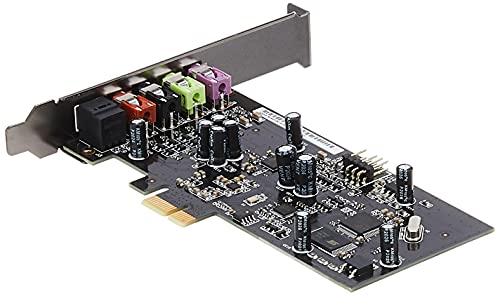
The Xonar SE is a PCIe card built around a C-Media CM6620A controller, with 116 dB SNR, 24-bit and 192 kHz playback, 5.1 analog output, an optical S/PDIF output and a headphone amplifier rated for up to 300 ohm. It ships with a low-profile bracket, so it fits small cases as well as full towers. On Linux, the card works through the kernel’s built-in audio drivers, with no vendor driver to install and no control panel to chase. It appears as a standard audio device after a reboot, and the analog outputs, the optical output and the headphone jack all work through the normal desktop sound settings.
This card suits a Linux desktop that needs a clean internal upgrade over onboard audio, especially for high-impedance headphones or a 5.1 analog speaker set. Its limits are the ones that come with a budget PCIe card: there is no dedicated microphone preamp and no XLR input, so recording a condenser microphone needs a separate interface, and the Windows-only software features such as the Xonar Audio Center do not run on Linux. For playback, monitoring and everyday desktop audio on Linux, it is the simplest internal pick in this guide.
Best Sound Card for Linux Headphones: Creative Sound Blaster Z SE
Creative Sound Blaster Z SE
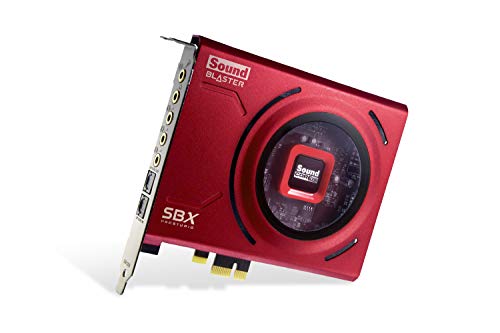
The Sound Blaster Z SE is a PCIe card built on the Sound Core3D chip, with 116 dB SNR, 24-bit and 192 kHz playback, a headphone amplifier rated for up to 600 ohm, a microphone preamp and discrete 5.1 output with virtual 7.1 surround. On Linux, the card’s CA0132 codec is handled by the kernel’s snd-hda-intel driver, so the card is detected as a standard high-definition audio device and its outputs and microphone input work through ALSA and PipeWire. The beamforming microphone in the box is a handy extra for voice calls.
This card suits a Linux user with demanding headphones, because the 600 ohm amplifier output is the strongest in this guide for an internal card, and it also suits anyone who wants a microphone input with gain control on the card itself. Its limits are the Windows-only features: the SBX effects, Scout Mode and the Sound Blaster Command software do not run on Linux, so the card should be judged on its hardware alone. It is also worth knowing that stock signals for this card conflicted between sources during verification, so the listing should be opened and checked directly before ordering.
Best USB Sound Card for Linux: Creative Sound BlasterX G6
Creative Sound BlasterX G6
The Sound BlasterX G6 is an external USB DAC and headphone amplifier with a 130 dB dynamic range DAC, 32-bit and 384 kHz playback, a discrete Xamp headphone amplifier, optical input and output, and a large hardware volume knob. It connects over USB and works as a standard USB audio class device, so Linux recognises it through the kernel’s generic USB audio driver with no vendor software involved. The volume knob, the gain switch and the sidetone control are hardware controls on the unit itself, so they work on Linux exactly as they do anywhere else.
This device suits a Linux laptop or a small desktop with no free PCIe slot, and it suits anyone who wants a strong headphone amplifier on the desk rather than inside the case. Its limits are the ones that come with a USB DAC: it has no XLR microphone input and no phantom power, so it cannot record a condenser microphone, and its virtual surround and Scout Mode features need the Windows software. For stereo playback, headphone listening and voice calls on Linux, it is the most flexible pick in this guide.
Best USB Interface for Linux Music Production: Focusrite Scarlett 2i2 3rd Gen
Focusrite Scarlett 2i2 3rd Gen
Focusrite Scarlett 2i2 3rd Gen
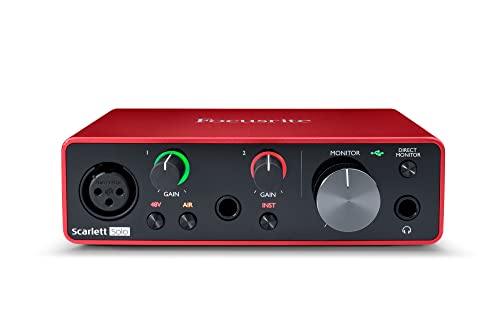
The Scarlett 2i2 is a two-input USB audio interface with two third-generation microphone preamps, an Air mode for a brighter vocal sound, 24-bit and 192 kHz conversion, direct monitoring and gain halos that show when the input level is too hot. On Linux, it is a class-compliant USB audio device, which means it works with ALSA and with JACK and PipeWire without any Focusrite driver. The Air mode is a hardware switch on the front panel, so it works on Linux as well, and the direct monitor switch gives zero-latency monitoring for the performer.
This interface suits a Linux user who records music, because it is the only pick in this guide with proper microphone preamps and phantom power for condenser microphones, and it is the standard interface for home studios on every platform. Its limits are the input count: two inputs cover a vocal and a guitar tracked together, but not a full band. It also has no MIDI input, so a keyboard controller needs its own USB connection. For recording on Linux, it is the safest choice in this guide.
Comparison Table
| Pick | Best for | Linux support | Form factor |
|---|---|---|---|
| ASUS Xonar SE | Clean internal playback on Linux | Kernel built-in drivers, no vendor download | PCIe |
| Creative Sound Blaster Z SE | High-impedance headphones on Linux | CA0132 codec handled by snd-hda-intel driver | PCIe |
| Creative Sound BlasterX G6 | USB DAC and headphone amp on Linux | USB audio class device, generic kernel driver | USB DAC |
| Focusrite Scarlett 2i2 3rd Gen | Recording music on Linux | Class-compliant USB audio, works with ALSA, JACK and PipeWire | USB interface |
Frequently Asked Questions
Do sound cards need drivers on Linux?
A card needs a kernel driver, but for the picks in this guide that driver is already in the kernel. Class-compliant USB devices use the generic USB audio driver, and supported PCIe chips use the kernel’s HDA or C-Media drivers. No vendor download is needed. What does not work on Linux is the vendor control panel software, which is separate from the driver.
Which audio chips work best on Linux?
C-Media controllers, the CA0132 codec family and any device that follows the USB audio class standard are the safest choices, because the kernel already supports them. Before buying a card that is not in this guide, check the chip it uses and search for that chip alongside the Linux kernel version in use. A card with an unknown or very new chip is a gamble, while a card with a long-supported chip is a safe buy.
Internal PCIe or external USB: which is better for Linux?
External USB is the safer first choice, because class-compliant USB audio works the same way on every distribution and the device moves between machines. Internal PCIe suits a fixed desktop when the chip has kernel support, and it keeps the desk clear. Both work well once the driver question is settled, so the choice follows the machine rather than the operating system.
Will the Windows software work on Linux?
Vendor control panels and effect suites do not run on Linux, and compatibility layers are not a reliable route for audio drivers. Hardware controls on the device itself work, because they do not depend on software. Judge a card on its hardware behaviour on Linux, meaning its outputs, inputs and amplifier, rather than on its Windows feature list.
What about PipeWire and JACK?
PipeWire and JACK both sit on top of ALSA, so a card that works with ALSA works with both. PipeWire is the default on most modern desktops and handles everyday playback. JACK is used for low-latency production work. Confirm the card appears in the desktop sound settings first, then confirm the same device is listed in the production software, and the setup is complete.
Conclusion
The best sound cards for Linux are the ones whose chips the kernel already knows. The ASUS Xonar SE is the simplest internal upgrade for a Linux desktop, and the Creative Sound Blaster Z SE is the stronger internal pick for high-impedance headphones. The Sound BlasterX G6 is the most flexible USB option for playback and headphone listening, and the Focusrite Scarlett 2i2 3rd Gen is the clear choice for recording music on Linux, because it is class-compliant and carries real microphone preamps. Check that the chip has kernel support before buying, and the card will work on Linux without a vendor driver in sight.
Disclosure: As an Amazon Associate, we may earn from qualifying purchases.
Related guides
More from Amazon
Programs that pair well with the guide above. Offers and eligibility are set by Amazon and may change.
A free business account with business pricing and bulk-buying tools for work, shop or home office.
Create a business accountFree shipping on eligible items, Prime Video and more. Eligible new members can start with a free trial.
Start a Prime free trialAudiobooks and podcasts to listen to on the go. Eligible new members can start with a free trial.
Try Audible freeAd-free music streaming. Eligible new subscribers can start with a free trial.
Try Music Unlimited freeAs an Amazon Associate we earn from qualifying purchases.


