Most people who plug an external SSD into a PS5 expect it to behave like a second internal drive. It doesn’t. Sony restricts what an external drive can do, and the settings that matter are less about raw speed and more about formatting, storage classification, and how you organize your library between the internal SSD and the external drive. Getting these right the first time saves you hours of re-copying games later.
Here is the core reality to plan around: a PS5 external SSD can store PS5 games, but it cannot play them from the external drive. Only PlayStation 4 games run directly from external storage. PS5 titles stored externally must be copied to the internal SSD before launch. That single constraint drives most of the decisions below, so prioritize capacity and reliability over chasing transfer speeds, and set up your drive so game archives and next-gen installs sit where moving them is fastest and least painful.
As an Amazon Associate we earn from qualifying purchases at no extra cost to you.




Our Top Picks


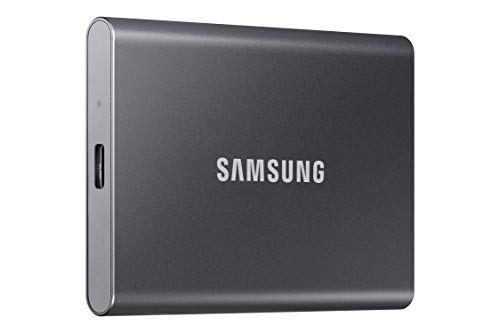

Top 3 picks at a glance
Quick Recommended Settings
| Setting | Recommended value | Why |
|---|---|---|
| File system format | exFAT | The only format the PS5 accepts for external drives besides FAT32; exFAT supports files over 4 GB, which every modern game requires. |
| Allocation unit size (during PC format) | 128 KB | Balances sequential read speed for large game files against wasted space; smaller cluster sizes waste capacity on multi-hundred-GB installs. |
| Minimum drive capacity | 250 GB (minimum), 1–2 TB recommended | Sony requires at least 250 GB; 1 TB or more gives PS4 backlog and PS5 archives room without constant juggling. |
| Drive connection | USB 3.0 or faster (SuperSpeed 5 Gbps), direct rear USB-A port | Rear ports on the standard PS5 deliver stable power; front port on the PS5 Slim/Pro also works but avoid unpowered hubs. |
| Auto-download of updates to external storage | Enabled (default) | Lets patch files land on the external drive overnight so version bumps don’t eat internal SSD space. |
| PS5 game storage behavior | Archive finished PS5 games externally; keep 2–3 active titles internal | PS5 games can’t run externally, so treat the external SSD as an archive you swap from, not a library you launch from. |
| Drive encryption/security software | Disabled | Hardware encryption and some NAS-style security utilities make the drive unreadable to the console. |
Setting-by-Setting
File system: exFAT
The PS5 accepts external drives formatted as exFAT or FAT32. FAT32 has a hard 4 GB per-file limit, which disqualifies it for anything modern — a single PS4 game data file routinely exceeds that. Use exFAT, full stop.
Exact steps: Go to Settings > Storage > USB Extended Storage. If the drive shows as unsupported, the console will offer to format it. Select Erase and Format as USB Extended Storage and confirm. The trade-off: formatting erases everything on the drive, so back up first. If you need to reformat on a PC instead (useful for larger allocation sizes), use Windows File Explorer, right-click the drive, choose Format, select exFAT, and uncheck Quick Format for a full pass on a used drive.
Allocation unit size: 128 KB
When formatting on a PC, Windows defaults exFAT to a 128 KB allocation unit size on larger drives, which is exactly what you want. If the dropdown offers options, pick 128 KB for drives between 256 GB and 2 TB.
The trade-off: smaller clusters (32 KB) marginally help drives full of tiny files, which game libraries are not. Larger clusters (256 KB+) waste space through slack on files that don’t align perfectly, and modern game installs contain thousands of files. 128 KB is the balanced pick. On the PS5’s own formatter you don’t get a choice — another reason to format on PC first if you care about this level of control.
Drive speed and interface: USB 3.0 minimum, but don’t overpay
Sony requires a SuperSpeed USB 5 Gbps connection or faster. A USB 3.2 Gen 2 (10 Gbps) or USB4 drive will work and will cut copy times roughly in half versus a 5 Gbps drive when moving a 60–100 GB PS5 game back to internal storage. That matters because you’ll do this swap constantly.
The trade-off: beyond 10 Gbps there is no benefit, because the console’s external storage path and the copy process itself become the bottleneck. A quality 10 Gbps NVMe enclosure with a 10 Gbps cable hits the practical ceiling. Skip anything marketed as faster for this use case.
Use as PS5 game archive vs. PS4 game library
Under Settings > Storage > USB Extended Storage > Advanced Options, you’ll find the toggle Install PS5 games to USB Extended Storage. Leave it disabled if your goal is fast launches — PS5 games installed directly to the external drive still must be copied to internal storage before playing, so you gain nothing and add a copy step at install time. Enable it only if your internal drive is chronically full and you’d rather manage downloads manually.
The better workflow: keep active PS5 games on the internal SSD, and move completed ones to external storage via Settings > Storage > Console Storage > Games and Apps, selecting titles, choosing Move to USB Extended Storage. Trade-off: a finished 80 GB PS5 game moved back to internal takes real time before you can play — typically long enough to go make coffee — so archive only games you’re genuinely done with for now.
Keep saved data off the drive’s fate
Save files do not live on external game storage — they sync to cloud storage (PS Plus) or remain on internal storage. Verify this: Settings > Saved Data and Game/App Settings > Saved Data (PS5) and Saved Data (PS4). Enable Auto-Upload if you have PS Plus. This matters because formatting the external drive never touches your saves, but it also means an external SSD is not a save backup. Use the cloud or copy saves to a USB stick via Settings > Saved Data > Copy to USB Drive separately.
By Hardware Tier
Budget setup (5 Gbps portable SSD, 1 TB)
A basic USB 3.2 Gen 1 portable SSD in the $60–90 range for 1 TB is fine. Format exFAT, use the rear USB-A port with the included cable or a certified USB-A to USB-C cable. Expect slower copy times when restoring PS5 games to internal storage — plan your swaps before an evening of gaming rather than mid-session. Avoid cheap no-name drives; a failed drive with 40 archived games is a worse outcome than the money saved. Check health periodically by plugging into a PC and running the manufacturer’s diagnostics tool.
Mid-range setup (10 Gbps NVMe in enclosure, 2 TB)
This is the sweet spot. A mid-tier NVMe SSD (any PCIe 3.0 drive will saturate the interface) in a USB 3.2 Gen 2 enclosure, with a properly rated 10 Gbps cable, roughly halves PS5 game restore times versus 5 Gbps. Confirm the cable: many enclosures ship with USB 2.0 cables that silently cap you at 480 Mbps — check the printing on the cable for “10 Gbps” or “SuperSpeed+”. Format exFAT with 128 KB allocation on PC, then connect and register it under Settings > Storage > USB Extended Storage.
High-end setup (large-capacity 2–4 TB, future-proofing)
With a large internal NVMe upgrade already installed, your external SSD’s role shifts further toward pure archiving: PS4 library, PS5 game archives, and PS4 save sticks. At this tier, prioritize endurance (TBW rating) and a drive with a good warranty over speed, since you’ll copy large batches less often. A 4 TB drive formatted exFAT works fine; note that some PC formatting utilities default to GUID partition table (GPT) — that’s correct and what the PS5 expects. Keep the drive’s firmware updated via the manufacturer’s utility, since firmware bugs are a known cause of drives randomly disconnecting from consoles.
Common Mistakes
Drive keeps disconnecting during play or downloads.
What causes it: insufficient power delivery, usually from connecting through an unpowered USB hub, or a cable that can’t handle sustained SuperSpeed traffic.
How to check: disconnect the hub and plug directly into the console’s rear USB-A port; also swap to a known 5 Gbps+ cable.
What to do: use the rear port (front on PS5 Slim/Pro works, but rear is most stable on original models), use a powered hub only if the drive explicitly requires one, and replace suspect cables.
How to undo: reconnecting and re-registering the drive under Settings > Storage > USB Extended Storage restores it; no data is lost from a clean disconnect.
Drive shows as “unsupported” or won’t format.
What causes it: the drive is formatted NTFS, HFS+, or APFS; it’s below 250 GB; or hardware encryption is active.
How to check: plug into a PC, right-click the partition in Disk Management (Windows) or Disk Utility (macOS), and inspect the file system and capacity.
What to do: back up the data, reformat as exFAT (on PC for control over allocation size, or via the console’s formatter), and disable any hardware encryption in the manufacturer’s utility before reconnecting.
How to undo: reformatted data is recoverable only from backup; there is no in-place conversion — this is why backing up first is non-negotiable.
PS5 games stuck on external drive and launch fails or is grayed out.
What causes it: PS5 titles physically cannot run from external storage; the game icon may appear but requires an internal copy first.
How to check: go to Settings > Storage > USB Extended Storage > Games and Apps; PS5 titles here show a prompt to move to console storage when selected.
What to do: select the game and choose Move to Console Storage, or move it from the external archive permanently if internal space allows. Keep 2–3 active PS5 games internal to avoid this loop.
How to undo: after playing, move it back via Console Storage > Games and Apps > Move to USB Extended Storage.
Drastically slower copy times than expected.
What causes it: a USB 2.0 cable (extremely common), a USB 2.0 port in use, or the drive being a mechanical HDD disguised by marketing as suitable storage.
How to check: copy a 20 GB file on a PC and time it; if it takes over three minutes, you’re likely capped at 480 Mbps. Inspect cable markings.
What to do: replace the cable with one rated for 5 or 10 Gbps, move to the correct port, and if the drive is a spinning HDD, accept that it’s only suitable for PS4 games and long PS5 archives.
How to undo: none needed once cabling is fixed; the drive and data are unaffected.
FAQ
Can I play PS5 games directly from an external SSD?
No. PS5 games can be stored on an external SSD but must be copied to the console’s internal storage to play. Only PS4 games run directly from external storage. This is a firmware restriction, not a speed limitation, so no external drive will ever change it.
Does an external SSD need to be faster than a hard drive for this to be worth it?
For PS4 games, yes — load times and texture streaming improve noticeably versus a mechanical drive, and SSDs are more resistant to the vibration and heat of sitting next to a console. For PS5 game archiving, speed only affects how fast the copy back to internal storage finishes. A 10 Gbps drive meaningfully reduces that wait; anything faster adds cost for no benefit.
Can I use the same external SSD on multiple PS5 consoles?
Yes. A drive registered as USB Extended Storage on one PS5 can be connected to another console you’re signed into with your account, and your game licenses will let you play your PS4 games from it. You may need to re-register the drive through Settings > Storage > USB Extended Storage on the second console for PS5 game archives.
What happens if I unplug the external SSD while it’s copying?
Stop the transfer first via the on-screen notification, or wait for it to finish. Pulling the drive mid-copy can leave a partial game install on the internal SSD that must be deleted and re-copied, and in rare cases corrupts the drive’s file system. If it does corrupt, reconnect it to a PC and run a file system check (chkdsk on Windows, First Aid in Disk Utility on macOS) before reformatting. To disconnect safely at any other time, select the drive in Settings > Storage > USB Extended Storage and choose Stop Using USB Extended Storage before unplugging.
Set it up once with the settings above and the external SSD becomes a low-maintenance part of your setup: a fast PS4 library, a reliable PS5 archive, and no storage anxiety when the next big download lands.