Choosing the right external SSD format matters more than the drive’s speed rating. Consoles are picky: format the drive wrong and it either refuses to appear, works for media only, or forces you to re-download everything when you migrate. This guide covers the exact filesystems, partition schemes, and settings for PlayStation 5, Xbox Series X|S, and Nintendo Switch 2, plus the trade-offs of each choice so you can match the format to how you actually play.
What to prioritize, in order: the correct filesystem for your console’s storage role (games vs. media), a compatible partition scheme, a drive fast enough to saturate the console’s USB port, and a capacity plan that leaves headroom for updates. Raw sequential speed is secondary — consoles cap external drive bandwidth over USB, so a well-formatted mid-range SSD performs nearly identically to a flagship one.
As an Amazon Associate we earn from qualifying purchases at no extra cost to you.


Our Top Picks
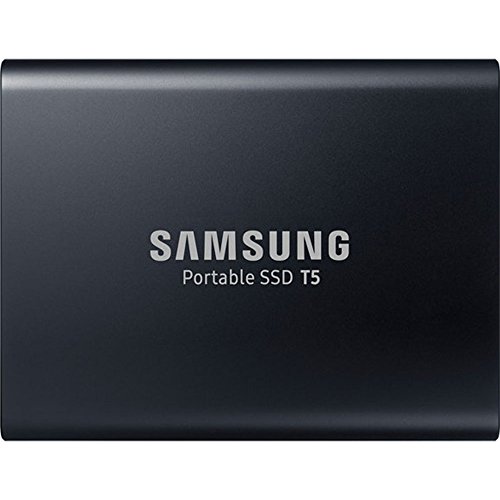


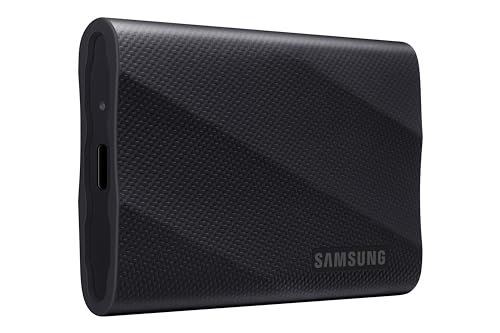
Top 3 picks at a glance
Quick Recommended Settings
| Setting | Recommended value | Why |
|---|---|---|
| PS5 external filesystem | exFAT | Native read/write support for games and media; handles files over 4 GB, unlike FAT32 |
| PS5 internal-format external drive | Do not use for PS5 games | PS5 titles must run from internal/NVMe storage; external drives store them only as archives |
| Xbox Series X|S format | NTFS, formatted in-console | Required for Xbox Gen 9 games; the console applies its proprietary partitioning automatically |
| Partition scheme (Windows prep) | GPT | Required for drives over 2 TB; MBR caps volumes at 2 TB |
| Allocation unit size | Default (exFAT: 128 KB on most tools) | Non-default cluster sizes cause compatibility quirks and wasted space on game files |
| USB port | USB 3.0 or faster (5 Gbps minimum), rear port where available | Consoles reject external storage on USB 2.0 ports for game use |
| Drive capacity | 1–4 TB; over 2 TB requires GPT + exFAT | Leave ~10% free for firmware-level wear management and patches |
| Switch 2 microSD format | exFAT (system-formatted) | Handles large game files; let the console format the card itself |
Setting-by-Setting
Filesystem: exFAT
Exact value: exFAT, selected in Disk Management (Windows: right-click Start → Disk Management → right-click the drive’s volume → Format → File system: exFAT) or Disk Utility on Mac (Erase → exFAT).
Why: Both PlayStation and Nintendo consoles read and write exFAT natively. FAT32 fails because it cannot hold single files over 4 GB — most modern game patches exceed that. NTFS works on Xbox but is read-only or invisible on PlayStation depending on firmware, so it’s the wrong choice for shared drives.
Trade-off: exFAT has no journaling, so an unplugged cable mid-write can corrupt the volume. Always eject via the console’s menu (PS5: Options on the drive icon under Settings → Storage → USB Extended Storage → Stop Using; Xbox: My Games & Apps → Queue → eject prompt) before physically unplugging.
Partition scheme: GPT
Exact value: GPT. In Windows Disk Management, right-click the disk label (left side, e.g., “Disk 2”) → Convert to GPT Disk. If the option is greyed out, delete all volumes on the disk first — this erases data.
Why: MBR cannot address volumes beyond 2 TB, so a 4 TB drive formatted MBR shows only 2 TB. GPT also survives partition-table corruption better.
Trade-off: Very old devices (pre-2013 smart TVs, some media players) can’t read GPT partitions. If the drive doubles as a media drive for a legacy TV, split it: GPT primary partition for the console, or use a second drive entirely.
Allocation unit size: leave at default
Exact value: Default allocation size (Disk Management shows “Default”; for exFAT this is typically 128 KB on large volumes).
Why: Game files are large and contiguous; big cluster sizes waste minimal space. Custom cluster sizes offer no measurable benefit on consoles and can trigger format errors on PlayStation.
Trade-off: None worth pursuing. If you’ve previously formatted with 64 KB clusters and the console accepts it, leave it — don’t reformat for this alone.
Quick format vs. full format
Exact value: Quick format (unchecked “Perform a quick format” = full format; leave it checked for quick).
Why: Quick format is instant and sufficient for a healthy drive. Run a full format only if you suspect bad sectors — it writes and verifies every sector, taking hours on a 2 TB drive.
Trade-off: A full format on an SSD adds unnecessary write cycles. If you want a health check instead, run the manufacturer’s tool (Samsung Magician, WD Dashboard, Crucial Storage Executive) — SMART data tells you more than a full format will.
Xbox: format in-console, not on PC
Exact value: Plug the drive into the Xbox, then go to My Games & Apps → See all → Manage → Storage devices → select the drive → Format for games & apps.
Why: Xbox applies proprietary partitioning on top of NTFS that Windows creates incorrectly. A PC-formatted NTFS drive mounts for media only and cannot store Gen 9 (Series X|S) games. The console-side format is the only supported path.
Trade-off: After Xbox formatting, Windows can’t read the drive. Keep media on a separate exFAT drive if you move files between PC and console.
PS5 external drives: archive duty only
Exact value: Settings → Storage → USB Extended Storage → Format as USB Extended Storage → Format. Enable “Always Install PS5 Games to USB Extended Storage” to auto-route PS5 install archives to the drive.
Why: PS5 games stored externally must be copied to internal/NVMe storage before playing — a multi-minute operation for 50–100 GB titles. The external drive’s real job is warehouse storage: hold games you’re not actively playing and swap them in without re-downloading.
Trade-off: PS4 games run directly from the external drive with no copy step, so a fast external SSD remains genuinely useful for the large PS4 library.
By Hardware Tier
Low tier: SATA SSD in a USB enclosure ($60–90 for 1 TB)
A SATA SSD (Samsung 870 EVO, Crucial MX500 class) in a UASP-capable USB 3.0 enclosure is the value play. Consoles can’t exceed roughly 400–450 MB/s over their USB ports anyway, so SATA’s ~550 MB/s ceiling is irrelevant here. Format exFAT (PS5/Switch) or in-console format (Xbox). Skip NVMe enclosures at this tier — the console can’t use the extra speed, and cheap non-UASP enclosures bottleneck further and run hot.
Mid tier: NVMe Gen3 SSD in a 10 Gbps USB enclosure ($90–140 for 2 TB)
A Gen3 NVMe drive (SN770, Kingston KC3000 class) in a USB 3.2 Gen 2 (10 Gbps) enclosure buys faster copy-back times when migrating PS5 archives to internal storage and marginally quicker PS4 game load streams. Format GPT + exFAT. Verify the enclosure reports 10 Gbps (check “This drive can transfer data at up to” under PS5’s USB Extended Storage menu). Thermal pad included? Use it — enclosed NVMe drives throttle under sustained console transfers.
High tier: Gen4 NVMe in a USB4/USB 3.2 Gen 2×2 enclosure, or skip to internal ($150–250+ for 4 TB)
Gen4 drives in 20 Gbps enclosures are the practical ceiling, and even then consoles won’t saturate them — you’re paying for future PC compatibility and faster PS5 archive copies. For 4 TB, GPT is mandatory. At this tier, honestly evaluate whether the money belongs in an internal NVMe expansion instead: PS5’s M.2 slot accepts Gen4 drives (Settings → Storage → M.2 SSDs → Install), which is the only path that lets PS5 games run natively without copying. If your goal is PS5 performance, internal expansion beats any external format.
Common Mistakes
Formatting FAT32 because it “works everywhere.” What causes it: FAT32’s universal reputation. How to check: try copying a game file over 4 GB — it fails with an “file too large” error. What to do: back up, reformat exFAT in Disk Management with GPT selected. How to undo: exFAT is readable by virtually everything made this decade; no rollback needed.
Buying a 4 TB drive and losing half the capacity. What causes it: MBR partitioning caps volumes at 2 TB. How to check: Disk Management shows the volume as 2048 GB with ~2 TB unallocated. What to do: delete the volume, convert the disk to GPT (right-click the disk number → Convert to GPT Disk), create a new exFAT volume across the full space. How to undo: converting back to MBR requires deleting partitions again — decide once, before loading data.
Formatting an Xbox storage drive on PC. What causes it: assuming NTFS is NTFS. How to check: the Xbox shows the drive under media but not as a games storage device in Manage → Storage devices. What to do: back up the drive, plug into the Xbox, format via My Games & Apps → Manage → Storage devices. How to undo: a PC reformat restores NTFS, but then the drive loses Xbox game storage again — the two formats are mutually exclusive.
Unplugging without ejecting. What causes it: exFAT’s lack of journaling means interrupted writes corrupt the allocation table. How to check: the drive later mounts as RAW in Windows, or the console prompts “cannot recognize the USB device.” What to do: run chkdsk X: /f (replace X with the drive letter) in an admin Command Prompt for minor corruption; for RAW volumes, test the manufacturer’s tool first, then reformat. How to undo: corruption isn’t reversible — prevention is the only fix. Use the console’s eject routine every time.
Using a USB hub. What causes it: too few ports. How to check: the PS5 refuses the drive or drops it mid-session; hubs without external power fail under load. What to do: connect directly to the console’s rear USB-A or front USB-C port. How to undo: N/A — always direct-connect external storage.
FAQ
Can I use one drive for both PS5 game storage and media on PC?
Yes, as long as it’s formatted as ordinary exFAT and you add media to a folder outside the console’s game structure. The PS5 reads exFAT media files directly. Don’t do this with an Xbox-formatted drive — Windows can’t read it, and touching its partitions with third-party tools can break console recognition.
Does the external SSD format affect load times?
Only indirectly. Console USB bandwidth caps around 400–450 MB/s, so any SSD format saturates it; an exFAT-formatted SATA SSD and a Gen4 NVMe in an enclosure perform nearly identically for PS4 and Switch games. Format matters for compatibility and reliability, not frame-to-frame speed. The one exception is PS5 archive copy-back time, where faster drives do reduce migration minutes.
What format should a Nintendo Switch 2 microSD card use?
exFAT, but don’t format it on a PC. Insert the card and let the console format it: System Settings → Data Management → microSD Card → Format. Console-side formatting guarantees correct alignment and partition structure. PC-formatted cards are frequently rejected or behave erratically.
Do I need to enable TRIM or run maintenance on an external console SSD?
You can’t — consoles don’t expose TRIM control for external drives, and exFAT over USB doesn’t pass TRIM through on PS5 or Xbox. This is fine: SSDs handle garbage collection internally. Your real maintenance is health monitoring on a PC every few months using the manufacturer’s toolkit, and keeping at least 10% of the drive free so the controller has working room.