Our Short List of 3
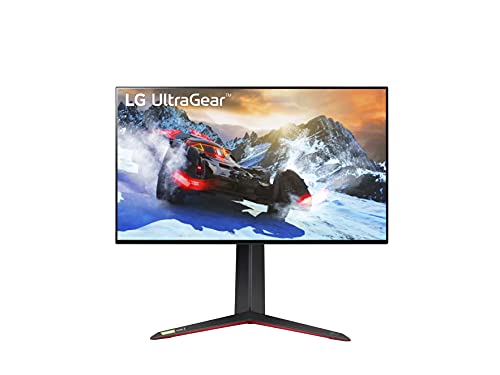
- Best for: Xbox owners who want the sharpest colour and fastest response on a desk.
- 27-inch Nano IPS panel
- 3840 x 2160 resolution, 144Hz refresh rate
- 1ms response time
- HDMI 2.1, DisplayPort

- Best for: a desk shared between an Xbox Series X and a PC.
- 28-inch SuperSpeed IPS panel
- 3840 x 2160 resolution, 144Hz refresh rate
- 1ms response time
- 2 x HDMI 2.1, DisplayPort 1.4

- Best for: bright HDR gaming and a smart monitor that doubles as a media screen.
- 28-inch IPS panel
- 3840 x 2160 resolution, 144Hz refresh rate
- 1ms response time
- HDMI 2.1, DisplayPort
All 3 Picks at a Glance
| Product | Specs | Action |
|---|---|---|
| LG 27GP950-B |
| Check price on Amazon |
| GIGABYTE M28U |
| Check price on Amazon |
| Samsung Odyssey G70B |
| Check price on Amazon |
The Xbox Series X can output games in 4K at up to 120 frames per second, but only a monitor with the right ports can show it. A 4K monitor with HDMI 2.1 carries the full 4K 120Hz signal, while an older HDMI 2.0 screen caps the same console at 4K 60Hz. The choice comes down to panel type, refresh rate, ports and size, and getting any of those wrong wastes the console’s best feature.
This guide is for Xbox Series X owners who want the sharpest picture their console can produce, competitive players who value high refresh rates, and anyone setting up a desk-based console station. It explains what to check in a monitor, which specifications actually matter for the console, and which 4K screens fit the Series X best. The screens below were chosen from the names and specifications shown on their Amazon pages.
Top 3 picks at a glance
Quick Picks
As an Amazon Associate we earn from qualifying purchases.
| Product | Best for | Key spec from title |
|---|---|---|
| LG 27GP950-B | Sharp colour and fast response | 27-inch 4K 144Hz Nano IPS |
| GIGABYTE M28U | Big screen with KVM switching | 28-inch 4K 144Hz SS IPS |
| ASUS TUF VG28UQL1A | Smooth competitive play | 28-inch 4K 144Hz Fast IPS |
| Samsung Odyssey G70B | Bright HDR gaming on a desk | 28-inch 4K 144Hz IPS |
How to Choose
Insist on HDMI 2.1 for 4K 120Hz
The Xbox Series X needs HDMI 2.1 bandwidth to send 4K at 120Hz, and this is the single most important check in the whole guide. A monitor with only HDMI 2.0 ports will show the same console at 4K 60Hz, no matter how good its panel is. Read the port list in the listing before buying, and look for the words HDMI 2.1 rather than a generic HDMI label. Two HDMI 2.1 ports are better than one, because the second port leaves room for another console or a PC without swapping cables. A single HDMI 2.1 port is enough for the console alone, but two ports future-proof the desk.
Pick the panel type for your games
Most 4K console monitors use IPS panels, and for good reason: IPS keeps colours accurate and viewing angles wide, so the picture looks right from anywhere on a sofa or at a desk. VA panels give deeper blacks and stronger contrast, which suits dark horror games and moody adventures, but they can smear fast motion. TN panels are the fastest of all, yet their colours and angles are the weakest. For a console that plays a mix of genres, an IPS panel is the safest all-round choice. Check the panel type in the listing, since two monitors can share a size and resolution yet show very different pictures.
Match refresh rate to the games you play
A 144Hz monitor displays the console’s 120Hz mode with room to spare, and that matters most in competitive shooters and racing games where every frame counts. A 60Hz monitor caps everything at 60 frames per second, which is fine for story-driven games but leaves the console’s fastest mode unused. Check the refresh rate in the listing title, and remember that a high refresh rate only helps when the game itself supports it. Story games and cinematic adventures rarely run above 60, so do not pay extra for speed you will not use. Fast-paced online games benefit most, while slow exploration games rarely push past 60 frames per second.
Check the stand, speakers and ports
A monitor lives on a desk, so its stand matters as much as its panel. Height adjustment and tilt let you set the screen at eye level, and a VESA mount opens the way to an arm later. Built-in speakers are handy for quick sessions, but they are usually weak, so plan on a headset or external speakers for serious play. Count the ports too: two HDMI 2.1 ports, a DisplayPort for a PC, and a headphone jack cover most setups. Measure the desk depth first, since a 27-inch or 28-inch screen needs room to sit at a comfortable distance. A monitor arm frees desk space when the screen has a VESA mount.
The 4 Best Options
LG 27GP950-B
- Best for: Xbox owners who want the sharpest colour and fastest response on a desk.
- 27-inch Nano IPS panel
- 3840 x 2160 resolution, 144Hz refresh rate
- 1ms response time
- HDMI 2.1, DisplayPort
Xbox owners who want the sharpest colour and fastest response on a desk.
the 27-inch screen is smaller than the 28-inch options here, so check the size suits your desk distance.
The LG 27GP950-B is the sharpest all-round 4K screen for the Xbox Series X in this guide. Its 27-inch Nano IPS panel shows 4K at 144Hz with a 1ms response time, and the HDMI 2.1 port carries the console’s full 4K 120Hz signal without compromise. Colour coverage is wide, so bright open-world games look vivid, and G-SYNC compatibility plus FreeSync Premium Pro keep fast scenes free of tearing. The compact 27-inch size suits a desk setup, and the stand adjusts for height, tilt and pivot. The screen’s slim bezels keep the focus on the game, and the on-screen menu makes switching inputs quick.
Watch out for: the 27-inch screen is smaller than the 28-inch options here, so check the size suits your desk distance.
GIGABYTE M28U
- Best for: a desk shared between an Xbox Series X and a PC.
- 28-inch SuperSpeed IPS panel
- 3840 x 2160 resolution, 144Hz refresh rate
- 1ms response time
- 2 x HDMI 2.1, DisplayPort 1.4
a desk shared between an Xbox Series X and a PC.
the KVM features need a USB connection to the PC to work, so plan the cabling before setup.
The GIGABYTE M28U pairs a large 28-inch 4K screen with a KVM switch, which makes it the most flexible monitor in this guide. Its SuperSpeed IPS panel runs at 144Hz with a 1ms response, and two HDMI 2.1 ports carry the Xbox Series X at 4K 120Hz while leaving a port free for another device. The KVM switch lets one keyboard and mouse control two connected computers, so the same desk serves both console and PC. FreeSync Premium Pro keeps fast games smooth, and the height-adjustable stand sets the screen at eye level. The KVM also switches USB devices between the two machines.
Watch out for: the KVM features need a USB connection to the PC to work, so plan the cabling before setup.
ASUS TUF VG28UQL1A
The ASUS TUF VG28UQL1A is built for competitive play on the Xbox Series X. Its 28-inch Fast IPS panel runs at 144Hz with a 1ms response, and HDMI 2.1 carries the console’s 4K 120Hz signal in full. Extreme Low Motion Blur Sync sharpens fast-moving targets, while G-SYNC compatibility and FreeSync Premium support keep the picture free of tearing when frame rates shift. The stand adjusts for height, tilt, swivel and pivot, and the monitor’s rugged TUF design suits a setup that gets used hard every day. The monitor’s shadow boost feature lifts dark corners in competitive games, helping spot opponents hiding in shade.
Specs
- 28-inch Fast IPS panel
- 3840 x 2160 resolution, 144Hz refresh rate
- 1ms response time
- HDMI 2.1, DisplayPort 1.4
- G-SYNC Compatible, FreeSync Premium
- ELMB Sync, DisplayHDR 400, wide DCI-P3 coverage
Best for: competitive Xbox players who value fast response and blur reduction.
Watch out for: motion blur reduction dims the picture slightly, so try it with the setting on and off.
Samsung Odyssey G70B
- Best for: bright HDR gaming and a smart monitor that doubles as a media screen.
- 28-inch IPS panel
- 3840 x 2160 resolution, 144Hz refresh rate
- 1ms response time
- HDMI 2.1, DisplayPort
bright HDR gaming and a smart monitor that doubles as a media screen.
the smart features need a network connection to set up, so have Wi-Fi ready on first use.
The Samsung Odyssey G70B brings a bright 28-inch 4K screen and smart features to an Xbox Series X desk setup. Its IPS panel runs at 144Hz with a 1ms response, and HDMI 2.1 carries the console’s 4K 120Hz signal. HDR400 adds punch to bright highlights in supported games, while G-Sync and FreeSync Premium Pro support keep fast scenes smooth. Ultrawide Game View lets the screen switch to a wider aspect ratio for supported titles, and the height-adjustable stand fits the monitor to the desk. The remote control makes changing settings from the sofa easy, and the smart hub streams shows without a console.
Watch out for: the smart features need a network connection to set up, so have Wi-Fi ready on first use.
Which One Fits Your Situation
You play competitive shooters
Choose the ASUS TUF VG28UQL1A. Its Fast IPS panel, 1ms response and blur reduction are aimed squarely at fast games, and the 144Hz refresh rate shows the console’s 120Hz mode in full. The LG 27GP950-B is the closest alternative if you prefer a smaller screen. Turn on blur reduction for ranked matches, and switch it off for story games where brightness matters more.
You want the biggest screen for the money
Take the GIGABYTE M28U or the Samsung Odyssey G70B. Both are 28-inch 4K screens with HDMI 2.1 and 144Hz, so either one fills a desk nicely. Pick the M28U for its KVM switch, or the G70B for its smart features and HDR400. Both leave room for a second monitor later.
You share the monitor with a PC
Pick the GIGABYTE M28U. Its KVM switch lets one keyboard and mouse control both the PC and the console setup, and the two HDMI 2.1 ports mean neither device has to share a cable. The DisplayPort connection suits the PC side. Keep both machines plugged in, and switch between them with the monitor’s input button.
You want the best colour for story games
Choose the LG 27GP950-B. Its Nano IPS panel covers a wide colour range, so cinematic games look rich and vivid, and the HDR600 support adds depth to bright scenes. The 27-inch size keeps the picture sharp at desk distance. Pair it with a headset for late-night sessions, since the built-in speakers are best for casual use.
Common Mistakes
- Buying a 4K 60Hz monitor and expecting the Xbox Series X to run at 120Hz on it.
- Assuming every HDMI port is HDMI 2.1 without checking the listing.
- Ignoring desk depth and sitting too close to a large screen.
- Using an old HDMI cable instead of the Ultra High Speed cable in the console box.
- Buying a monitor without checking for height adjustment or a VESA mount.
Frequently Asked Questions
Does the Xbox Series X need HDMI 2.1 for 4K 120Hz?
Yes. 4K at 120Hz needs HDMI 2.1 bandwidth, while HDMI 2.0 carries 4K at 60Hz only. Check the monitor’s port list in the listing before buying, and look for the words HDMI 2.1 rather than a generic HDMI label.
Is a 144Hz monitor wasted on a console?
No. A 144Hz panel displays the console’s 120Hz mode, and the extra headroom helps when the console is replaced later. A 60Hz panel caps everything at 60 frames per second, even in games that support faster play.
What size 4K monitor suits a desk?
27 to 28 inches is the usual desk size for 4K, keeping text and game details sharp at arm’s length. Larger screens suit a living-room setup better, where the viewer sits further from the screen. Measure the desk depth first, since a screen that is too close causes eye strain during long sessions.
Do I need a new HDMI cable?
The cable in the Xbox Series X box is an Ultra High Speed cable that supports 4K 120Hz. Keep it with the console and use it for the monitor connection, rather than an older cable that may cap the signal.
Related guides
More from Amazon
Programs that pair well with the guide above. Offers and eligibility are set by Amazon and may change.
A free business account with business pricing and bulk-buying tools for work, shop or home office.
Create a business accountFree shipping on eligible items, Prime Video and more. Eligible new members can start with a free trial.
Start a Prime free trialAudiobooks and podcasts to listen to on the go. Eligible new members can start with a free trial.
Try Audible freeAd-free music streaming. Eligible new subscribers can start with a free trial.
Try Music Unlimited freeAs an Amazon Associate we earn from qualifying purchases.