The best gaming PC setup puts the monitor at arm’s length with the top edge at or just below eye level, the keyboard and mouse at elbow height on the same plane, and the PC itself where air can reach it. Get those three right, add a monitor that matches your graphics card, connect it with the right cable, and keep the desk tidy enough to move your mouse freely. The rest is personal taste.
People searching for the best computer setup for gaming usually mean one of two things: how to arrange the desk so it is comfortable for hours, or what a “good looking” gaming setup contains. This guide covers both, in that order, without turning into a parts shopping list. If you are still choosing the computer itself, that is a separate decision; here the focus is everything around it.
As an Amazon Associate we earn from qualifying purchases at no extra cost to you.

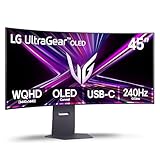

Our Top Picks
 LG 32GS60QC-B Ultragear 32-inch Curved Gaming Monitor QHD32 inch8.9 x 27.6 x 20 inches13 PoundsCheck on Amazon
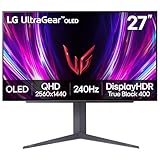
 LG 27GS93QE 27-inch Ultragear OLED Gaming Monitor QHD27 inches10.2 x 23.8 x 22.6 inches14.8 PoundsCheck on Amazon


Top 3 picks at a glance
Start with the desk and chair, not the gadgets
Ergonomics guides from workstation makers agree on a sequence: set the chair first, then the desk surface, then the monitor. Your seated eye level determines monitor height, and your elbow height determines where the keyboard and mouse belong.
Chair and desk height
- Sit with your feet flat on the floor (or a footrest) and your knees roughly at a right angle.
- Let your upper arms hang relaxed and bend your elbows to about 90 degrees. Your forearms should be roughly parallel to the floor when your hands rest on the keyboard and mouse.
- If the desk surface sits higher than your elbows, raise the chair and use a footrest, or lower the desk. If the desk is fixed, a keyboard tray can bring the input surface down.
- Keep the keyboard centred in front of your body and the mouse right beside it at the same height.
Desk size
Setup guides suggest a minimum width of about 55 inches for a single monitor, and 60 to 72 inches for two monitors or streaming gear. Depth matters just as much: roughly 28 to 32 inches keeps a monitor at a comfortable distance and leaves room for the keyboard. A shallow desk forces a large screen too close to your face.
| Setup | Suggested desk width | Suggested depth | Notes |
|---|---|---|---|
| One 24-27 inch monitor | About 55 inches or more | 28-32 inches | Enough room for a large mouse pad |
| One 32 inch or ultrawide | 60 inches or more | 30-32 inches | Larger screens need more viewing distance |
| Two monitors | 60-72 inches | 28-32 inches | Place the main screen centred, the second angled |
| Streaming extras (mic, light, camera) | 60-72 inches | 30 inches or more | Use arms and clamps to free surface space |
Monitor placement: height, distance and angle
The top edge of the screen should sit at or slightly below your eye line, so your eyes look slightly down at the middle of the display. Distance is the part that varies by source. Common guidance is about an arm’s length, around 20 to 28 inches (roughly 50 to 70 cm) for competitive gaming, and further for bigger panels. Treat these as starting points and adjust until you can see the corners of the screen without moving your head much.
Match screen size to resolution (a quick pixel-density check)
Pixel density is a simple calculation: diagonal pixels divided by diagonal inches. It tells you how sharp the image will look at normal distance.
| Screen | Resolution | Pixel density (approx.) | What it means |
|---|---|---|---|
| 24 inch | 1920×1080 | about 92 PPI | Sharp enough for esports at desk distance |
| 27 inch | 1920×1080 | about 82 PPI | Noticeably soft up close |
| 27 inch | 2560×1440 | about 109 PPI | The common balance of sharpness and GPU cost |
| 32 inch | 3840×2160 | about 138 PPI | Very sharp, demands a strong graphics card |
| 27 inch | 3840×2160 | about 163 PPI | Sharpest, scaling needed for text |
The worked example: a 27 inch 1440p screen has a diagonal of about 2,937 pixels (the square root of 2560 squared plus 1440 squared). Divide by 27 inches and you get roughly 109 pixels per inch. Use the same formula for any monitor you are considering.
Choose a stand or an arm
If the stock stand does not raise the screen enough, a monitor arm solves height, tilt and distance in one go, and frees desk space. Check the monitor’s mounting pattern (usually VESA) and weight rating against the arm. For a lower-cost fix, a stable riser or a stack of books works, though it lacks the fine adjustment of an arm.
Monitor choice and refresh rate: what pairs with which PC
A monitor’s refresh rate only helps if the PC can produce that many frames. Match the display to the graphics card and the games you play:
- Esports and 1080p: a 144Hz to 240Hz screen is the usual match. A 360Hz screen needs a very fast CPU to feed it.
- 1440p all-rounder: 144Hz to 240Hz in 27 inches suits most mid-range and upper-mainstream graphics cards.
- 4K: 120Hz to 144Hz is realistic for a high-end card. Fewer games reach 240Hz at this resolution.
- Adaptive sync: FreeSync or G-Sync compatible monitors smooth the picture when your frame rate dips below the refresh rate.
Once the display is on the desk, open Windows display settings and confirm the refresh rate is set to the maximum. New monitors often default to 60Hz until you change it.
Cables and connections
A common cause of a monitor running below its advertised refresh rate is the cable or the port. Summaries of the standards put HDMI 2.0 at 18 Gbit/s, DisplayPort 1.4 at about 32 Gbit/s raw and HDMI 2.1 at 48 Gbit/s. The raw pixel data a monitor needs is width x height x refresh x 24 bits for standard colour: 1080p at 240Hz is about 12 Gbit/s, 1440p at 240Hz about 21 Gbit/s, and 4K at 144Hz about 29 Gbit/s, before overhead.
| Monitor mode | Cable that usually works | What to check |
|---|---|---|
| 1080p, up to 240Hz | DisplayPort, or HDMI 2.0 and above | Use the port on the graphics card, not the motherboard |
| 1440p, 144Hz-165Hz | DisplayPort or HDMI 2.0 | HDMI 2.0 tops out lower than 240Hz at this resolution |
| 1440p, 240Hz | DisplayPort 1.4 or HDMI 2.1 | Check both the monitor and GPU port versions |
| 4K, 120Hz-144Hz | HDMI 2.1 or DisplayPort 1.4 with compression | Use a certified Ultra High Speed HDMI cable |
The most common cable mistakes
- Plugging into the motherboard instead of the graphics card. If your PC has a dedicated GPU, the monitor cable goes in the GPU’s ports. Motherboard video ports use the weaker integrated graphics, or nothing at all.
- Using an uncertified or old cable. Guides identify this as the most frequent reason a capable monitor will not reach its refresh rate. Use the cable that came in the monitor’s box, or a certified one: Ultra High Speed for HDMI 2.1 and VESA certified for DisplayPort.
- Leaving the refresh rate at 60Hz. Set it in Windows display settings and again in the game’s video options.
Keyboard, mouse and mouse pad
Peripherals are personal, but placement is not. Keep the keyboard centred and level with or just below elbow height. Keep the mouse close, with enough pad space for the sensitivity you use. Players who use low sensitivity settings for aiming need a bigger pad; players with high sensitivity can use a smaller one.
- Keyboard size: a compact layout without the number pad (tenkeyless) frees space so your mouse arm does not have to reach far to the side.
- Wrist position: keep wrists straight. Raised keyboard feet help some people and hurt others, so adjust to what feels neutral.
- Wired or wireless: modern wireless gaming mice are widely used in esports, so both are fine; choose on weight and comfort.
Audio: headset or speakers
A headset suits shared rooms and voice chat. Speakers suit single-player games and open desks. Place speakers at ear height, angled toward you, and away from the walls. If you use a microphone, a boom or arm keeps it near your mouth without taking desk space. Reduce background noise by lowering the mic gain before reaching for software filters.
Where to put the PC
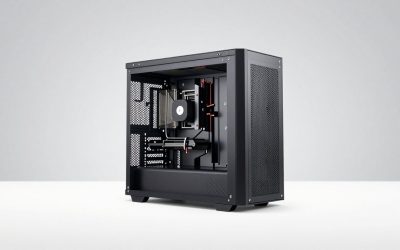
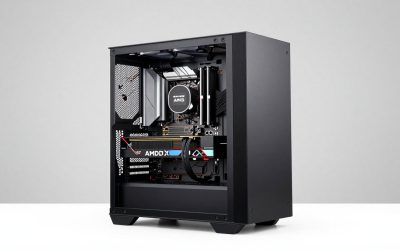
The computer needs airflow in the front or side intakes and open space at the exhaust. Put it where fans can breathe: not in a closed cabinet, and not pushed hard against a wall. On the desk it is closer to your hands for headsets and USB devices, but louder and warmer. On the floor it is quieter, though it collects dust, so place it on a hard surface rather than carpet and clean the filters regularly. Under-desk mounts work if the case has airflow clearance.
Cable management and power
- Run the monitor and USB cables along the desk back edge or through a tray, so they are not in the mouse’s range.
- Use a surge protector or an uninterruptible power supply (UPS) for the PC and monitor. A UPS also covers brief outages.
- Label chargers and cables so you can unplug the right one.
Lighting and screen glare
Place the monitor perpendicular to windows, not facing or backed against them, to cut reflections. Bias lighting, such as a light strip behind the monitor, reduces the contrast between a bright screen and a dark room, and many people find it easier on the eyes in the evening. Dim overhead lights slightly rather than gaming in total darkness. Colour lighting is a style choice; it does not affect performance.
Health: breaks, posture and eye comfort
Long sessions strain eyes, necks and wrists. The 20-20-20 habit, endorsed by the American Academy of Ophthalmology and the American Optometric Association, helps (the evidence behind it is modest, but it is cheap and harmless): every 20 minutes look at something about 20 feet away for 20 seconds. Stand and stretch between matches. Sit-stand desks are an option if you want to alternate positions, but the same rules about monitor height and elbow angle apply when standing.
Network and connections that quietly affect play
Online games reward a stable connection more than a fast one. If you can run an Ethernet cable from the router to the PC, do it: wired connections avoid the interference and variable delay that Wi-Fi can add. If the router is in another room, powerline adapters or a mesh system with a wired backhaul are the next options. When you must use Wi-Fi, sit closer to the router, use the 5GHz or 6GHz band if your PC supports it, and keep the PC antenna out from behind the case where it is shielded by metal.
Plan your USB connections too. The ports on the back of the motherboard are usually the most reliable for the keyboard, mouse and headset receiver, while the front-panel ports suit flash drives and phone charging. A powered USB hub on the desk gives you a tidy place for occasional devices without reaching around the case.
Dual monitors and ultrawides: how to arrange them
If you add a second screen, keep your main gaming monitor directly in front of you and angle the second screen inward so that both are about the same distance from your eyes. A tall second screen or one set at a different height forces you to twist your neck. An ultrawide monitor replaces two screens with one wide panel and removes the bezel in the middle; it needs a deeper desk to sit at a comfortable distance, and not every game supports its aspect ratio, so check the games you play before choosing one.
- Two equal monitors: centre the one you look at most and angle the other at about the same distance.
- One main, one portrait: a vertical second screen suits chat feeds and guides.
- Ultrawide: great for immersion in racing and strategy games; less useful in competitive shooters that crop the view.
Panel types in plain language
You do not need to memorise panel technology, but it helps to know the trade-offs when you shop for a monitor to pair with your PC:
| Panel type | Strength | Trade-off |
|---|---|---|
| IPS | Wide viewing angles and good colour, popular in gaming monitors | Black levels are weaker than other types; some show backlight glow in dark rooms |
| VA | Deeper blacks and strong contrast | Some models smear fast motion more than IPS |
| OLED | Excellent contrast and fast pixel response | Burn-in risk with static images, so manufacturers publish care guidance and warranty terms; read them |
For most players, a good IPS monitor at the right size and resolution gives the best balance. Read the monitor maker’s specification page for refresh rate, response time claims and warranty rather than relying on a listing summary.
Heat, noise and dust
A gaming PC under load makes heat and noise, and your setup can make both better or worse. Leave a few inches of clearance around the intake and exhaust. Keep the case off carpet and away from heaters. Clean dust filters every month or two, and use compressed air in short bursts with the fans held still, so they do not spin up and overspeed. If the PC is loud, check the fan curve in the BIOS or the motherboard software before buying anything; many systems run fans harder than they need to at idle.
Common setup mistakes and how to fix them
| Mistake | Symptom | Fix |
|---|---|---|
| Monitor too low | Neck and shoulder ache | Raise it with an arm or riser until the top edge is at eye level |
| Desk too high | Shoulders hunched, wrists bent | Raise the chair with a footrest, or add a keyboard tray |
| Cable in the wrong port | Monitor stuck at 60Hz or no signal | Move it to the graphics card output |
| Mouse pad too small | Lifting and repositioning the mouse constantly | Get a larger pad or raise the sensitivity |
| PC in a closed cabinet | Fan noise and hot components | Give it ventilation or move it |
| Glare on the screen | Eye strain, squinting | Turn the monitor away from windows, add bias lighting |
Building the setup in stages
You do not have to buy everything at once. A sensible order is: first the chair, desk height and monitor position, which cost little and affect comfort the most; then the monitor and cable that match your graphics card; then peripherals you actually notice, such as a mouse pad and a keyboard that fits your hands; and finally lighting, audio extras and decoration. Each step makes the PC more enjoyable without requiring a new computer.
Setup profiles: pick the one closest to you
| Profile | Priorities | Skip |
|---|---|---|
| Competitive esports | High refresh monitor, large mouse pad, compact keyboard, wired or low-latency wireless | Curved ultrawide, heavy lighting |
| Single-player and story games | 1440p or 4K screen, speakers or good headset, comfortable chair | 360Hz panel |
| Streaming and content | Two monitors, boom mic, camera arm, bigger desk | The most expensive keyboard |
| Small room or shared space | Compact desk, monitor arm, headset, wall-mounted cable tray | Large speakers, dual monitors |
| School and gaming combined | One 27 inch 1440p monitor, adjustable chair, keyboard tray if desk is fixed | Elaborate lighting |
A 20-minute setup order
- Position the desk away from direct window glare and clear the surface.
- Set the chair height so your elbows are at about 90 degrees on the desk.
- Place the monitor at arm’s length, top edge at eye level, and centre it.
- Plug the monitor into the graphics card with the right cable.
- Set the refresh rate in Windows and in the game.
- Position the keyboard and mouse, then adjust the mouse pad size and sensitivity.
- Route cables, secure them behind the desk, and add the surge protector.
- Add lighting and sound last, then play for an hour and adjust anything that causes strain.
Frequently Asked Questions
How far should my monitor be from my eyes?
Roughly an arm’s length, around 20 to 28 inches for most gaming monitors, with larger screens further back. Adjust until you can see the whole screen without turning your head.
What height should a gaming monitor be?
The top edge of the screen should be at or slightly below eye level when you sit upright. A monitor arm or riser makes this simple to adjust.
Is a dual monitor setup better for gaming?
It is better for multitasking and streaming, but not for the game itself. Place the game on a main, centred monitor and use the second for chat or guides. Your graphics card can drive two displays easily.
Should the PC go on the desk or the floor?
Either works if there is airflow. The desk is convenient for ports but louder and warmer; the floor is quieter but dustier. Avoid closed cabinets and keep the intake and exhaust clear.
Why is my new monitor stuck at 60Hz?
Usually the refresh rate is not set in Windows, the cable cannot carry the signal, or the cable is plugged into the motherboard rather than the graphics card. Check all three in that order.
Do I need a gaming chair?
No. What you need is a chair with adjustable height, lumbar support and armrests. Many office ergonomic chairs fit this better than racing-style chairs, but the best chair is the one that fits your body.
Sources
- Contour Design, ergonomic desk setup guide
- Workstation and desk makers’ gaming ergonomics guides (Merryfair, Eureka Ergonomic, AskErgoworks)
- HDMI and DisplayPort bandwidth summaries from XDA Developers, RTINGS and Tier1Settings
- Monitor manufacturers’ product pages (refresh rate and port specifications)
Last updated: October 2026