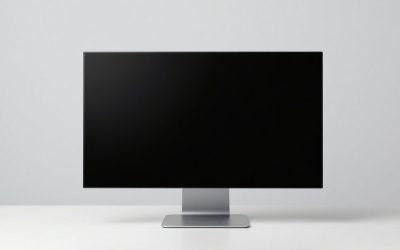
The safest way to clean a monitor is also the simplest: switch it off, unplug it, wipe with a dry microfiber cloth, and only if smudges remain, use a cloth lightly dampened with distilled water. Never spray anything directly onto the screen, and skip glass cleaner entirely. Most monitor panels carry thin coatings, and the wrong liquid or too much pressure can cause cloudy patches that no amount of rubbing will remove. The sections below explain the method, the reasons behind each step, and what to do when a mark turns out to be more than a smear.
The safe method, step by step
Gather a clean, dry microfiber cloth, a second cloth you can dampen, and a small bottle of distilled water. Distilled water is preferred because tap water can leave mineral spots as it dries. Work in a bright room so you can see streaks as you go.
- Power down and unplug. Turn the monitor off, disconnect the power cable, and let it cool for a few minutes. A black screen makes dust and fingerprints easy to spot.
- Dust first. Fold the dry cloth into a pad and wipe the screen in one direction, top to bottom, using almost no pressure. Gritty dust dragged around under pressure is what scratches coatings, so the goal is to lift it, not scrub it.
- Dampen the second cloth, not the screen. Add a few drops of distilled water to the cloth and wring it until it feels barely moist. If water would drip when squeezed, it is too wet.
- Wipe gently. Use light, overlapping strokes in a single direction. For a stubborn spot, make small gentle circles, then return to straight strokes.
- Dry immediately. Follow with a dry area of the first cloth to remove any trace of moisture, especially along the edges where liquid can creep under the bezel.
- Let it air for a few minutes before plugging in and powering on.
Check the manual too. Some manufacturers publish their own approved cleaning instructions, and following those keeps your warranty position clear.
Why “just use glass cleaner” is bad advice
Household glass cleaners are designed for hard glass windows. A monitor panel is a layered assembly: the outer surface may carry an anti-glare film, an anti-reflective coating, or a thin protective plastic layer rather than hard glass at all. Chemicals commonly found in window sprays can attack those layers, leaving a hazy or patchy look.
There is also a mechanical problem. Spray cleaners travel. Mist and run-off can reach the gap between the panel and the bezel, where liquid may wick toward electronics or collect behind the surface. A damp cloth keeps moisture where you control it.
Finally, strong solvents can strip the oleophobic (fingerprint-resistant) layer on certain glossy screens. After that happens, fingerprints smear more easily and the screen looks perpetually dirty. Prevention costs nothing here: stick to water unless the manufacturer states otherwise.
Five things to keep off the screen
- Ammonia-based products. Common in window cleaners and known to harm coatings.
- High-strength alcohol or solvent wipes. Check the manual before using any, as many makers say not to.
- Paper towels and tissues. The fibers are rougher than they feel and can leave fine scratches or lint.
- Abrasive pads or erasers. These wear away the surface treatment directly.
- Excess liquid of any kind. Water is gentle on coatings but not on electronics at the edges.
Also avoid pressing hard with fingertips while wiping. LCD layers can show pressure marks, which appear as bright or discolored patches and may not go away.
Match the method to the mark
| What you see | Likely cause | Start with |
|---|---|---|
| Light dust, fine speckles | Static attracting dust | Dry microfiber, one direction |
| Fingerprints, oily smears | Skin oil | Barely damp cloth with distilled water, then dry |
| Dried splashes or specks | Droplets from drinks or sneezes | Dampen the spot gently, wait a few seconds, then wipe |
| Streaks after cleaning | Cloth too wet or dirty | Use a fresh dry cloth and a lighter touch |
| Cloudy patch that stays | Coating damage or pressure mark | Stop, see the next sections |
Keep a mental ladder in mind: dry first, damp second, and nothing stronger unless the manufacturer’s instructions say so.
Matte, glossy and touch screens
Matte (anti-glare) screens have a slightly textured surface that scatters reflections. That texture is the first thing damaged by pressure and rubbing, so use the lightest touch and fewest passes you can. Glossy screens show fingerprints more but usually tolerate a gentle damp wipe well. Touch-enabled monitors are built to be handled, though the same rules on cloths and liquids apply, and the manual may name an approved cleaner. When the instructions for your model differ from this general advice, trust the instructions.
Cleaning the frame, stand and vents
The screen gets all the attention, but the rest of the monitor collects dust too. With the power unplugged, wipe the bezel and stand with a barely damp cloth and dry them afterward. For vents and ports, use a soft dry brush or short bursts of air from a distance rather than a cloth, so lint does not get pushed inside.
Do not spray cleaner into vents, and do not open the casing to clean inside. Monitors contain parts that can hold an electric charge even after being unplugged, so internal cleaning belongs to the manufacturer or a qualified technician. Cable connectors should only be handled while everything is disconnected from power.
Cleaning a monitor screen by the numbers
A few rough figures help you build a routine. These are practical guidelines, not official standards.
| Item | Suggested amount |
|---|---|
| Cooling time before wiping | about 5 minutes |
| Water on the cloth | a few drops, cloth barely moist |
| Wiping pressure | about the weight of the cloth itself |
| Dry dusting frequency | every week or two in a normal room |
| Damp wipe frequency | only when marks are visible |
| Drying time before power-on | a few minutes, until no moisture remains |
As a worked example, picture a household with a desk monitor used daily by two people. A reasonable plan is a 30-second dry wipe every Sunday, plus a damp wipe once a month or after visible smears. That limits contact with the coating to a handful of light passes per month instead of scrubbing it every day.
A one-minute cleaning checklist
- Power off and unplug.
- Remove rings or jewelry that could scratch the surface.
- Check the cloth for grit by rubbing it between clean fingers.
- Dust dry, top to bottom.
- Dampen the cloth, never the screen.
- Dry, wait, then reconnect.
When a mark is more than dirt
Sometimes cleaning reveals a problem instead of fixing one. Cloudy blotches that stay after drying, bright spots that shift when you press near them, or discolored patches with a soft edge may indicate pressure damage or moisture trapped inside the panel. Dead or stuck pixels do not wipe off either, since they sit within the panel.
If liquid ran behind the bezel, unplug the monitor, leave it off and upright in a dry place, and contact the manufacturer for guidance instead of switching it on to see what happens. Check your warranty terms; spills are commonly excluded, but it does no harm to ask.
The bottom line
Dry cloth, damp cloth, gentle strokes, and patience. That sequence handles nearly every real-world screen, and it does so without risking the coating. Keep spray bottles away from the display, skip household cleaners, and treat any mark that survives a careful wipe as a possible hardware issue rather than something to scrub harder.
Related guides
- Nvidia Control Panel Best Settings For Gaming
- How To Test Gpu Stability After Overclocking
- Cpu Cores And Threads For Gaming Explained
Frequently asked questions
Can I use isopropyl alcohol on a monitor screen?
Many manufacturers advise against it, and some explicitly forbid it, because alcohol and other solvents can dull or strip anti-glare and anti-fingerprint coatings. If the manual for your model approves a specific diluted cleaner, follow that wording exactly. Otherwise, start with a dry microfiber cloth, then a cloth slightly dampened with distilled water, which is the gentlest option for most screens.
Is it safe to wipe a monitor while it is turned on?
It is better to switch the monitor off and unplug it first. A dark screen shows dust and smears much more clearly, so you can see what you are cleaning. Unplugging also removes any risk from moisture near ports or vents. Let the panel cool for a few minutes before wiping, and let it dry completely before you plug it back in.
What is the best cloth for cleaning a monitor?
A clean, soft microfiber cloth, ideally one reserved for screens, is the usual recommendation. Avoid paper towels, tissues and kitchen cloths, which can leave lint or fine scratches on coatings. If a cloth gets gritty, wash it without fabric softener, let it air dry, and keep it in a sealed bag between uses so dust does not settle into the fibers.
How often should I clean my monitor?
There is no single schedule, but a light dry dusting every week or two and a damp wipe when smudges appear is a common routine. Dusty rooms, shared desks, touch-heavy use and pets all raise the frequency. Cleaning only when you notice marks keeps contact with the coating to a minimum, which is helpful for delicate anti-glare layers.
What if I see marks that will not wipe off?
Check whether the mark is on the surface or beneath it. Run a fingernail lightly across it, or view it from an angle. Surface smears should come off with the damp-cloth method. Marks that stay, move with pressure, or look like cloudy blotches may be pressure damage or moisture inside the panel, and need the manufacturer or a qualified technician.