ReadyBoost is a Windows feature that lets you plug in a USB flash drive and use it as an extra cache to speed up a slow system. It was genuinely useful in the era of 5400 rpm laptop hard drives and 2 GB of RAM. On any machine with an SSD or a healthy amount of memory, it is a relic, and Windows will usually refuse to enable it at all.
As an Amazon Associate we earn from qualifying purchases at no extra cost to you.


Our Top Picks
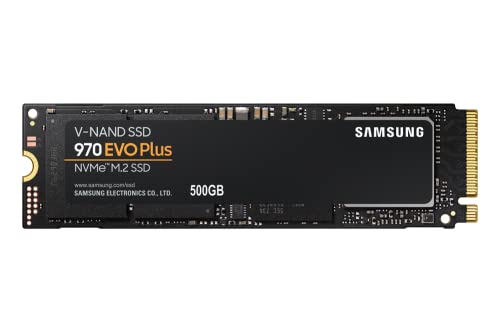
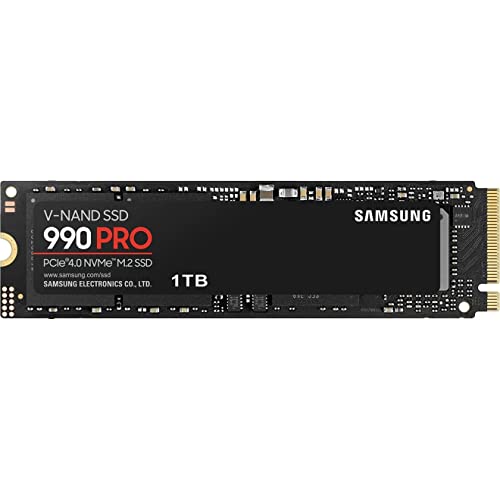

Top 3 picks at a glance
How ReadyBoost was supposed to help
The idea was clever: flash memory has far better random-access latency than a spinning platter, so caching small, frequently read files on a USB stick let the system fetch them without waiting for the slow disk head to seek. Windows encrypted and compressed the cache, and treated it as a supplement to the page file.
Why it is irrelevant on an SSD
A solid-state drive already has random-access latency measured in microseconds, orders of magnitude faster than any USB flash drive. Caching data from a fast internal SSD onto a slower external stick would make things worse, not better, which is exactly why Windows greys out the option and tells you the drive is already fast enough.
The numbers that killed it
| Storage | Random read latency | Random 4K speed |
|---|---|---|
| 5400 rpm HDD (2008 laptop) | ~12 ms | ~0.5 MB/s |
| Typical USB 2.0 flash drive | ~1 ms | 3-5 MB/s |
| SATA SSD | ~0.1 ms | 30-50 MB/s |
| NVMe SSD | ~0.02 ms | 60-90 MB/s |
Against a hard drive, even a cheap USB stick was a step up for random reads. Against any SSD, the flash drive is far slower, so the cache offers nothing.
What to do instead
If a PC feels sluggish, the real fixes are adding RAM so the system stops paging, and replacing a mechanical boot drive with an SSD. Either upgrade dwarfs anything ReadyBoost ever delivered. On a machine that still runs a hard drive and cannot be opened, ReadyBoost with a fast USB 3.0 stick can shave a little off boot and app-launch times, but it is a last resort.
Does it wear out the flash drive?
Yes. Constant caching writes can wear a cheap USB stick within a year or two, and because it is consumer-grade flash with no serious controller, failure is common. That is another reason the feature faded once SSDs became affordable.
A quick history
ReadyBoost launched with Windows Vista in 2007, alongside SuperFetch, as part of a push to make hard-drive systems feel snappier by leaning on flash and spare RAM. At the time, SSDs cost a fortune and most laptops shipped with slow 4200 or 5400 rpm drives, so a USB stick genuinely filled a gap. The technology was sound for its moment; the moment simply passed.
If you still run a hard-drive PC
On an aging laptop that cannot take an SSD and is maxed on RAM, ReadyBoost with a fast USB 3.0 stick can shave a second or two off app launches. Use a high-quality drive, plug it into a USB 3 port, and let Windows size the cache automatically. Just keep expectations low, and understand that the moment you can fit an SSD, that upgrade makes ReadyBoost irrelevant overnight.
Quick reference
Where ReadyBoost stands today:
- It only helps a hard-drive system that cannot take an SSD or more RAM.
- Windows greys it out on SSD boot drives because the feature would slow things down.
- It is a disk cache, not extra memory; it cannot substitute for physical RAM.
- Constant caching can wear out a cheap USB stick within a year or two.
- Adding RAM or an SSD beats anything ReadyBoost ever delivered.
FAQ
Can I use ReadyBoost to add more RAM?
No. ReadyBoost is a disk cache, not memory. It cannot substitute for RAM, and if your system is short on memory the only real fix is installing more physical DIMMs.
Why does Windows say my device cannot be used for ReadyBoost?
Either your system drive is already an SSD, so the feature is pointless, or the USB stick is too slow to meet the minimum random-read threshold. In both cases Windows blocks it deliberately.
Bottom line
ReadyBoost still technically exists in Windows, but it only helps a hard-drive system that cannot get more RAM or an SSD. On any modern SSD machine it is disabled for good reason. Spend the money on memory or a solid-state drive instead; there is no scenario where a USB cache beats those upgrades.









