A brand-new SSD often shows up as unallocated space that Windows ignores until you initialize and format it. The two decisions that trip people up are the partition style, GPT or MBR, and the allocation unit (cluster) size. Get them right once and you never think about it again; get them wrong and you can cap a drive at 2TB or waste space on tiny files.
As an Amazon Associate we earn from qualifying purchases at no extra cost to you.


Our Top Picks
 Samsung 870 EVO SATA SSD 250GB 2.5” Internal0.25TB3.94 x 2.76 x 0.27 inches0.13 poundsCheck on Amazon


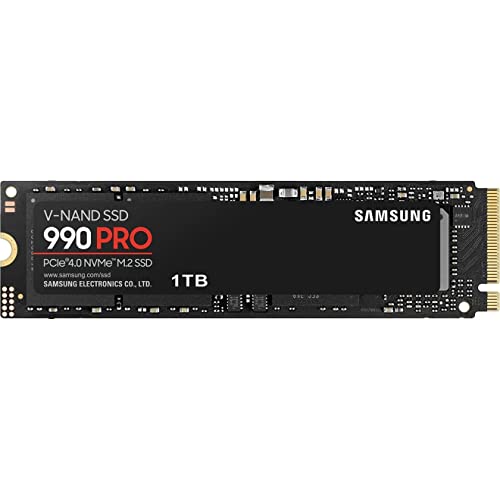
Top 3 picks at a glance
GPT vs MBR: Which Partition Style?
MBR (Master Boot Record) is a 1980s standard. GPT (GUID Partition Table) is the modern replacement and is what you want on essentially every SSD built in the last decade.
Why GPT Wins for Modern Systems
MBR cannot address more than 2TB on a single partition and supports only four primary partitions. GPT handles drives up to 9.4 zettabytes, allows 128 partitions, and stores backup copies of the partition table for resilience. Windows also requires GPT to boot a drive in UEFI mode, which is standard on every board sold today.
When MBR Still Makes Sense
Only if you must boot a very old system in Legacy BIOS mode, or share a small drive with a machine from the Windows 7 era. For a gaming rig, choose GPT every time.
Allocation Unit Size Explained
The allocation unit is the smallest chunk of space the file system hands out. A 4KB cluster means even a 1-byte file consumes 4KB. Larger clusters reduce fragmentation overhead on huge files but waste space (“slack”) on thousands of small ones.
| Cluster Size | Best For | Trade-off |
|---|---|---|
| 4KB (default) | OS drive, general use, mixed files | Balanced; the safe default |
| 8-16KB | Game library, large media | Slightly less slack on big files |
| 64KB | Video scratch, single huge files | Wastes space on small files |
For 95% of gamers, the 4KB NTFS default is correct. It matches the SSD’s internal page handling well and keeps small-file overhead low. Only reach for 64KB on a dedicated video-editing scratch disk full of multi-gigabyte clips.
Step-by-Step: Formatting in Windows
1. Initialize the Disk
Open Disk Management (right-click Start), find the new disk, and when prompted choose GPT. If it is already initialized as MBR and empty, right-click and “Convert to GPT.”
2. Create and Format the Volume
Right-click the unallocated space, choose New Simple Volume, assign a drive letter, pick NTFS, leave allocation unit at Default (4KB), give it a label, and tick Quick Format. A quick format on an SSD takes seconds and does not reduce lifespan.
3. Confirm 4K Alignment
Windows aligns partitions automatically on GPT drives, so you rarely need to check. Misalignment only haunts drives cloned from ancient MBR layouts.
Quick Format vs Full Format on SSDs
Use Quick Format. A full format writes zeros across the whole drive, which adds unnecessary write wear to an SSD and offers no benefit because SSDs handle bad-block management internally. Full format is a habit left over from mechanical drives.
Frequently Asked Questions
Does formatting an SSD shorten its life?
A quick format writes almost nothing, so the impact is negligible. Even dozens of quick formats are a rounding error against a modern drive’s 300-1,200 TBW endurance rating.
Can I change allocation unit size later without losing data?
Not without reformatting, which erases the partition. Decide before you fill the drive, or plan to back up, reformat, and restore if you must change it.
Formatting a Boot Drive vs a Data Drive
The steps above cover a secondary data drive you format from within Windows. A drive you intend to install Windows onto is handled differently: you point the Windows installer at the unallocated space and let it create the partitions, which automatically uses GPT in UEFI mode and lays down the hidden EFI and recovery partitions. You do not manually format a boot drive in Disk Management first. If you accidentally created an MBR partition and the installer refuses it, delete the partition inside the installer and let Windows rebuild it as GPT.
exFAT and Cross-Platform Drives
NTFS is the right choice for a Windows game or OS drive. Choose exFAT instead only for a portable SSD you move between Windows, macOS, and consoles, since NTFS is read-only on macOS by default. For an internal gaming drive there is no reason to stray from NTFS with the 4KB default cluster.
Bottom Line
Choose GPT, keep the 4KB default cluster size unless you are building a pure video scratch disk, and use Quick Format with NTFS. Those three defaults are right for nearly every gaming and productivity SSD, and they take under two minutes to apply in Disk Management.









