The best webcam for talking, whether in video calls, voice chat with friends or a streaming facecam, is the Logitech Brio 500 for most people, because it combines a sharp 1080p image, automatic light correction and a dual-mic array in one USB-C device. If you care most about image quality and own a separate microphone, the Elgato Facecam MK.2 is the cleaner pick. This guide treats the query as a search for webcams that make your face and voice come across well, and it focuses on the specs that decide that.
As an Amazon Associate we earn from qualifying purchases at no extra cost to you.

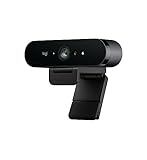
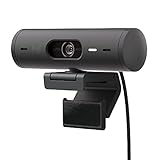
Our Top Picks
Top 3 picks at a glance
Quick comparison of the best webcams for talking
| Pick | Best for | Key specs (per manufacturer) | Price range |
|---|---|---|---|
| Logitech Brio 500 | Best overall for calls | 1080p, USB-C, dual mics, auto light correction, privacy shutter | Mid-range |
| Logitech C920s HD Pro | Best budget workhorse | 1080p at 30 fps, stereo mics, privacy shutter, USB-A cable | Budget |
| Logitech Brio 100 | Cheapest sensible upgrade over a laptop cam | 1080p at 30 fps, built-in mic, auto light balance, shutter | Budget |
| Elgato Facecam MK.2 | Best image for streaming | 1080p at 60 fps, HDR, uncompressed output, no built-in mic | Mid-range |
| Razer Kiyo Pro | Best in dim rooms | 1080p at 60 fps, large low-light sensor, built-in mic | Mid-range to premium |
| Insta360 Link | Best for moving around | 4K, 3-axis gimbal, AI tracking, built-in mics | Premium |
| OBSBOT Tiny 2 | Best for hands-free framing | 4K, gimbal tracking, voice control, built-in mics | Premium |
Best overall: Logitech Brio 500
The Brio 500 suits anyone who spends hours on calls and wants it to just work. Logitech’s RightLight processing adjusts exposure to your face, and the dual microphones with noise reduction are better than a typical laptop mic. It also has a privacy shutter and a USB-C connection. The trade-off is that it tops out at 1080p and is built for calls, so it is not the sharpest facecam for a polished stream.
Best budget: Logitech C920s HD Pro
The C920 family has been the default recommendation for years, and the C920s adds a privacy shutter. It outputs 1080p at 30 fps, which is enough for conversations. The downside is an older sensor that struggles in dim rooms, and its stereo mics pick up keyboard clatter and room echo. If you game with a headset anyway, this is a fine camera-only purchase. The newer Logitech Brio 100 is a lighter, simpler alternative with automatic light balancing, but it offers less field of view flexibility and fewer image controls.
Best for streaming image quality: Elgato Facecam MK.2
This is a camera-only device. According to Elgato, it has no built-in microphone, so you must pair it with a headset, USB mic or XLR interface. In return you get a fixed-focus 1080p60 image with HDR and a clean uncompressed signal, plus detailed settings in Elgato’s Camera Hub software. It suits streamers who already have a mic and want a consistent look. The trade-off is fixed focus and the extra cost of a separate mic.
Best for dim rooms: Razer Kiyo Pro
The Kiyo Pro uses a larger sensor than most 1080p webcams, so it produces less grain when you are lit by only a monitor. It supports 1080p at 60 fps and includes an adaptive light sensor and a built-in mic. If you play in a dark room, this is the pick that most reduces the need for a lamp. The trade-off is a premium over basic cameras. Razer also sells the Kiyo Pro Ultra with a 4K sensor, but it is substantially more expensive and demands a USB 3 port.
Best for moving around: Insta360 Link and OBSBOT Tiny 2
Both are 4K webcams with a motorized gimbal that follows your face, which helps if you stand, gesture or pace while talking. Each includes microphones, and both rely on companion software to control tracking and framing. The trade-offs are cost, heavier desktop software and a wider range of settings to learn. For a seated gamer, the tracking is overkill.
Worked example: why USB port and resolution matter
Webcams send either compressed video (MJPEG or H.264) or raw video over USB. Raw video bandwidth is width × height × bytes per pixel × frames per second.
- 1080p60, YUY2 (2 bytes per pixel): 1920 × 1080 × 2 × 60 ≈ 249 MB/s, or about 2 Gbps. USB 2.0 tops out at 480 Mbps, so this needs a USB 3 port.
- 1080p60, NV12 (1.5 bytes per pixel): about 187 MB/s, or roughly 1.5 Gbps. Still too much for USB 2.0.
- 1080p30, YUY2: about 124 MB/s, or roughly 1 Gbps. Also beyond USB 2.0 without compression.
- 4K30, YUY2: 3840 × 2160 × 2 × 30 ≈ 498 MB/s, or about 4 Gbps. This nearly fills a 5 Gbps USB 3.0 link, so a dedicated port is wise.
The practical takeaway: a camera that sends compressed video works on USB 2.0, but raw 1080p60 or 4K requires a direct USB 3 port. Avoid plugging a 4K webcam into an unpowered hub shared with an external drive and a capture card.
Decision matrix: match your situation to a pick
| Your situation | Pick | Reason |
|---|---|---|
| Work calls, no separate mic | Logitech Brio 500 | Dual mics plus auto light correction |
| Tight budget, headset already owned | Logitech C920s or Brio 100 | Adequate 1080p30 at low cost |
| Streaming with a USB or XLR mic | Elgato Facecam MK.2 | Clean 1080p60, no wasted mic |
| Dark room, monitor-lit face | Razer Kiyo Pro | Larger sensor handles low light |
| Standing desk or presenting | Insta360 Link or OBSBOT Tiny 2 | Gimbal tracking keeps you framed |
| Only USB 2.0 ports available | Any compressed 1080p30 model | Raw video will not fit the bandwidth |
How to choose: the criteria that matter
Microphone quality versus a separate mic
Webcam mics sit 50-80 cm from your mouth and pick up the room, keyboard and fan. A headset boom mic sits a few centimeters from your mouth, which gives a much better ratio of voice to background noise. Use the webcam mic for convenience and a headset or desk mic when your voice quality matters.
Field of view
Many webcams offer a field of view between 65 and 90 degrees. Around 78 degrees is a safe default for one person at a desk. A wider angle fits more of the room but adds edge distortion and shows more of your background.
Frame rate and light
Cameras often drop from 30 fps to 15 fps in dim light because they lengthen exposure. Light your face from the front with a lamp or panel at about 45 degrees. Good light matters more than moving from 1080p to 4K.
Mounting and privacy
Check that the clip fits your monitor’s thickness and that the camera has a 1/4-inch thread for an arm or tripod. A physical privacy shutter is an inexpensive safeguard.
Settings that improve any webcam
- Set the frame rate to 30 fps in dim rooms. This allows a longer exposure per frame, which reduces noise.
- Lock exposure and white balance manually once your lighting is set. Auto adjustments cause visible pumping when you move.
- Keep autofocus on unless you stay still. If the camera hunts, switch to manual focus.
- Place the camera at eye level. A low angle exaggerates the chin and makes your voice and face feel less engaged.
- Select the right mic in your app. Many apps default to the webcam mic even when a headset is connected.
Frequently Asked Questions
Is a 4K webcam worth it for talking?
Usually not. Most video call apps compress video to 720p or 1080p, so a 4K sensor mainly helps with cropping and tracking. A good 1080p camera with proper lighting looks better than a 4K camera in a dim room.
Are built-in webcam microphones good enough?
For casual calls, yes, especially on models with noise reduction like the Brio 500. For streaming, recording or noisy rooms, a headset or dedicated USB mic gives clearer voice and less echo.
Do I need USB 3.0 for a webcam?
Not for compressed 1080p30 video, which works on USB 2.0. For 1080p60 uncompressed output or 4K, a USB 3 port is recommended because the raw data rates exceed USB 2.0 limits.
Why does my webcam look grainy at night?
Small sensors need a lot of gain to brighten a dark scene, and that gain shows up as grain. Add front lighting, drop to 30 fps and lock exposure manually. A large-sensor camera like the Razer Kiyo Pro also helps.
Can I use my phone instead of a webcam?
Yes, many phones can act as webcams through built-in features or apps on Windows, macOS and Android. The picture is often excellent, but you need a stable mount and a power cable for long sessions, and the phone is tied up while in use.
Should I worry about webcam privacy?
Choose a model with a physical shutter or unplug it when idle. Also review which apps have camera permission in your operating system settings, since software access is the more common risk.
Related guides
More from Amazon
Programs that pair well with the guide above. Offers and eligibility are set by Amazon and may change.
A free business account with business pricing and bulk-buying tools for work, shop or home office.
Create a business accountFree shipping on eligible items, Prime Video and more. Eligible new members can start with a free trial.
Start a Prime free trialAudiobooks and podcasts to listen to on the go. Eligible new members can start with a free trial.
Try Audible freeAd-free music streaming. Eligible new subscribers can start with a free trial.
Try Music Unlimited freeAs an Amazon Associate we earn from qualifying purchases.


