The best webcam for most streamers in 2026 is a 1080p60 model such as the Elgato Facecam MK.2 or Logitech StreamCam, because smooth motion and clean exposure matter more than a 4K label. If you want automatic framing or a larger sensor, step up to the Insta360 Link or Obsbot Tiny 2. If you want a cheap and dependable option, the Logitech C920s or Brio 500 covers meetings and casual streams. This guide is built around decision criteria: lighting, USB bandwidth, frame rate and software control.
As an Amazon Associate we earn from qualifying purchases at no extra cost to you.

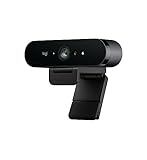


Our Top Picks
 Logitech C920x HD Pro PC Webcam with Microphone1 Pack2.8 x 1.7 x 3.7 inches0.4 poundsCheck on Amazon


Top 3 picks at a glance
Quick comparison of the picks
| Pick | Best for | Key specs (per manufacturer) | Typical price range |
|---|---|---|---|
| Elgato Facecam MK.2 | Best overall for streaming | 1080p60, HDR, fixed focus, privacy shutter, USB-C | $150–$200 |
| Logitech StreamCam | Best for vertical and mixed-use | 1080p60, autofocus, USB-C, portrait/landscape mount | $100–$170 |
| Razer Kiyo Pro | Best for dim rooms | 1080p, wide-aperture lens, adaptive light sensor, USB 3.0 | $100–$200 |
| Logitech Brio 500 | Best for meetings plus streaming | 1080p30, HDR, light correction, privacy shutter, USB-C | $100–$150 |
| Logitech C920s HD Pro | Best budget | 1080p30, autofocus, privacy shutter, USB-A | $50–$80 |
| Obsbot Tiny 2 | Best for movement and tracking | 4K30, AI tracking, gimbal, gesture control | $200–$300 |
| Insta360 Link | Best for desk demos | 4K30, larger sensor, 3-axis gimbal, USB-C | $250–$350 |
Start with the bandwidth math, not the resolution label
A webcam can only deliver the mode your USB port and cable carry. Uncompressed video needs a lot more bandwidth than most people expect. Here is the worked calculation for the common 4:2:0 (NV12) and 4:2:2 (YUY2) formats.
- 1080p60 NV12: 1920 × 1080 × 1.5 bytes × 60 = about 186.6 MB/s, or roughly 1.49 Gbps.
- 1080p60 YUY2: 1920 × 1080 × 2 bytes × 60 = about 248.8 MB/s, or roughly 1.99 Gbps.
- 1080p30 YUY2: about 124.4 MB/s, or roughly 1.0 Gbps.
- 4K30 NV12: 3840 × 2160 × 1.5 bytes × 30 = about 373 MB/s, or roughly 3.0 Gbps.
USB 2.0 tops out at 480 Mbps in theory and delivers far less in practice, so no camera sends uncompressed 1080p over it. Those cameras use MJPEG or H.264 compression, which adds a little latency and visible artifacts in low light. A 5 Gbps USB 3.x port can carry 4K30 NV12, but with little headroom if the port shares a hub with a capture card or SSD.
Two practical results follow. First, plug a 1080p60 or 4K camera into a direct motherboard port, not an unpowered hub. Second, if your camera drops to 30 fps or a lower resolution after a reboot, the port or cable is the first suspect.
Best overall: Elgato Facecam MK.2
The Facecam MK.2 is built for streaming. It outputs 1080p60 uncompressed, so you get no compression smear on fast hand movement, and it uses a fixed-focus lens, so it never hunts for focus mid-sentence. Elgato’s Camera Hub gives you manual control of exposure, ISO, white balance and more, and the settings are stored on the camera. The privacy shutter is a useful extra.
Trade-off: fixed focus means you must sit within the lens’s sharp range, and it needs a proper USB 3 connection to run in its best mode. It is not a 4K camera.
Best for vertical content and flexible mounting: Logitech StreamCam
The StreamCam offers 1080p60, autofocus, and a mount that works in landscape or portrait. That helps if you also make short-form vertical clips. It connects over USB-C and works with Logitech Capture and OBS.
Trade-off: the sensor is small, so it relies on good lighting. Its autofocus can drift if you move objects close to the lens.
Best for dim rooms: Razer Kiyo Pro
The Kiyo Pro uses a wide-aperture lens and an adaptive light sensor. It copes better than most budget cameras when the room is moody or lit mainly by a monitor. It also has a wide-angle option and runs over USB 3.0.
Trade-off: some modes rely on compression, and “better in low light” still does not replace a real key light. Razer also sells a higher-end 4K Kiyo Pro Ultra, which costs more and needs stronger USB bandwidth.
Best for meetings plus streaming: Logitech Brio 500
The Brio 500 is a 1080p30 USB-C camera with HDR, automatic light correction, a privacy shutter and a framing feature. It suits people who spend most of the day in calls and stream a few times a week.
Trade-off: 30 fps looks fine for talking but less smooth than 60 fps when you move.
Best budget: Logitech C920s HD Pro
The C920s has been a default recommendation for years because it is cheap, widely supported and works in OBS, Zoom and Teams without drivers. It delivers 1080p30 with autofocus and includes a privacy shutter.
Trade-off: the image is softer and noisier than newer cameras, and highlights clip easily. Good light fixes much of this.
Best for movement and tracking: Obsbot Tiny 2
The Obsbot Tiny 2 is a 4K30 gimbal camera that follows you with AI tracking and responds to hand gestures. It suits presenters, teachers, fitness streamers and anyone who leaves the chair.
Trade-off: the tracking motion can distract viewers if you fidget. It also costs a lot more than a fixed 1080p60 camera, and 4K tops out at 30 fps.
Best for desk demos: Insta360 Link
The Insta360 Link pairs 4K30 with a larger sensor and a 3-axis gimbal. It tilts down for a desk-view demo, tracks the subject and produces sharp footage when lit well.
Trade-off: price, and the need for a stable USB 3 connection to hold 4K.
Decision matrix: match your situation to a camera
| Your situation | Choose | Why |
|---|---|---|
| Fast gameplay with a facecam overlay | Facecam MK.2 or StreamCam | 60 fps keeps motion smooth next to 60 fps gameplay |
| Dim room, no key light | Razer Kiyo Pro | Larger aperture and light sensor |
| Mostly calls, occasional streams | Brio 500 | Auto light correction and shutter |
| Under $80 | C920s | Compatibility and price |
| You move around or present | Obsbot Tiny 2 | Tracking removes the need for a camera operator |
| Product or desk demos in 4K | Insta360 Link | Gimbal and sensor size |
| Only USB 2.0 ports free | Any, in a compressed 1080p mode | Uncompressed modes will not fit |
Settings that matter more than the camera
These values are starting points to adjust for your room.
- Frame rate: match 60 fps if your stream is 60 fps. A 30 fps camera in a 60 fps scene looks choppy by comparison.
- Shutter / exposure: aim for about 1/60 s at 30 fps and 1/120 s at 60 fps (the “double the frame rate” rule). Slower shutter speeds brighten the picture but blur movement.
- Gain / ISO: keep it as low as lighting allows. Raising it adds noise that your stream encoder then wastes bitrate on.
- White balance: lock it manually (about 4500–5600 K for neutral light) so the color does not shift as the screen content changes.
- Autofocus: disable it after you set focus, if the camera allows. Hunting is distracting on stream.
- Light placement: put a soft key light just above eye level and slightly off-axis, with the monitor as fill. A key light does more for image quality than moving from a cheap to a mid-range camera.
How to choose: a short checklist
- Check your USB ports first. A free 5 Gbps port on the rear I/O is ideal for 1080p60 or 4K.
- Decide whether you need 60 fps or 4K. Few streams show a facecam larger than a quarter of the frame, so 4K is rarely visible after platform compression.
- Look for a manual-control app that works with your operating system.
- Consider a privacy shutter if the camera stays plugged in.
- Budget for lighting and a sturdy mount alongside the camera.
Frequently Asked Questions
Is a 4K webcam worth it for streaming?
Usually not. Most platforms compress video heavily and the facecam occupies a small part of the screen. A well-lit 1080p60 camera generally looks better than a poorly lit 4K30 one. 4K helps if you crop in, track movement or record content for editing.
Why is my webcam stuck at 30 fps or low resolution?
The most common causes are a USB 2.0 port or a hub, low light that forces a long exposure, or an app that picks a compressed mode. Move the camera to a direct USB 3 port, add light, and choose the 60 fps mode in the camera’s software or OBS properties.
Should I use a webcam or a mirrorless camera?
A mirrorless or DSLR camera with a capture card gives the best image, with a larger sensor and better lenses. It costs more, needs a power solution and takes more setup. A good webcam with strong lighting is the simpler choice for most streamers.
Do I need special software?
No. All the cameras above work as standard USB video devices in OBS Studio, Zoom and Teams. Manufacturer apps like Elgato Camera Hub or Logitech software add manual controls and firmware updates. You only need to run them while adjusting settings.
Can a webcam record directly to my PC at high quality?
Yes, through OBS or similar software. For editing footage, record with a high bitrate and an efficient codec, and make sure the camera runs in an uncompressed or high-quality mode so you do not stack compression on compression.
Related guides
More from Amazon
Programs that pair well with the guide above. Offers and eligibility are set by Amazon and may change.
A free business account with business pricing and bulk-buying tools for work, shop or home office.
Create a business accountFree shipping on eligible items, Prime Video and more. Eligible new members can start with a free trial.
Start a Prime free trialAudiobooks and podcasts to listen to on the go. Eligible new members can start with a free trial.
Try Audible freeAd-free music streaming. Eligible new subscribers can start with a free trial.
Try Music Unlimited freeAs an Amazon Associate we earn from qualifying purchases.


