
If you are asking, “what size NVMe drive should I buy for boot,” the best answer for most desktops and laptops is a 1TB M.2 2280 NVMe SSD. It provides comfortable room for Windows, applications, updates, documents, and several large games without the immediate space pressure of a 500GB drive. A 500GB model is suitable for a basic boot drive, while 2TB makes sense for a gaming PC, workstation, or computer that stores photos and video locally.
Our Top Picks
 ASUS ROG Strix Arion Aluminum Alloy M.2 NVMeBlack|up to 10Gbps7.1 x 3.8 x 1.6 Inches0.2 poundsCheck on Amazon


Top 3 picks at a glance
The Short Answer
Choose the capacity based on how you use the computer:
As an Amazon Associate we earn from qualifying purchases at no extra cost to you.


- 250GB to 500GB: Affordable boot drive for Windows, web browsing, office software, and a small number of applications. A 500GB drive is the practical minimum for a new system.
- 1TB: The best all-around size for most users. It leaves useful free space after installing the operating system, programs, and games.
- 2TB: Best for gaming libraries, creative applications, photo collections, and users who want several years of breathing room.
- 4TB or more: Appropriate for large media libraries, professional video work, virtual machines, or a computer that will use one drive for both booting and storage.
Capacity is only half the decision. Confirm that your computer accepts the correct physical format, usually M.2 2280, and supports NVMe over PCIe. A drive can have plenty of storage but still be incompatible with a laptop or motherboard that requires a different length or interface.
Standard Sizes
NVMe drives are commonly sold as M.2 modules. The four-digit number describes the width and length in millimeters: the first two digits indicate the width, and the last two indicate the length. Most consumer drives are 22mm wide, while the length varies.
| Form factor | Dimensions in millimeters | Approximate dimensions in inches | Approximate dimensions in centimeters | Typical use |
|---|---|---|---|---|
| M.2 2230 | 22 × 30mm | 0.87 × 1.18in | 2.2 × 3.0cm | Handheld PCs, tablets, compact laptops |
| M.2 2242 | 22 × 42mm | 0.87 × 1.65in | 2.2 × 4.2cm | Small laptops and specialty systems |
| M.2 2260 | 22 × 60mm | 0.87 × 2.36in | 2.2 × 6.0cm | Less common laptops and older hardware |
| M.2 2280 | 22 × 80mm | 0.87 × 3.15in | 2.2 × 8.0cm | Most desktop and laptop NVMe SSDs |
| M.2 22110 | 22 × 110mm | 0.87 × 4.33in | 2.2 × 11.0cm | Some servers and enterprise workstations |
For a standard desktop motherboard, M.2 2280 is usually the correct choice. Capacity does not determine physical size: a 500GB, 1TB, and 2TB drive may all use the same 2280 dimensions. Thickness can vary, especially on double-sided drives or models with a built-in heatsink. Allow roughly 2.2 to 4mm of clearance unless your computer manufacturer specifies otherwise.
Prices change frequently, but typical consumer pricing ranges from about $35 to $70 for 500GB, $55 to $120 for 1TB, and $100 to $220 for 2TB. Premium PCIe 4.0 and PCIe 5.0 drives can cost more. A 500GB fanxiang PCIe 4.0 drive, for example, may be marketed for gaming and console expansion, but verify capacity, interface, and platform compatibility before buying.
How to Measure Your Space
- Shut down and unplug the computer. Disconnect the power cable and, for a laptop, follow the manufacturer’s battery-disconnection instructions when possible.
- Locate the M.2 slot. On a desktop, it is usually a flat connector on the motherboard near the processor or graphics card. A laptop may place the drive under a removable panel or shield.
- Look for mounting holes. The printed labels often show 2230, 2242, 2260, or 2280 positions. The screw post must line up with the drive’s semicircular mounting notch.
- Measure the available length. Measure from the connector to the farthest usable mounting post. An 80mm opening accepts a 2280 drive; a 30mm opening does not.
- Check vertical clearance. Measure above the slot for memory chips, a laptop cover, or a motherboard heatsink. Do not assume a thick aftermarket heatsink will fit.
- Confirm the key and interface. Most NVMe SSDs use an M key, but the slot must also support PCIe NVMe. Some M.2 slots accept only SATA drives, which look similar but use a different protocol.
- Read the manual before ordering. The motherboard or laptop manual is more reliable than a product photograph. It may also explain whether installing an M.2 drive disables certain SATA ports.
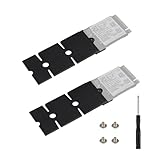
If your computer accepts only a short 2230 module, a 2230-to-2280 bracket can sometimes help in an enclosure or custom mounting situation, but an adapter does not create additional connector space or guarantee electrical compatibility. A metal extension bracket commonly costs about $8 to $15.
By Room or Use Case
Bedroom or Home Office Computer
A 500GB NVMe drive is adequate for email, web browsing, documents, video calls, and office software. Choose 1TB if the computer also stores downloaded photos, local media, or a large application library. Keeping at least 15% to 20% of the drive free helps maintain a comfortable working margin for updates and temporary files.
Gaming Room
Buy 1TB for a modest gaming library and 2TB if you regularly install modern games. Individual titles can occupy 50GB to more than 150GB, and the operating system and launchers also consume space. A PCIe 4.0 drive is a sensible choice for a current gaming desktop or laptop, but the computer must support that generation to use its full potential.
Creative Studio
For photo editing, music production, and occasional video work, start with 1TB and consider 2TB if active projects remain on the internal drive. Video editors may need 2TB to 4TB for source footage, cache files, previews, and exports. A separate external drive or network storage is still useful for backups because an NVMe SSD is not a backup system.
Compact Laptop or Handheld
Check the exact length before shopping. Compact devices frequently use M.2 2230 or 2242 drives rather than the familiar 2280 format. Capacity recommendations remain similar—500GB for basic use and 1TB for a comfortable everyday system—but the shorter drive may cost more or have fewer model choices.
Workstation or Server
Choose 2TB or more when the system hosts virtual machines, databases, engineering software, or large datasets. Confirm endurance ratings, cooling, and motherboard support rather than selecting solely by advertised speed. Full-length 22110 drives are specialized and are not a drop-in replacement for a 2280 module.
Common Sizing Mistakes
- Confusing physical size with storage capacity: “2280” means 22mm wide and 80mm long; it does not mean 2,280GB.
- Buying a 2280 drive for a 2230 slot: A longer drive cannot be safely bent or left unsupported.
- Ignoring double-sided clearance: Some thin laptops have room for chips on only one side of the module.
- Choosing 250GB to save a small amount: The usable space is lower after formatting and the operating system, leaving little room for updates.
- Assuming every M.2 slot is NVMe: M.2 is a shape, not a guarantee of PCIe compatibility.
- Adding a bulky heatsink in a laptop: Desktop heatsinks may prevent the cover from closing. For a laptop, use the original shield or a bare drive when required.
- Using an enclosure without checking the fit: NVMe enclosures commonly support 2230, 2242, 2260, and 2280 lengths, but confirm the listed key and protocol. Basic enclosures may cost about $10 to $25, while aluminum USB 3.2 Gen 2 models often range from $35 to $60.
FAQ
Is 500GB enough for a boot drive?
Yes, for Windows, everyday applications, and light storage. It is the minimum size I would recommend for a new boot drive. If you install several large games or creative applications, 1TB is a better value.
Is 1TB overkill for Windows?
Not usually. Windows itself does not require 1TB, but updates, applications, user files, and free-space headroom add up over time. A 1TB drive is the easiest recommendation for most buyers in 2026.
Should I buy PCIe 4.0 or PCIe 5.0?
Buy the generation your motherboard or laptop supports. PCIe 4.0 offers excellent everyday performance and broad compatibility. PCIe 5.0 drives can require more cooling and cost more, while their practical benefit depends on your workload.
Can I use an external NVMe drive as my boot drive?
Some computers support booting from a USB NVMe enclosure, but internal installation is generally simpler and more reliable. If you use an enclosure, verify USB boot support, the enclosure’s NVMe compatibility, cable quality, and adequate power. A portable drive should also be backed up because it can be lost or damaged.









